Choose pages and set where to read the sheet number
After uploading the PDFs you choose which pages become drawings and tell the system where on the sheet the number is.
How to complete pages and title block
- 01
Choose the pages
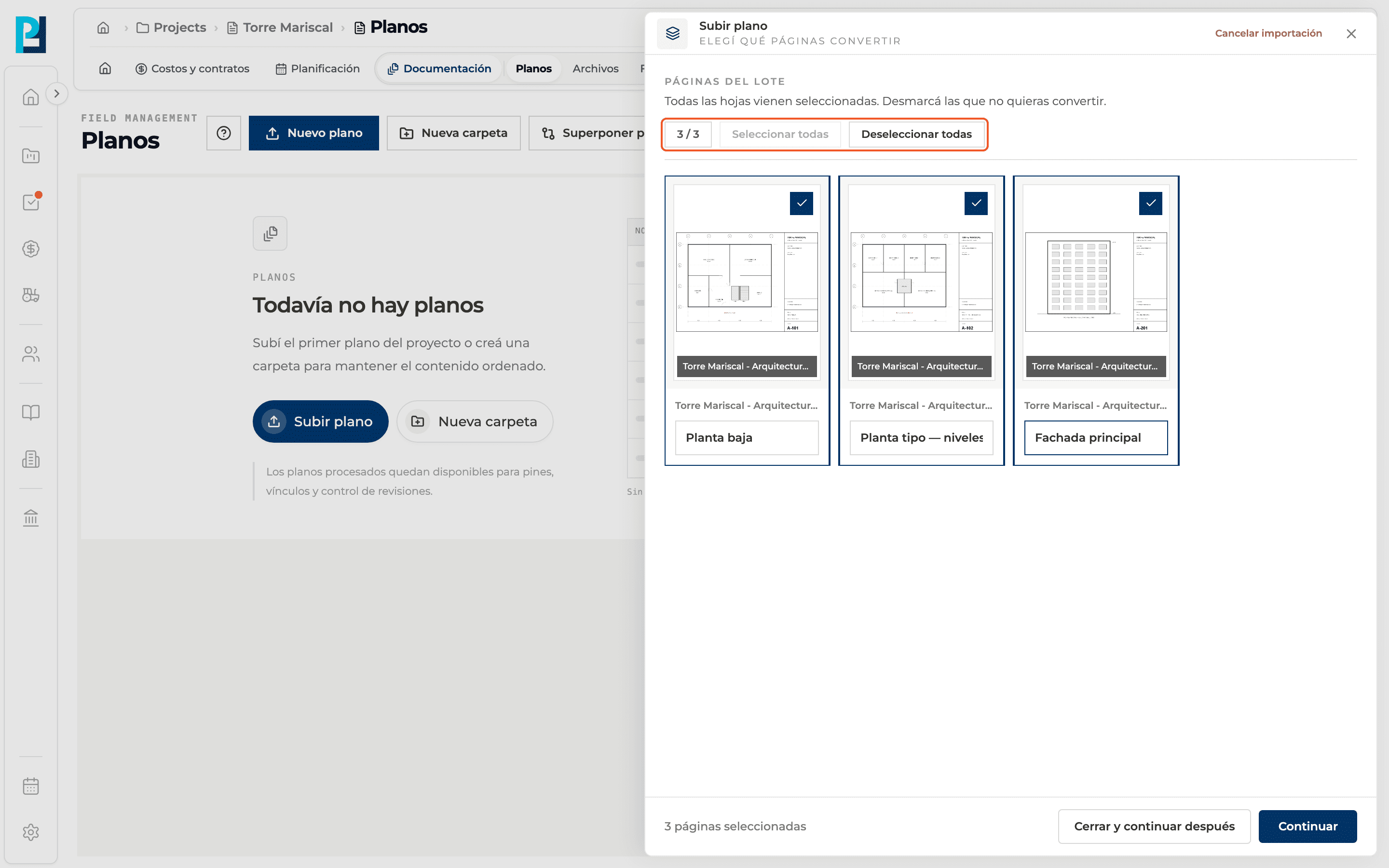
All sheets come selected. Untick the ones you don't want or use Select all / Deselect all. The counter shows how many you picked.
- 02
Name each page
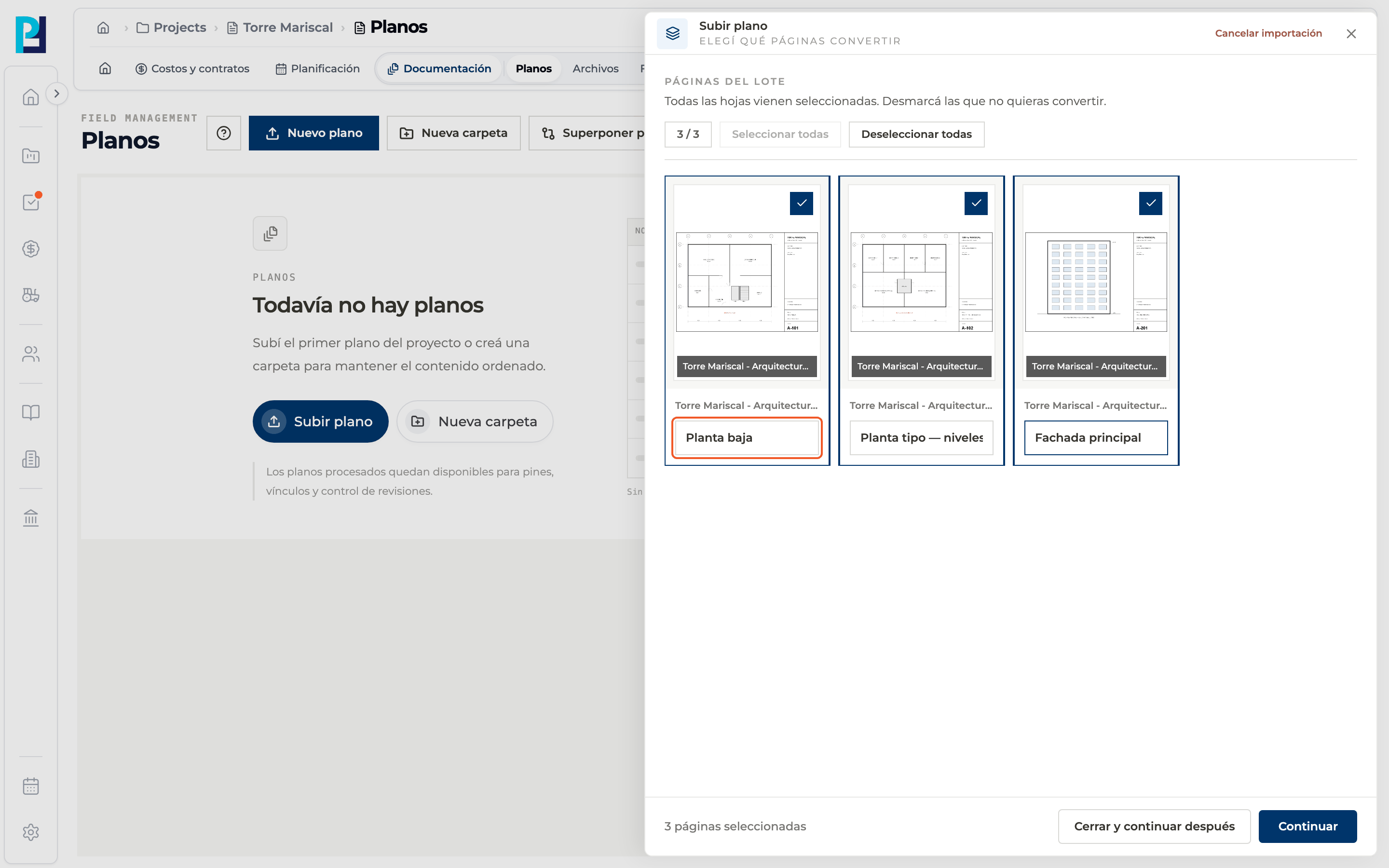
Under each thumbnail there is a field with a suggested name. You can edit it while the page is selected.
- 03
Continue
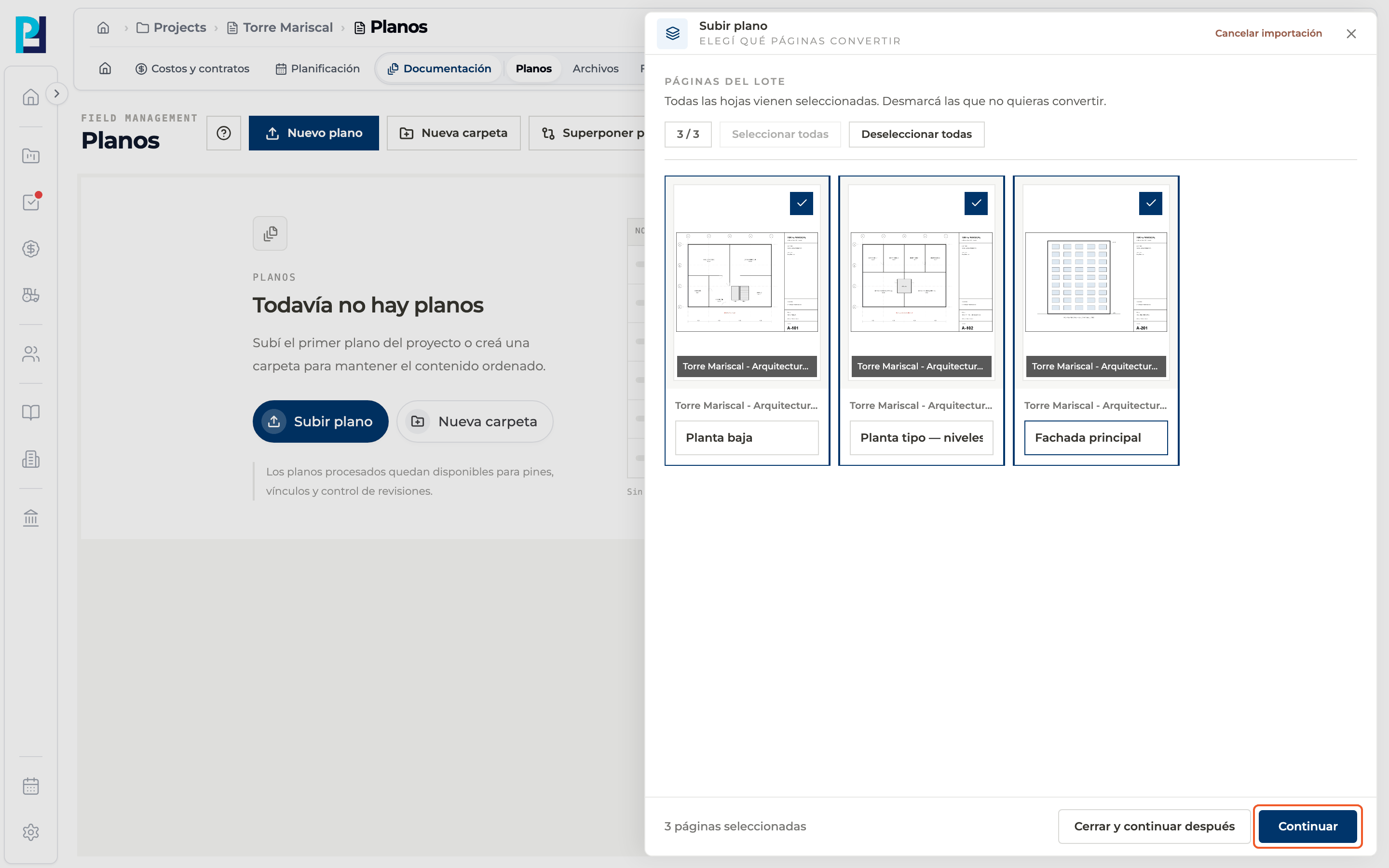
Click Continuar. To finish later, Close and continue later saves your progress.
- 04
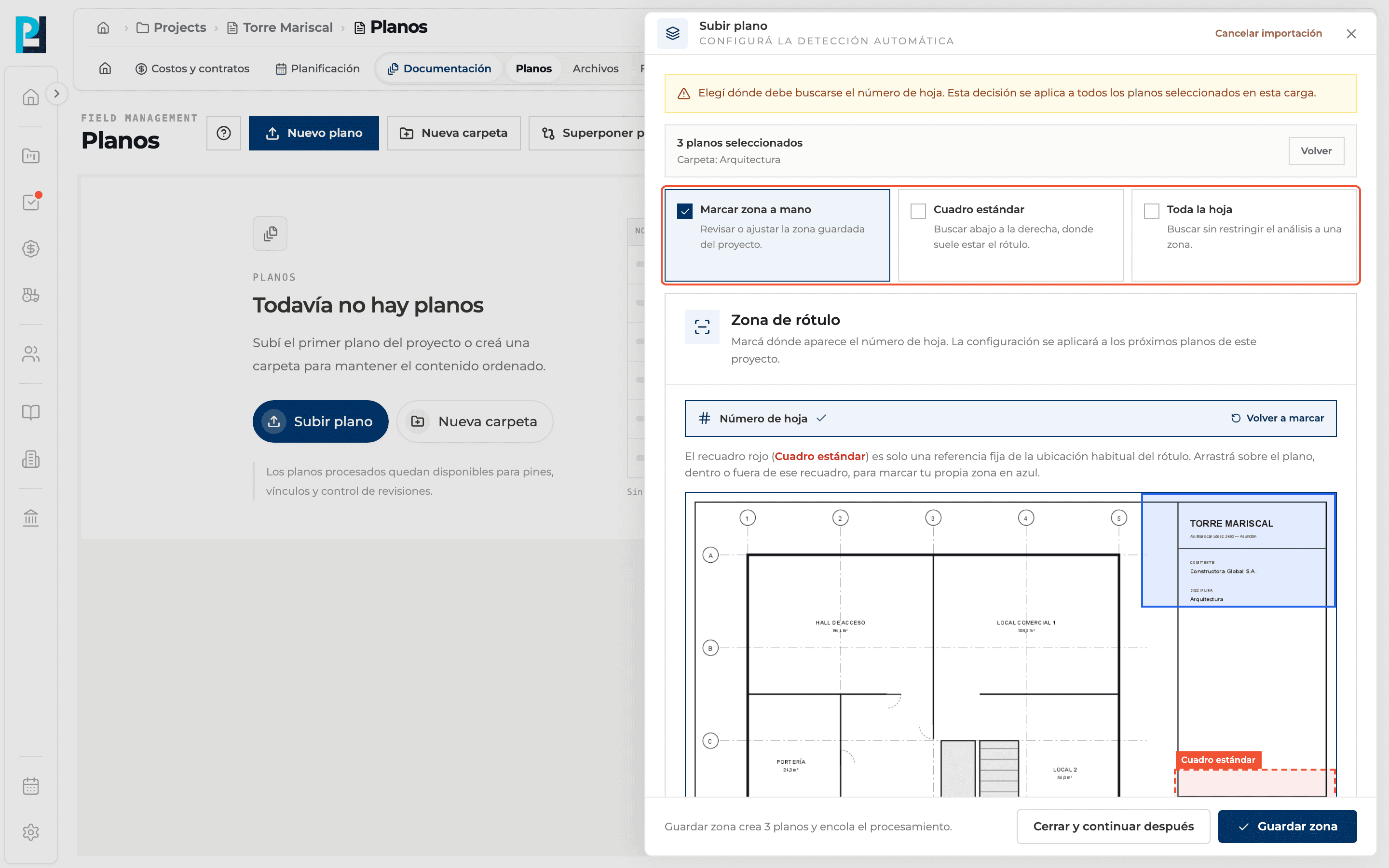
Choose the detection method
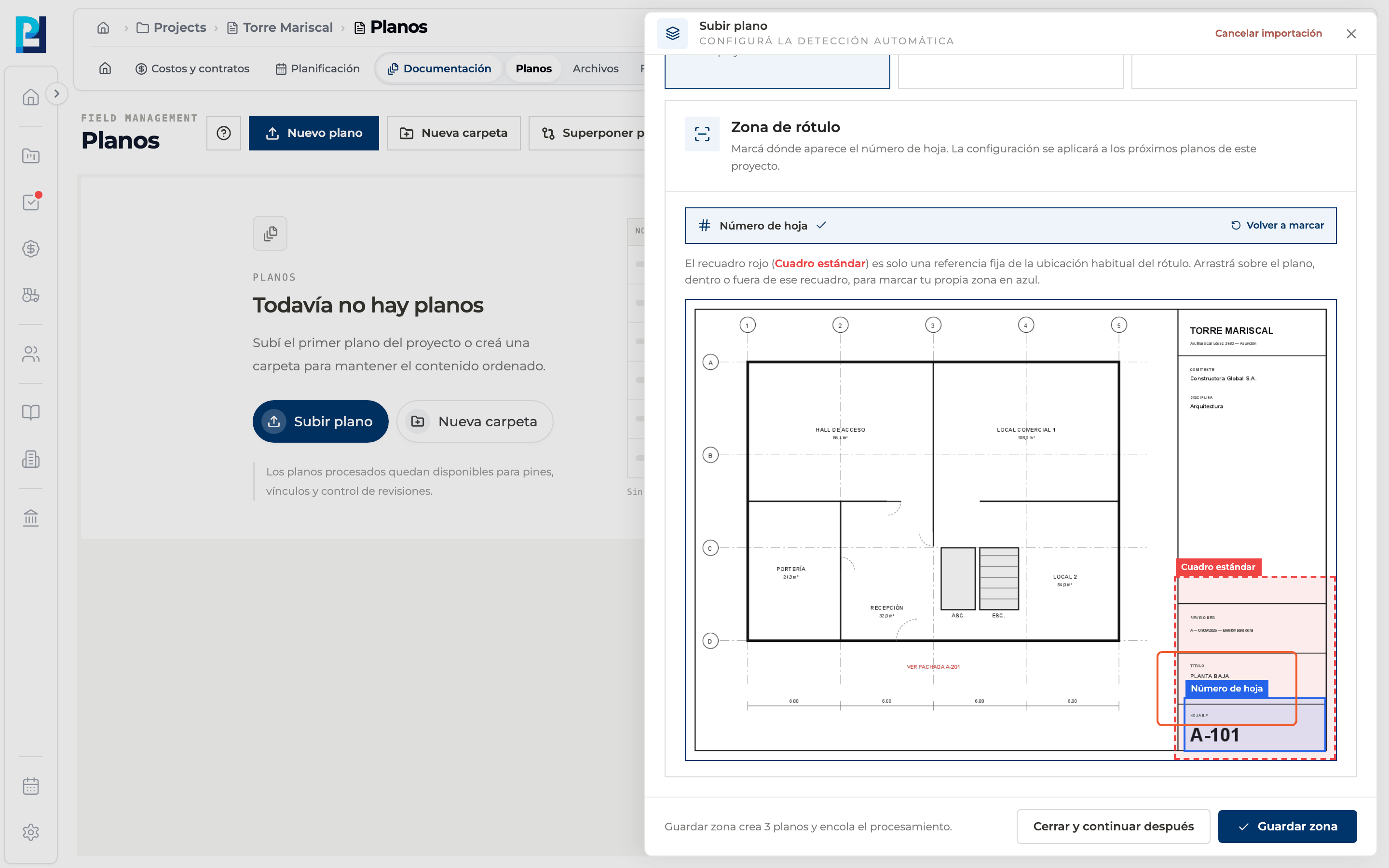
Mark zone by hand (on by default): you draw where the title block is. Standard box: looks in the bottom-right corner of each sheet. Whole sheet: reads all the text; slower and it may mistake other references for the number.
- 05
Mark the number zone
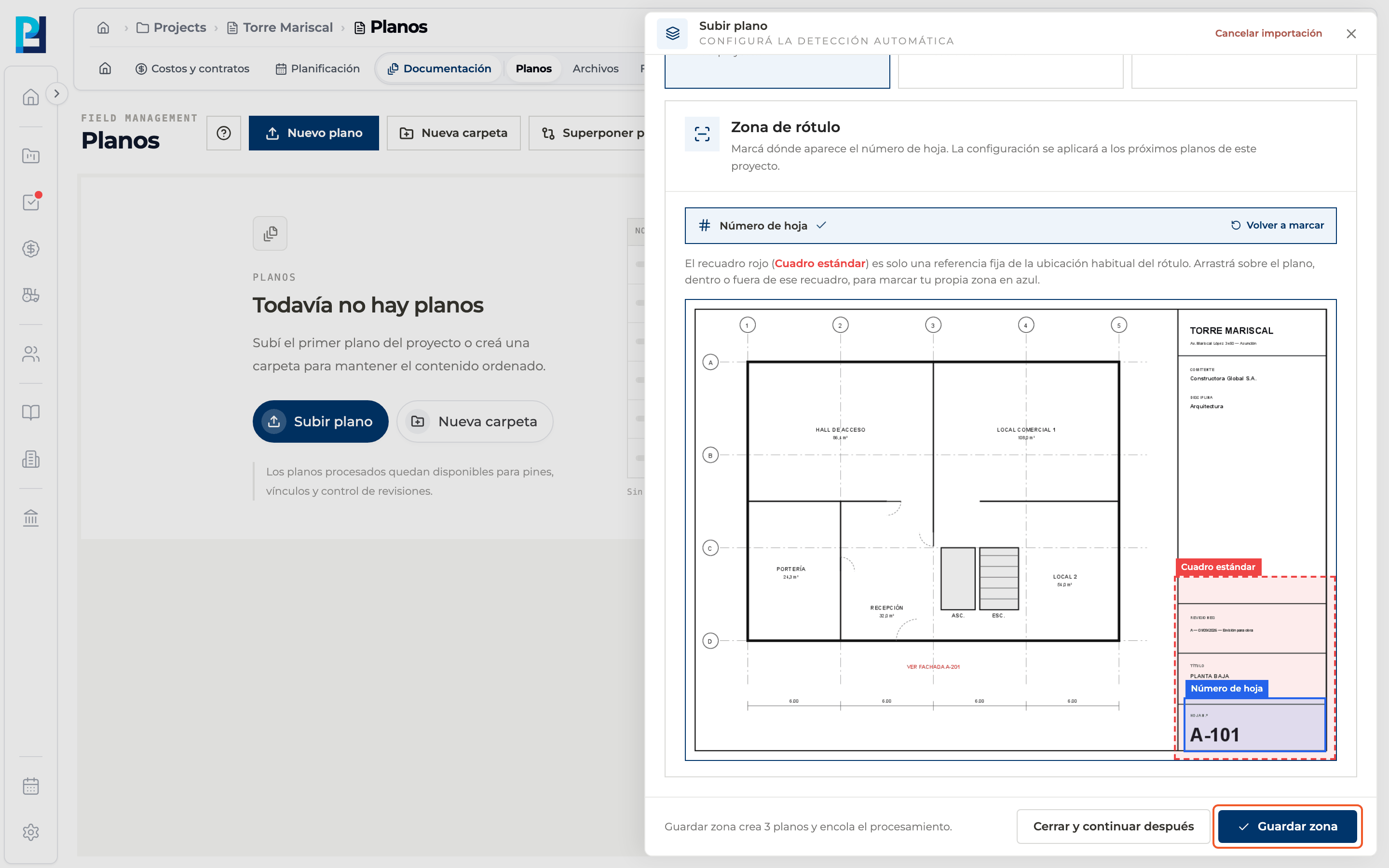
On the sample drawing, the red box is the standard box. Drag to draw, in blue, the zone that holds the sheet number. Volver a marcar (Mark again) clears it.
- 06
Save the zone
Guardar zona (Save zone) creates the drawings and queues them for processing. The zone is saved for the project.
- 07
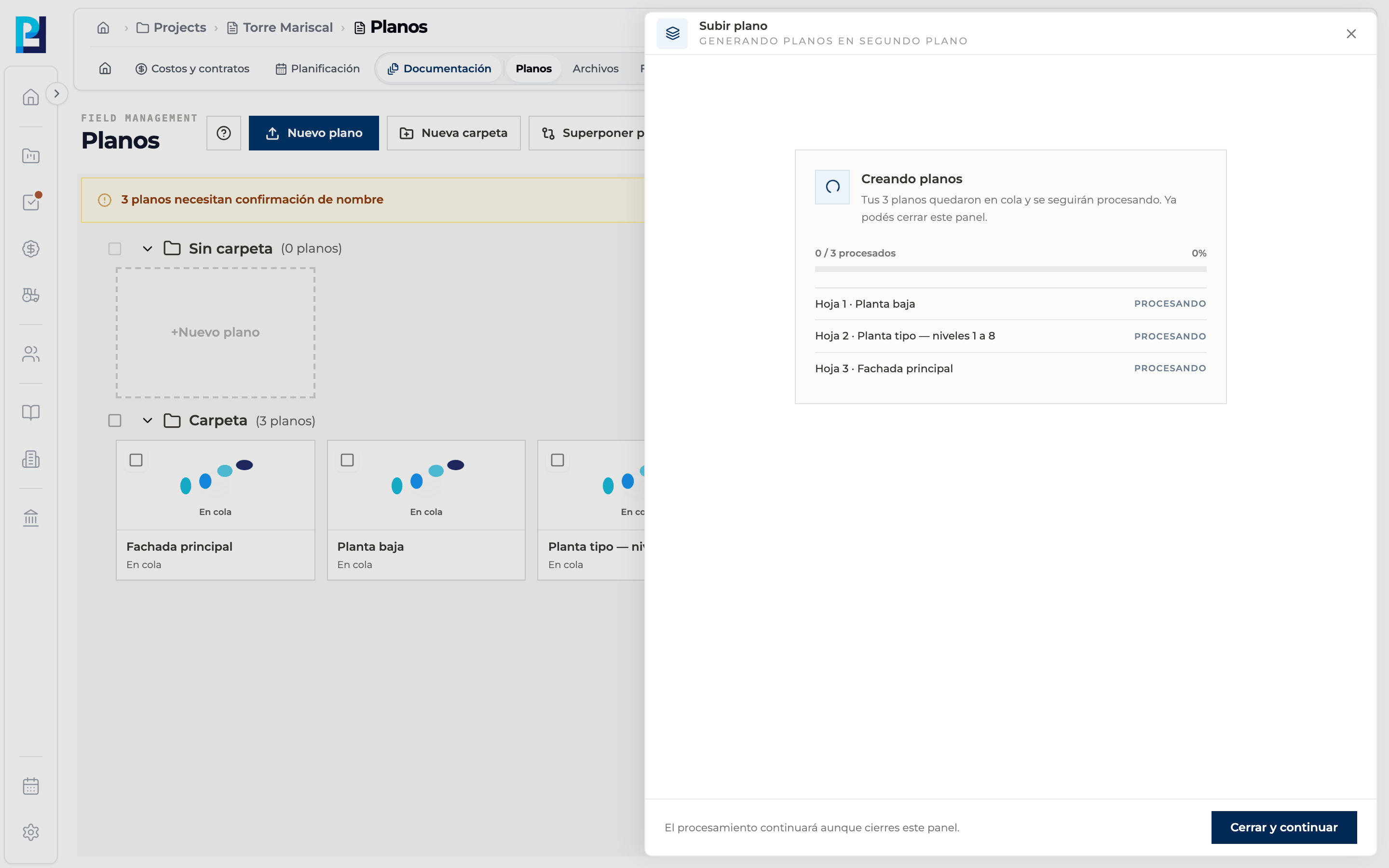
Wait for generation
The Creando planos screen shows each sheet's progress. You can close it: processing continues in the background.
- 08
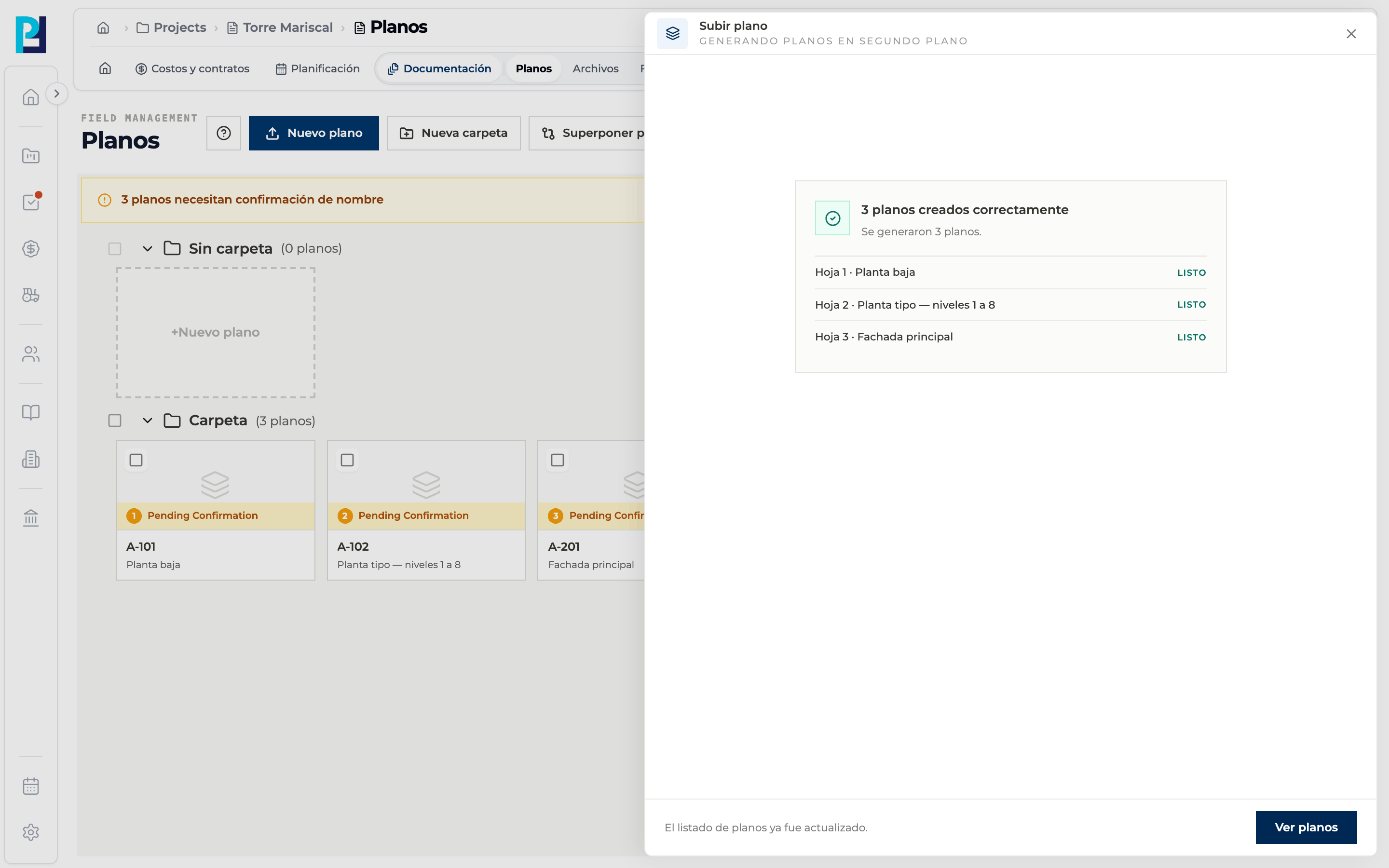
Finish
When everything is done you see how many drawings were created and the Ver planos (View drawings) button.
What you'll learn
How choose pages and set where to read the sheet number works inside Perfour.
What information you need and how it stays connected to Drawings.
How to preserve traceability and find the record later.
Frequently asked questions
«The marked zone is too small.»+
Draw a larger rectangle around the number.
Can I change the zone later?+
Yes, from Actions → Zona de rótulo del proyecto. The change applies to drawings you upload afterwards.
It asks for a folder name before saving.+
You chose New folder without a name. Go back one step and type it.