Browse the library: search, filter, switch views and read the statuses
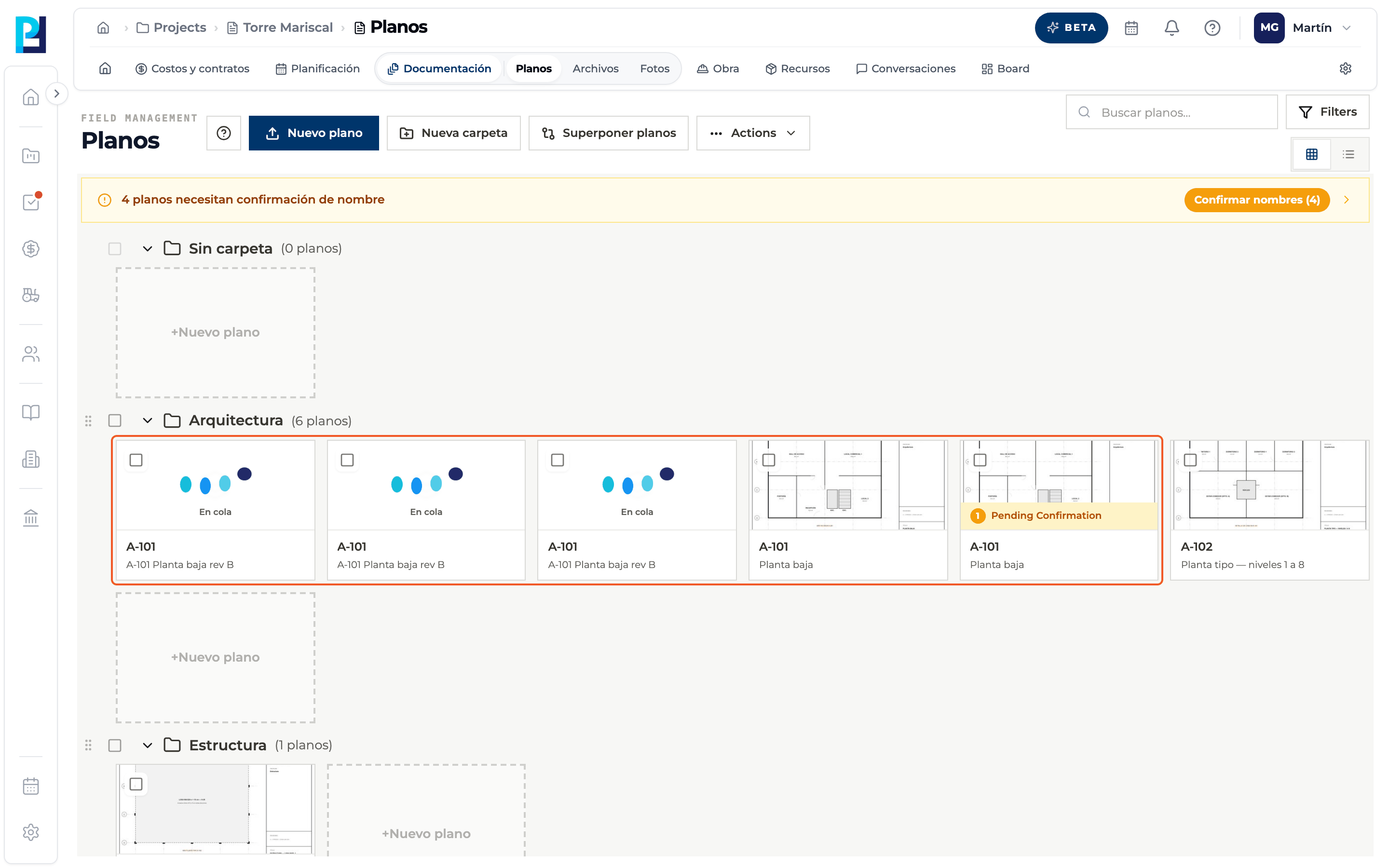
The library shows drawings grouped by folder, with search, a discipline filter and each drawing's processing status.
How to complete drawing library
- 01
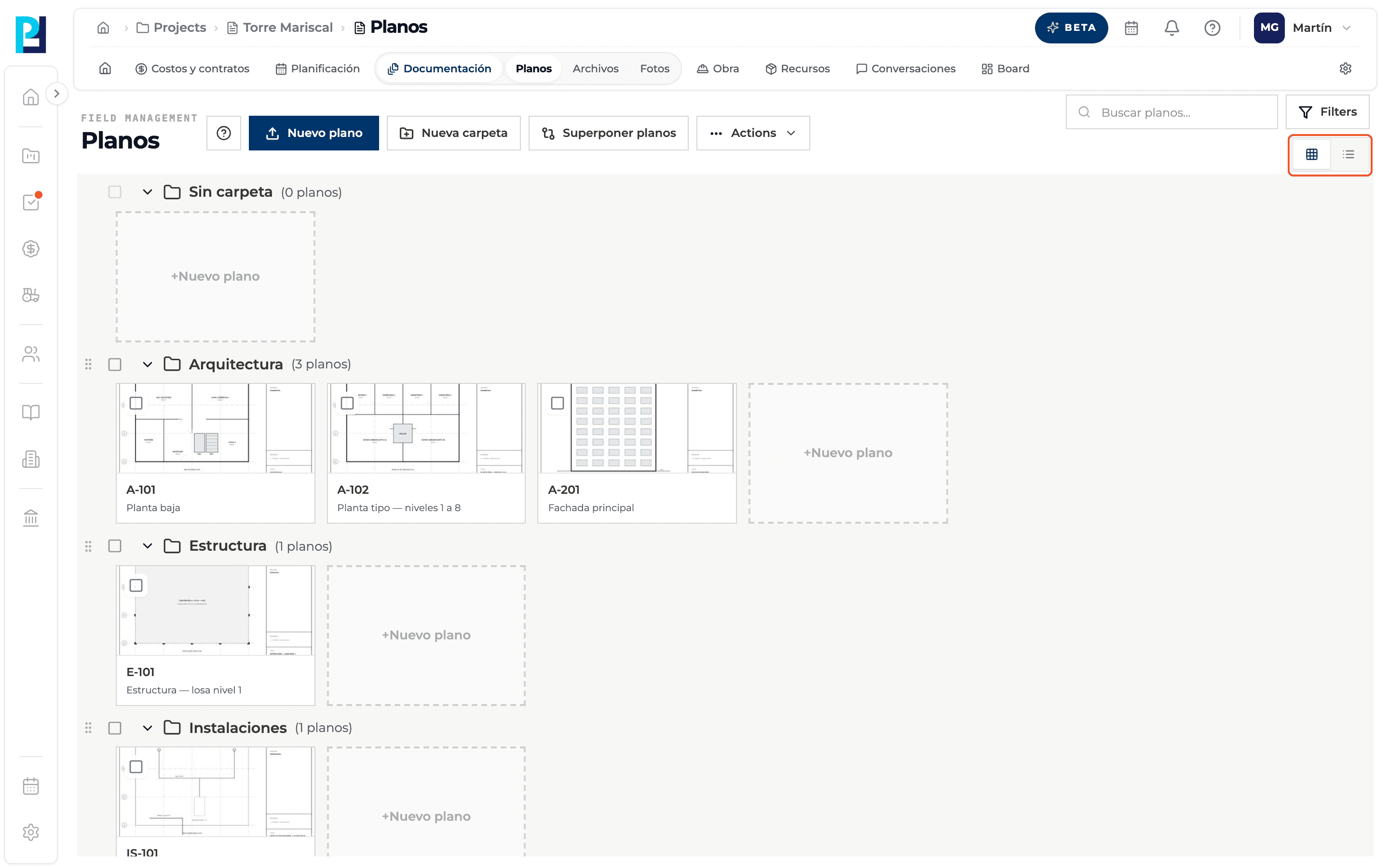
Choose the view
The buttons on the right switch between grid and list.
- 02
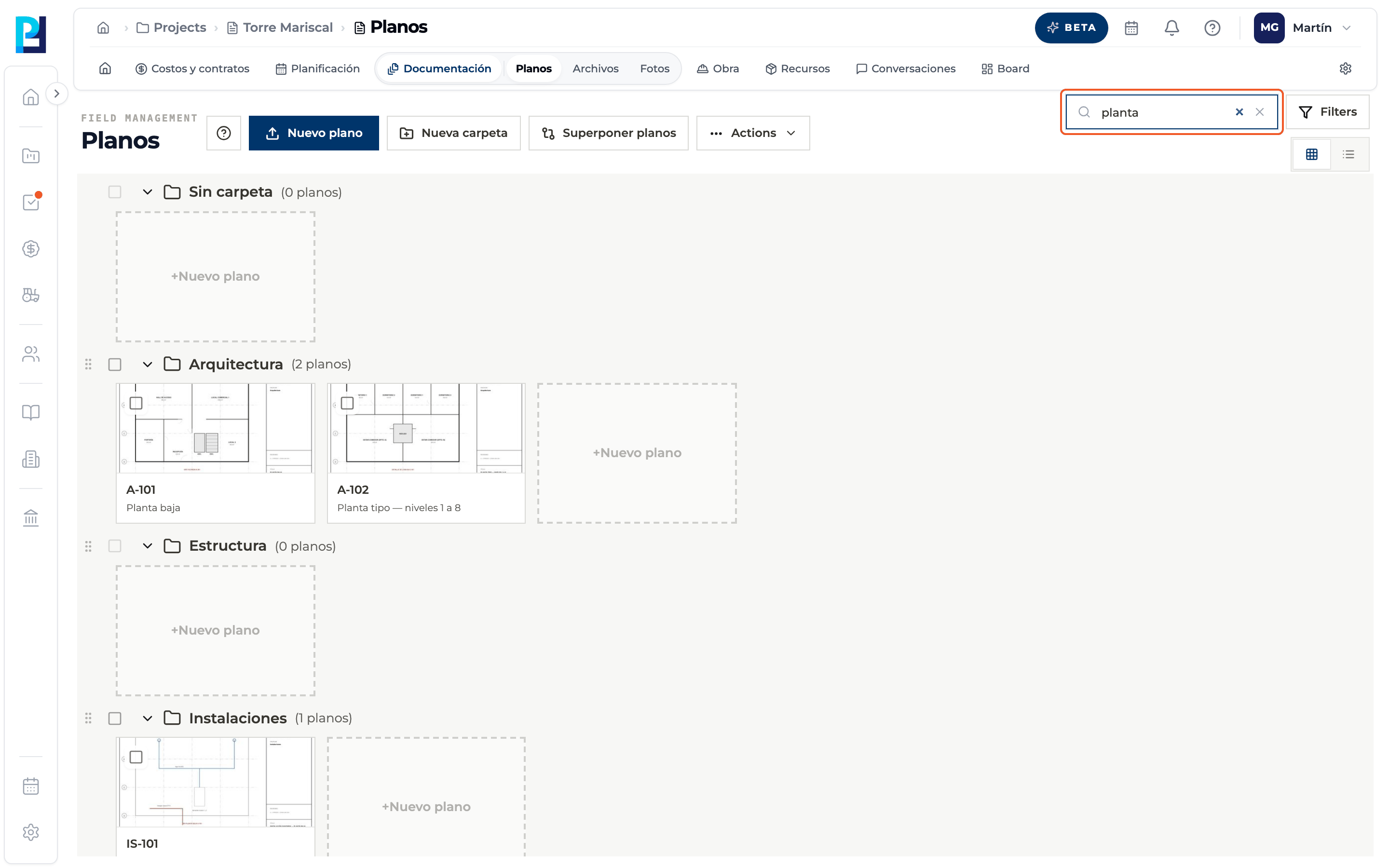
Search
The Buscar planos… (Search drawings) box filters as you type by name, sheet number, description and level. The X clears it.
- 03
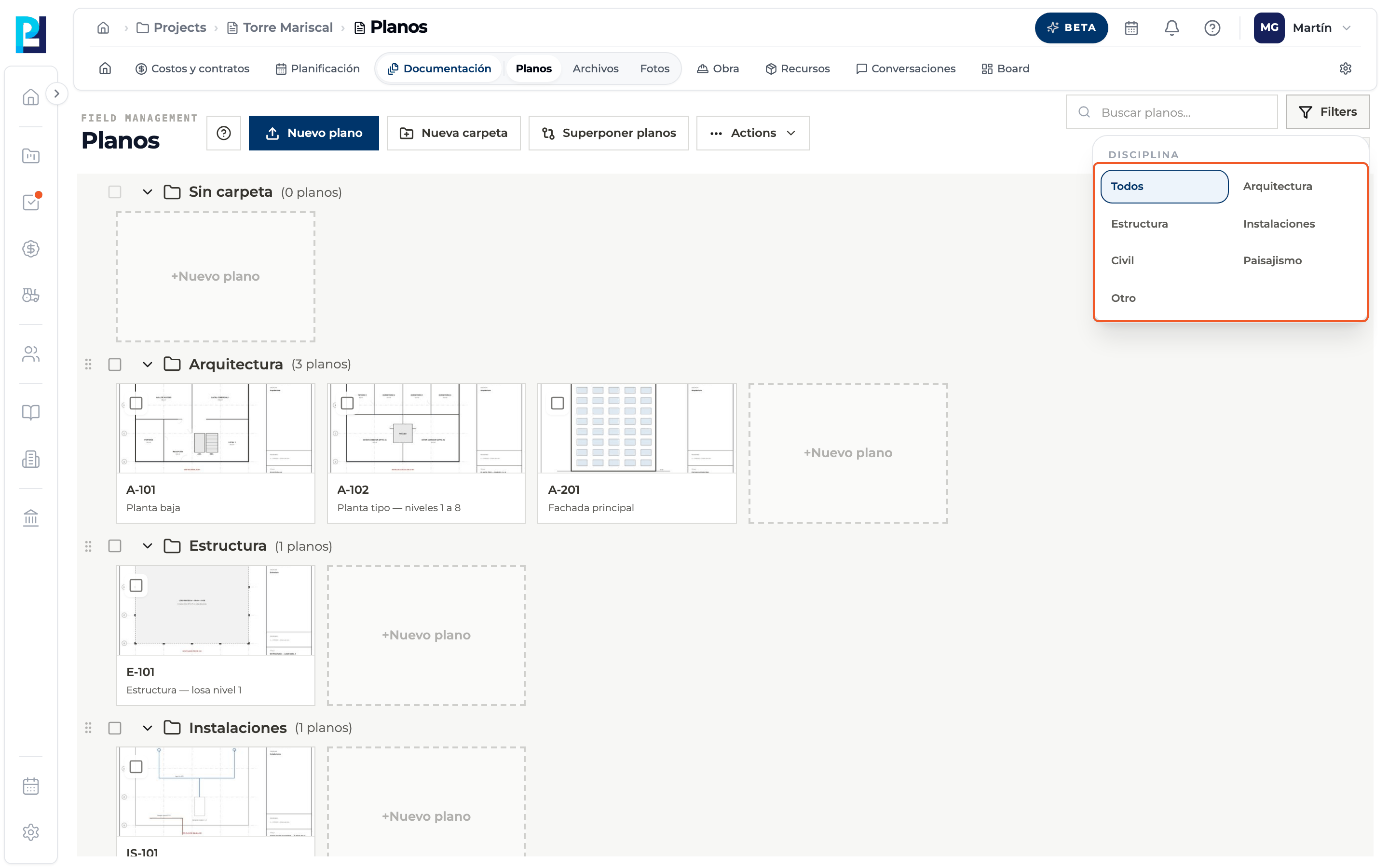
Filter by discipline
Filters → Disciplina: All, Architecture, Structure, Building services, Civil, Landscaping or Other.
- 04
Read the groups
Each folder is a group with its name and drawing count. Sin carpeta (No folder) is always there. The arrow next to the name collapses or expands the group.
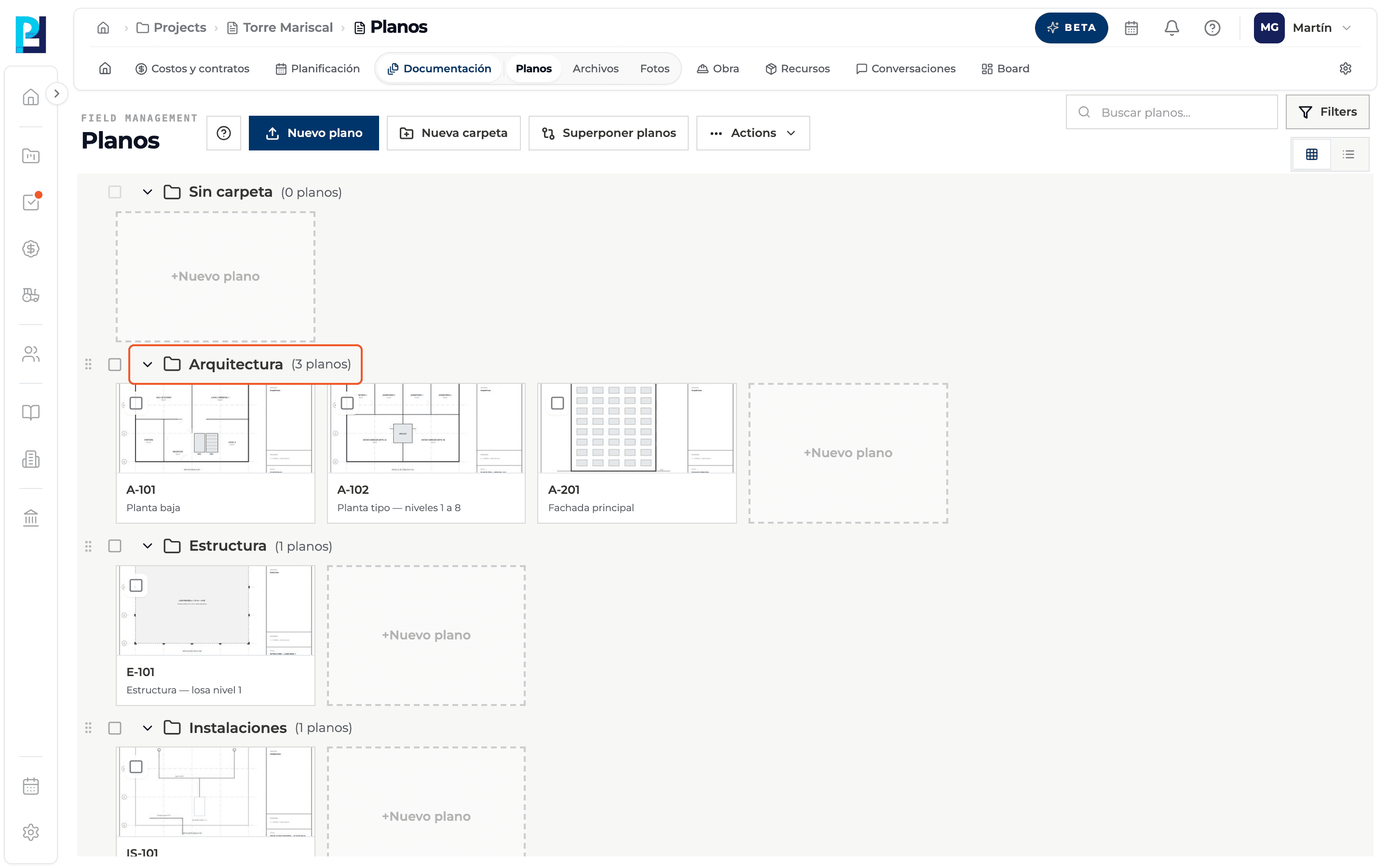
- 05
Read the rows or cards
In grid you see the thumbnail, sheet number and name. In list you see the name, number, discipline and status.
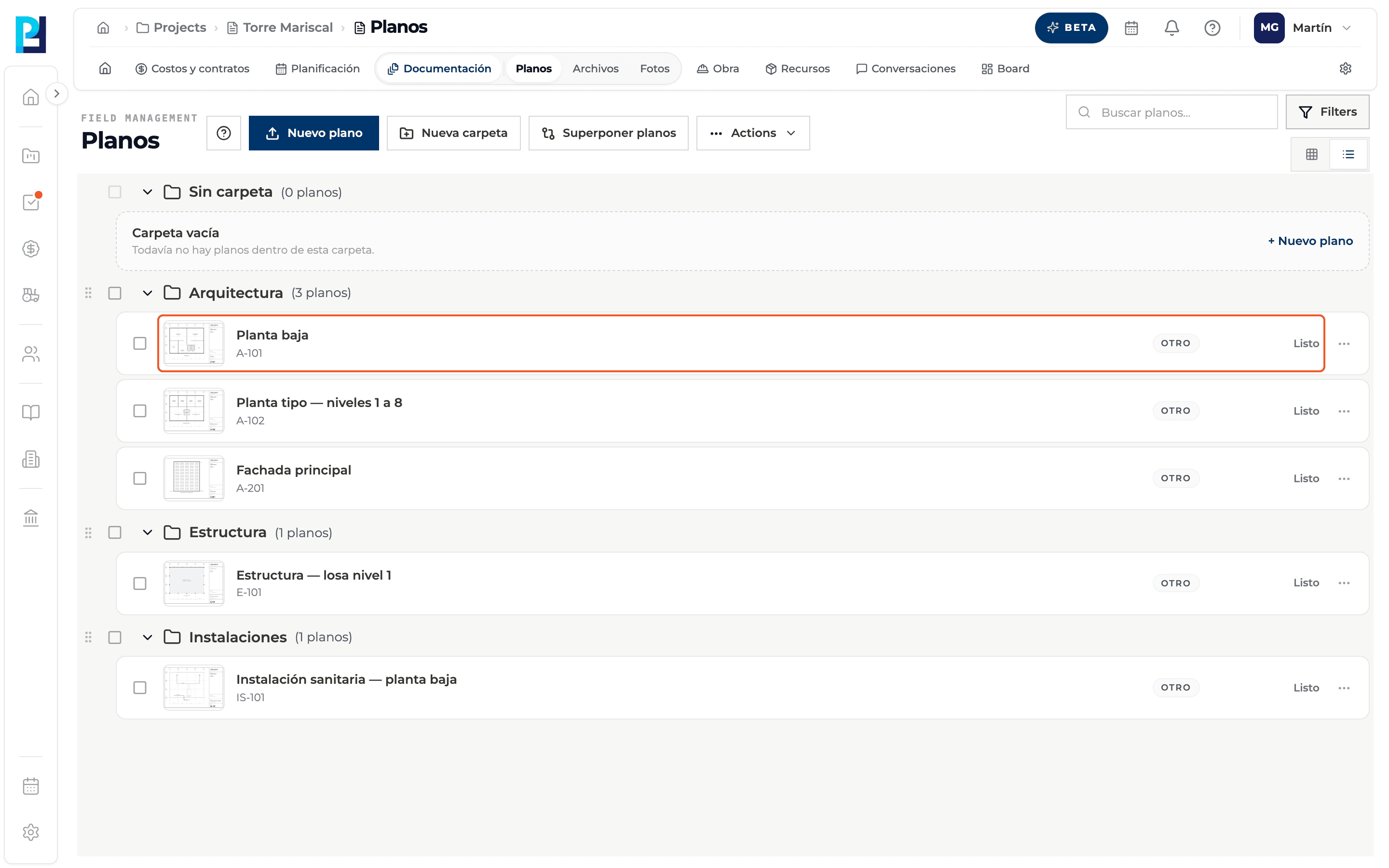
- 06
Understand the statuses
A newly uploaded drawing shows En cola (Queued) and then Procesando (Processing) until it is Listo (Ready). Pending Confirmation means its name still needs confirming, and Procesando hipervínculos... that its references are being detected.
- 07
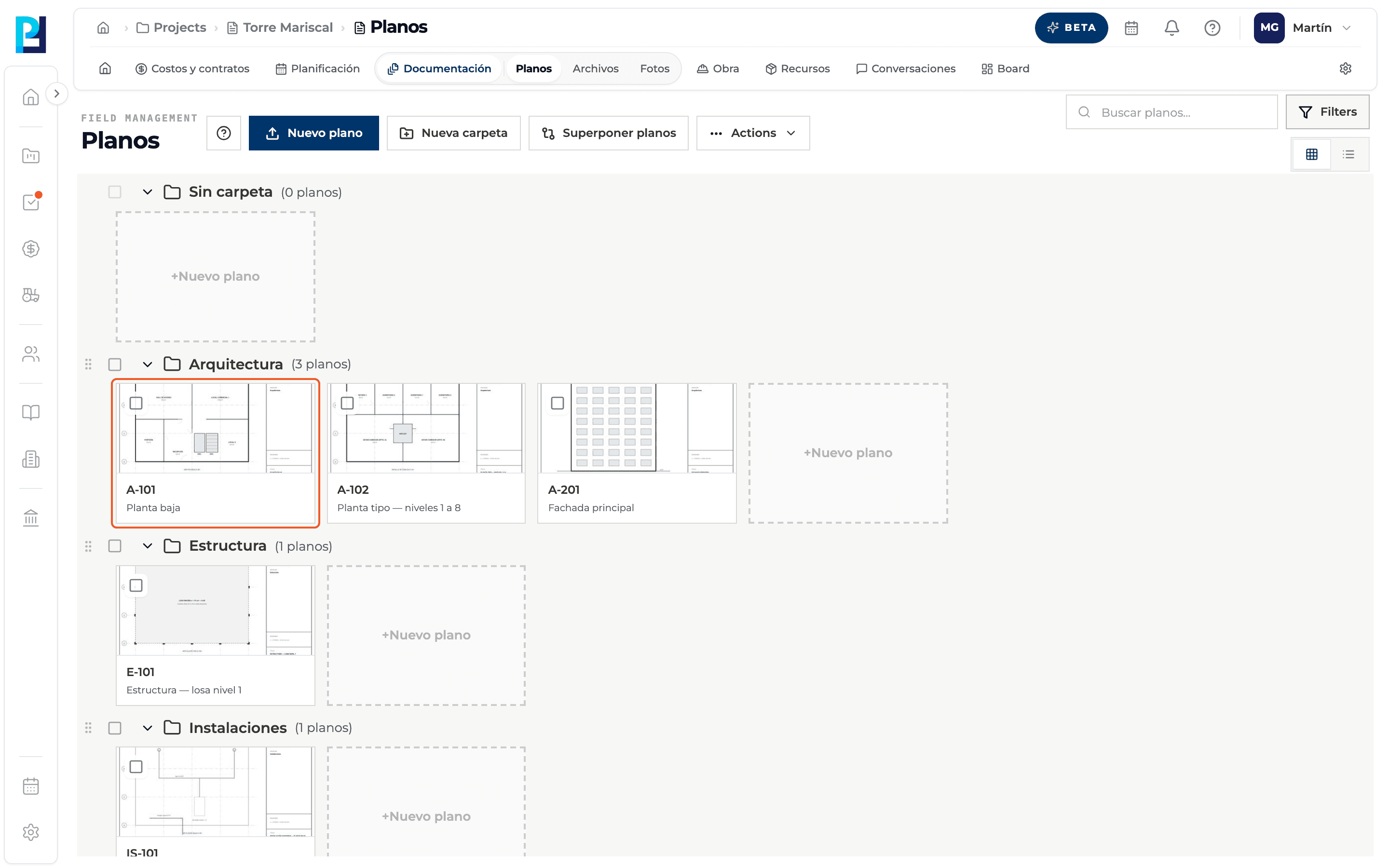
Open a drawing
Click the card. It only opens when Ready; while processing the card shows the status and does not respond.
- 08
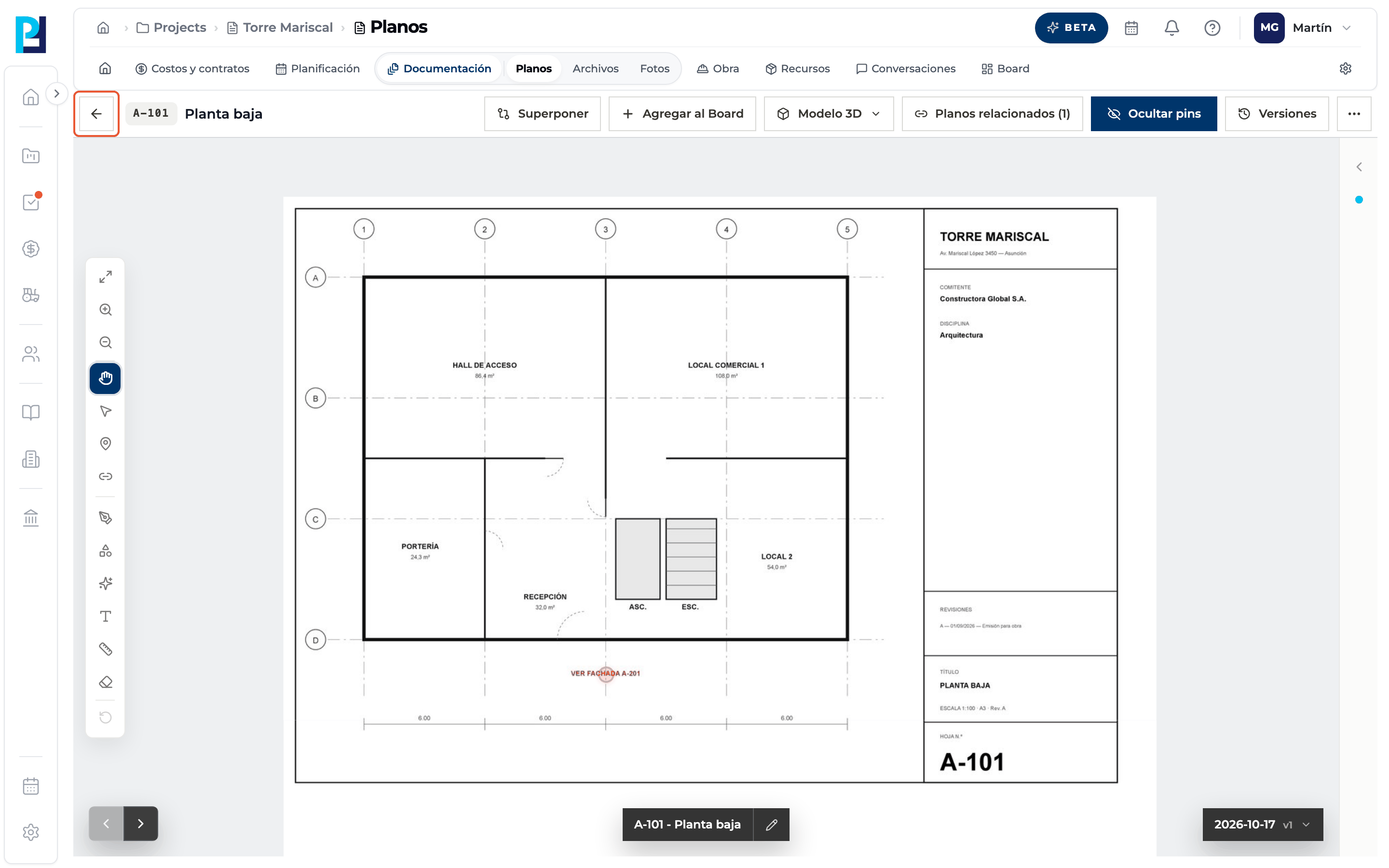
Go back from the viewer
The arrow at the top left takes you back to the library, in the folder you came from.
What you'll learn
How browse the library: search, filter, switch views and read the statuses works inside Perfour.
What information you need and how it stays connected to Drawings.
How to preserve traceability and find the record later.
Frequently asked questions
Why can't I open a drawing?+
It is not Ready yet or its processing failed. Wait or reprocess it.
Does search also filter by discipline?+
No: discipline is filtered from Filters.
Is there pagination?+
No: all the project's drawings load, grouped by folder.