Confirm the detected number and name of each drawing
When a drawing finishes processing, the system proposes a sheet number and name. You review them and confirm the batch in one step.
How to complete confirm names
- 01
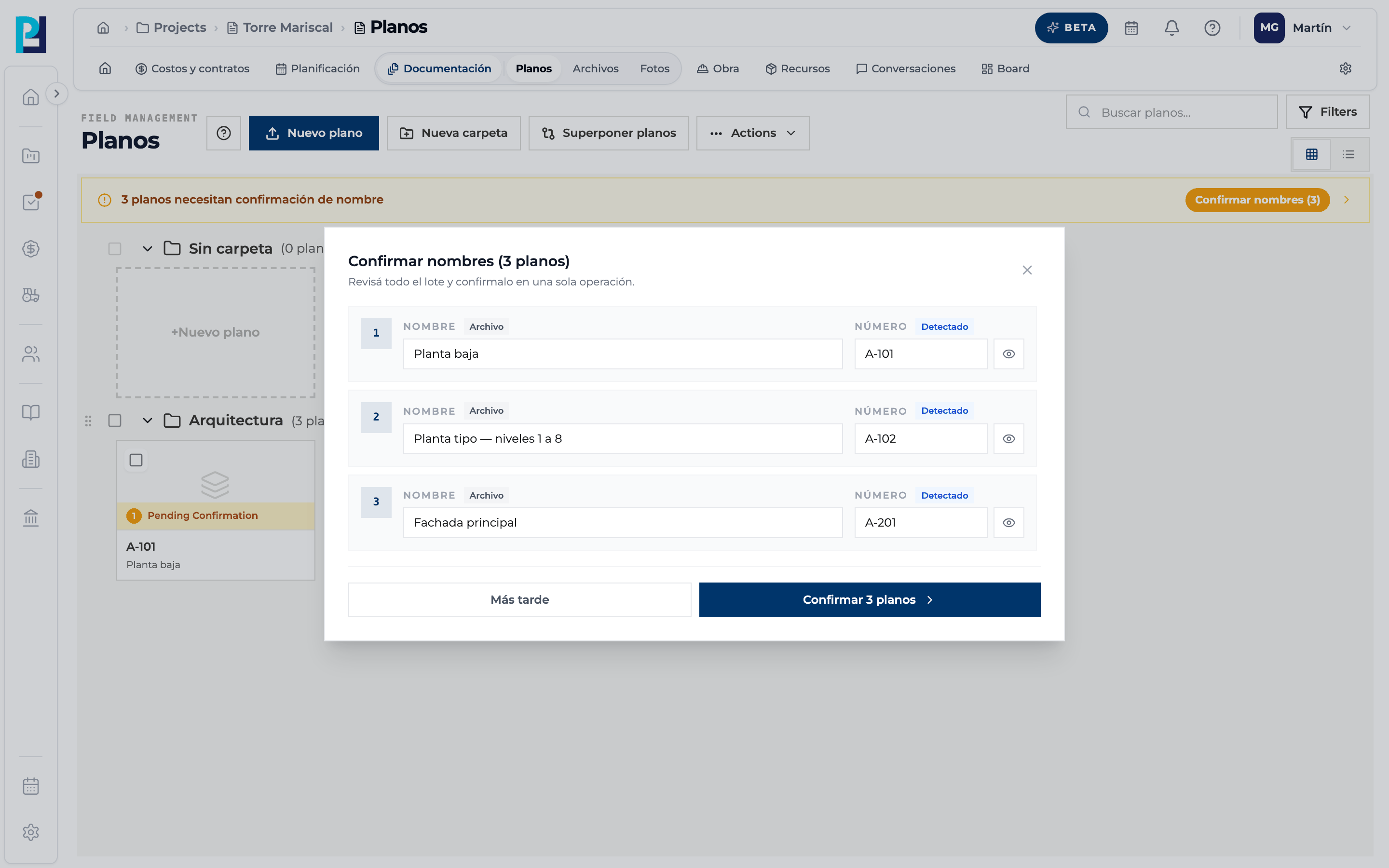
Find the notice
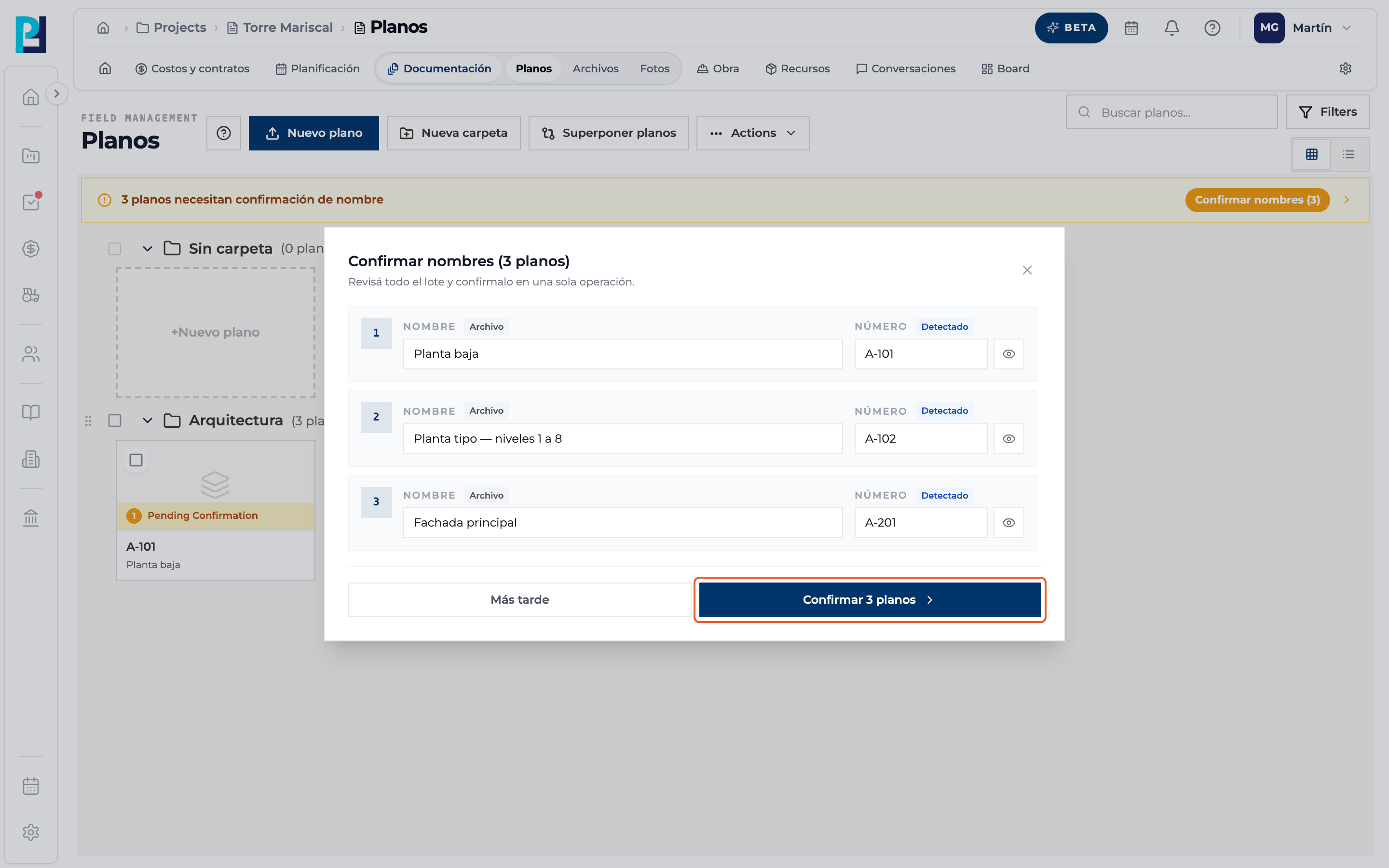
Above the library an amber banner says how many drawings need their name confirmed, with the Confirmar nombres (Confirm names) button. Each pending card says Pending Confirmation.
- 02
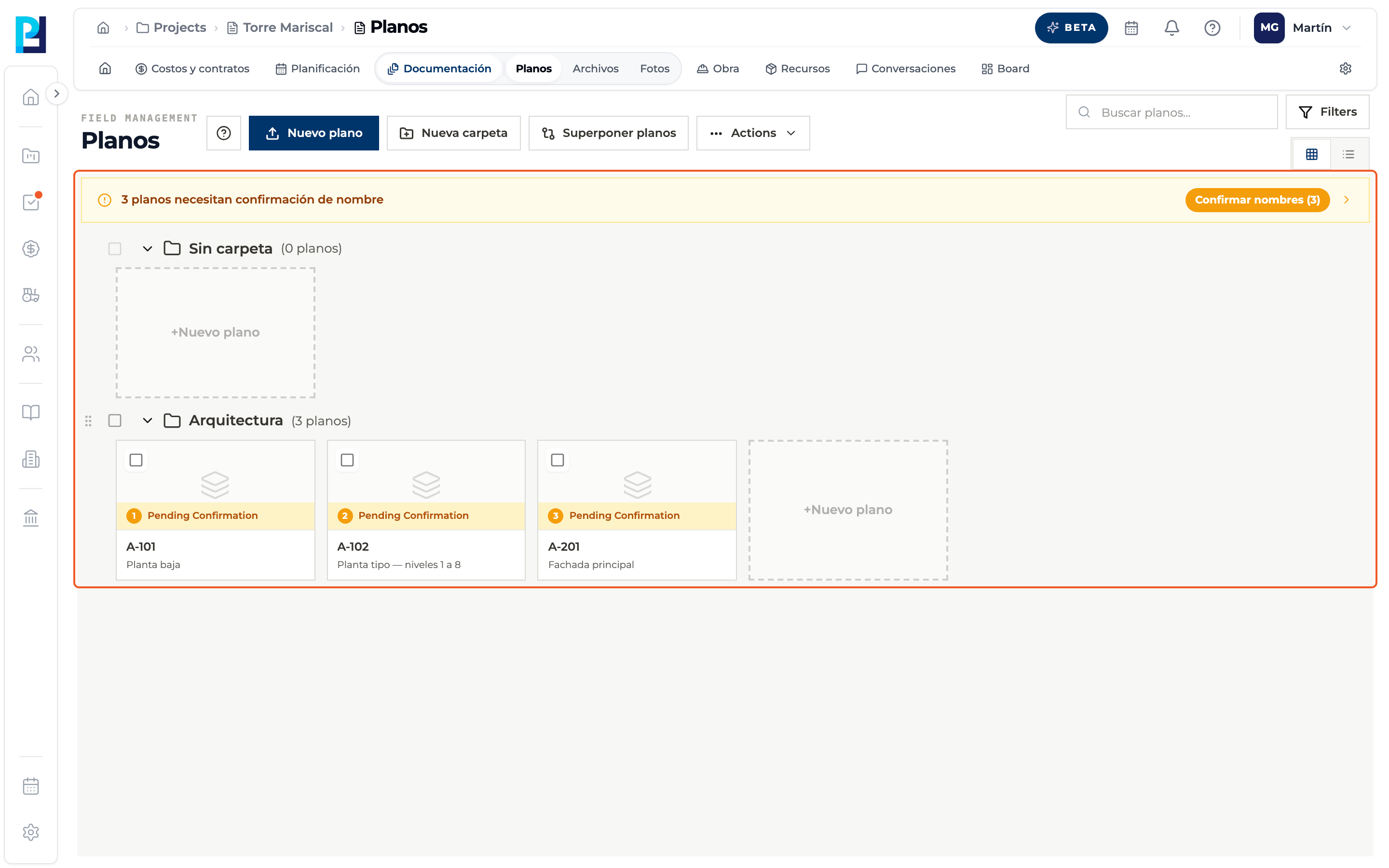
Open the review
Confirm names opens with one row per drawing: the detected name and number, plus a tag showing where they came from (Detected, File, Previous version or Edited).
- 03
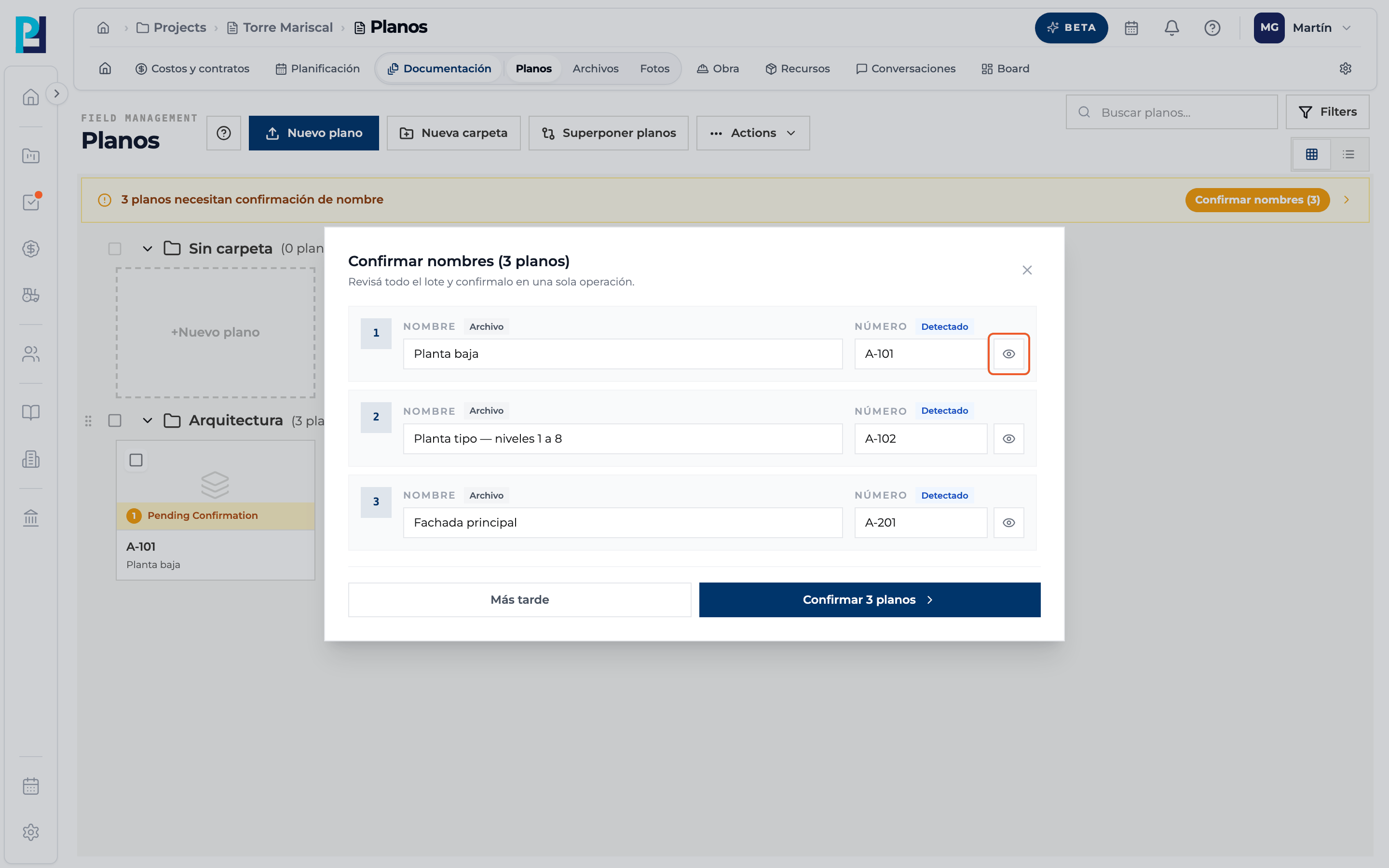
Look at the title block
The eye icon shows the cropped title block zone so you can compare it with what was detected.
- 04
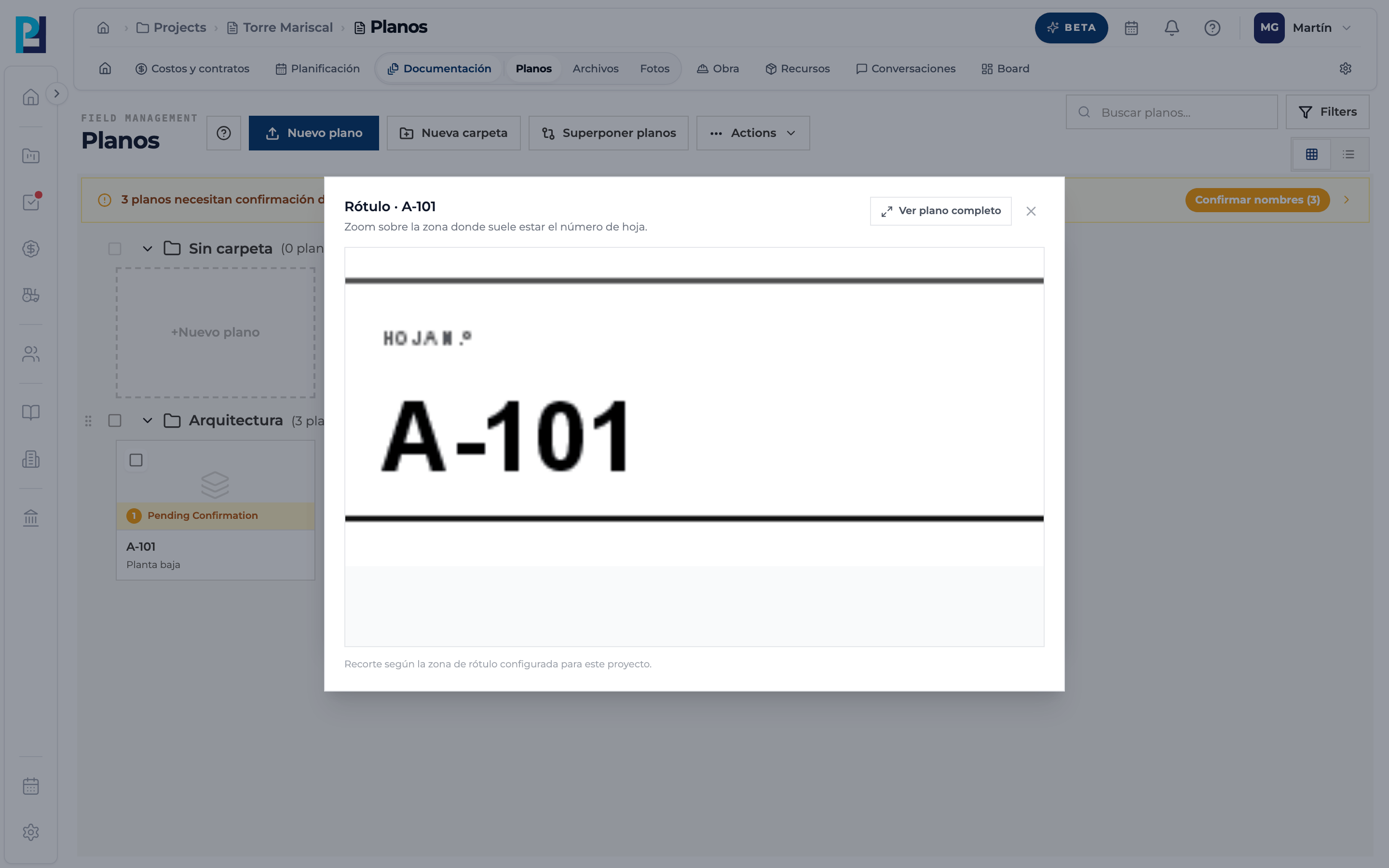
Compare and fix
If something is off, edit the name or number in the row. The tag changes to Edited.
- 05
Confirm
Click Confirmar N planos. Más tarde (Later) closes without confirming and the notice stays.
- 06
Check the result
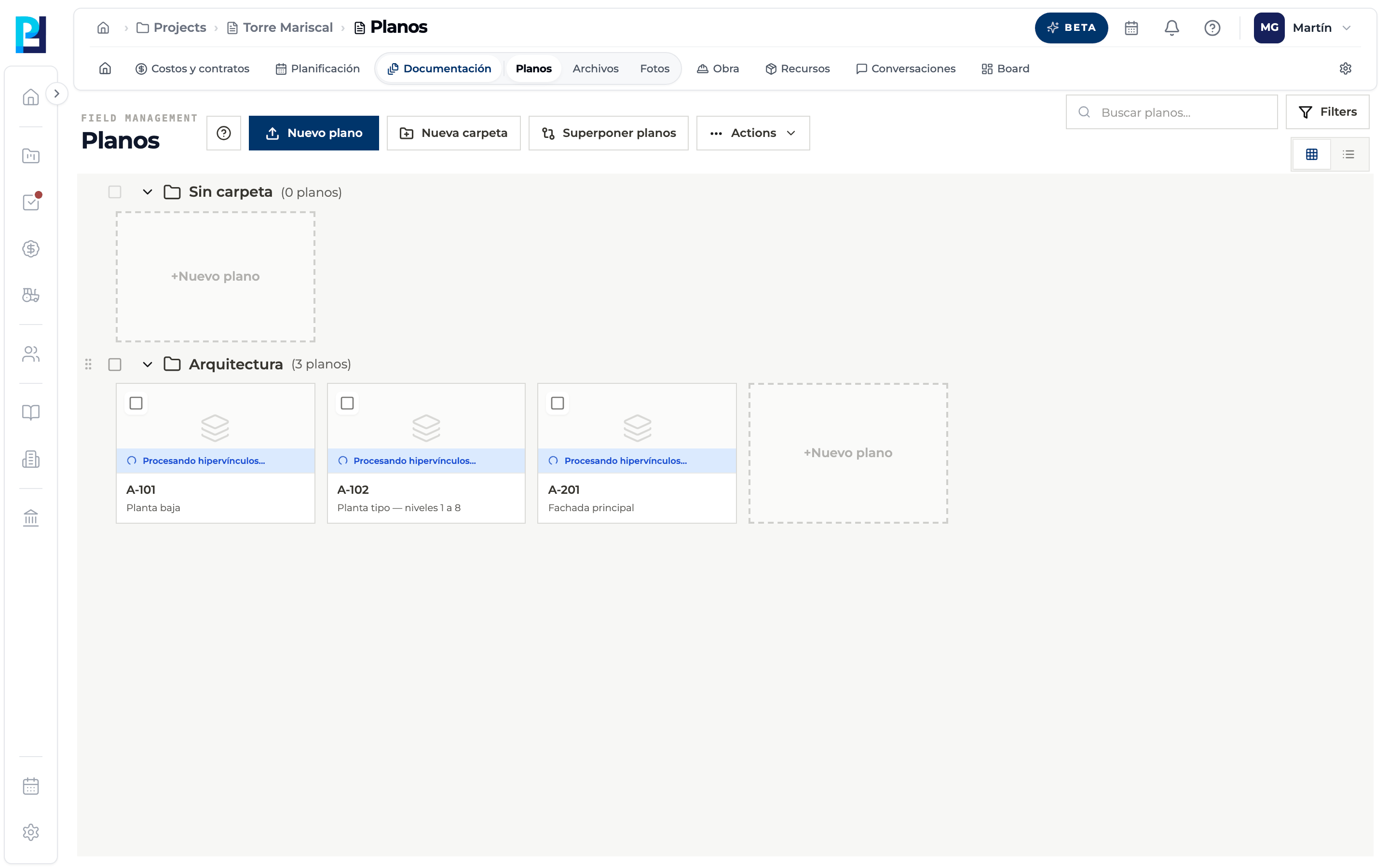
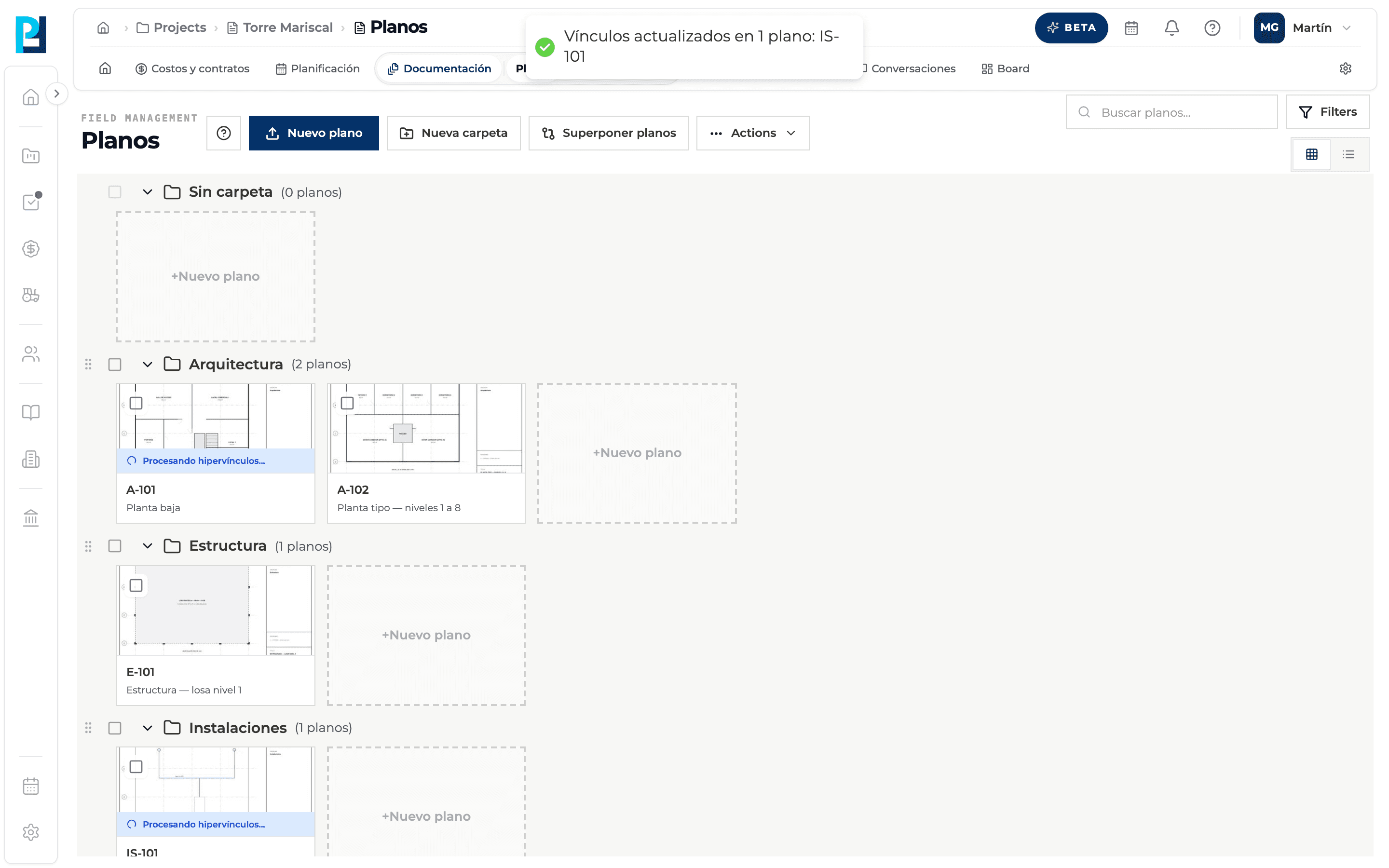
Cards show Procesando hipervínculos... while references between sheets are detected, and then they are ready.
- 07
Sheets that already exist
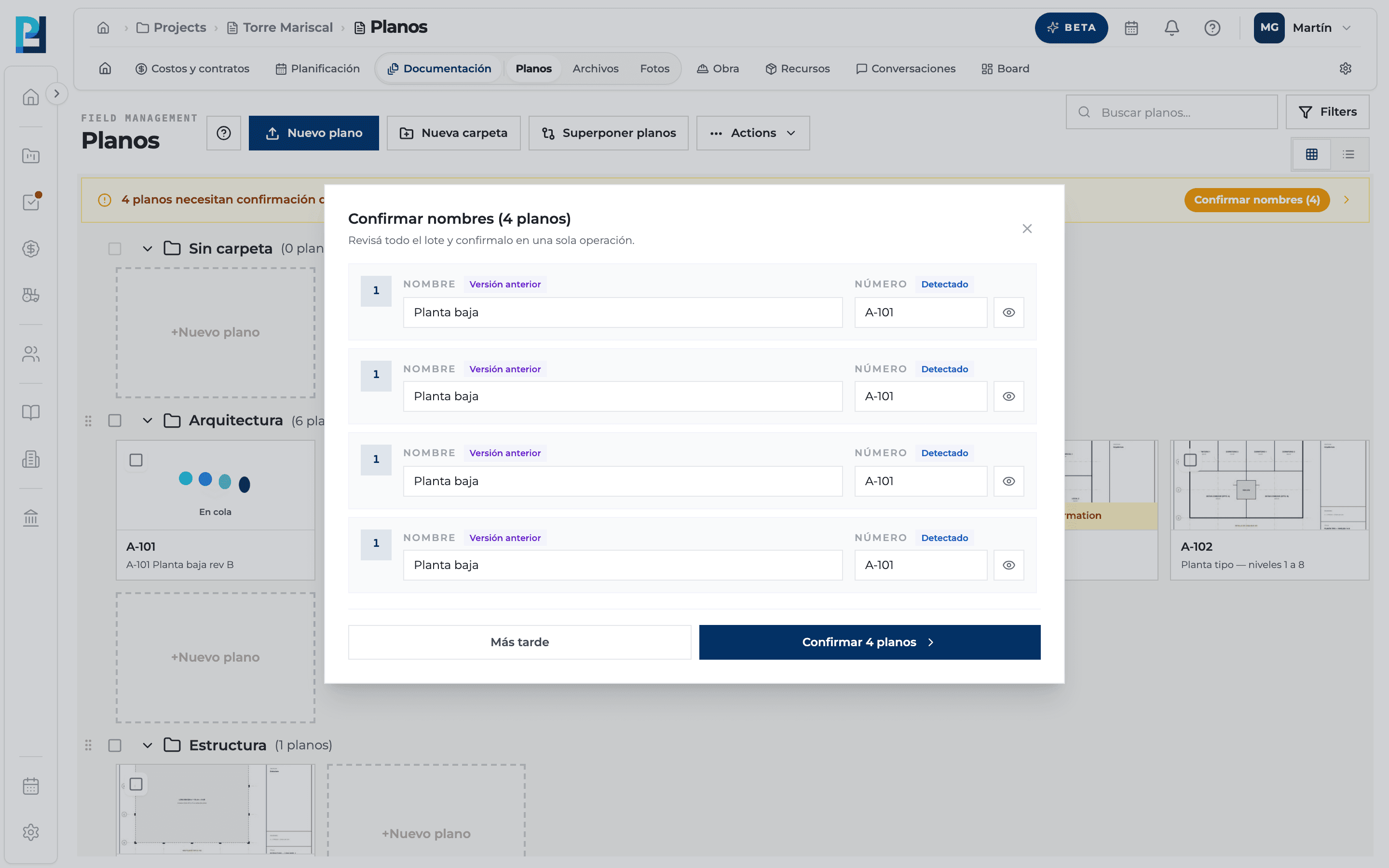
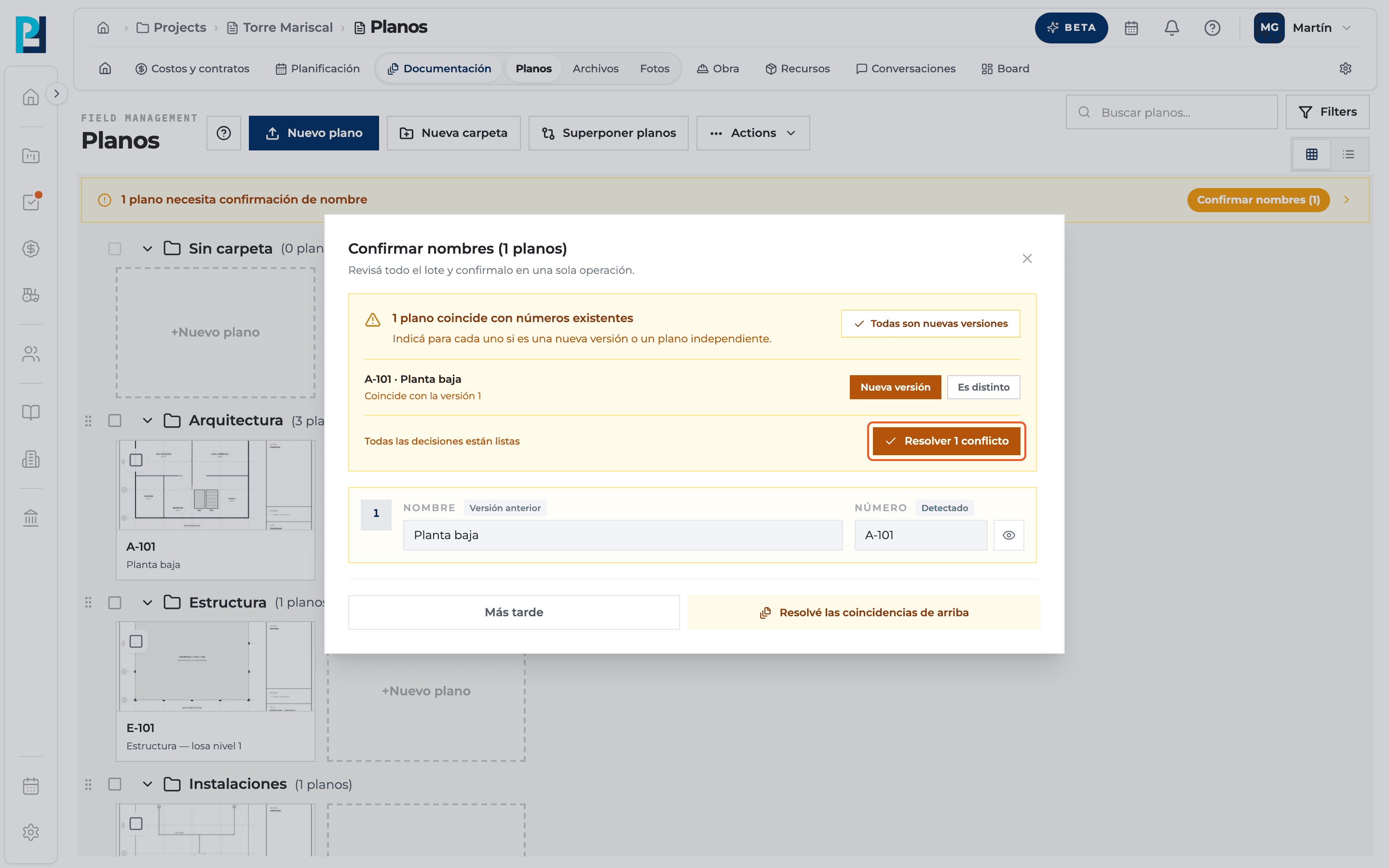
If you uploaded a sheet whose number already exists in the project, the row shows the Previous version tag.
- 08
Resolve the matches
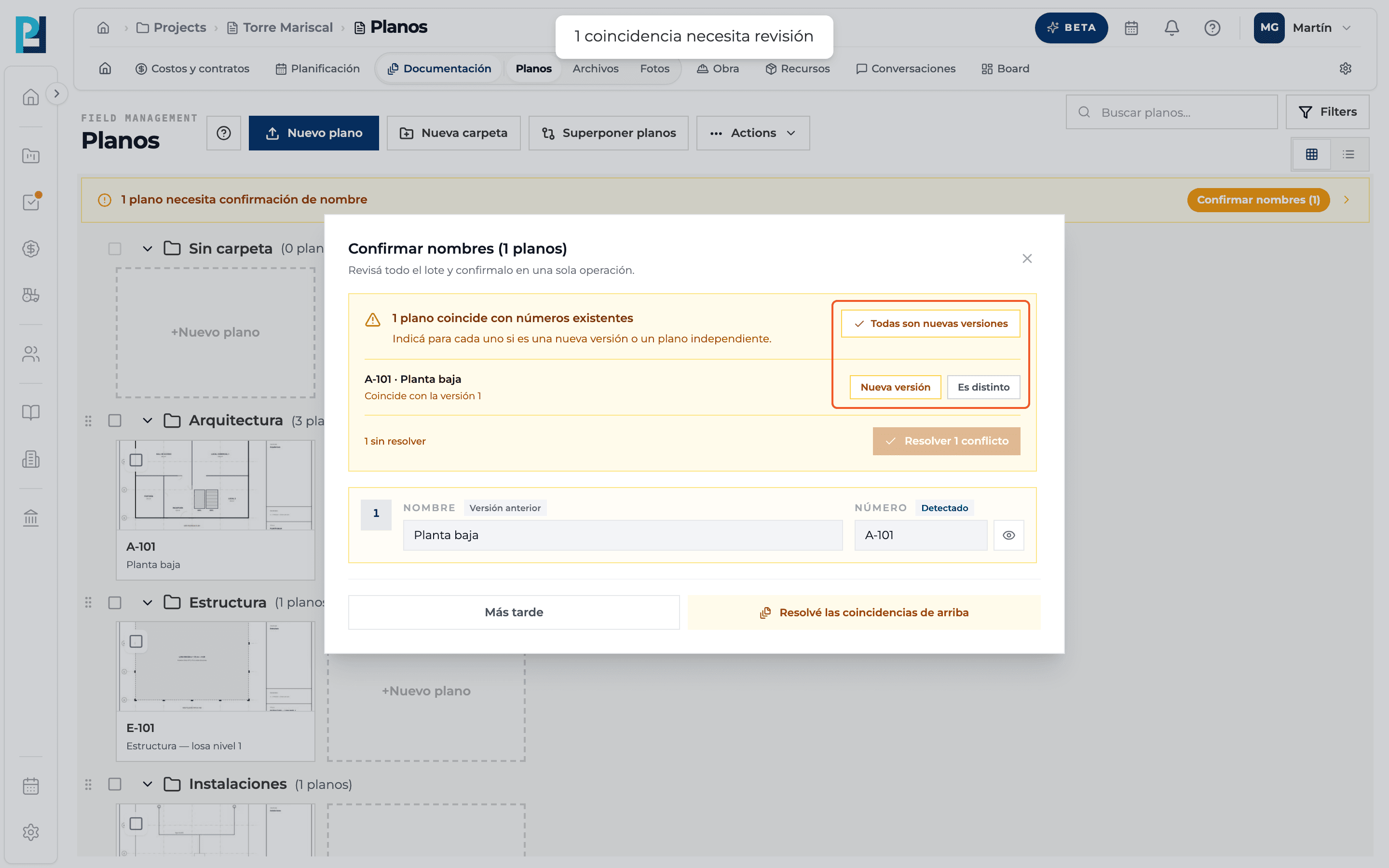
The amber block lists drawings that match existing numbers. For each one choose Nueva versión (added to the existing drawing's history) or Es distinto (kept as a separate drawing). Todas son nuevas versiones marks them all.
- 09
Confirm the resolution
When none are left unresolved, click Resolver N conflictos.
- 10
See the effect
If resolving updates links on other drawings, a notice lists the affected sheet numbers.
What you'll learn
How confirm the detected number and name of each drawing works inside Perfour.
What information you need and how it stays connected to Drawings.
How to preserve traceability and find the record later.
Frequently asked questions
I can't edit names while there are matches.+
Right: the fields are locked until you resolve the matches above.
When are automatic hyperlinks calculated?+
Only once names are confirmed.
Confirmation fails.+
The server message is shown and the changes are rolled back on screen. Try again.