Hyperlinks between drawings, images and files
A hyperlink is a clickable mark that takes you to another drawing, an image or a project file. The system also detects references automatically.
How to complete hyperlinks
- 01
Turn on the tool
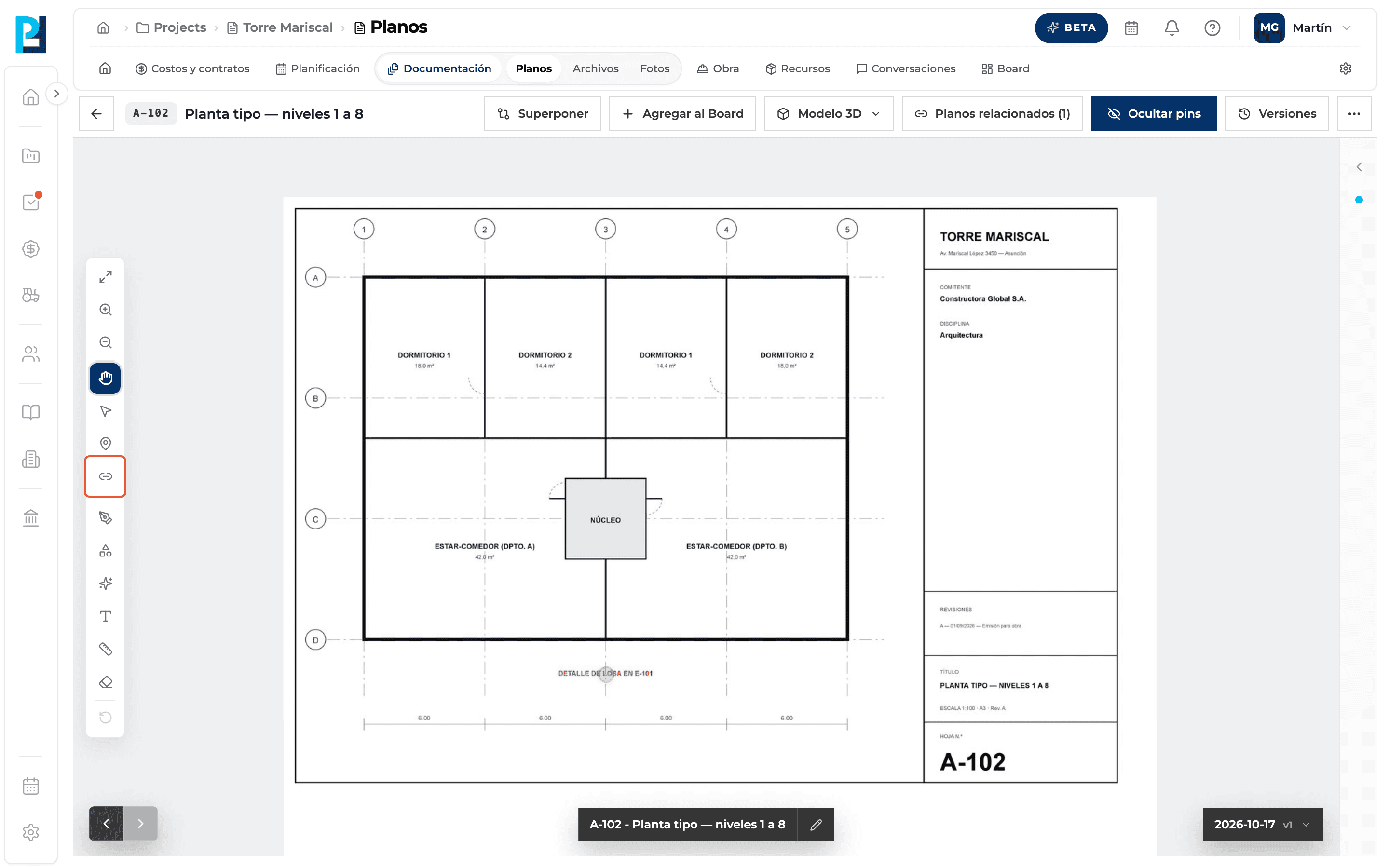
Left bar → Hipervínculo (Hyperlink). Only on the Current version and with upload permission.
- 02
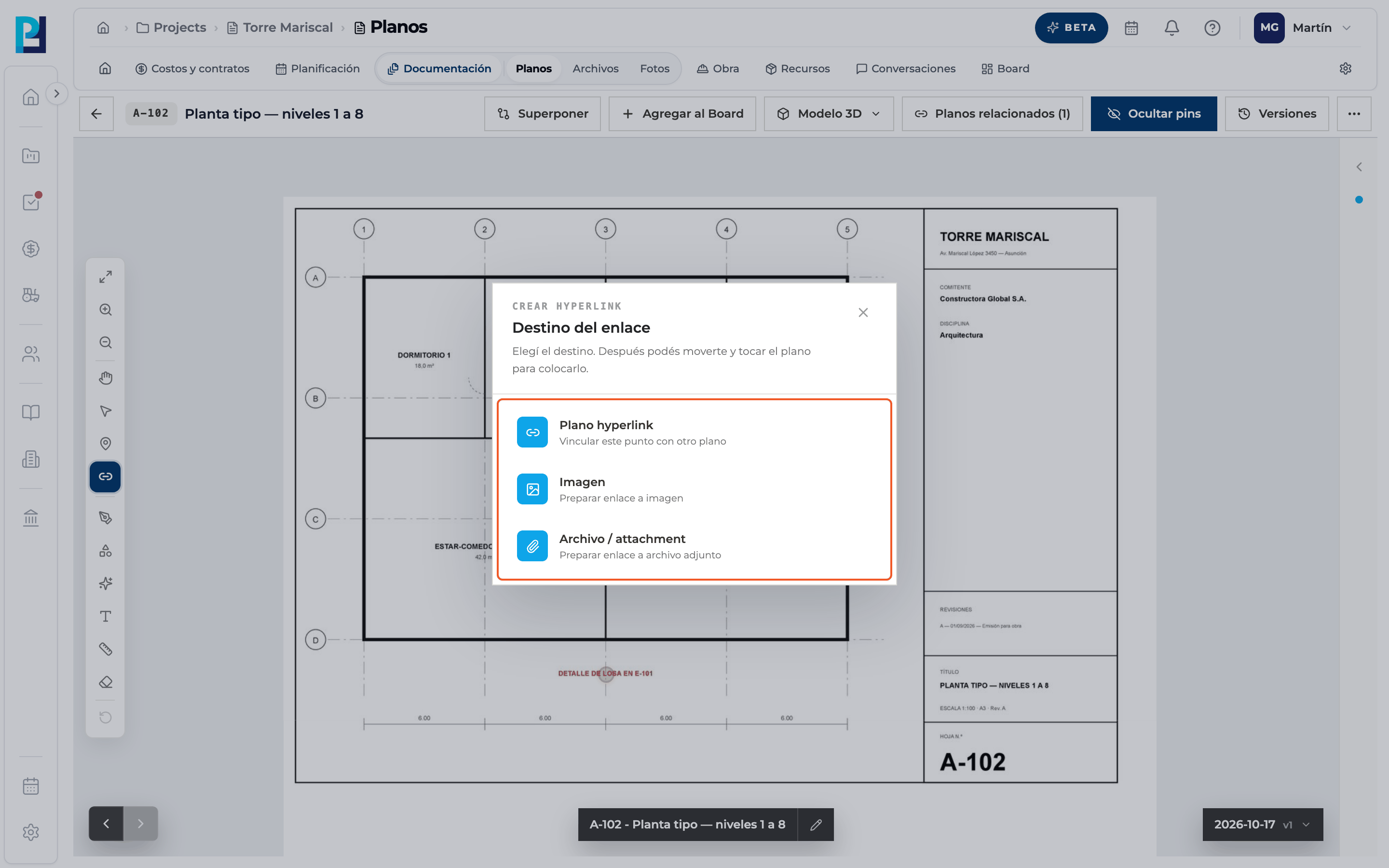
Choose the destination
Plano hyperlink (drawing), Imagen (image) or Archivo / attachment (file).
- 03
Place the point
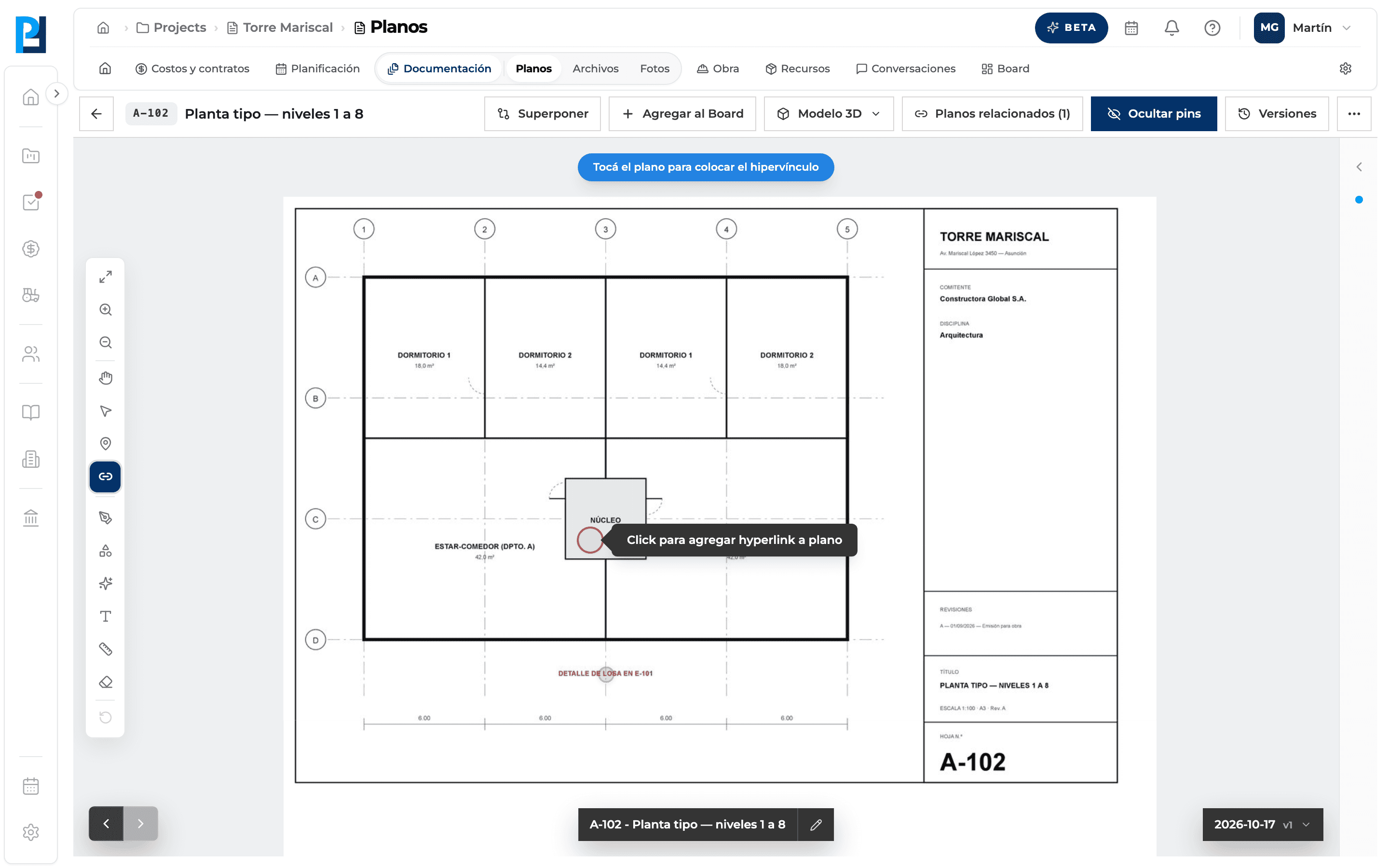
A hint asks you to click the drawing and a bubble follows the mouse. You can zoom and pan before clicking.
- 04
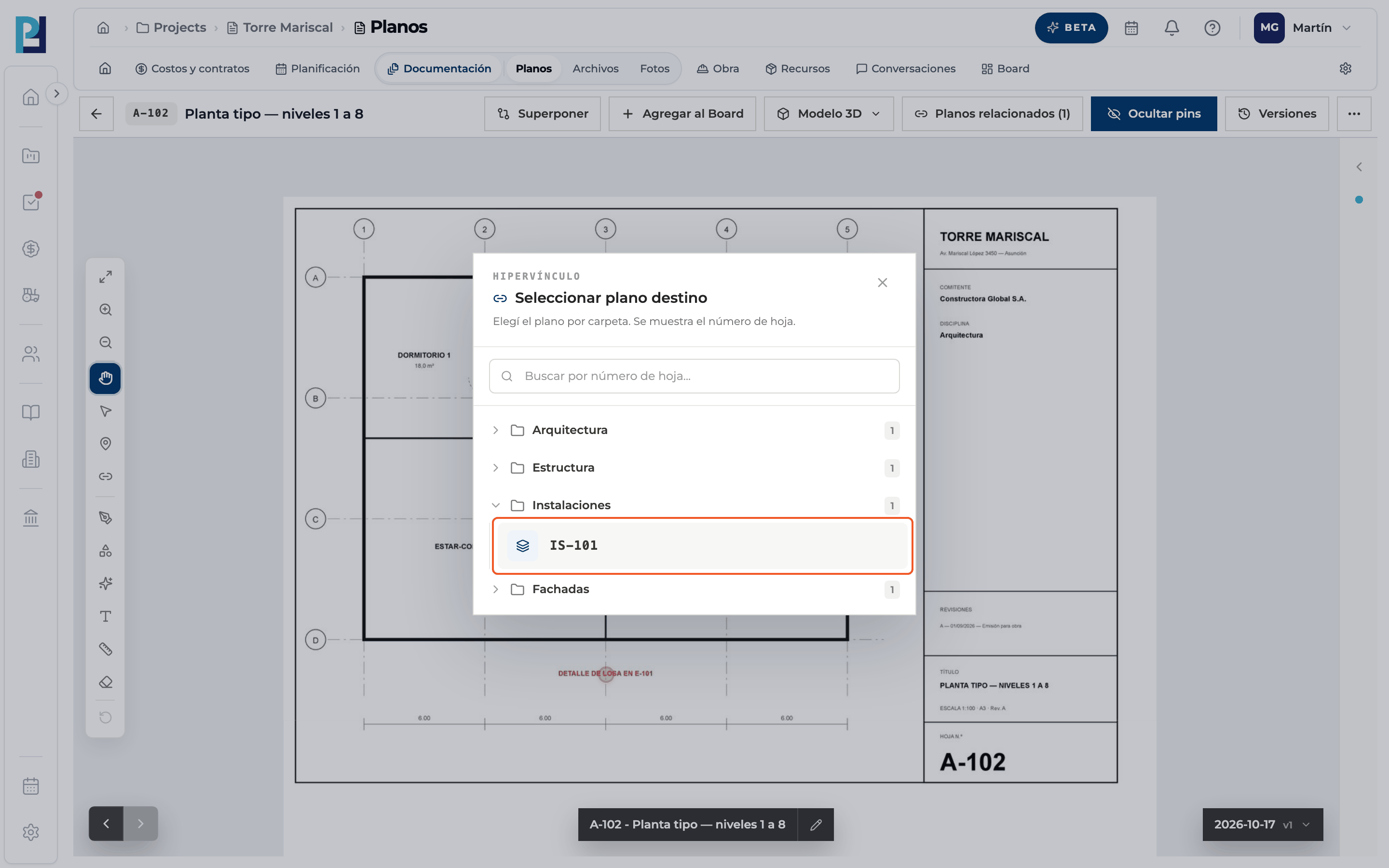
Pick the target drawing
Search by sheet number or open the folder and click the drawing. Only Ready drawings other than the current one are listed.
- 05
Use the link
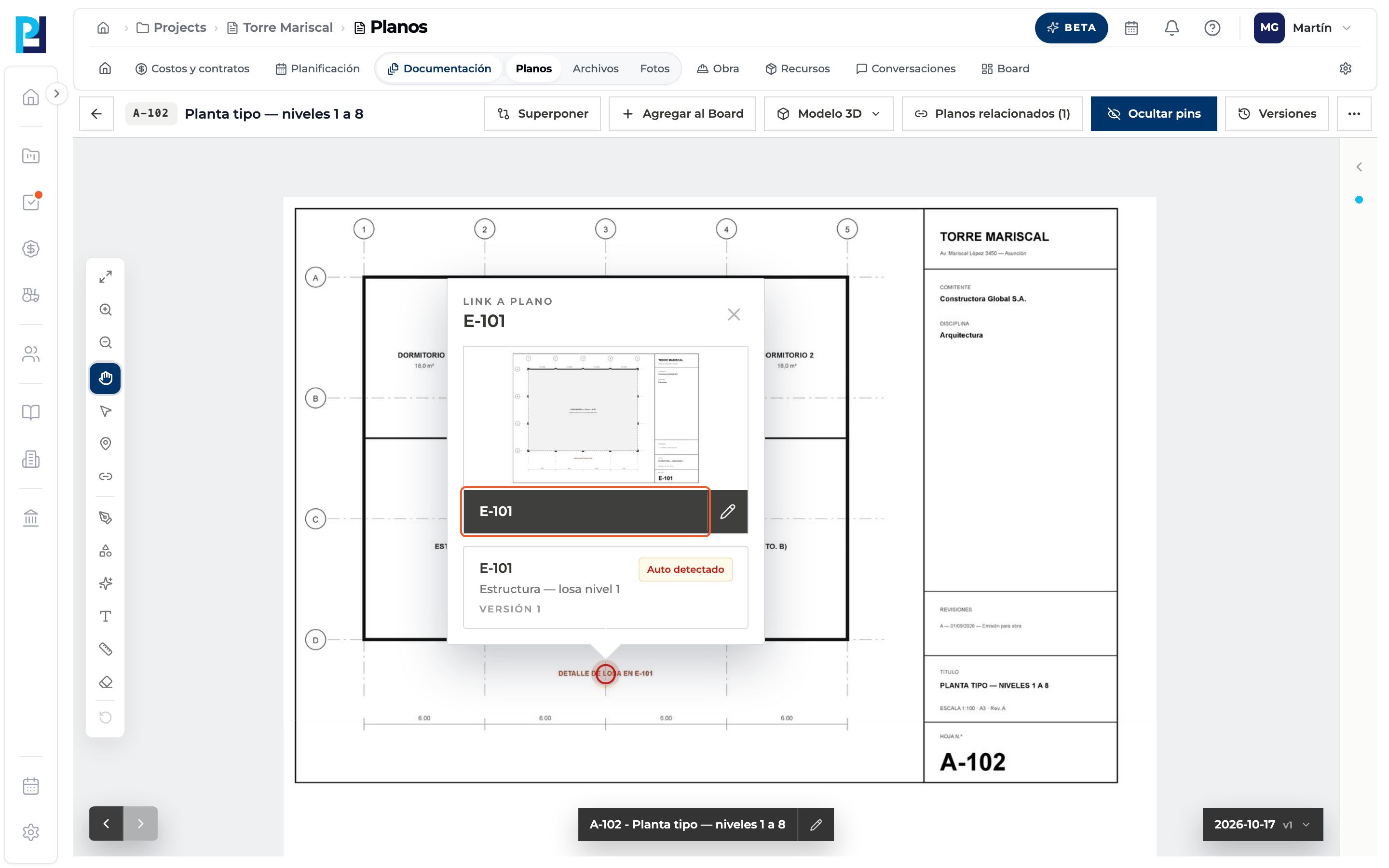
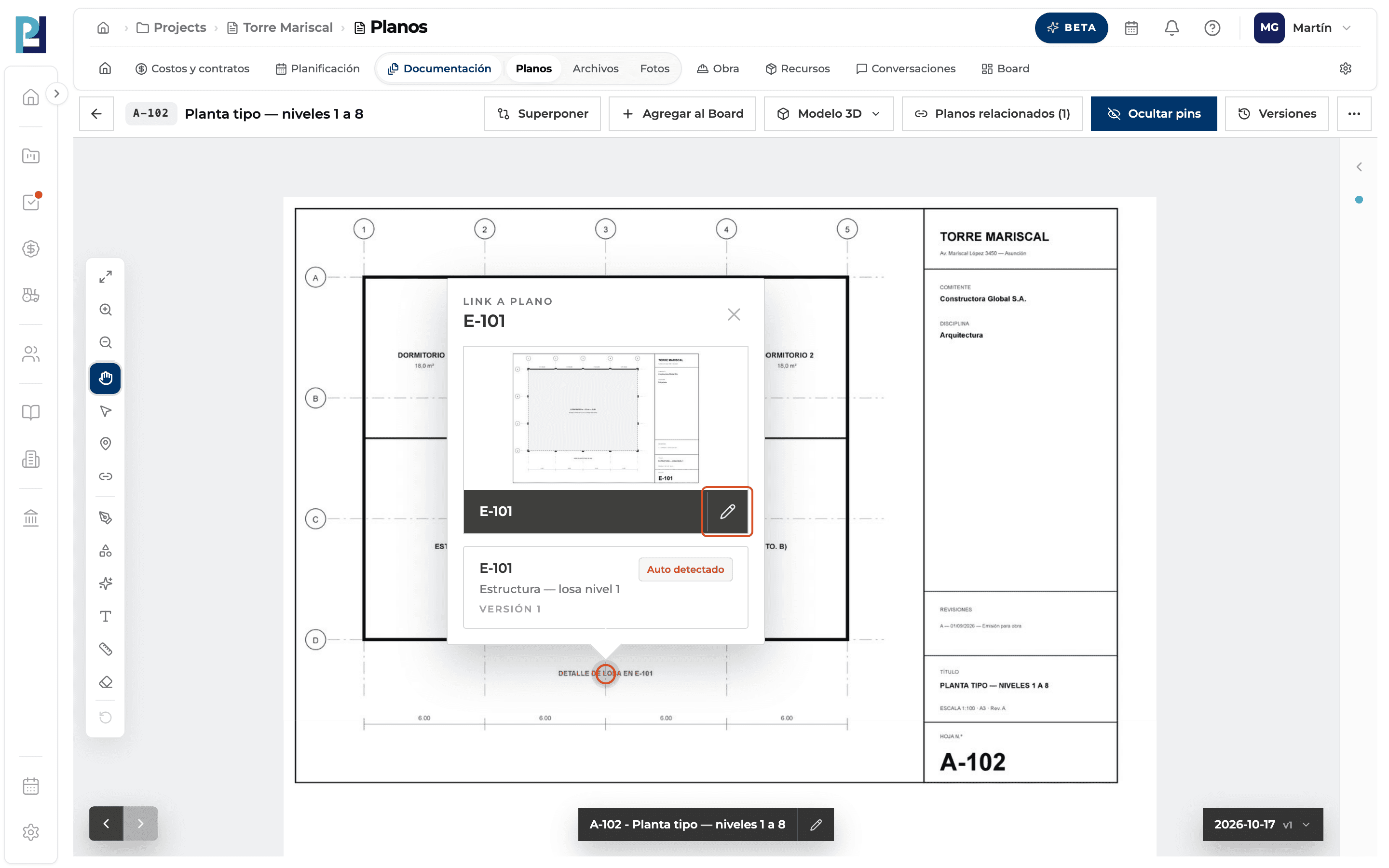
With Pan, click the ↗: a card opens with the preview, number, name, version and a Manual or Auto detected tag. Click the preview or number to open the target drawing.
- 06
Change the target
The card's pencil (Cambiar hyperlink) repeats the choice for the same point.
What you'll learn
How hyperlinks between drawings, images and files works inside Perfour.
What information you need and how it stays connected to Drawings.
How to preserve traceability and find the record later.
Frequently asked questions
I closed the picker without choosing, is there a link?+
No: it is created only when you pick the target.
What is an Auto detected link?+
One the system created by reading references on the drawing, such as «SEE ELEVATION A-201».
Are manual links lost when recalculating?+
No: recalculation only touches automatic ones.