Recalculate hyperlinks and see related drawings
Automatic hyperlinks come from the drawing's references matched against the project's sheet numbers. When numbers change, recalculate them.
How to complete recalculate hyperlinks
- 01
Recalculate one drawing
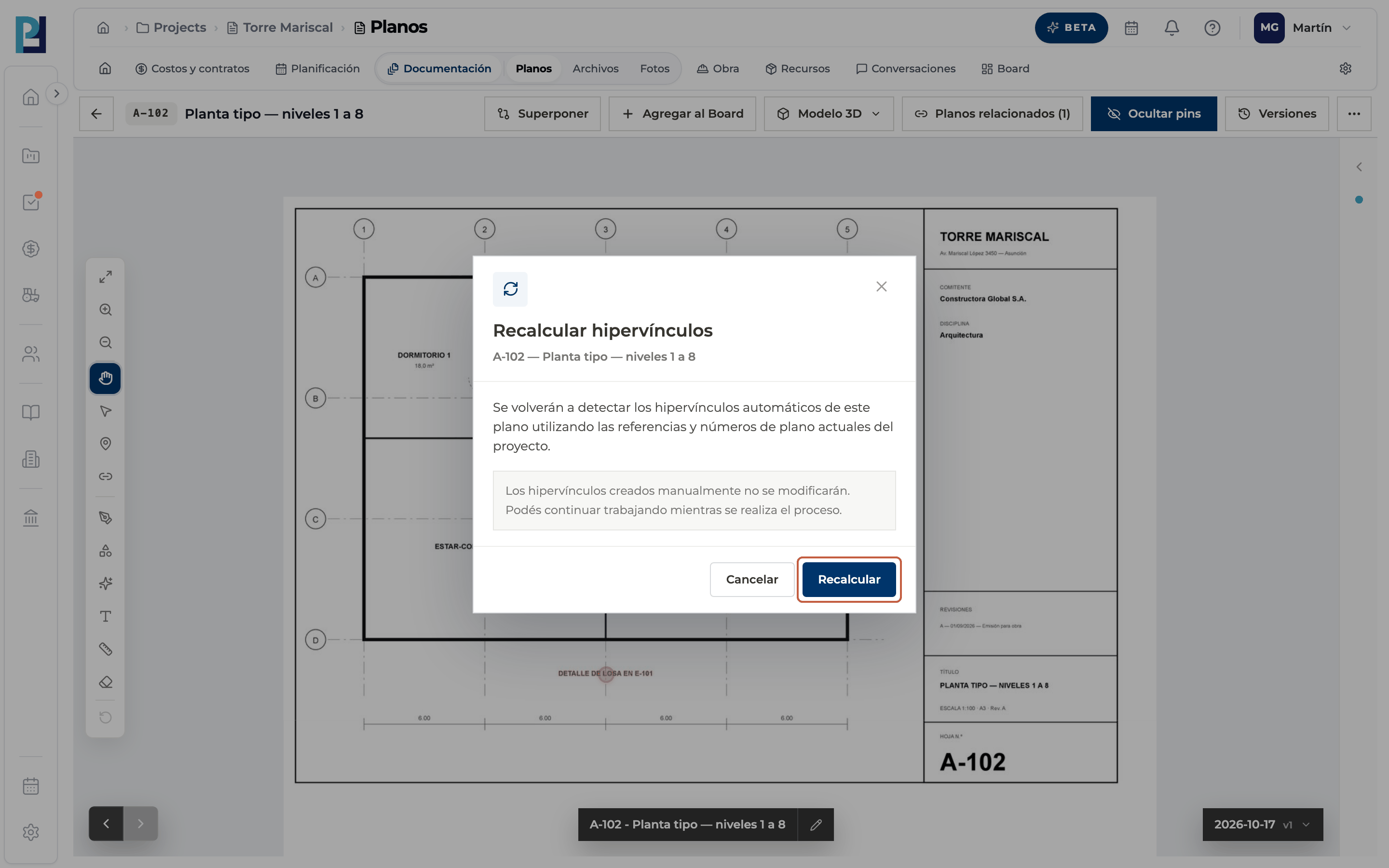
In the viewer, ⋯ menu → Recalcular hipervínculos. The drawing's name must be confirmed.
- 02
Confirm
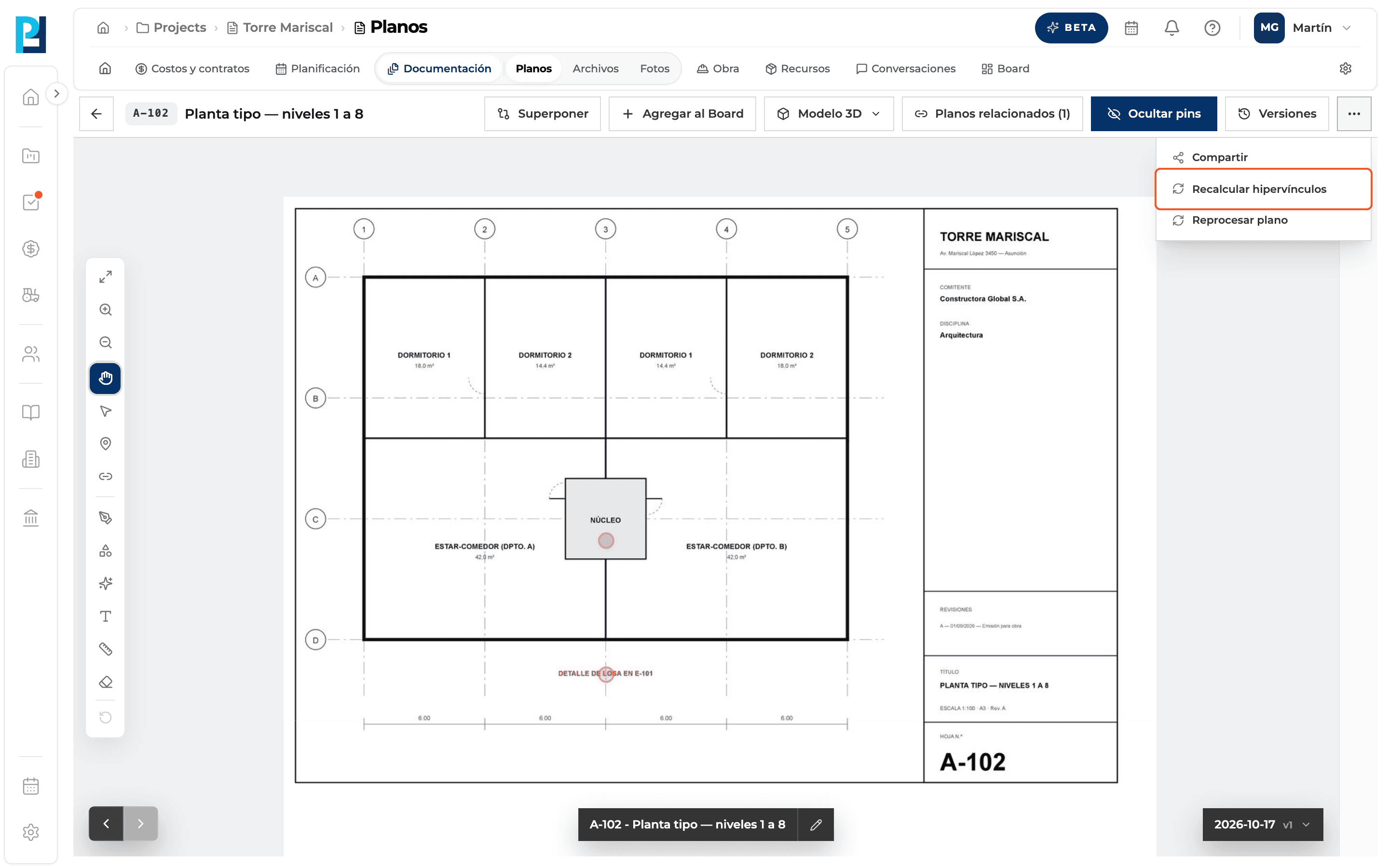
The dialog says manual hyperlinks are not changed and you can keep working. Click Recalcular.
- 03
Follow the status
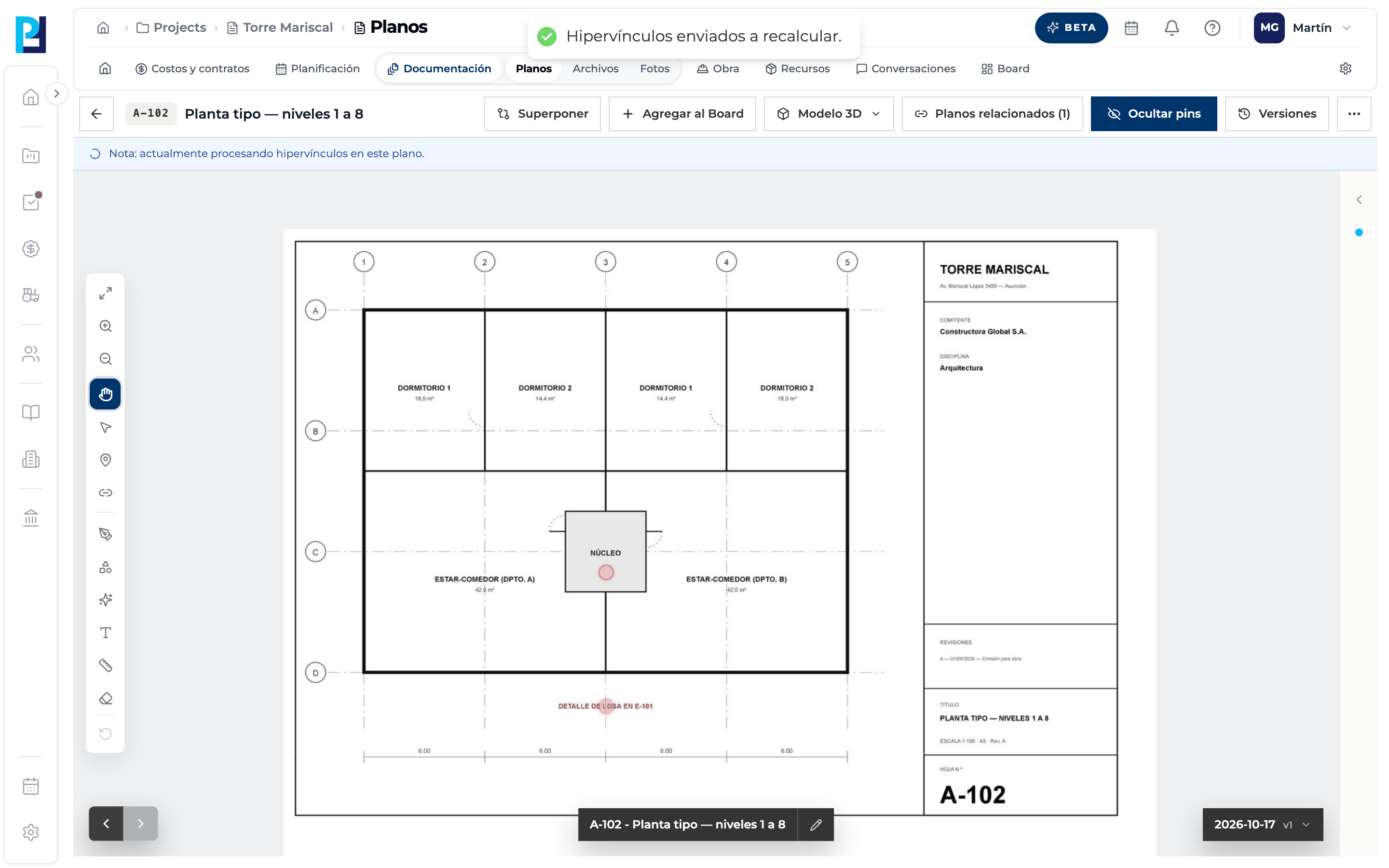
A confirmation appears and a blue banner shows while they are processed.
- 04
Recalculate several
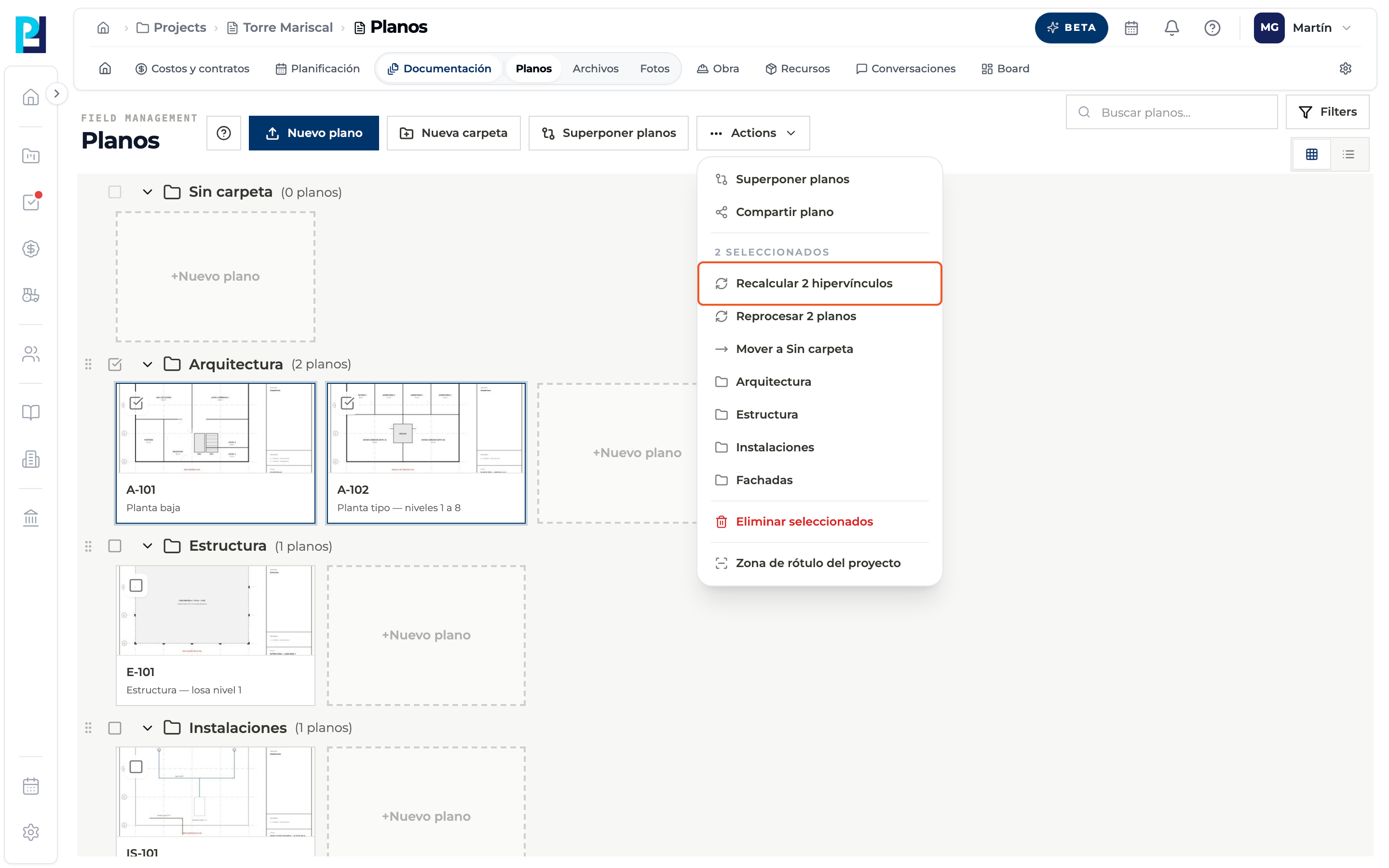
In the library select drawings and open Actions → Recalcular N hipervínculos.
- 05
See related drawings
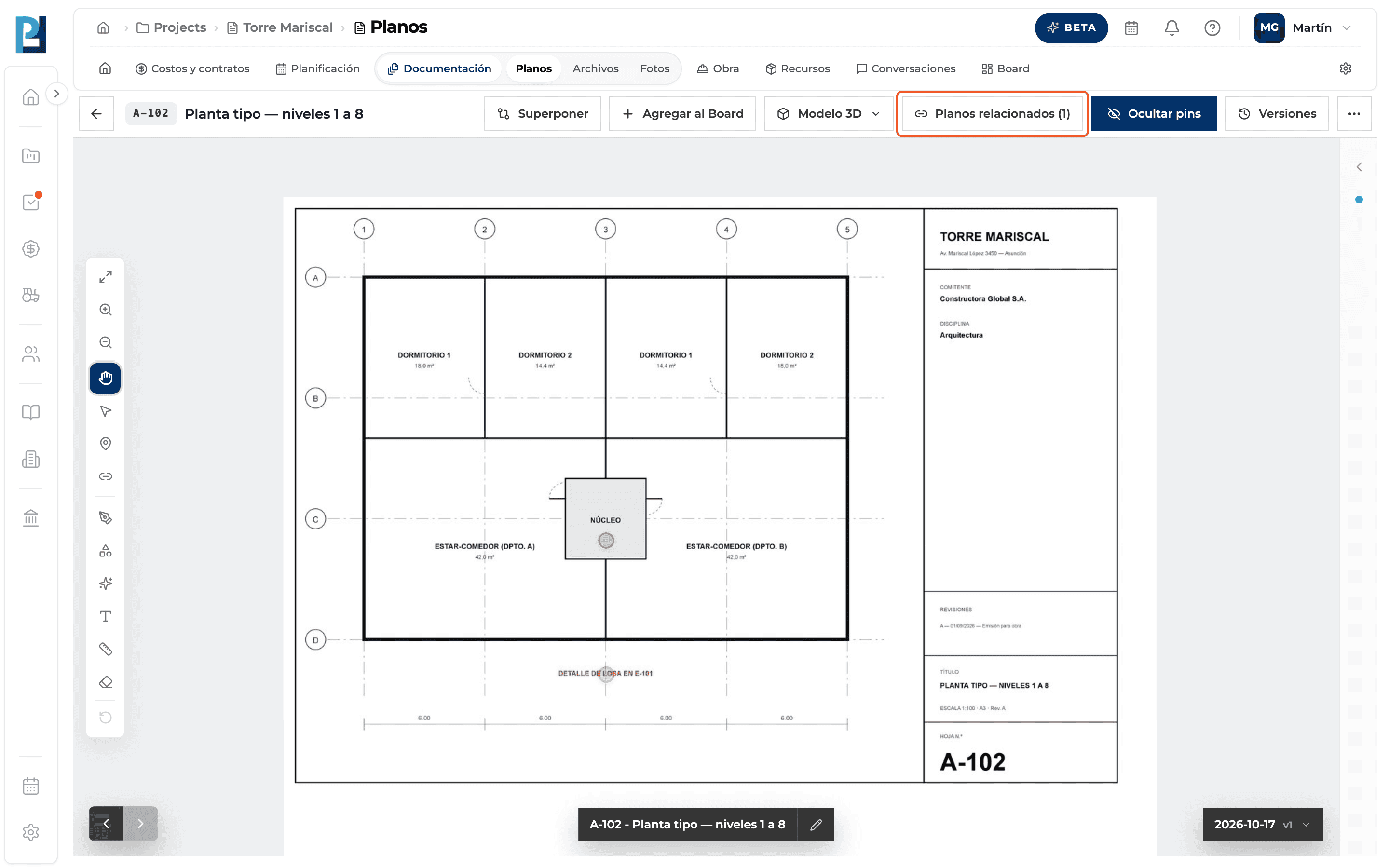
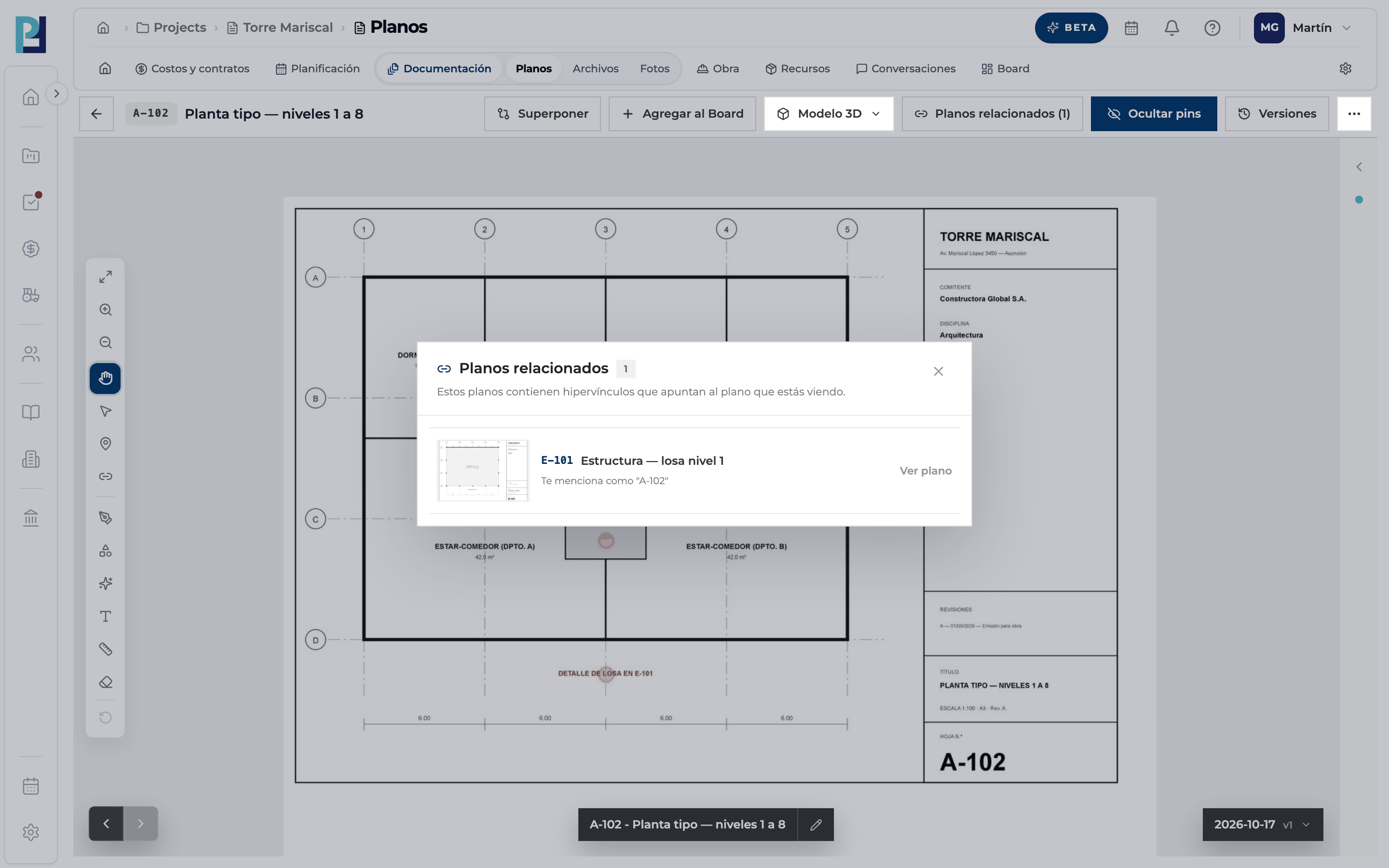
In the viewer, Planos relacionados (N) lists the drawings that link to the one you are viewing.
- 06
Open one
Each row says how that drawing mentions yours. Ver plano opens it.
What you'll learn
How recalculate hyperlinks and see related drawings works inside Perfour.
What information you need and how it stays connected to Drawings.
How to preserve traceability and find the record later.
Frequently asked questions
The recalculate item is greyed out.+
The name isn't confirmed, you lack edit permission or it is already processing.
Does recalculating delete my pins?+
No: it only touches automatic hyperlinks.
Related drawings is greyed out.+
No drawing references the one you are viewing.