Marking up the drawing: drawing, shapes, symbols, text, erase and select
The left bar tools draw on the drawing. What you draw is saved instantly and the rest of the team sees it.
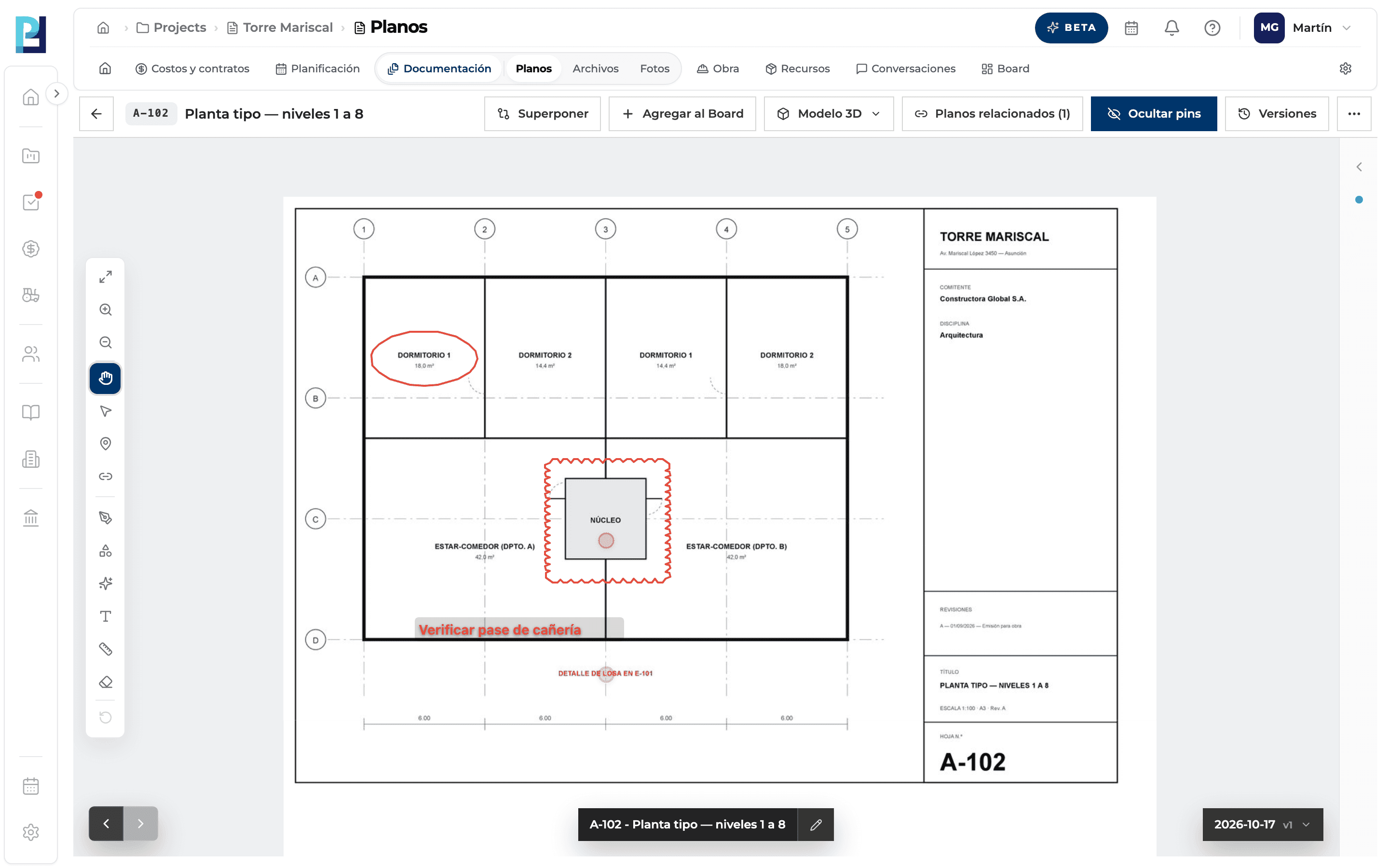
How to complete markups
- 01
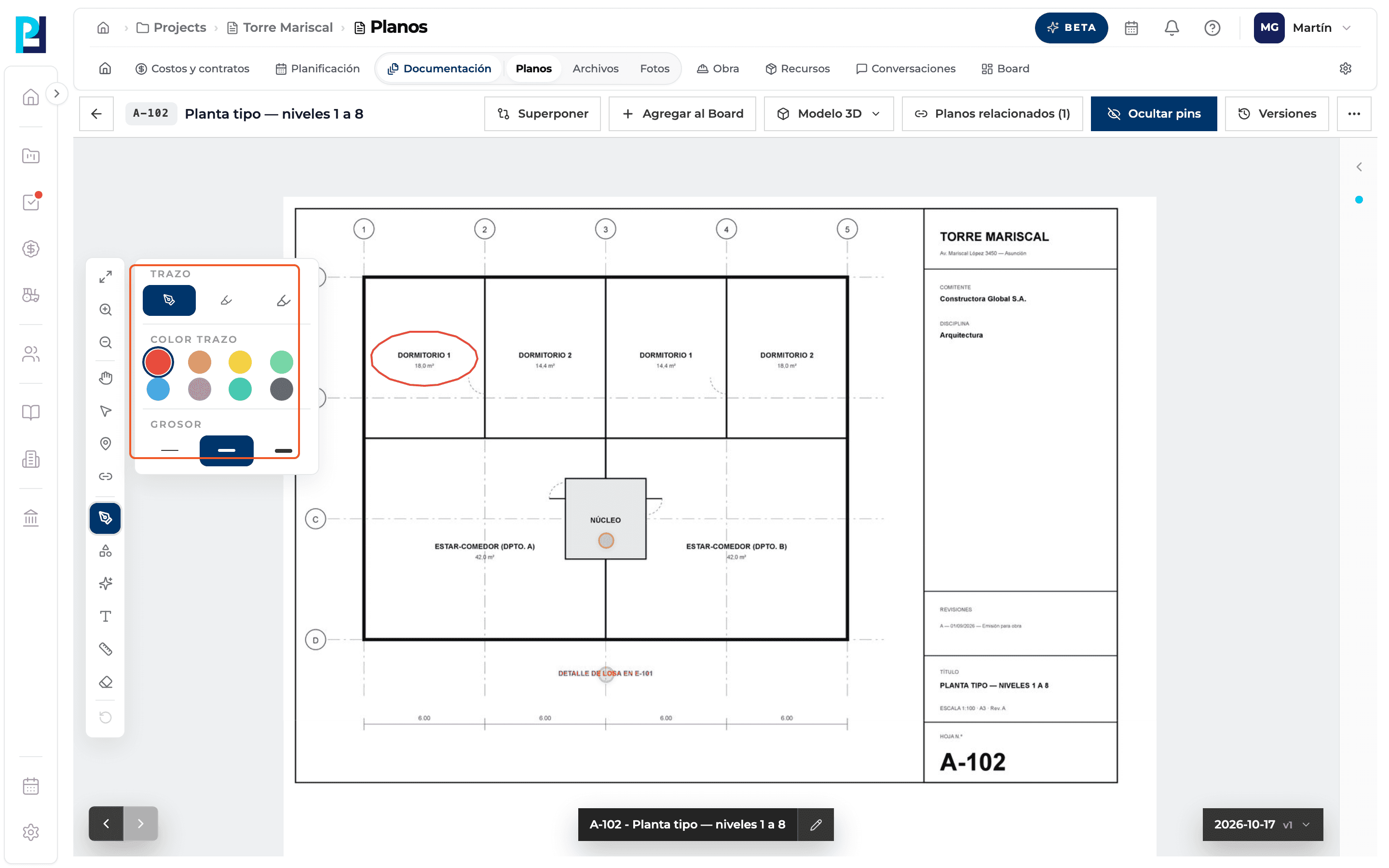
Draw freehand
Dibujar (Draw) → choose the stroke type, colour and width, and drag over the drawing.
- 02
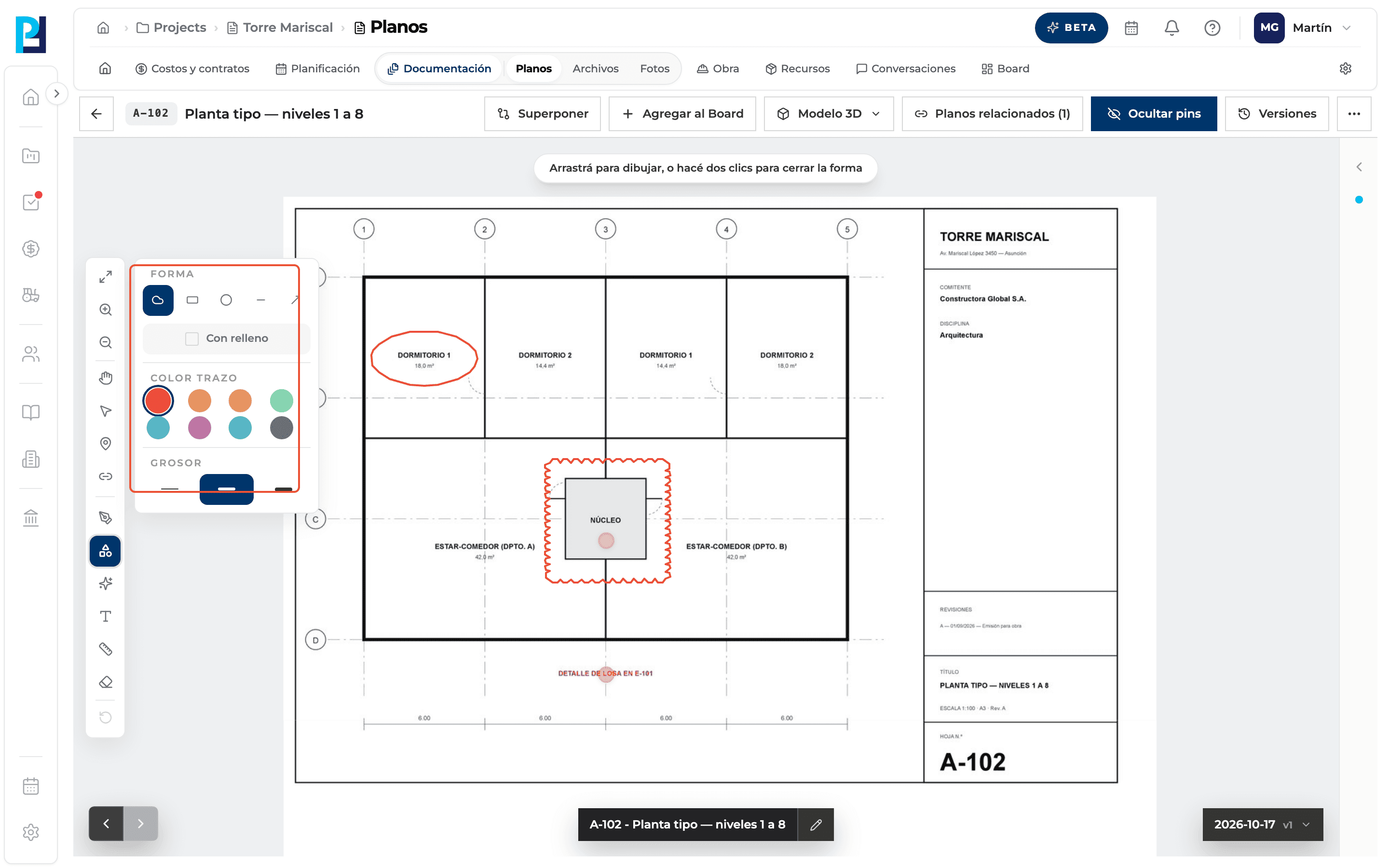
Draw shapes
Formas (Shapes) → cloud, rectangle, circle, line or arrow, with optional fill. Drag to draw.
- 03
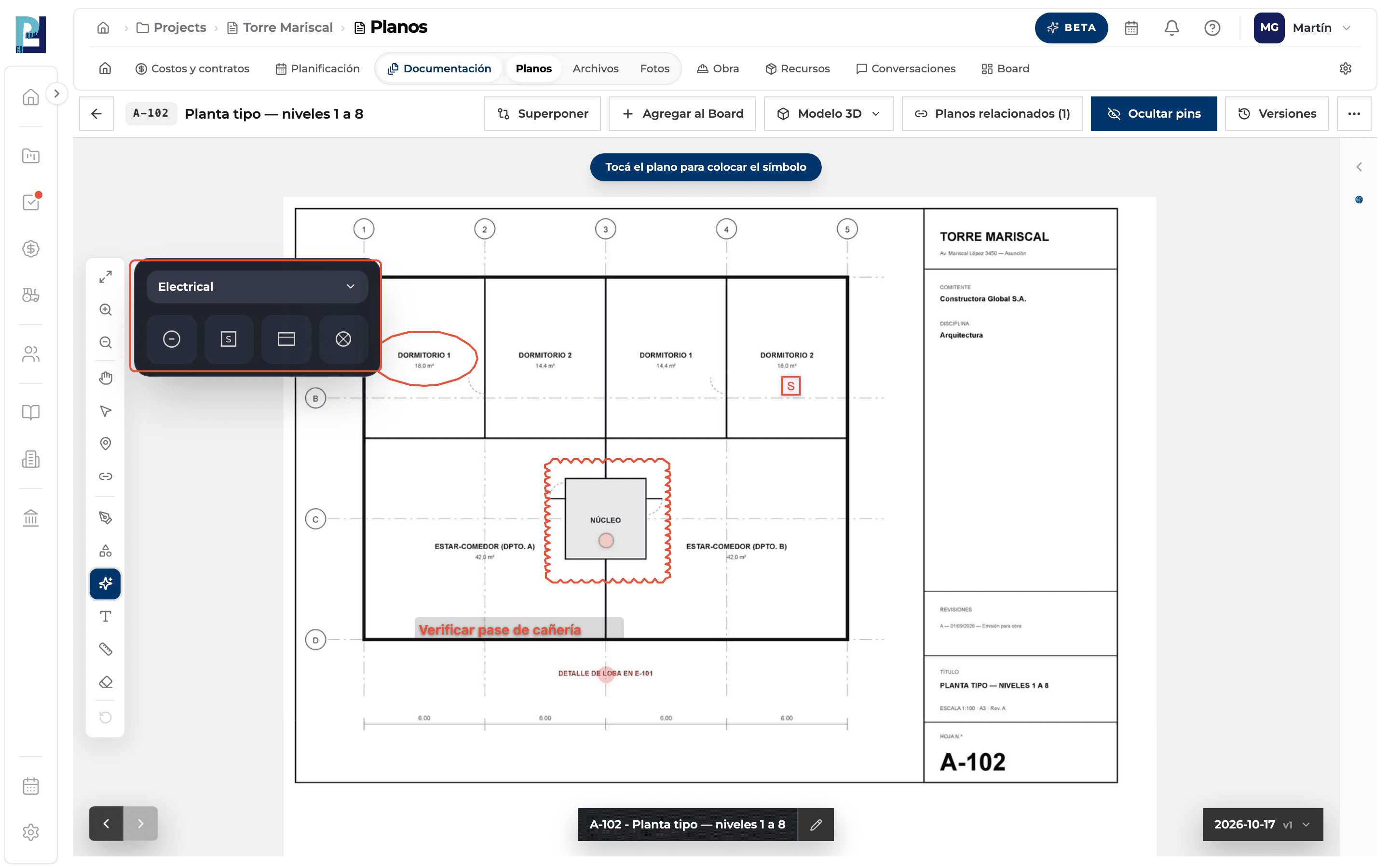
Place symbols
Símbolos (Symbols) → choose the category and symbol (outlet, switch, panel, light fixture and more) and click the drawing.
- 04
Write text
Texto (Text) → click the drawing, type and press Enter. Esc cancels.
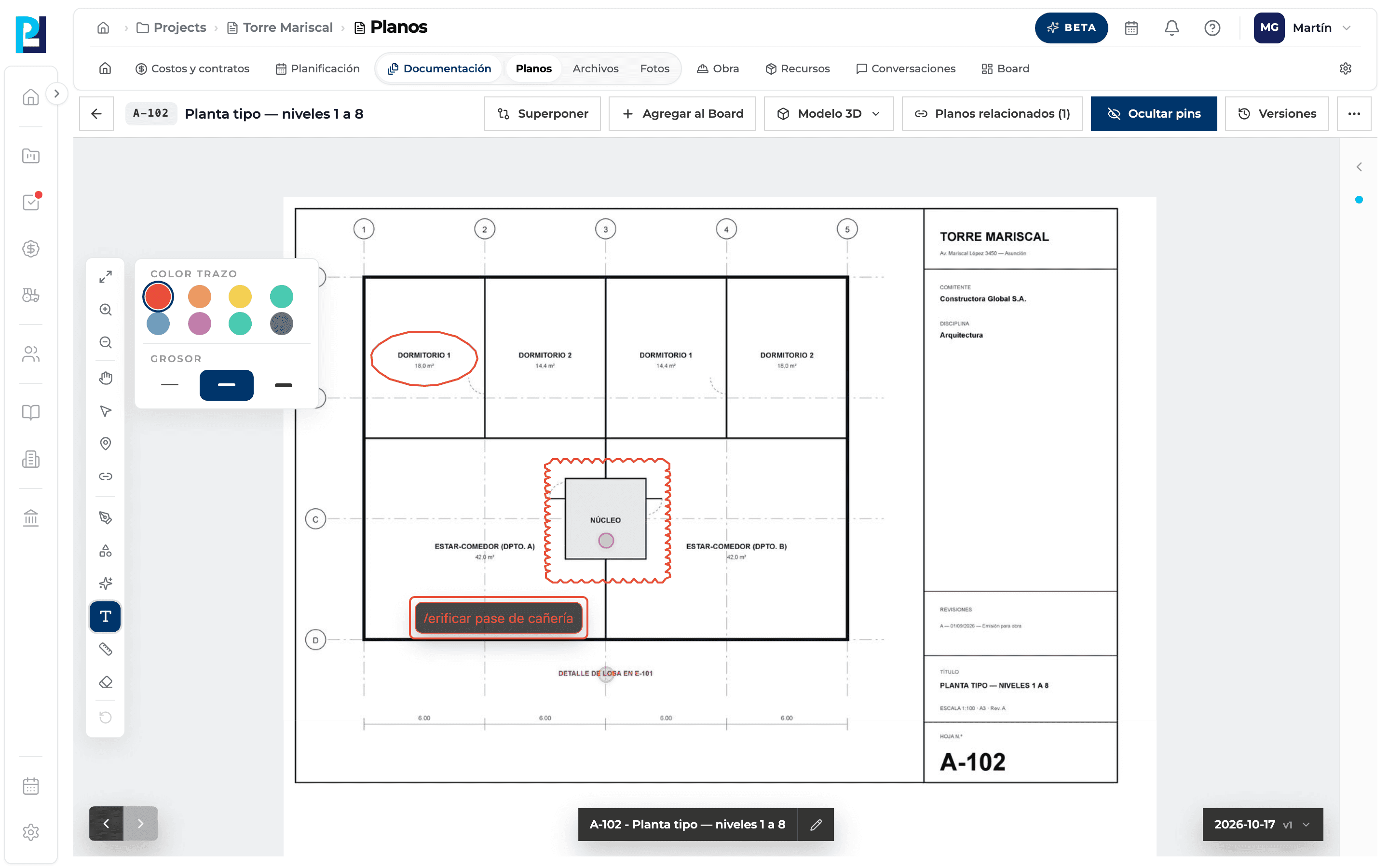
- 05
See the result
Markups stay on the drawing for everyone who opens that version.
- 06
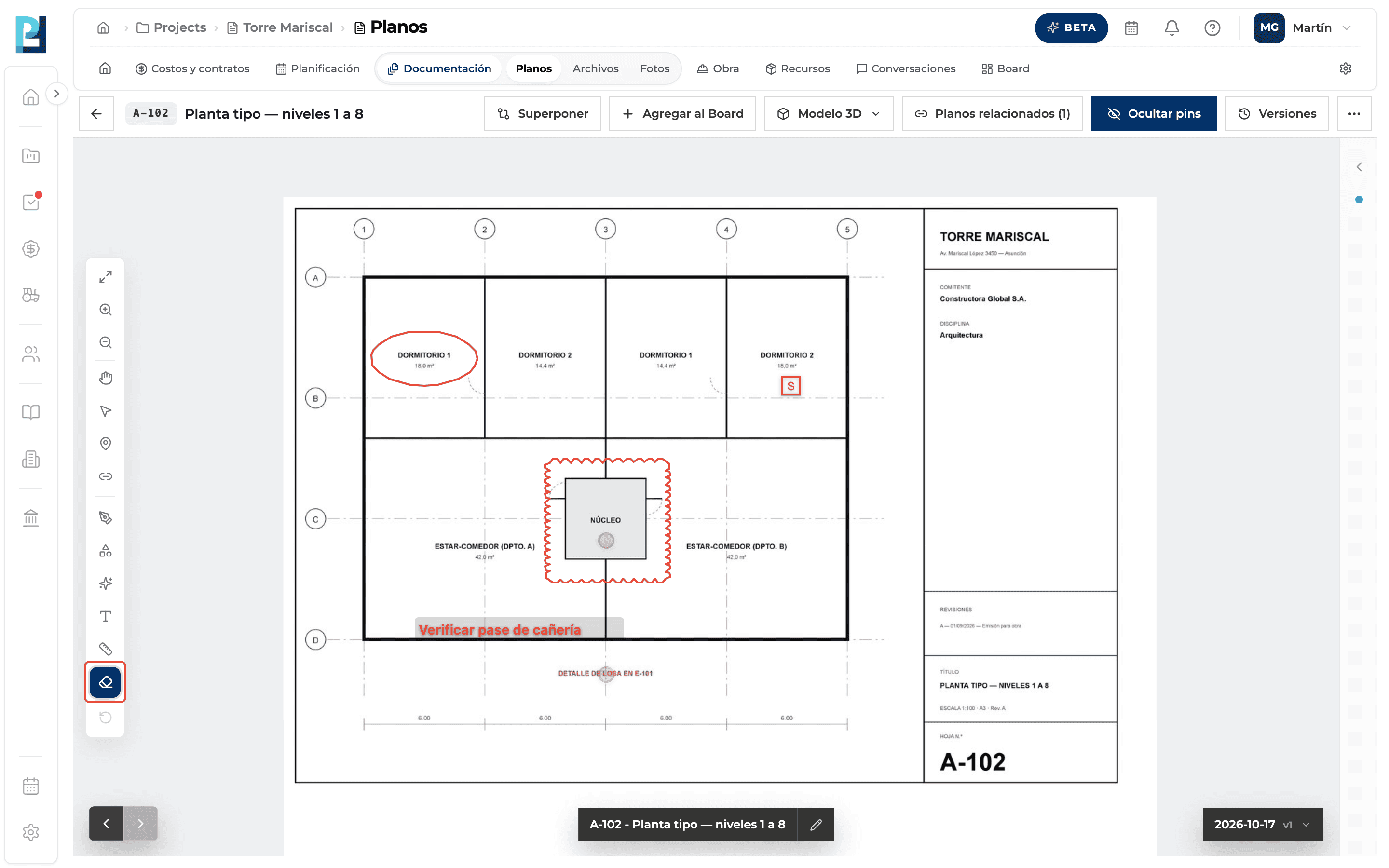
Erase
Borrar markup (Erase): one click on any markup removes it instantly, without confirmation.
- 07
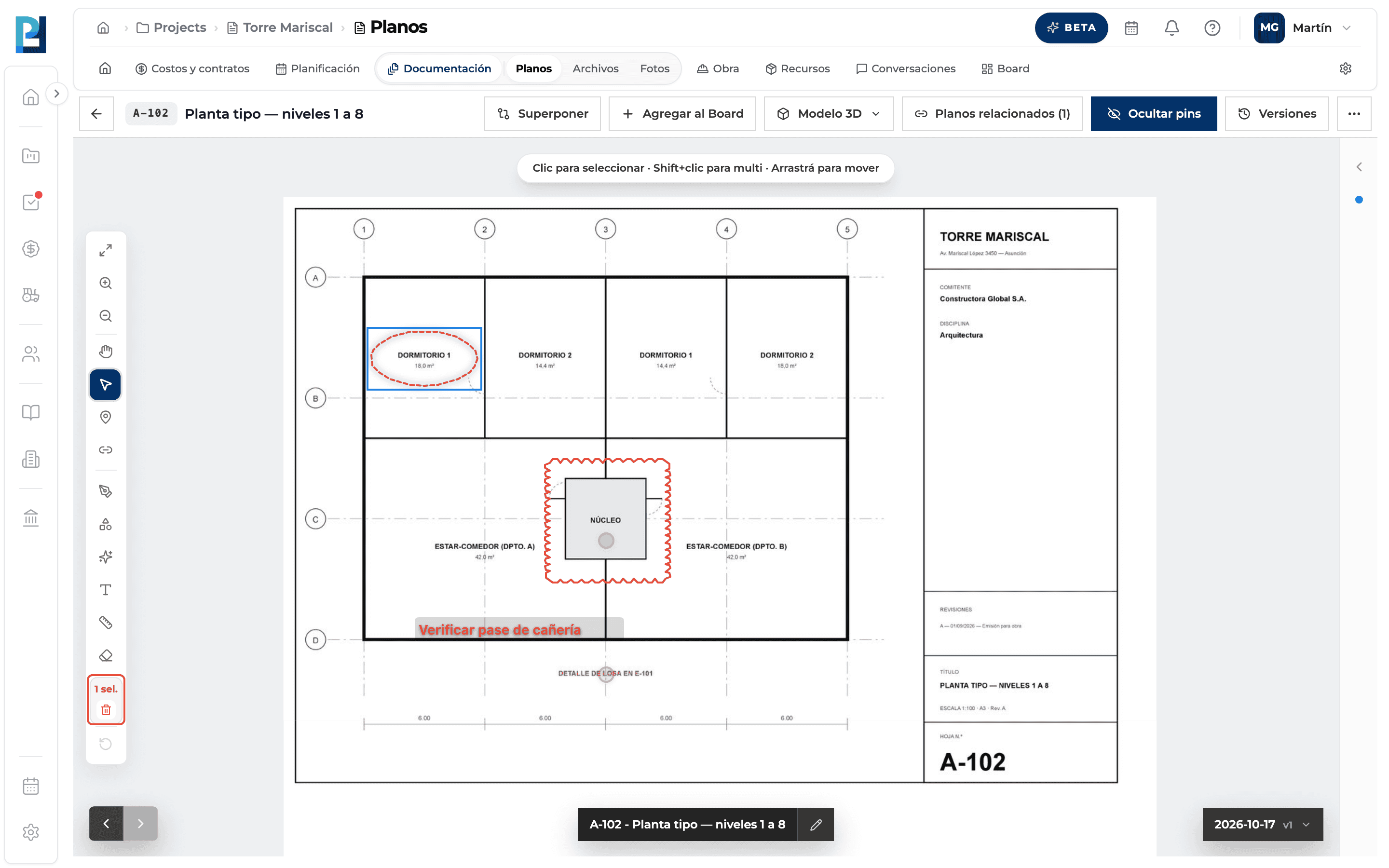
Select and move
Seleccionar (V): click to pick, Shift + click to add, or drag a box. Drag the selection to move it. The «N sel.» box in the bar has a bin to delete the selection.
- 08
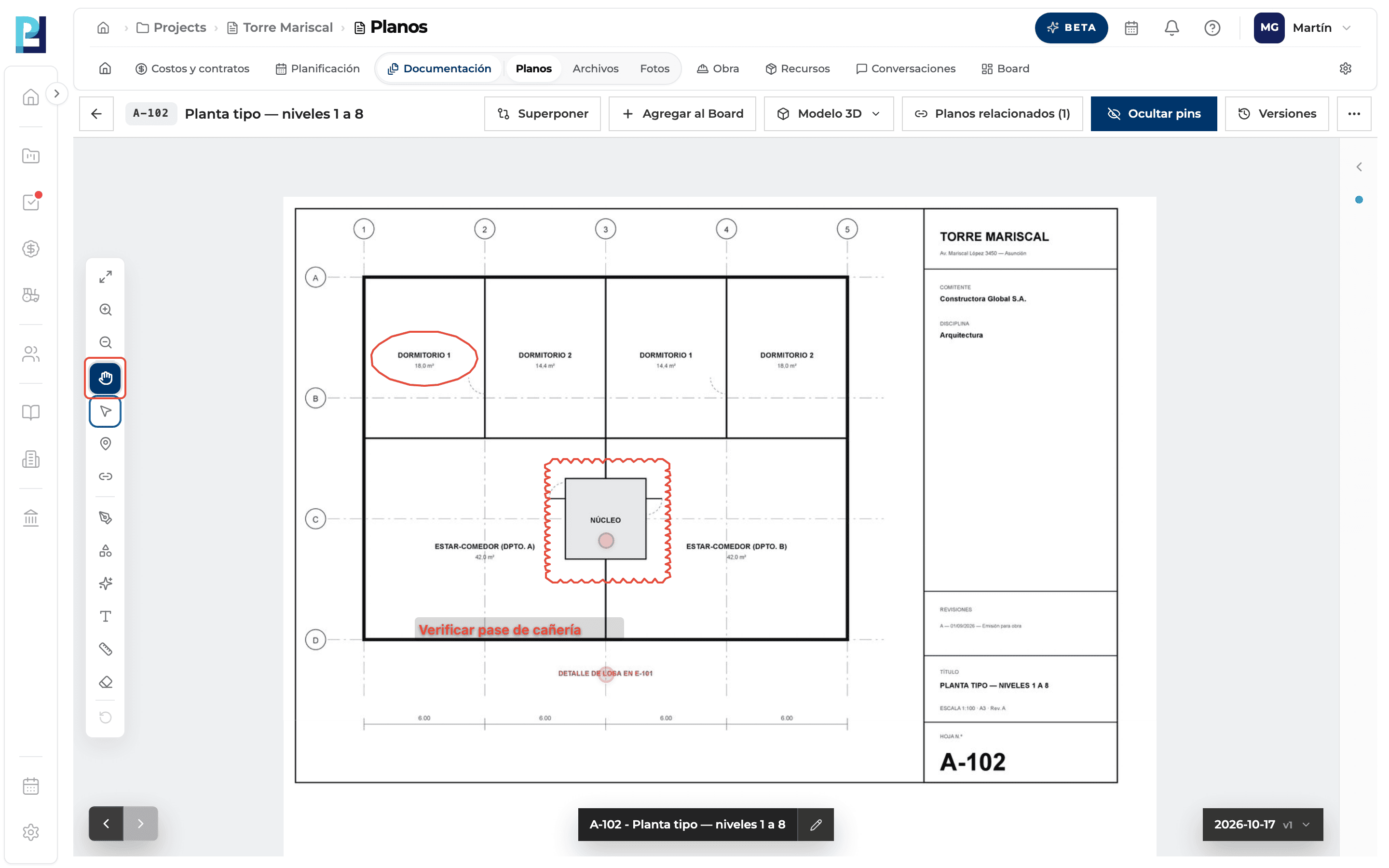
Back to Pan
Esc or the Mover (Pan) tool.
What you'll learn
How marking up the drawing: drawing, shapes, symbols, text, erase and select works inside Perfour.
What information you need and how it stays connected to Drawings.
How to preserve traceability and find the record later.
Frequently asked questions
Does «Delete selection» also delete pins?+
Yes: it deletes everything selected, without confirmation. Check the selection first.
I can't see my drawings.+
Hide pins is on, which also hides markups. Click Ver pins.
The tools are greyed out.+
You are on an earlier version or lack upload permission.