Measure distances and set the scale
The Measure tool calculates the distance between two points. To get real metres you must set the drawing's scale first.
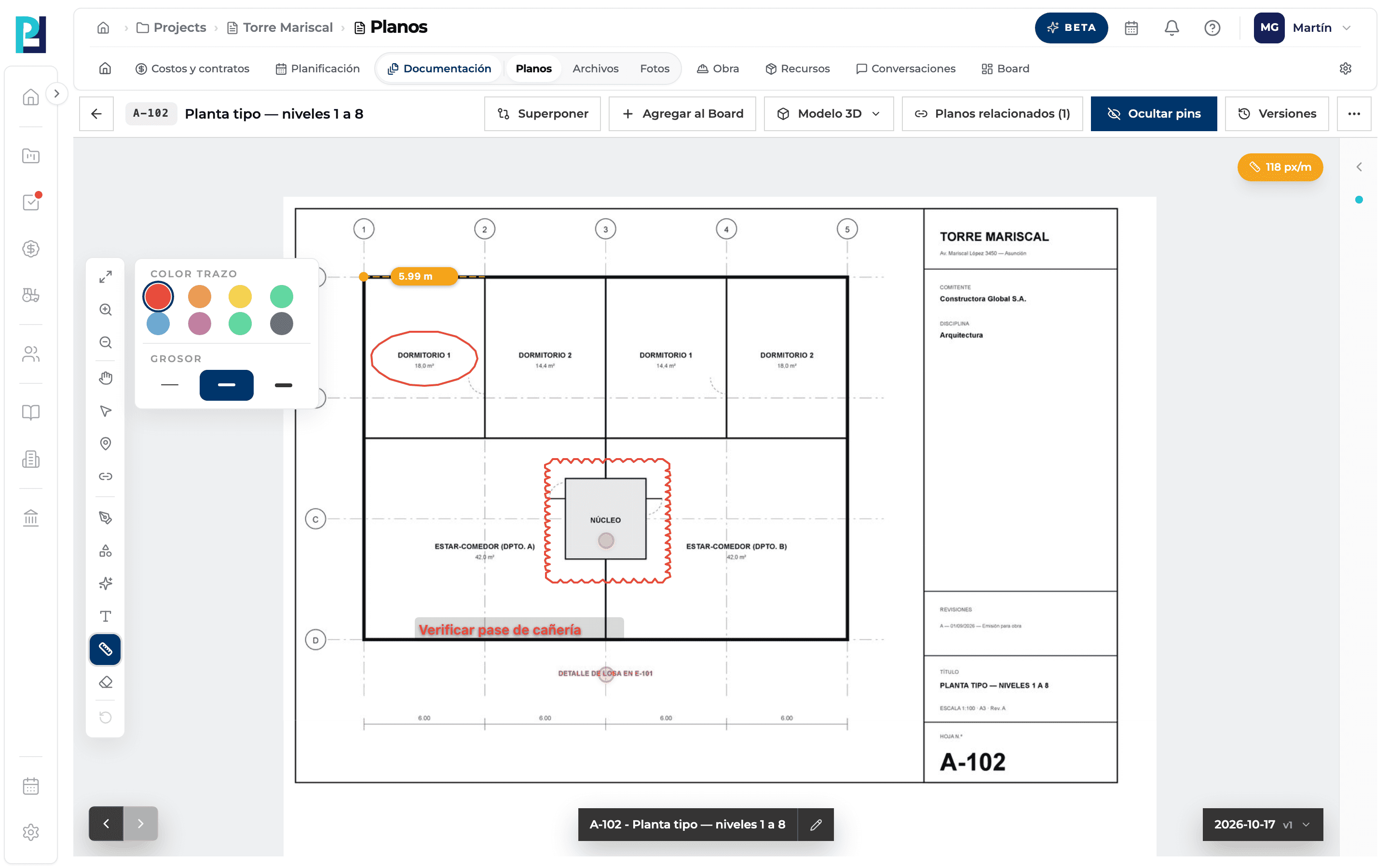
How to complete measure
- 01
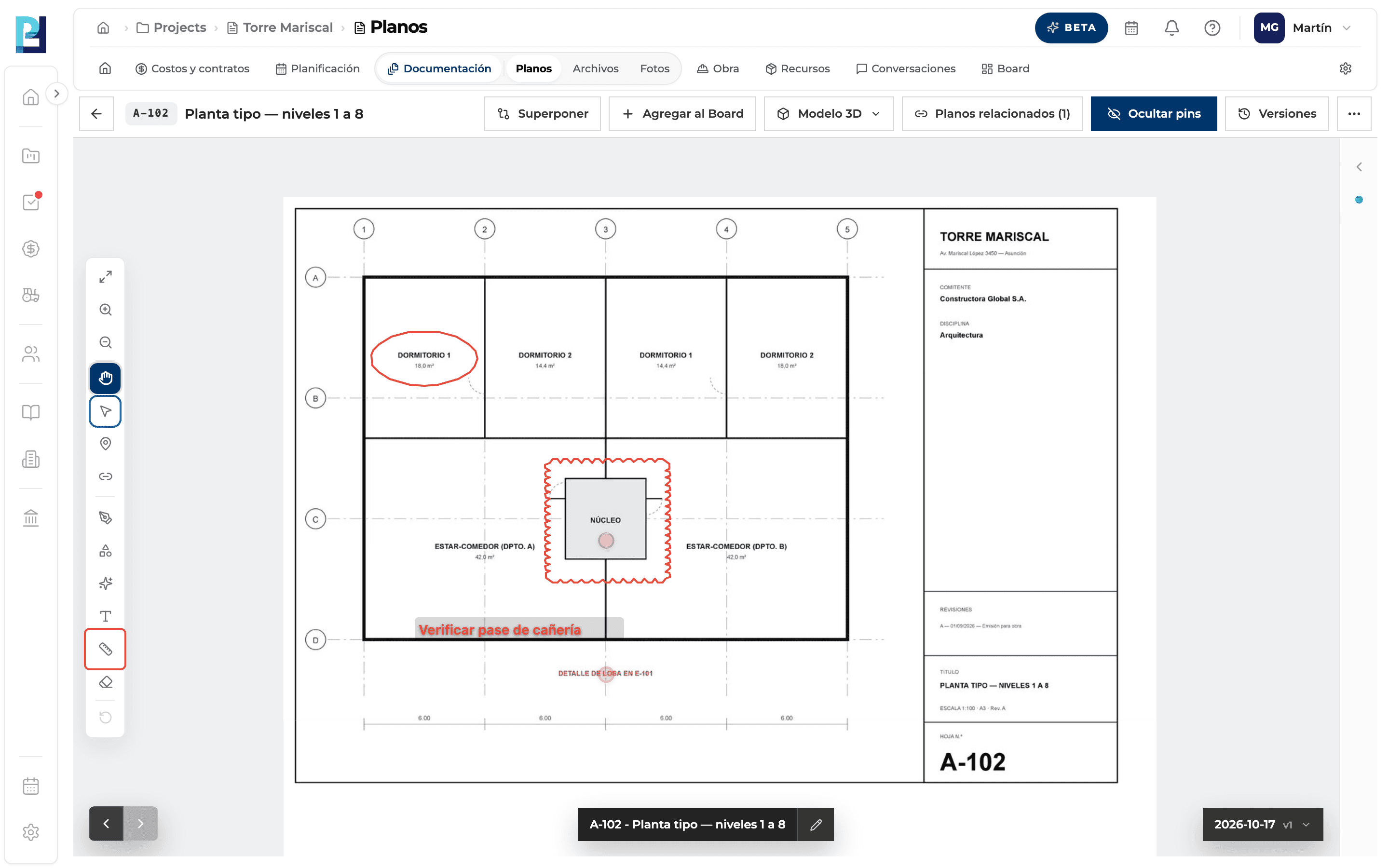
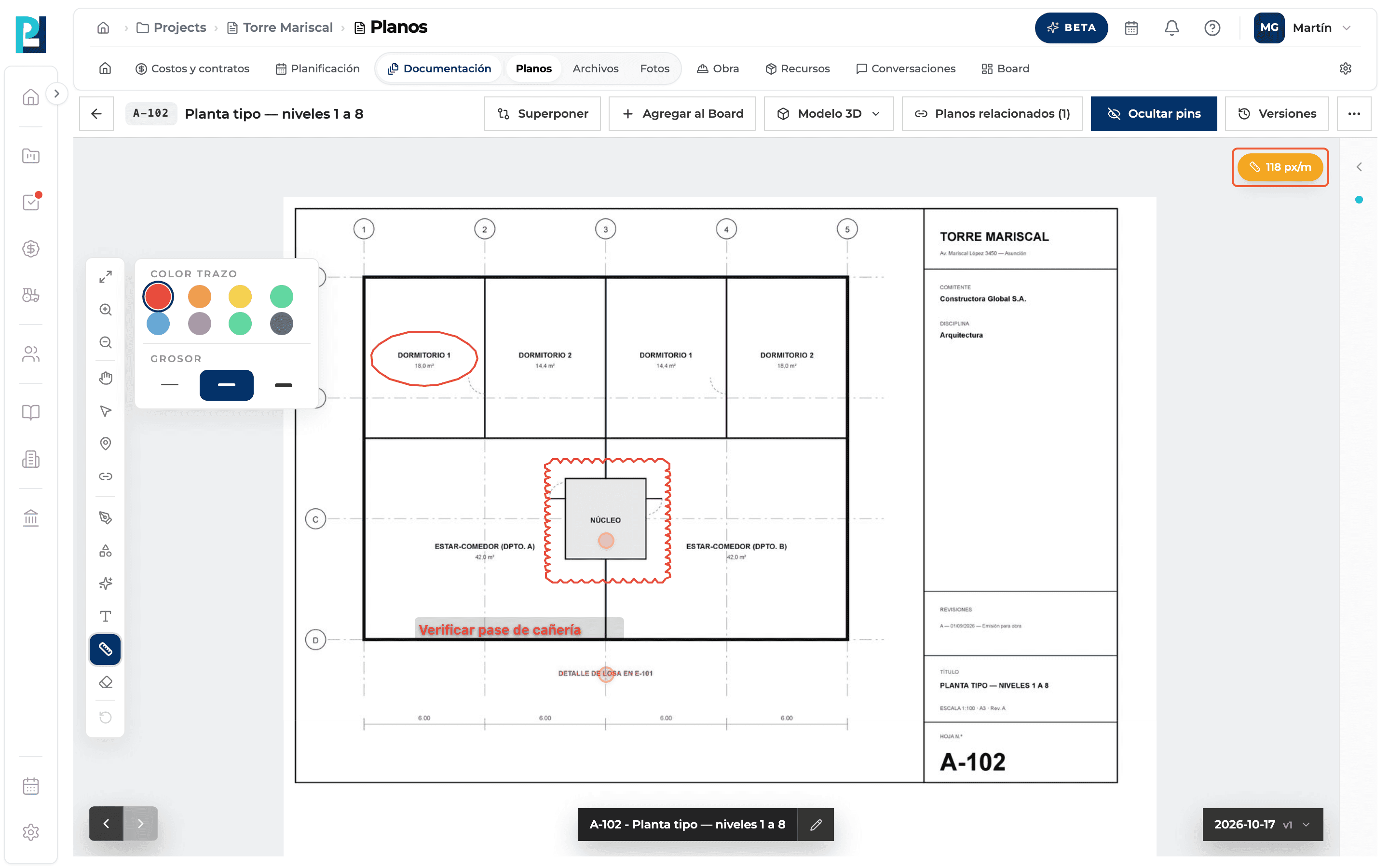
Turn on Measure
Left bar → Medir (Measure). If there is no scale yet, Set scale opens by itself.
- 02
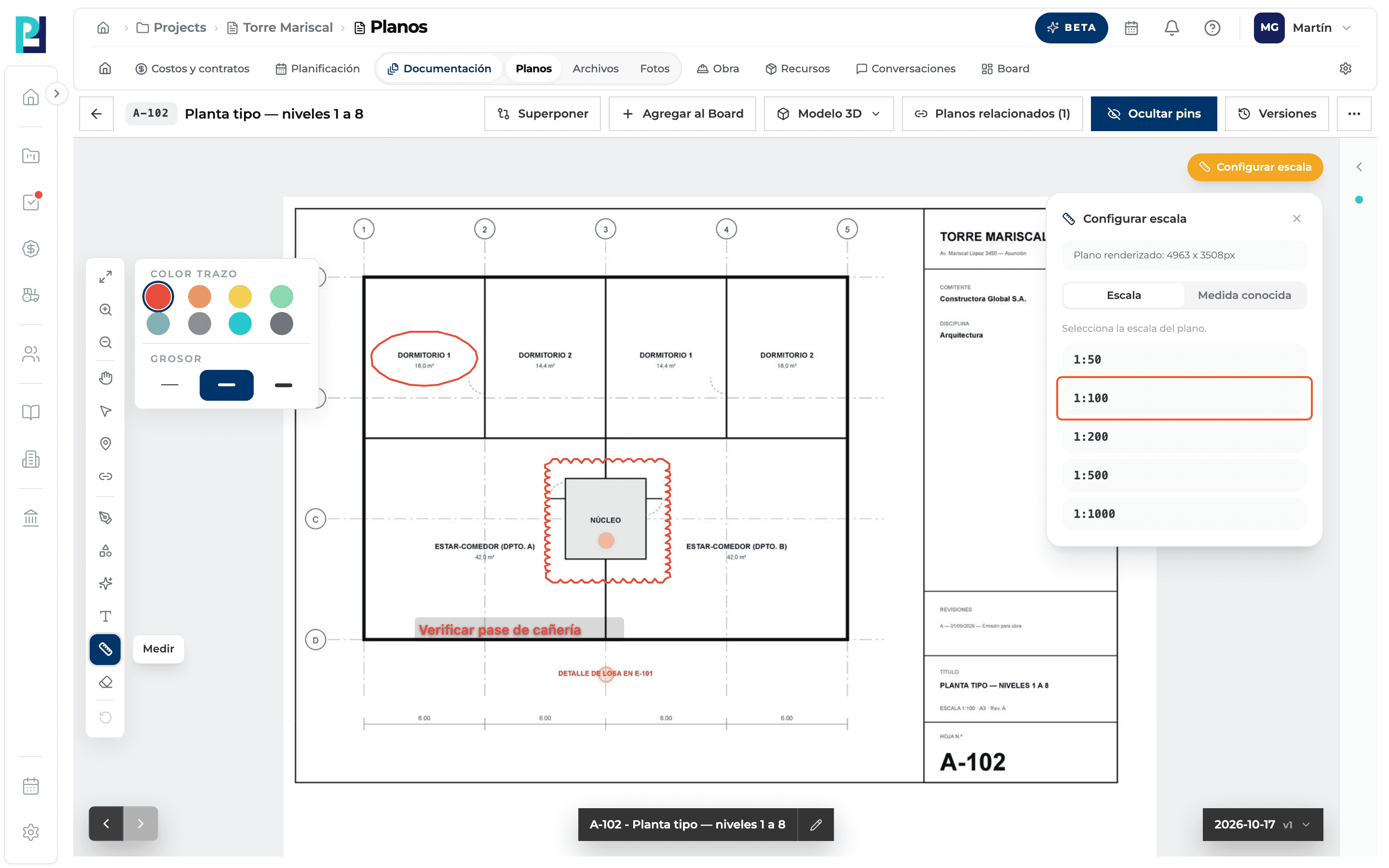
Choose the scale
Escala tab: 1:50, 1:100, 1:200, 1:500 or 1:1000. It assumes a drawing printed at true scale.
- 03
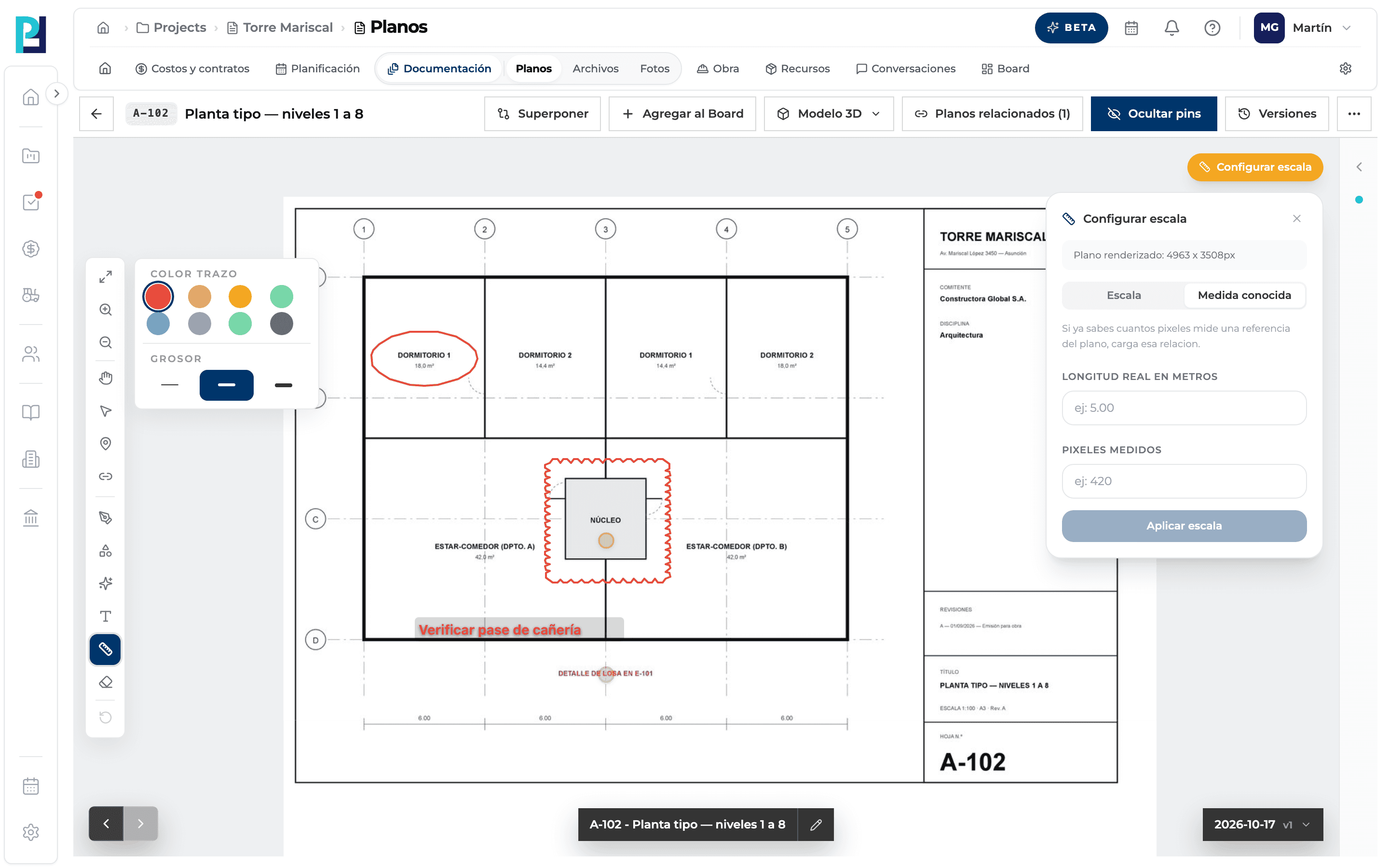
Or use a known length
Medida conocida tab: enter the real length in metres and the measured pixels, then click Aplicar escala.
- 04
Measure
Click the start point and move the mouse: the orange label shows the distance in metres. Click the end point to finish.
- 05
Fix the scale
The orange button at the top right shows the active scale (in px/m) and reopens Set scale.
What you'll learn
How measure distances and set the scale works inside Perfour.
What information you need and how it stays connected to Drawings.
How to preserve traceability and find the record later.
Frequently asked questions
It shows a percentage instead of metres.+
You didn't set the scale: without it the measurement is a percentage of the drawing's width.
Is the scale saved?+
No: it is lost when you change drawing or reload. Set it each session.
The preset scales don't match.+
The PDF isn't at true scale. Use Known length by measuring a dimension on the drawing.