Upload a new version of a drawing
When a sheet is revised, upload it with the same sheet number: the drawing keeps its history and the revision becomes the current one.
How to complete new version
- 01
Upload the revised sheet
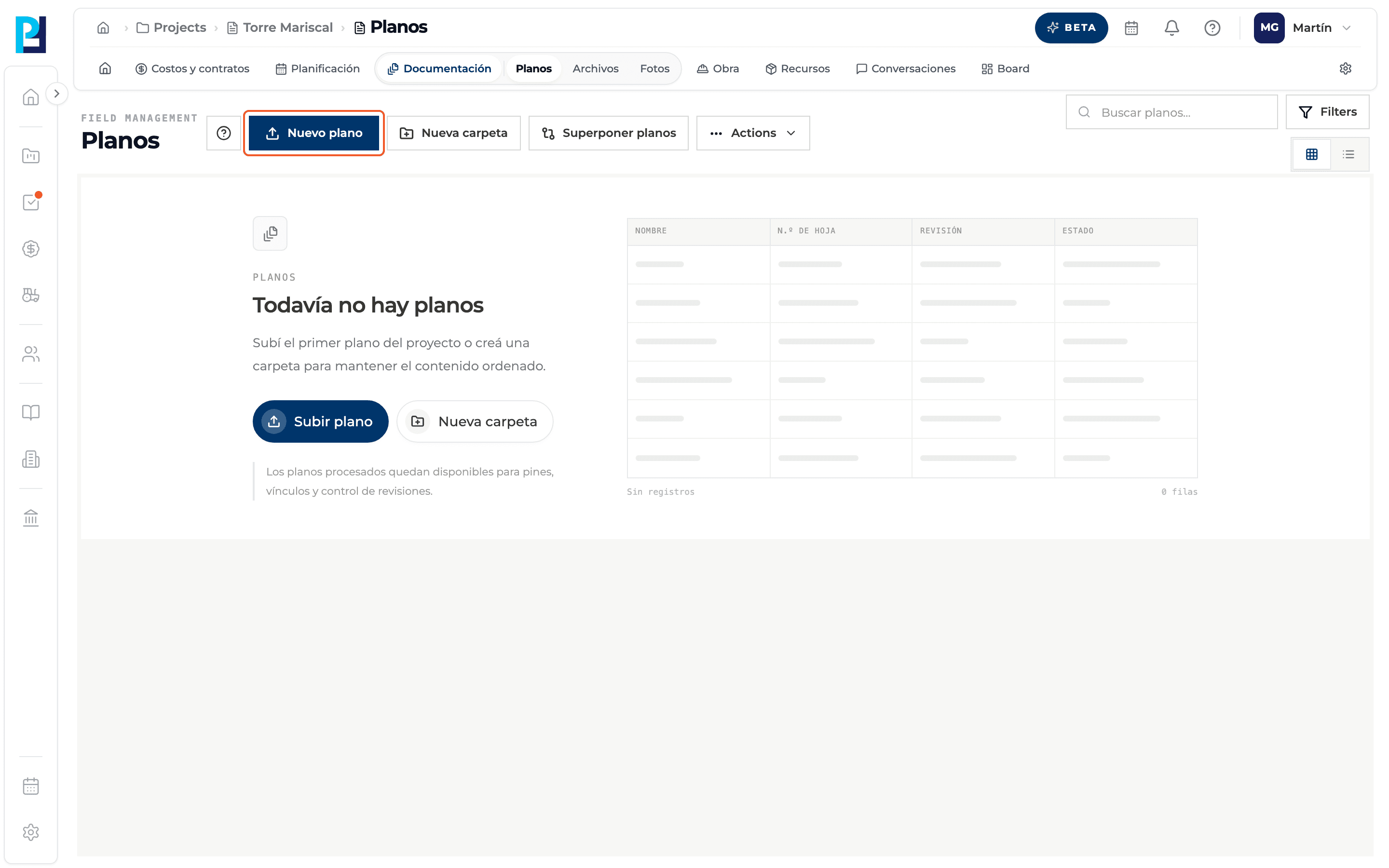
In the library click New drawing and pick the revision's PDF.
- 02
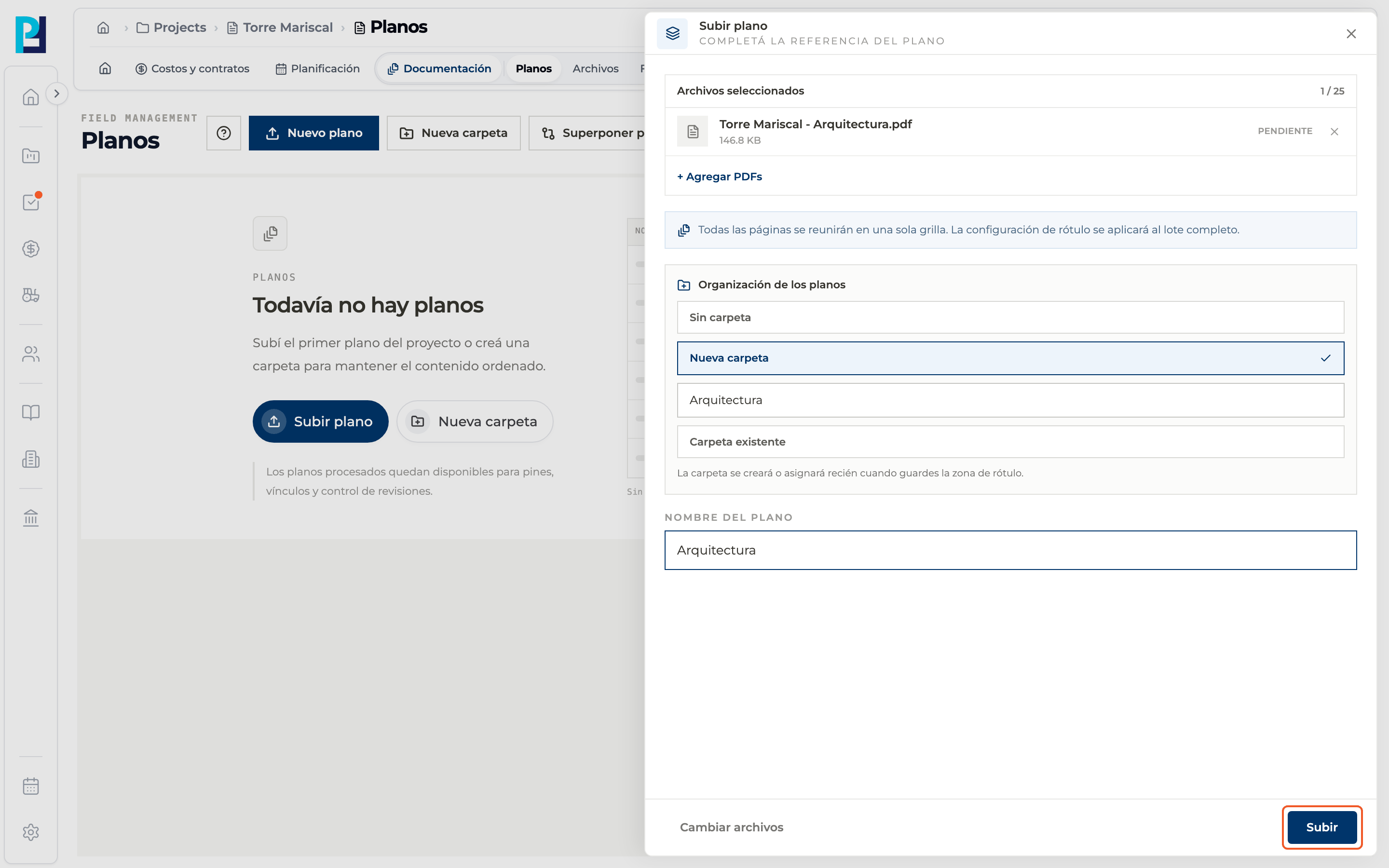
Complete the upload
Choose the folder, the pages and the sheet number zone, as in a regular upload.
- 03
Choose New version
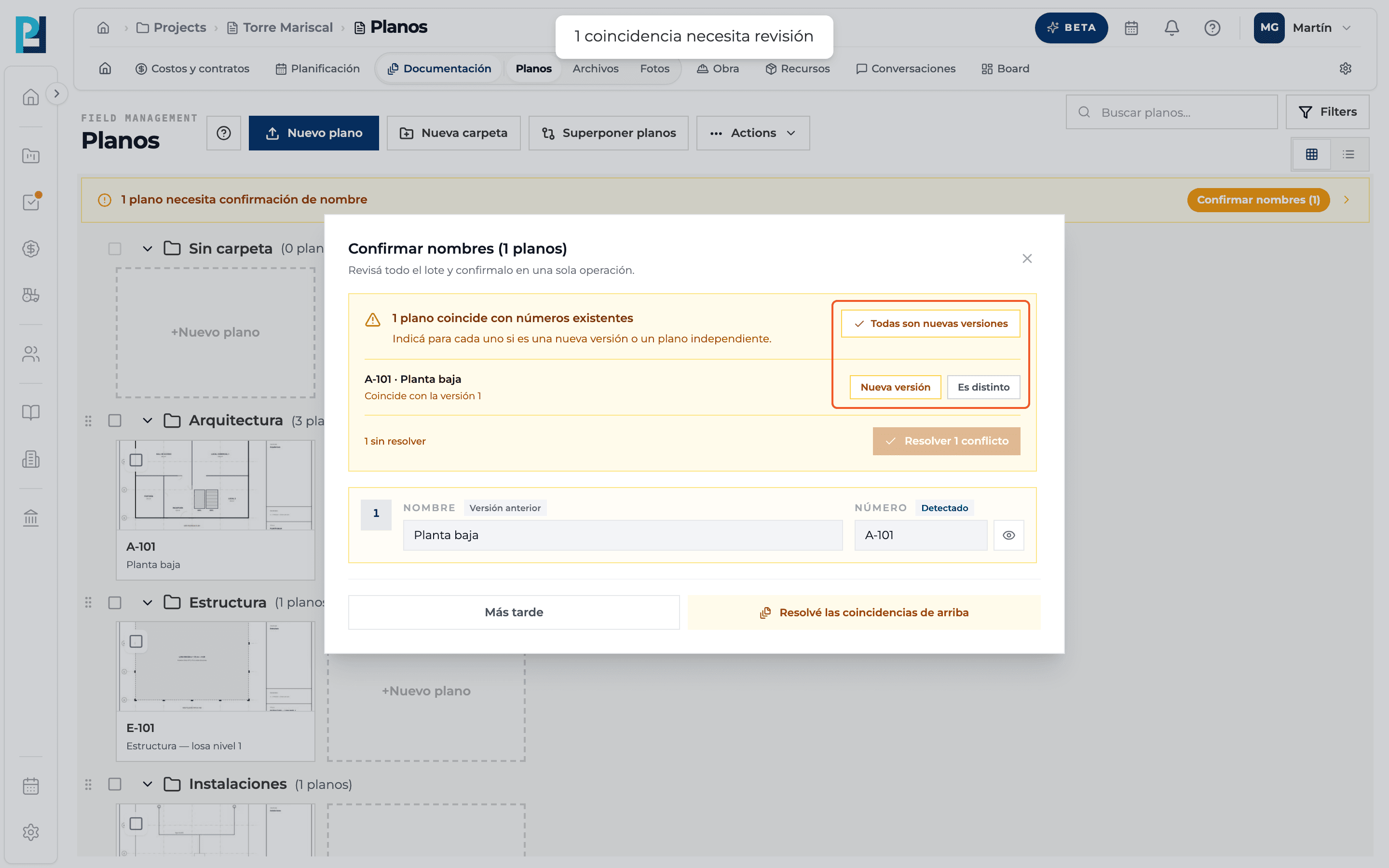
When confirming names, the system detects that the sheet number already exists. In the amber block choose Nueva versión for that drawing.
- 04
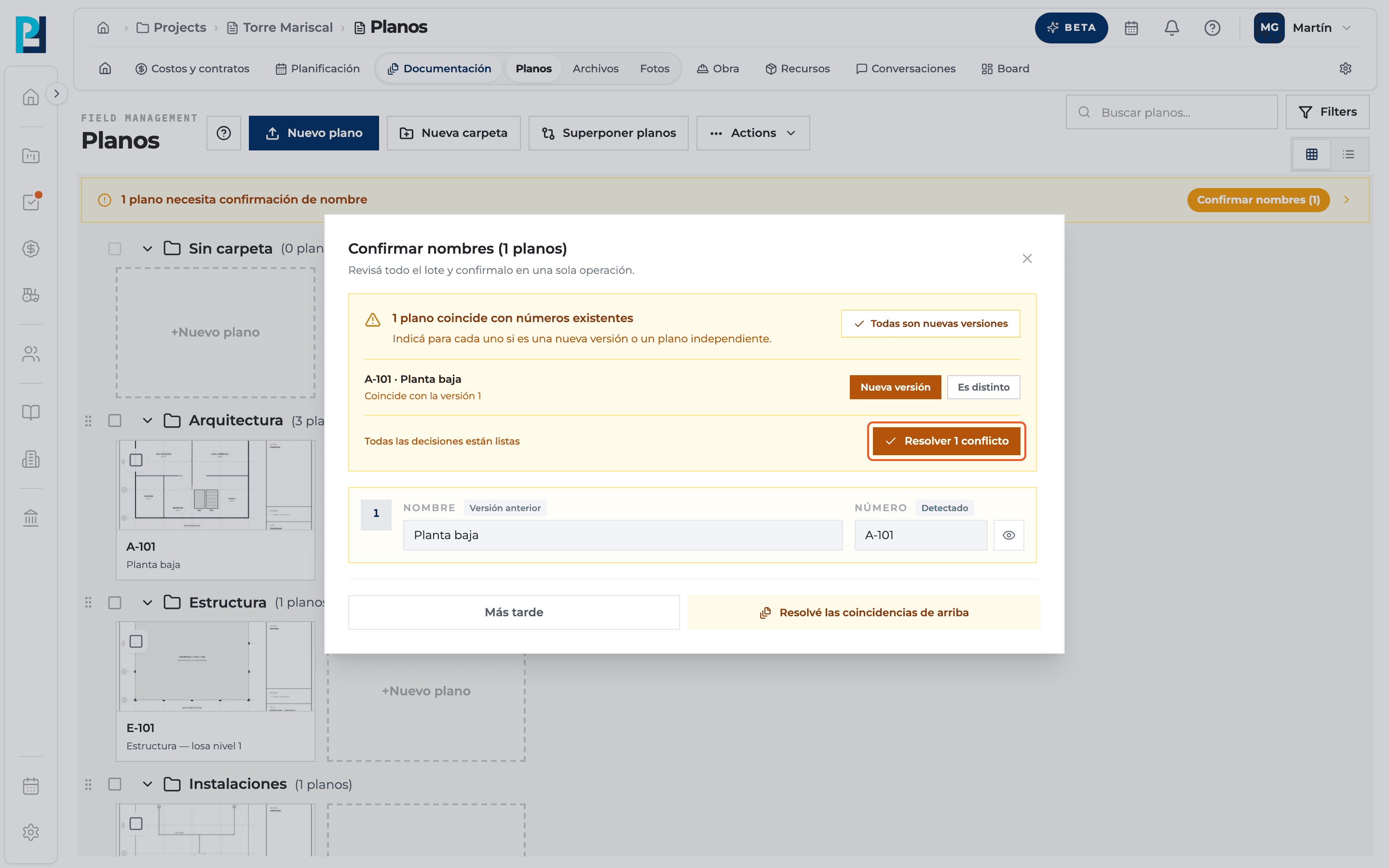
Resolve
Click Resolver 1 conflicto.
- 05
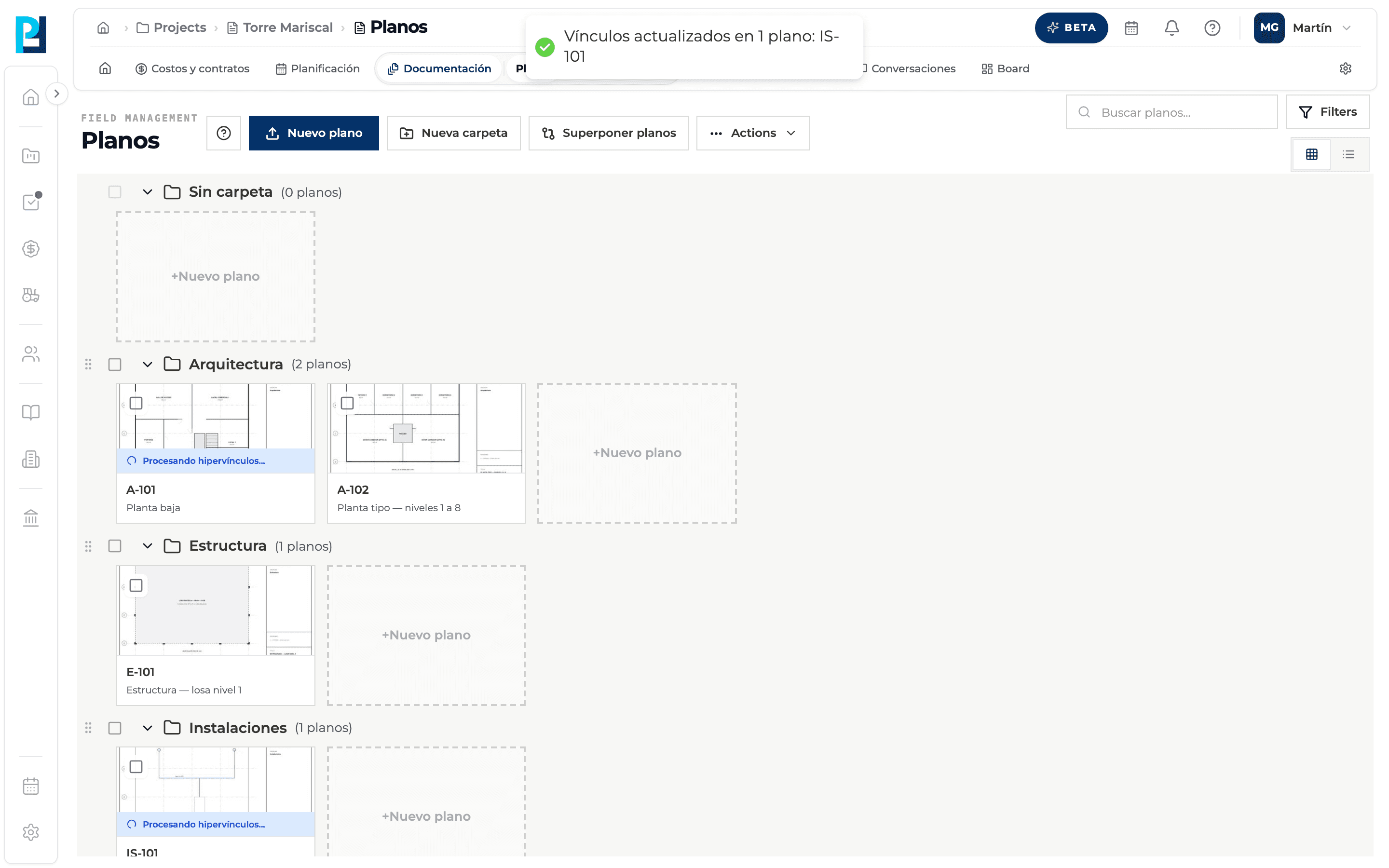
Check the links
If other drawings pointed to this sheet, their hyperlinks are updated and you are told which ones changed.
- 06
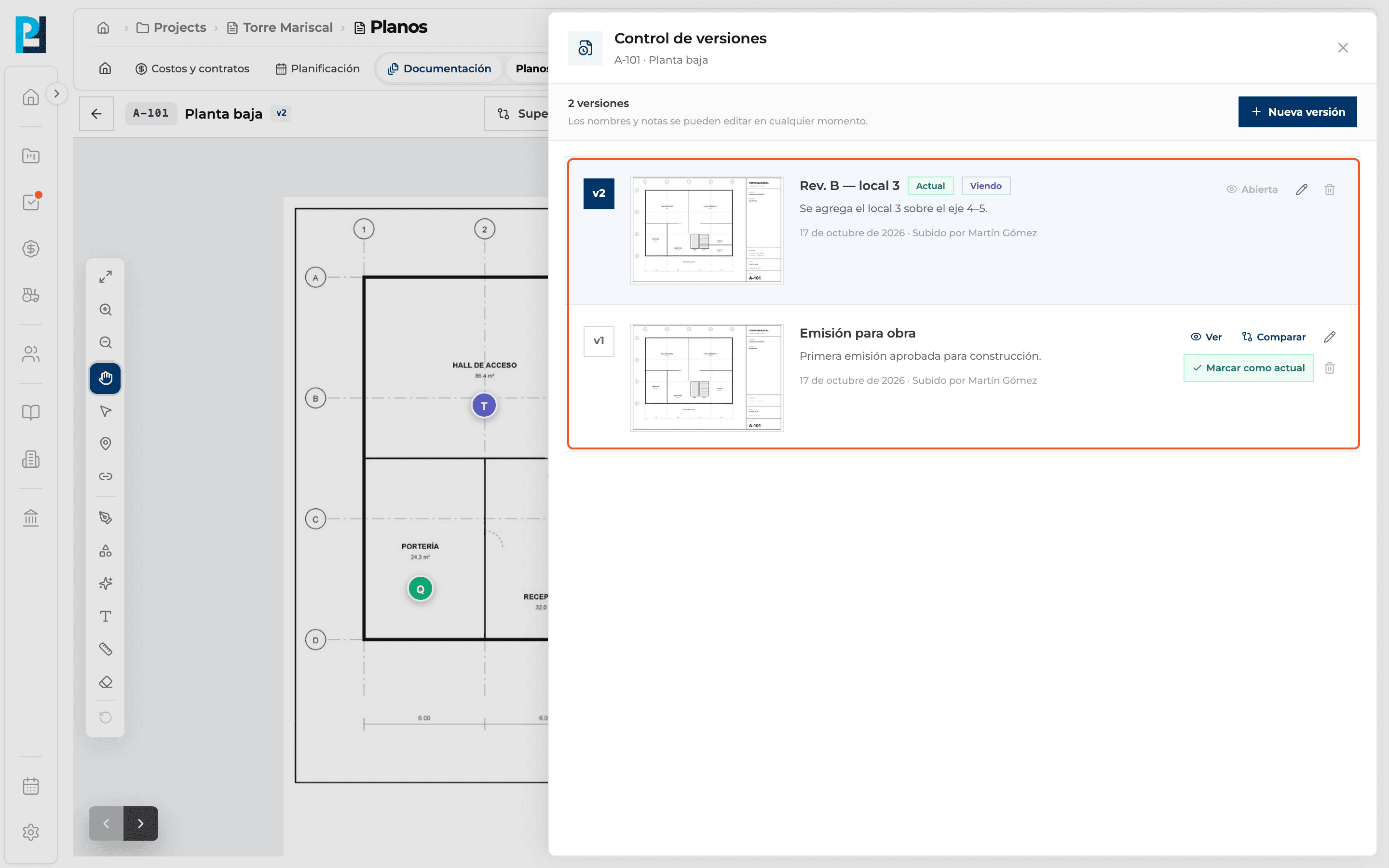
Check Versions
Open the drawing and click Versions: the revision is Current and the earlier one stays in the history.
What you'll learn
How upload a new version of a drawing works inside Perfour.
What information you need and how it stays connected to Drawings.
How to preserve traceability and find the record later.
Frequently asked questions
What happens to the pins on the earlier version?+
They stay on that version. Markup tools only work on the Current version.
Why can't I upload a version of a shared drawing?+
Versions are managed in the source project.
I chose New version by mistake.+
In Versions you can mark the earlier version as current or delete the new one.