Move drawings between folders and reorder folders
Select one or more drawings and send them to a folder or to No folder. Folders can be reordered.
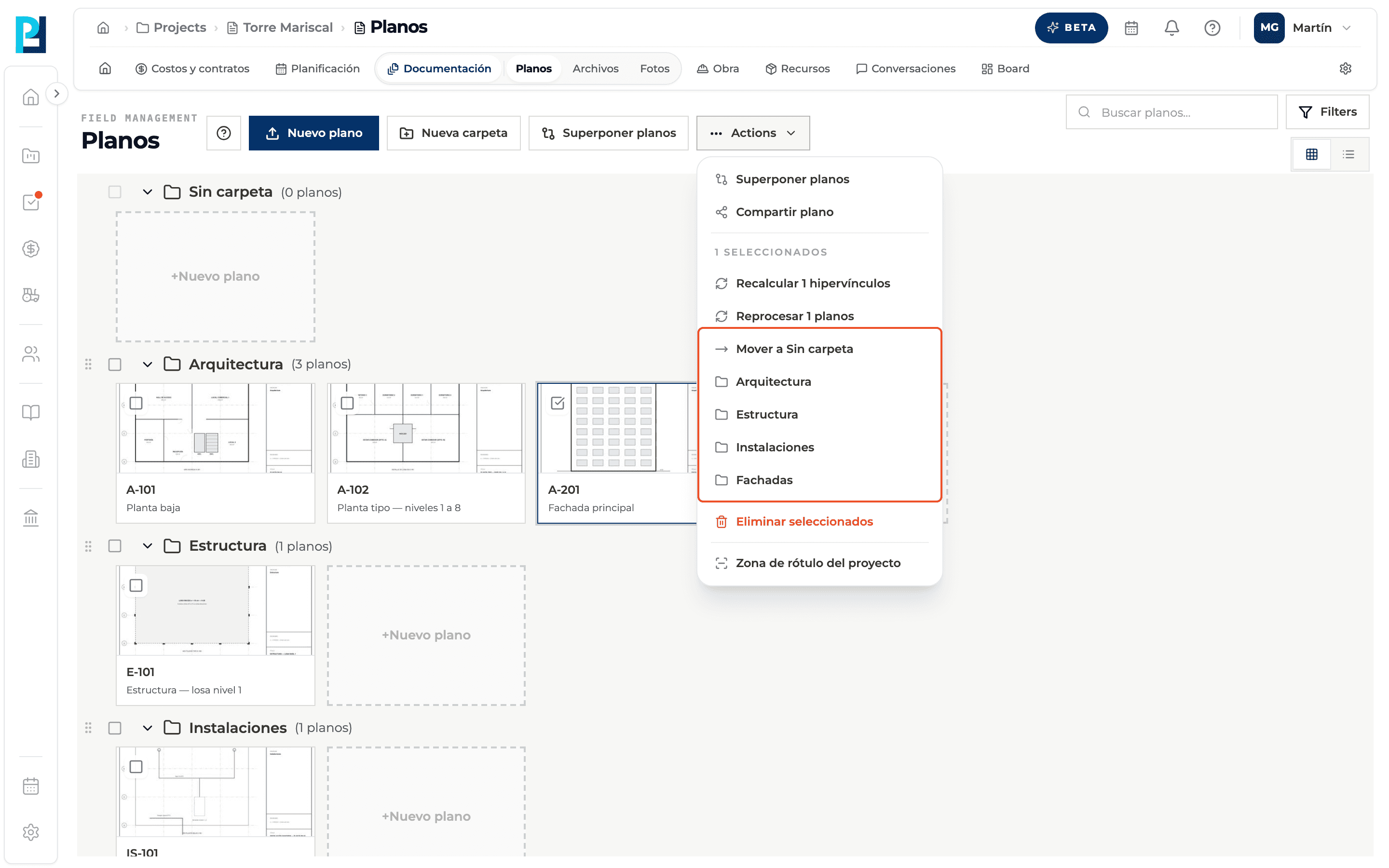
How to complete move drawings
- 01
Select drawings
Tick each card's checkbox. The checkbox next to the folder name selects every drawing in the group.
- 02
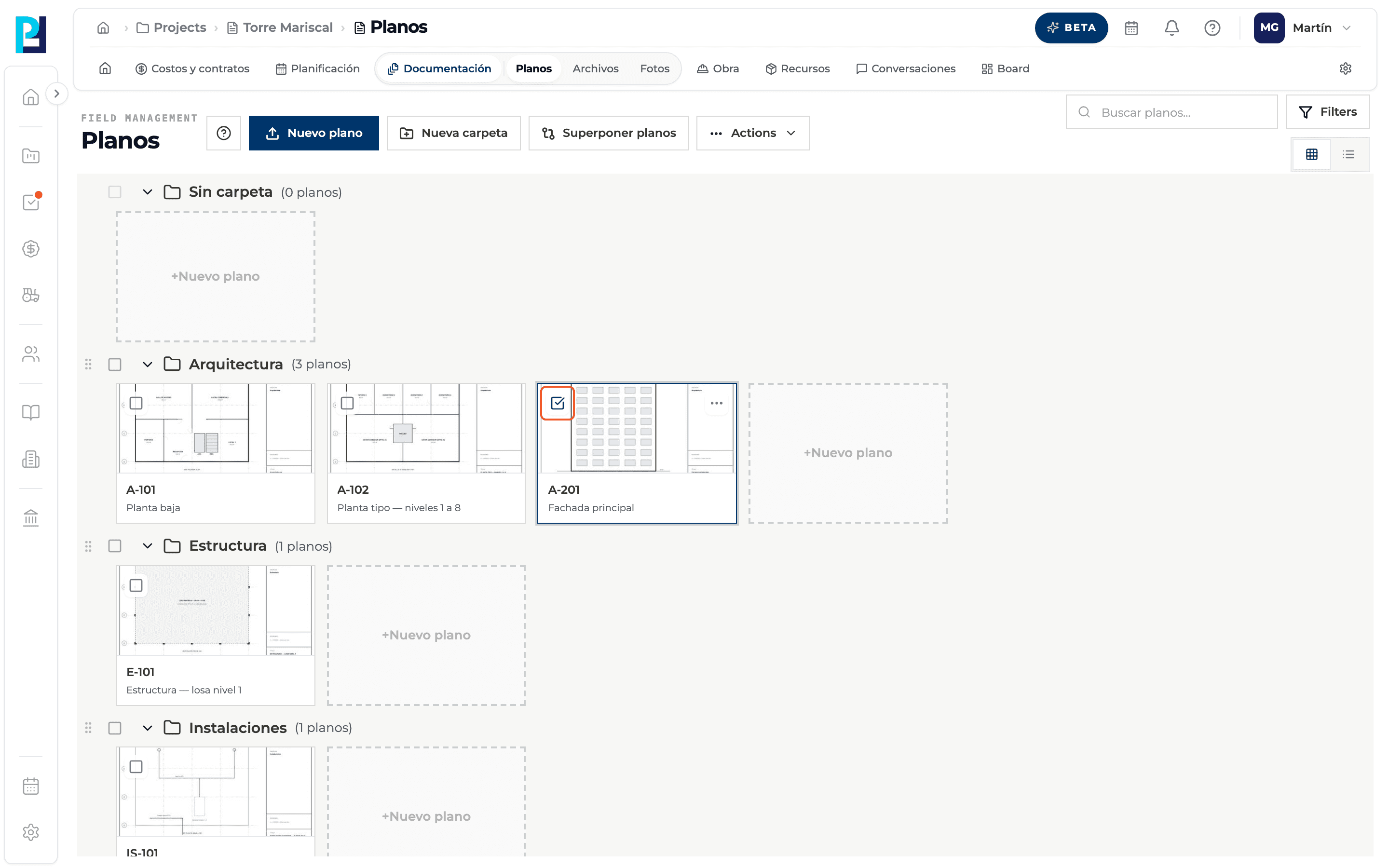
Open Actions
The Actions menu shows how many drawings you selected.
- 03
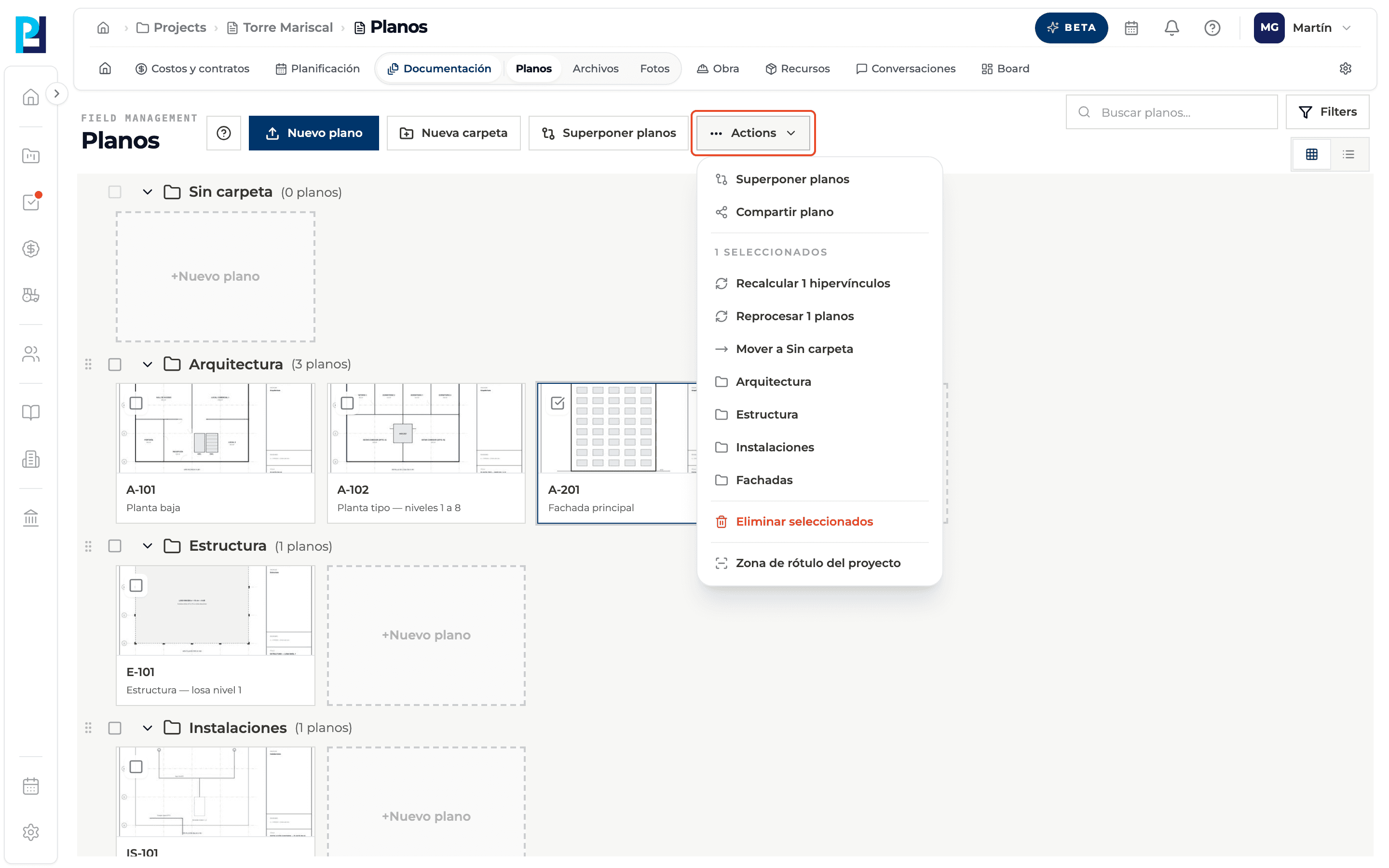
Choose the destination
Mover a Sin carpeta or any folder's name. With nothing selected these options are greyed out.
- 04
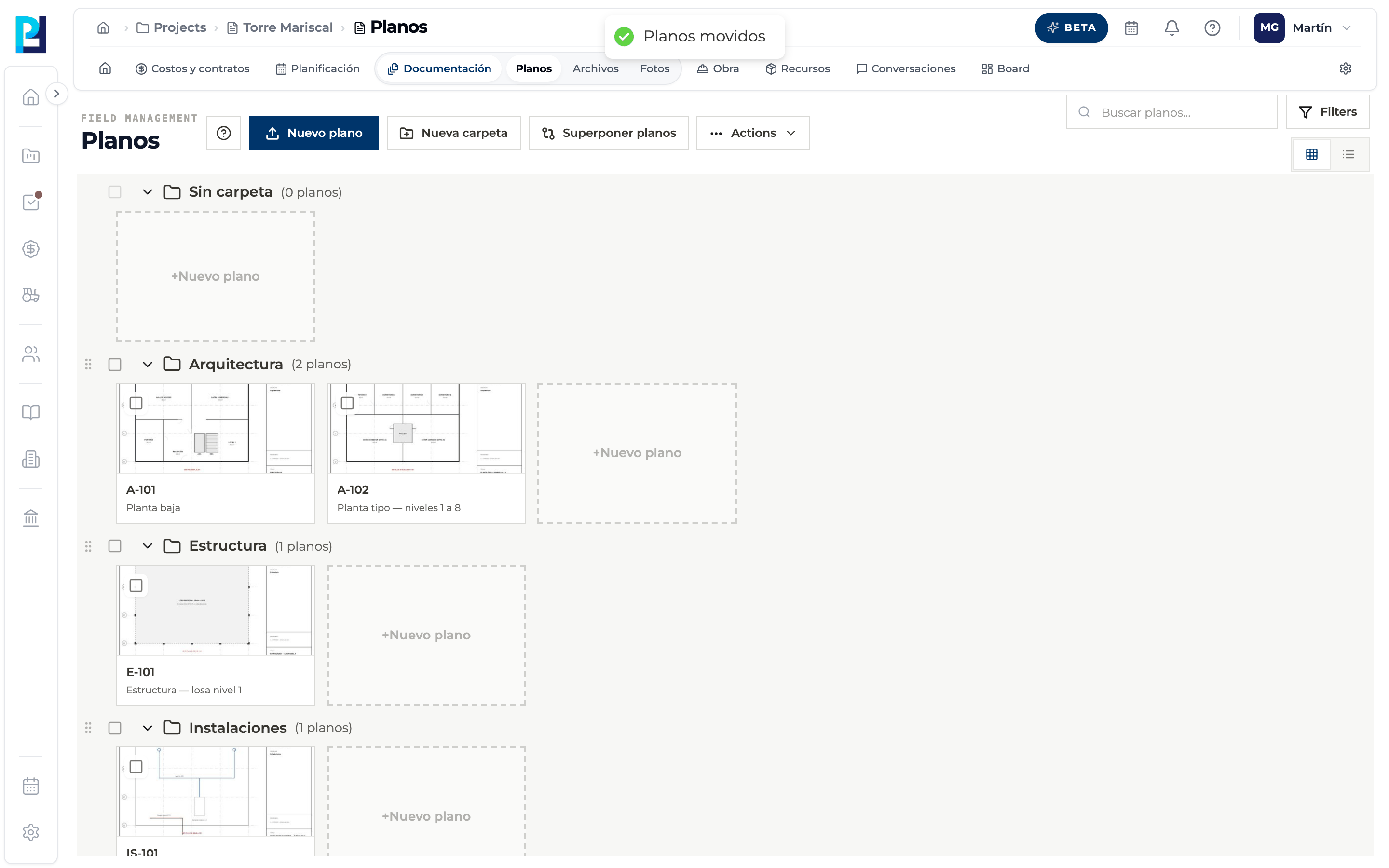
Check
«Planos movidos» (Drawings moved) appears and the selection clears.
- 05
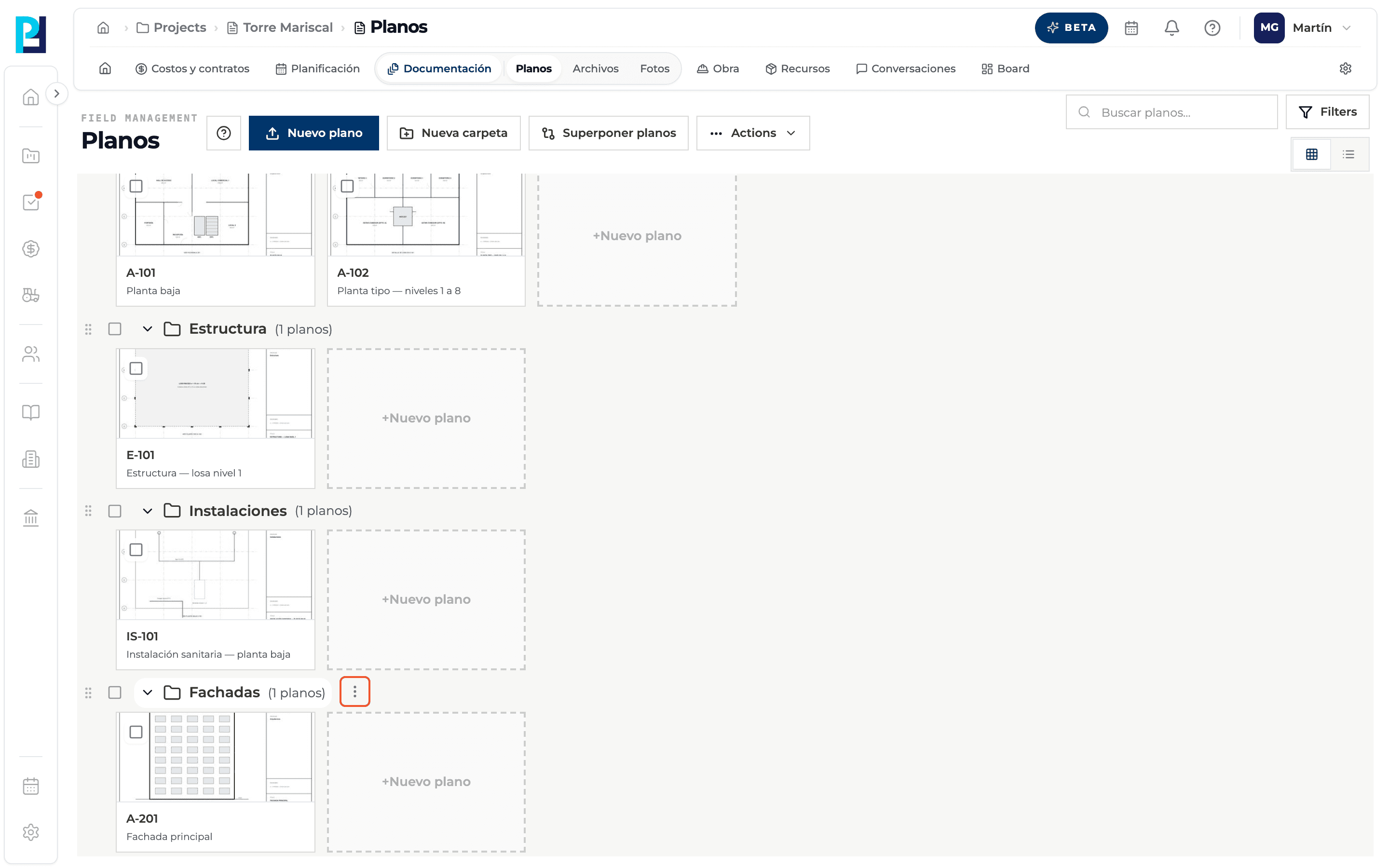
Open the folder menu
Hover over the folder name and click ⋯. You can also drag the six-dot handle on the left to change its position.
- 06
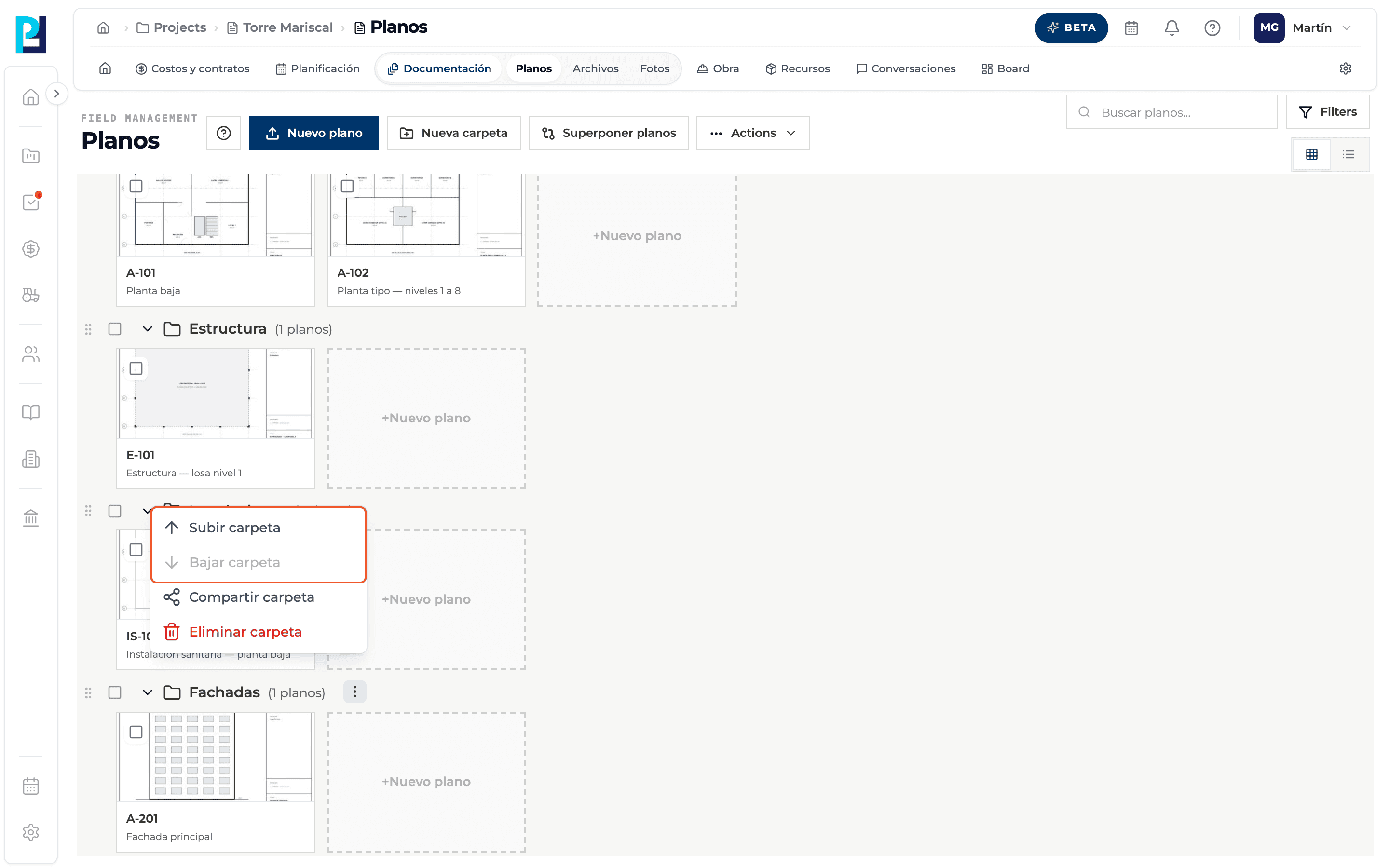
Reorder
Subir carpeta (Move up) or Bajar carpeta (Move down). The order is saved for the whole project.
What you'll learn
How move drawings between folders and reorder folders works inside Perfour.
What information you need and how it stays connected to Drawings.
How to preserve traceability and find the record later.
Frequently asked questions
Can I drag a drawing into a folder?+
No: drawings are moved with Actions.
«Subir carpeta» is greyed out.+
It is the first folder in the list (or the last one, for Move down).