Align an overlaid drawing (by hand, by values or by 2 points)
Drawings from different sources rarely match exactly. Alignment moves, scales and rotates an overlay until it fits the base.
How to complete align overlay
- 01
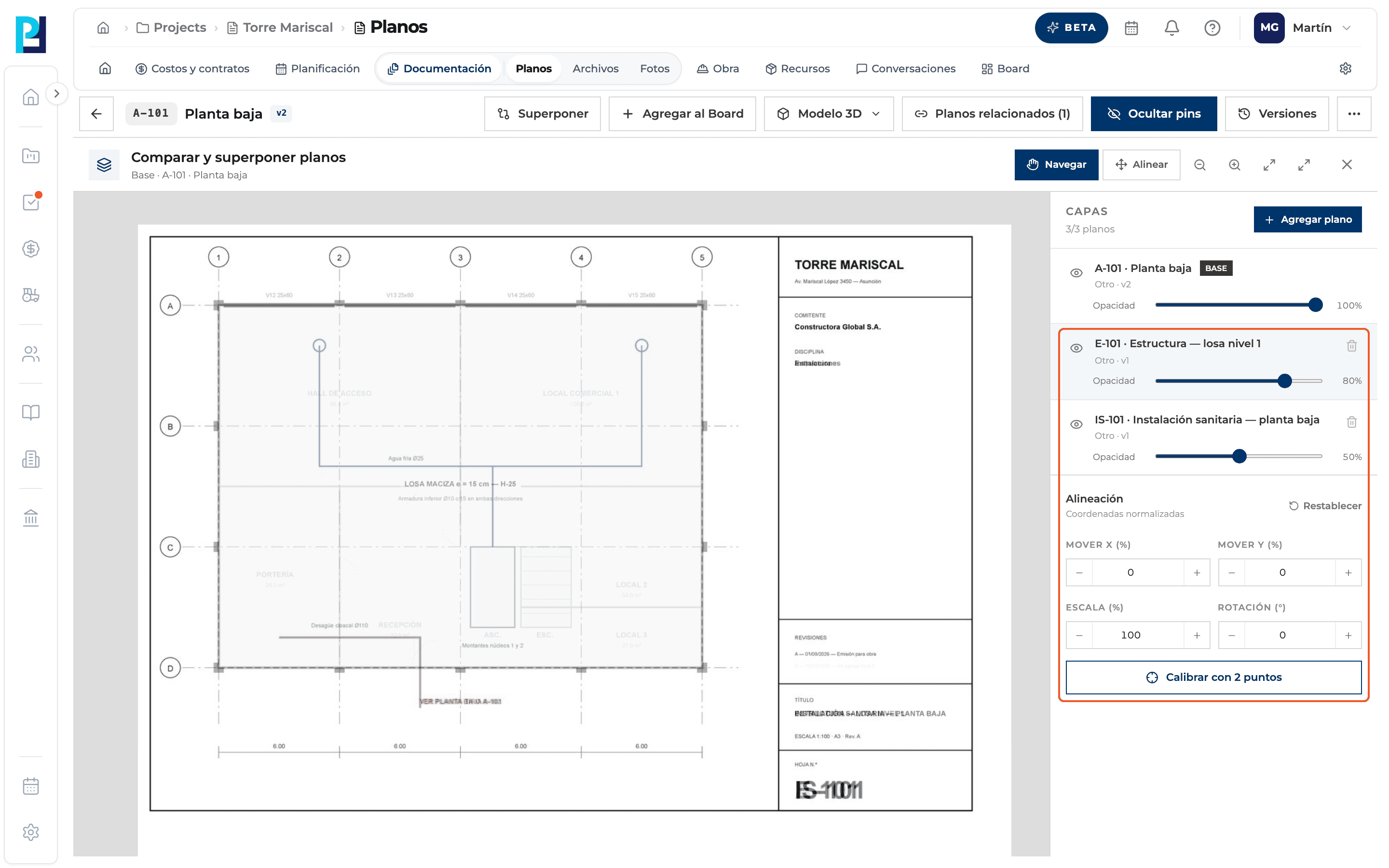
Select the overlay
Under Layers click the drawing to align. The Alineación (Alignment) block appears below.
- 02
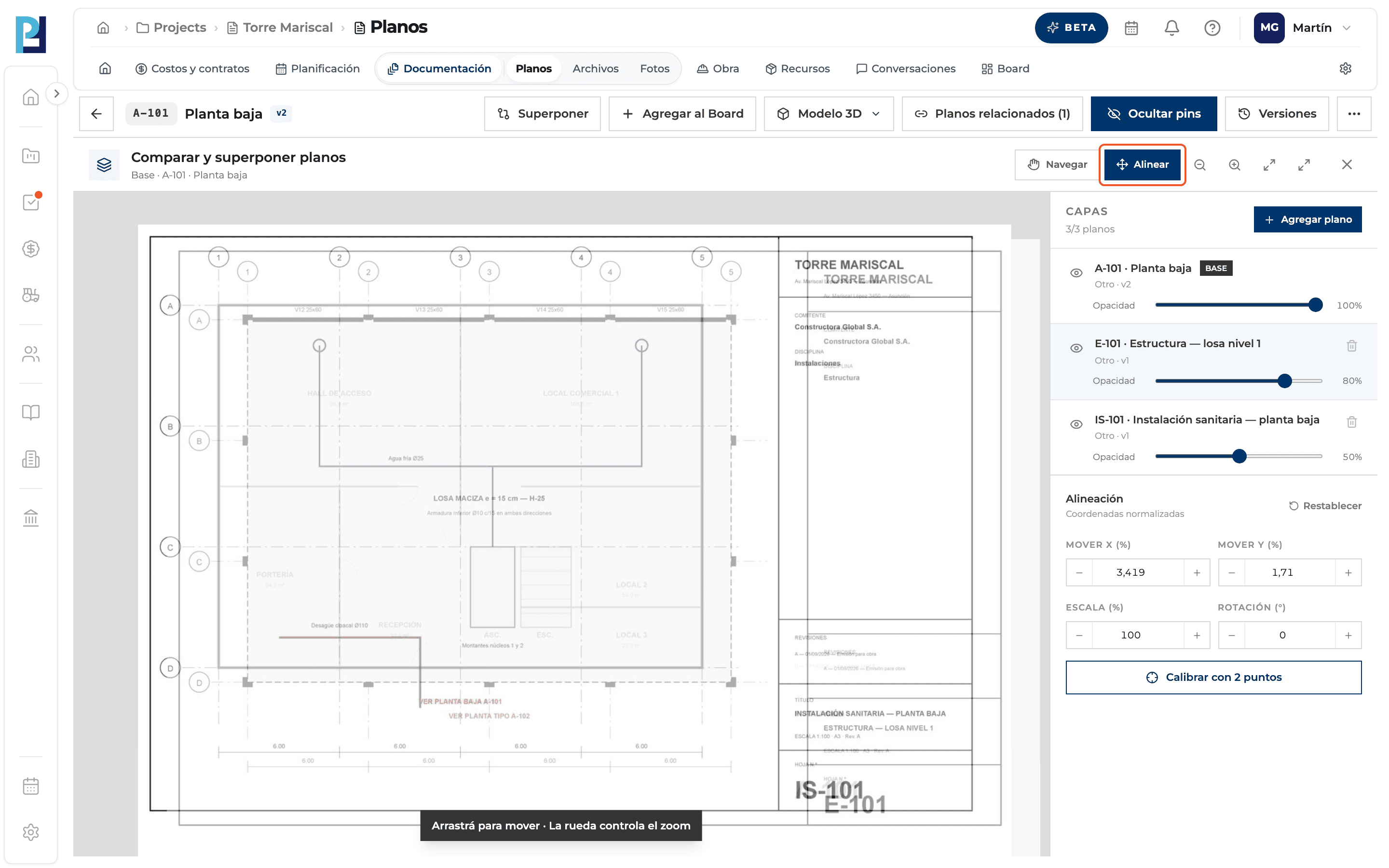
Align by dragging
Click Alinear and drag over the drawing: only the selected overlay moves. To move the view, go back to Navegar.
- 03
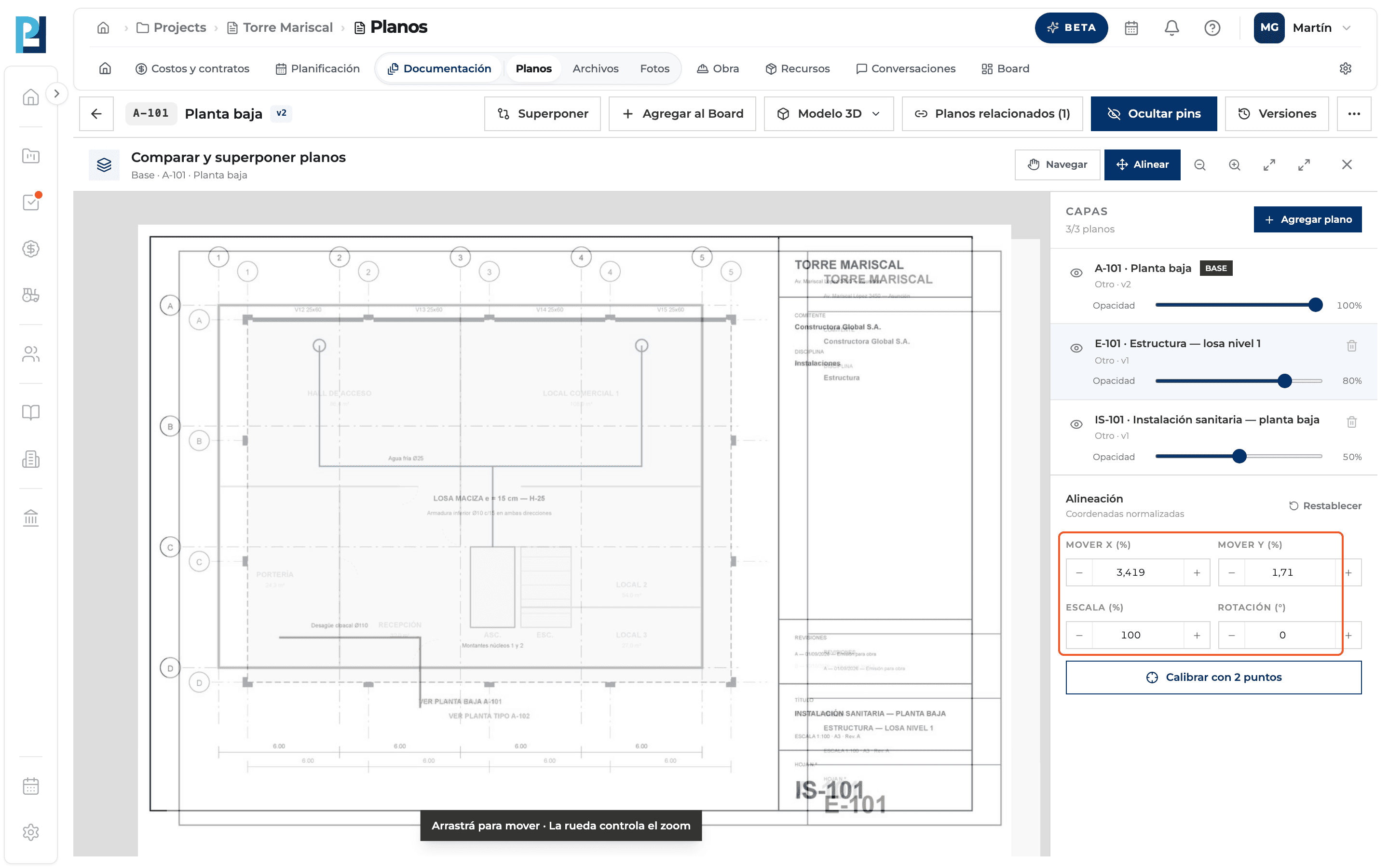
Align with values
Adjust Move X, Move Y, Scale and Rotation with the + and − buttons or by typing the number.
- 04
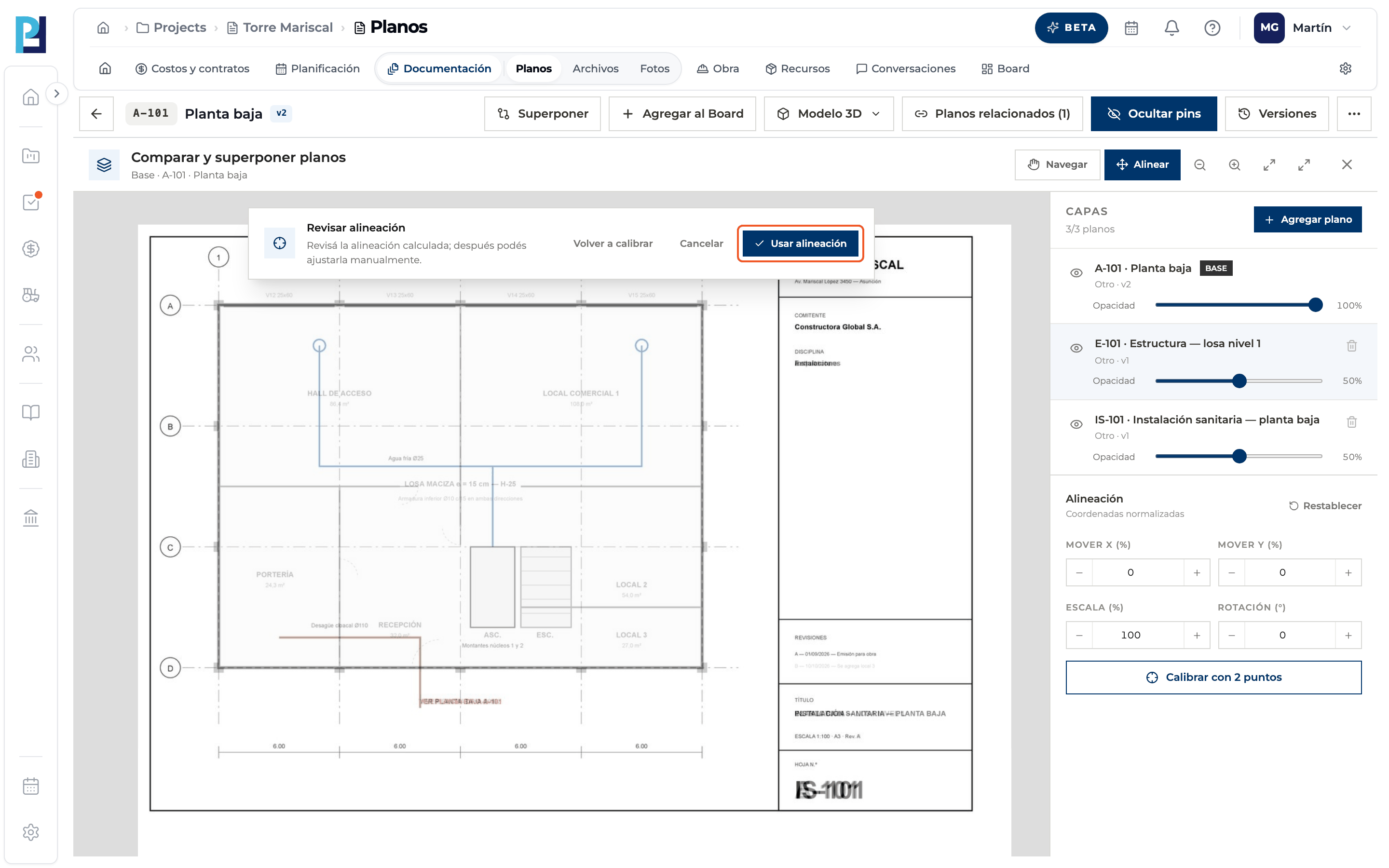
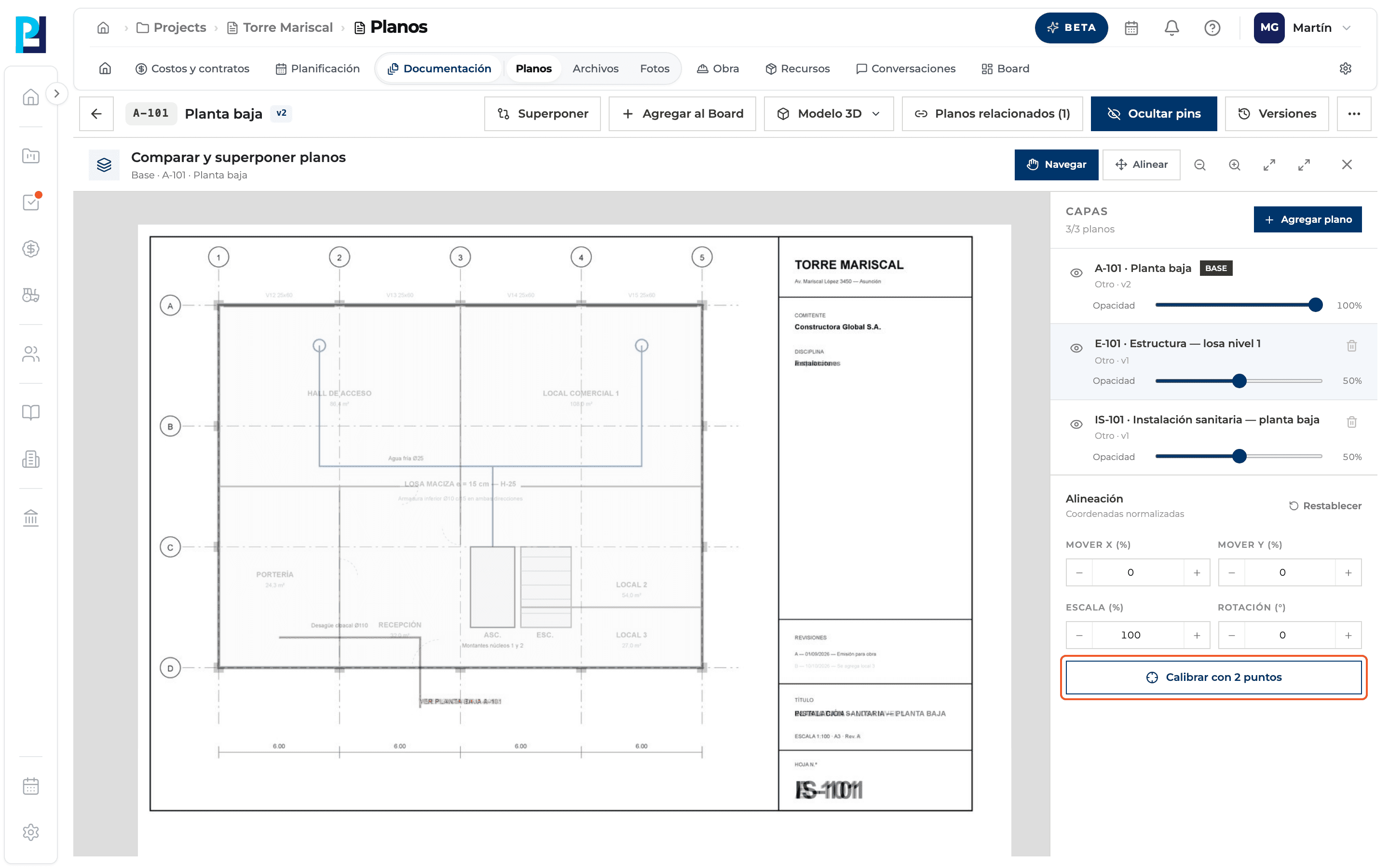
Calibrate with 2 points
Click Calibrar con 2 puntos. It is the most accurate method.
- 05
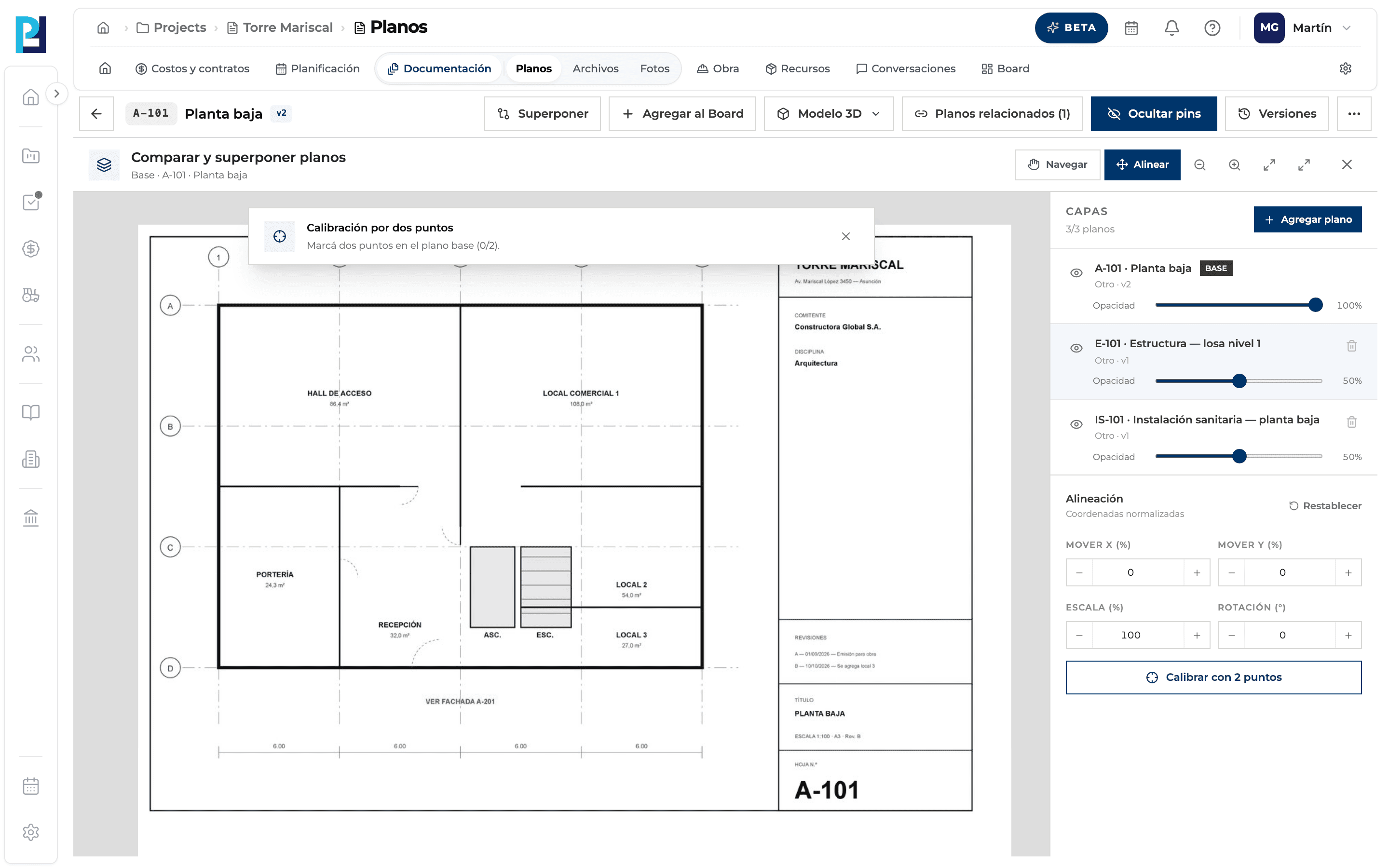
Mark two points on the base
Only the base is shown: mark two well-separated reference points, for example two grid lines.
- 06
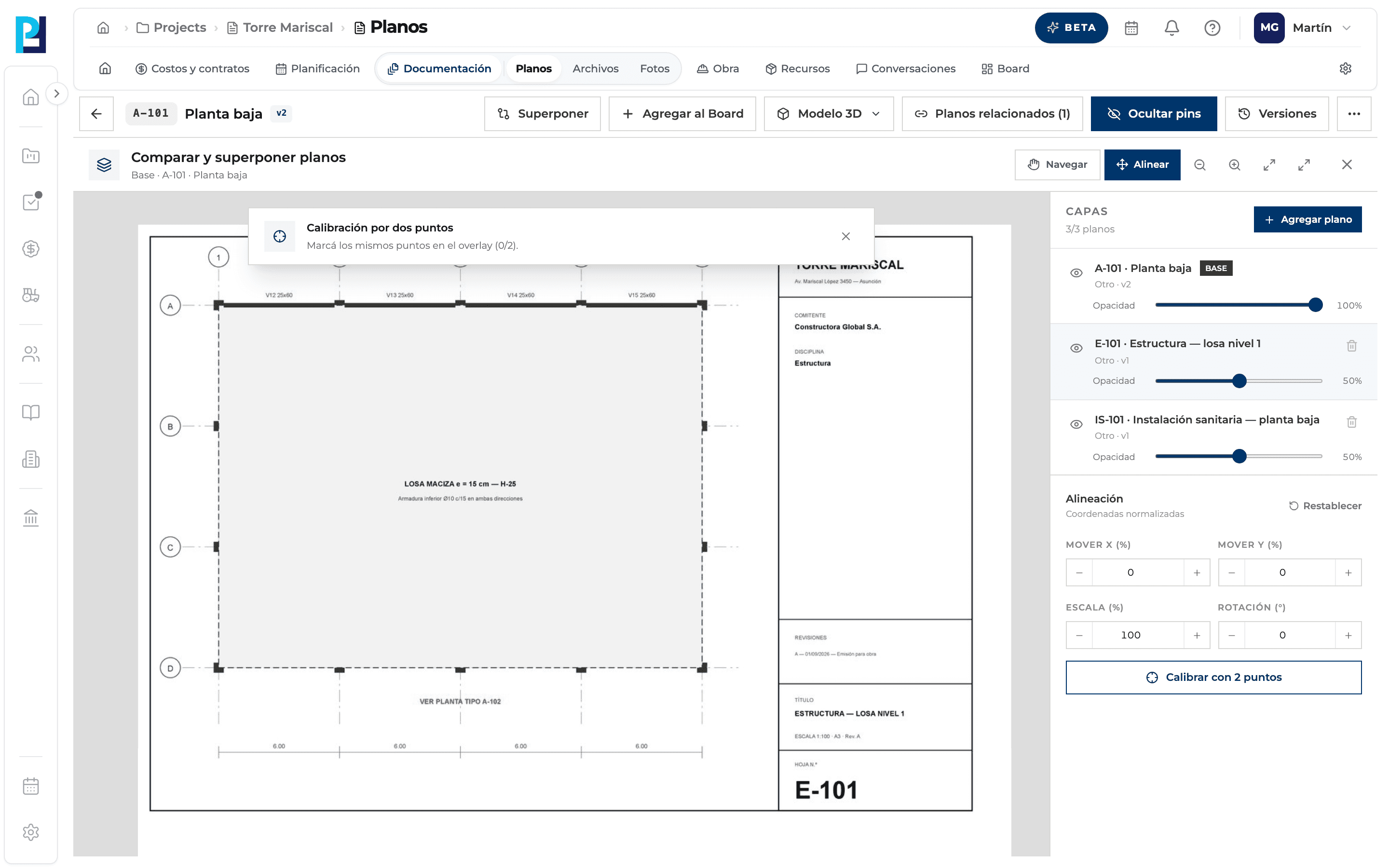
Mark the same ones on the overlay
Now only the overlay is shown: mark the same two points, in the same order.
- 07
Review and apply
The system works out scale, rotation and offset. Usar alineación applies it, Volver a calibrar restarts and Cancelar restores the previous one.
- 08
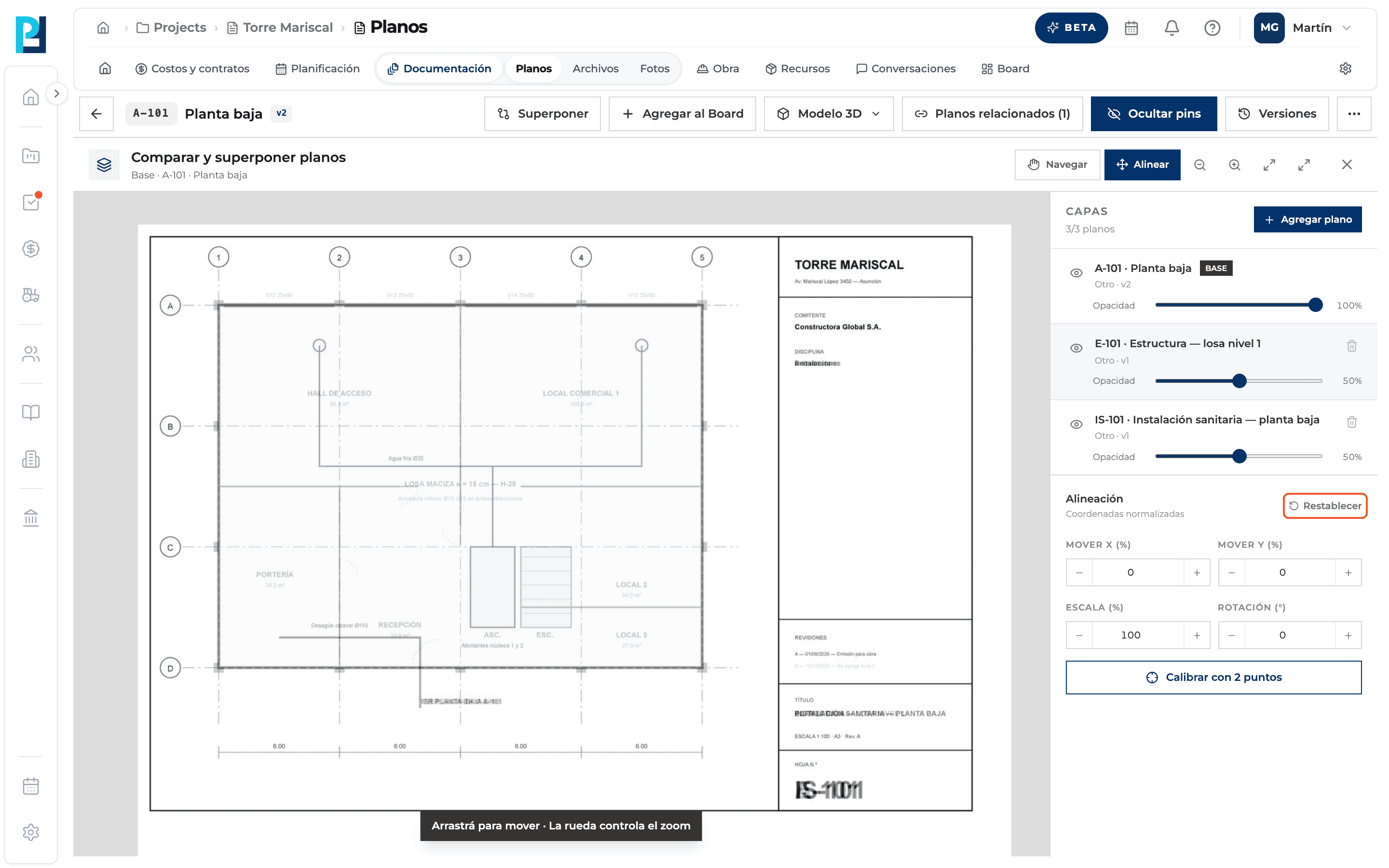
Reset if needed
Restablecer puts the layer back to its original position, scale and rotation.
What you'll learn
How align an overlaid drawing (by hand, by values or by 2 points) works inside Perfour.
What information you need and how it stays connected to Drawings.
How to preserve traceability and find the record later.
Frequently asked questions
«The two reference points must be apart.»+
Pick points further apart: the further, the more accurate.
Is the alignment saved?+
No: it is lost when you close the panel.
Does it fix distortion?+
No: only uniform scale, rotation and offset.