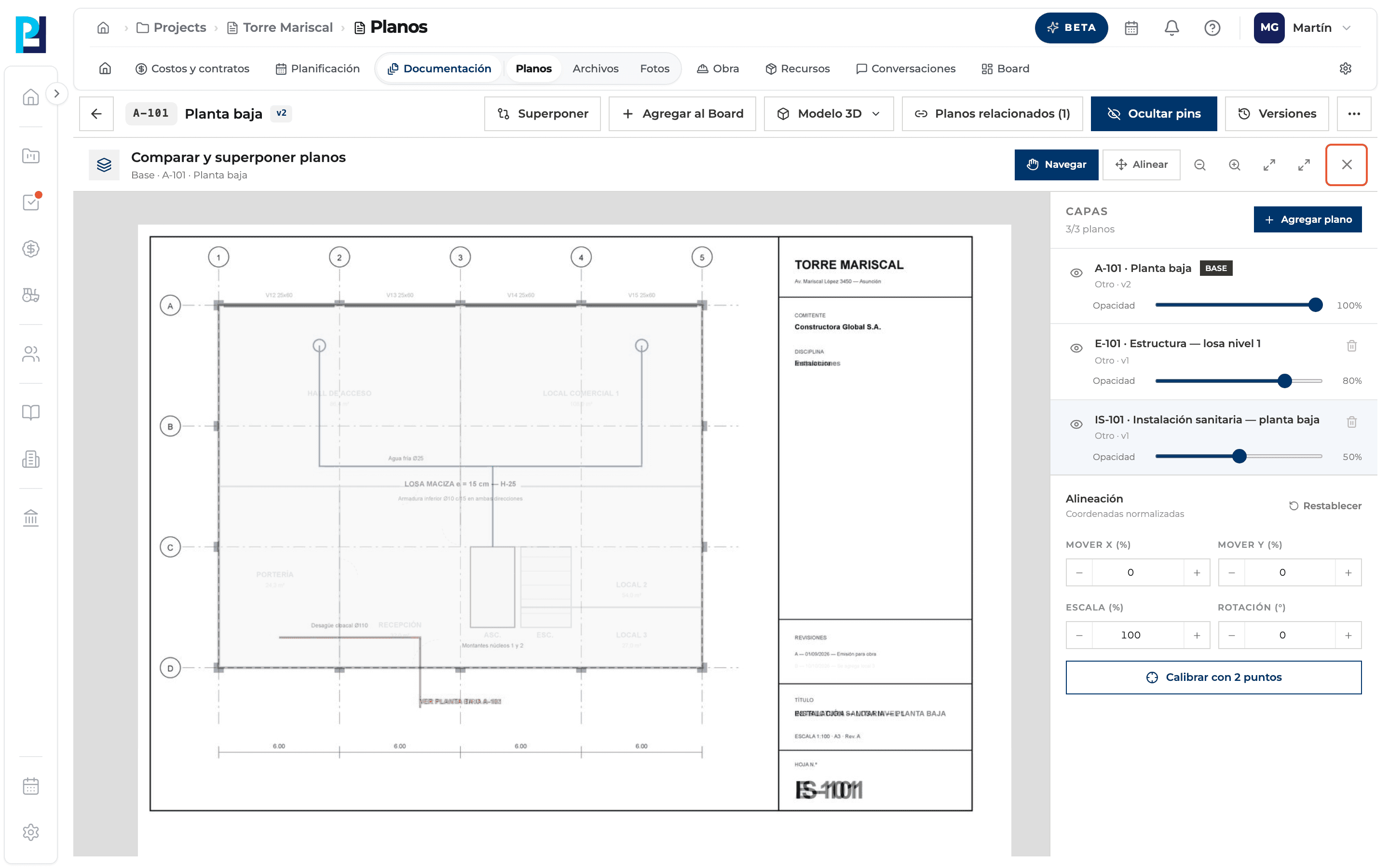
The «Compare and overlay drawings» panel: layers, opacity and visibility
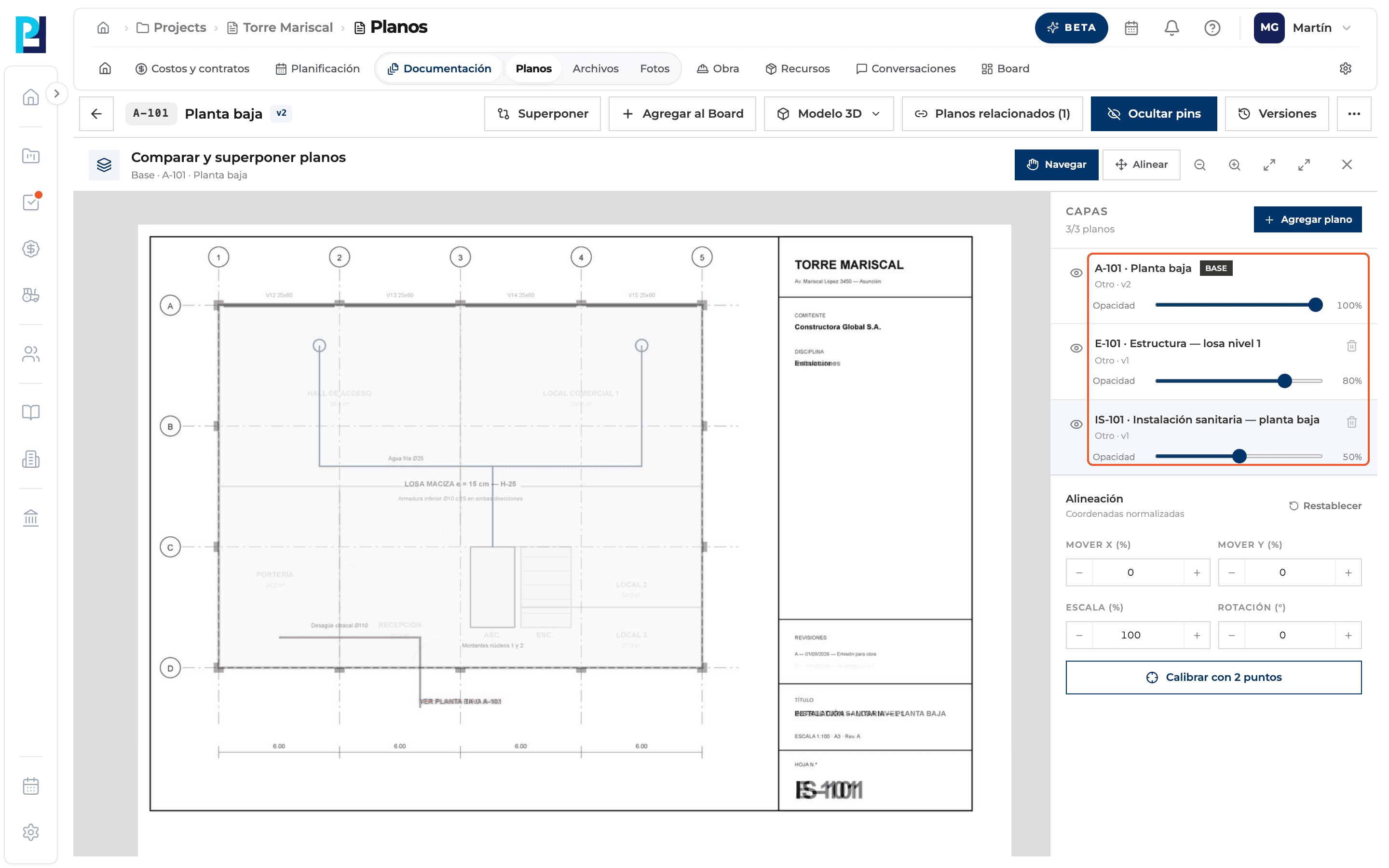
The panel overlays up to 3 drawings (the base and 2 layers) and lets you adjust each one's transparency and visibility.
How to complete overlay layers
- 01
Open it from the viewer
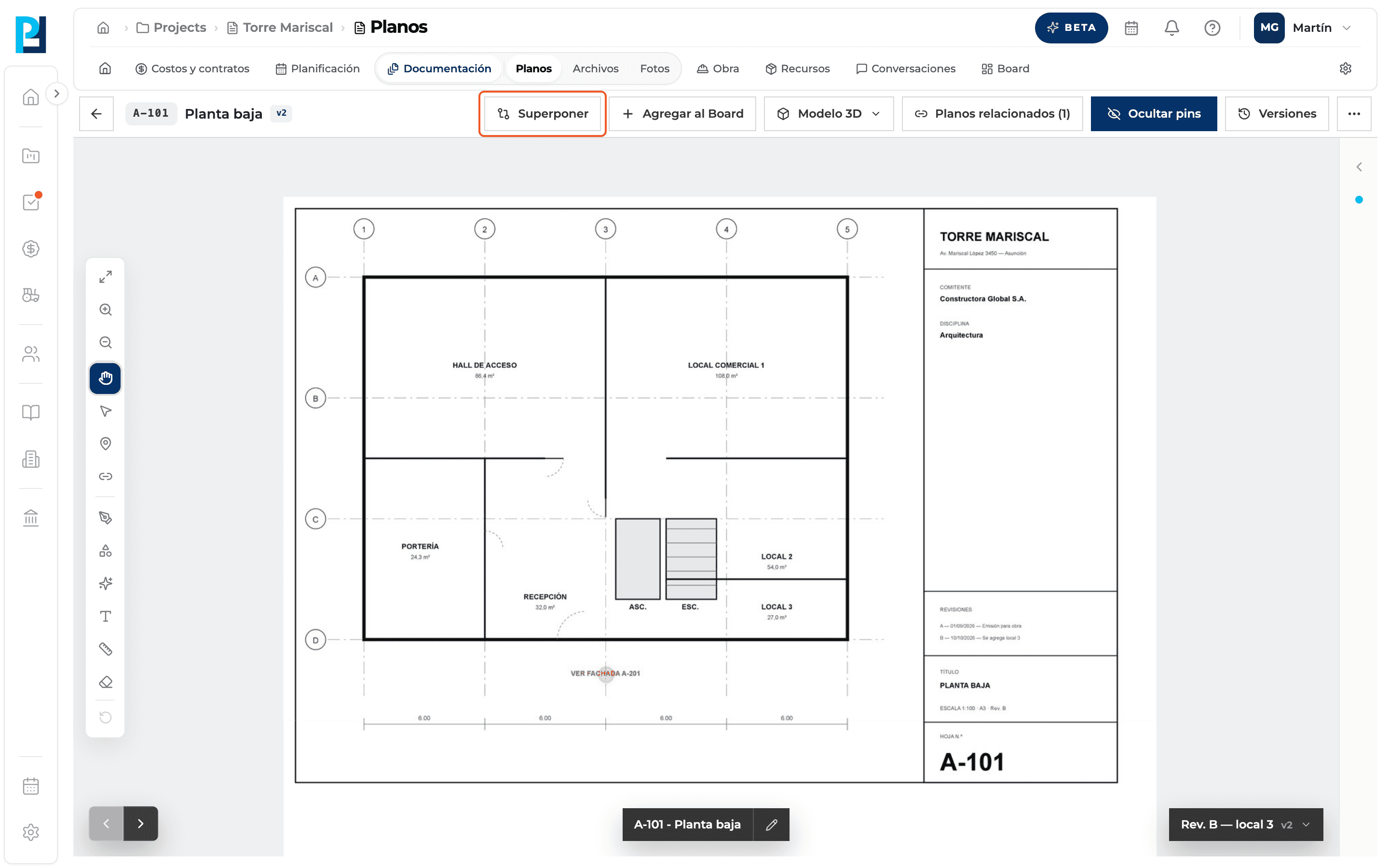
Click Superponer (Overlay) in the header. It starts with the open drawing as the base.
- 02
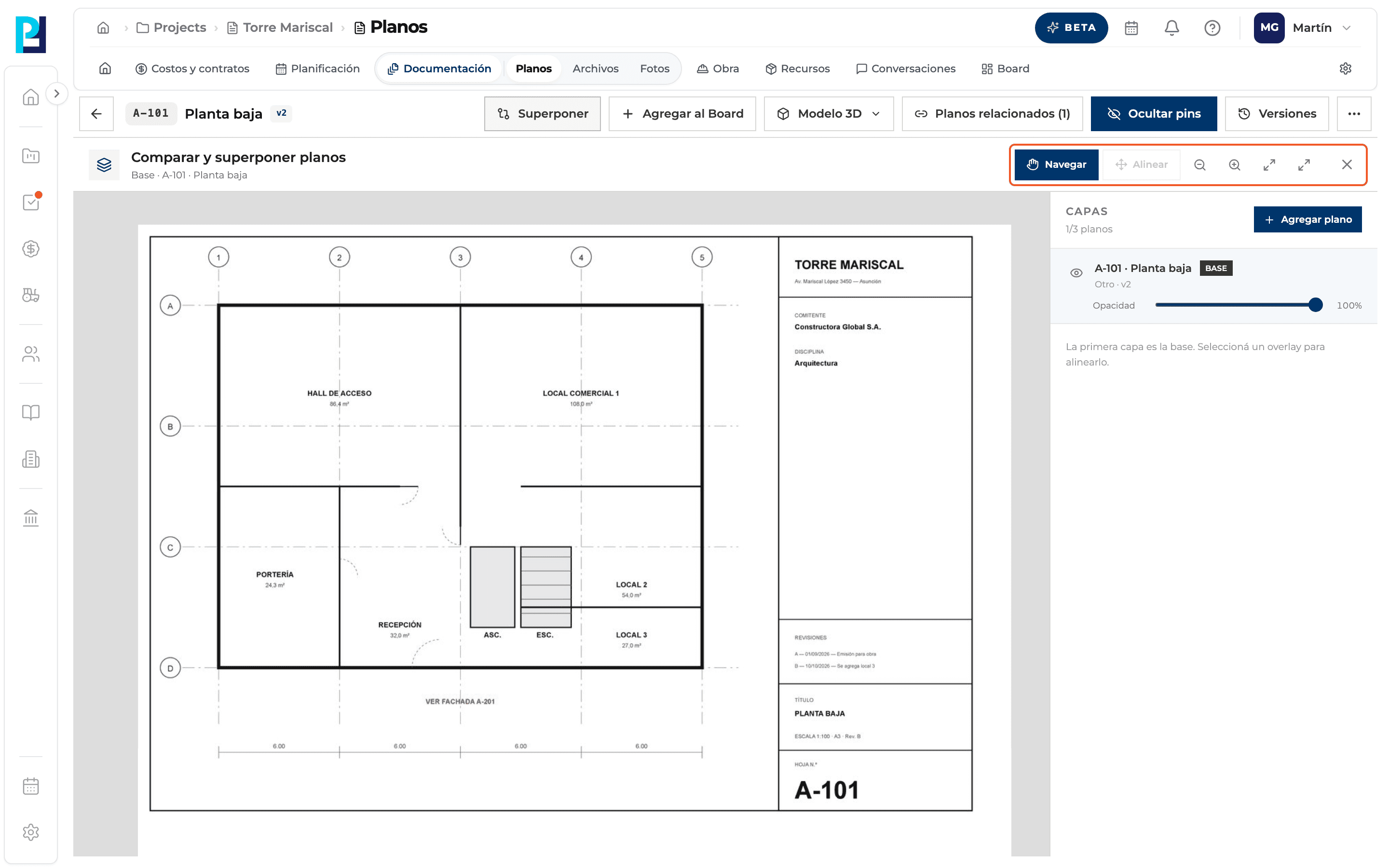
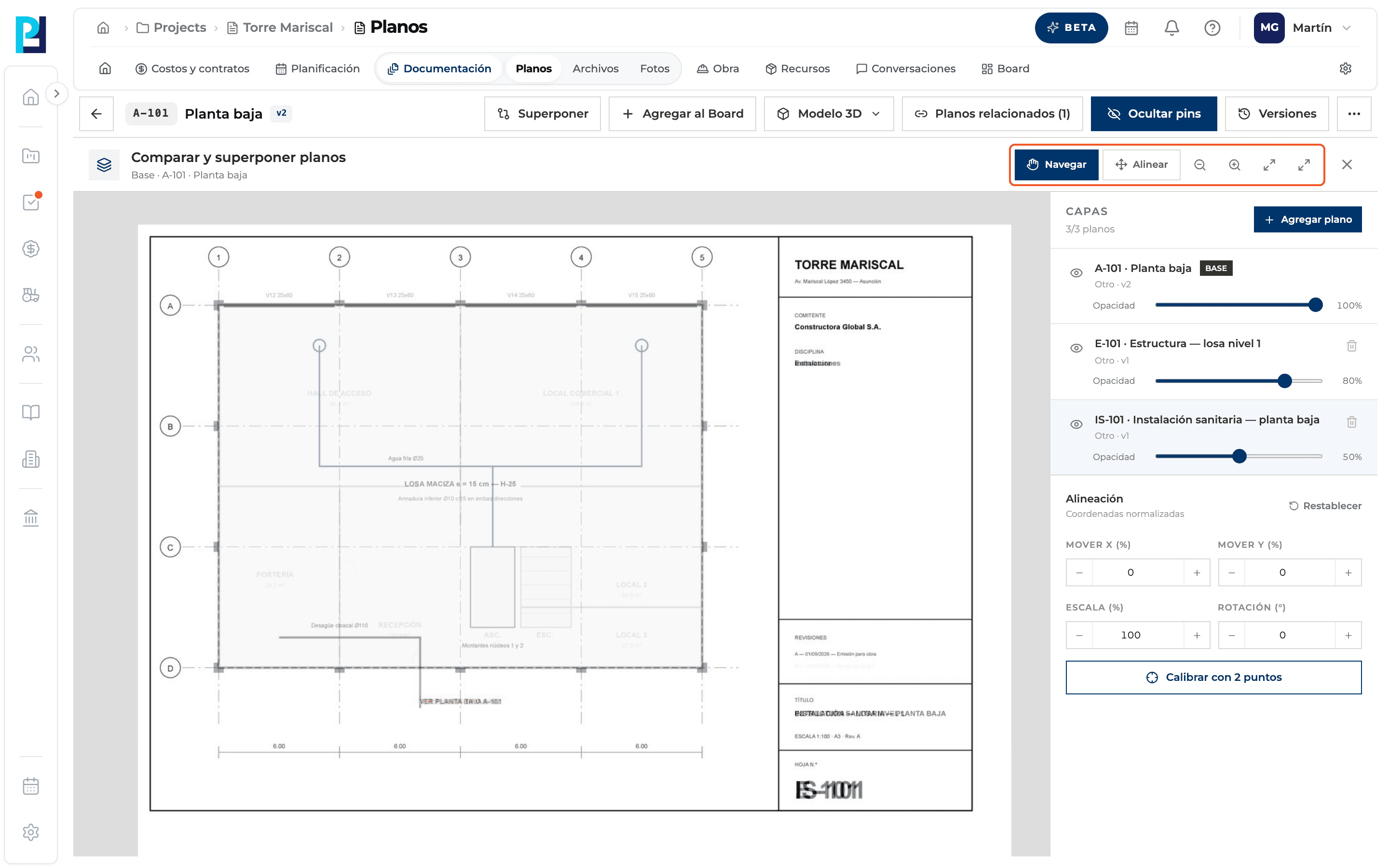
Look at the top bar
Title, the base, and the Navigate, Align, zoom out, zoom in, fit, full screen and X buttons.
- 03
Add drawings
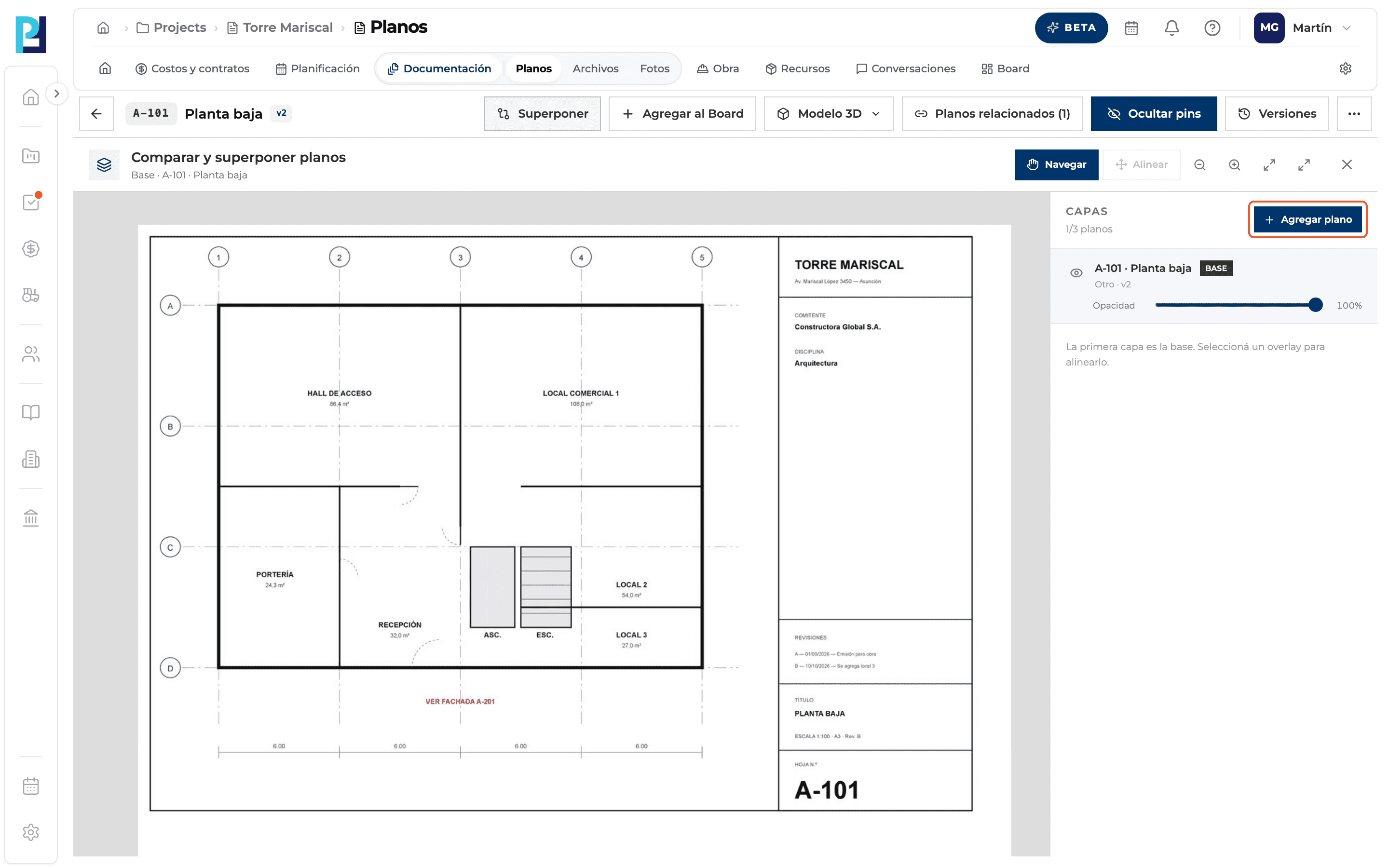
Under Capas (Layers) click Agregar plano (Add drawing).
- 04
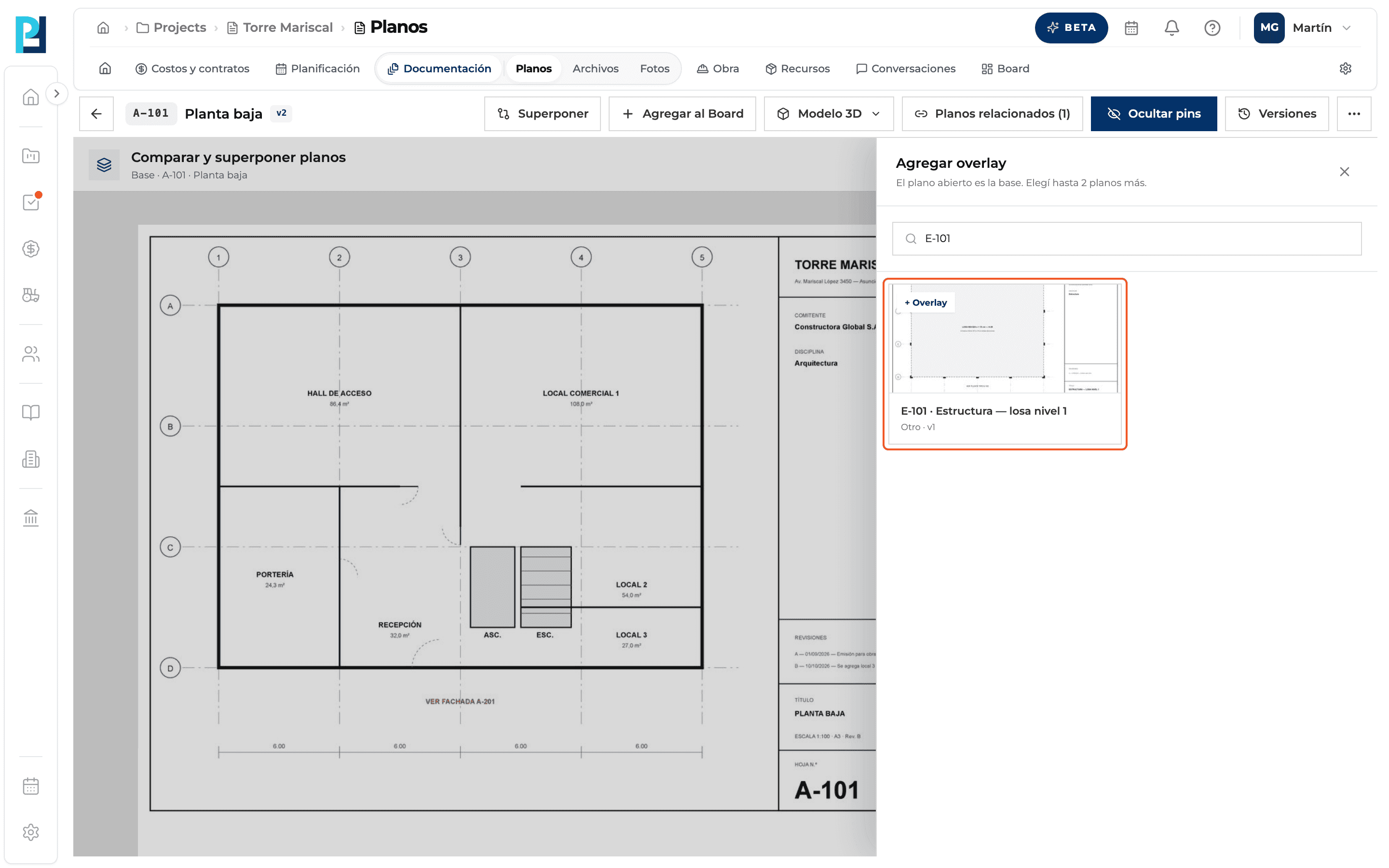
Pick the overlay
In Agregar overlay search by number, name or discipline and click the card. Only Ready drawings not already in the overlay are listed.
- 05
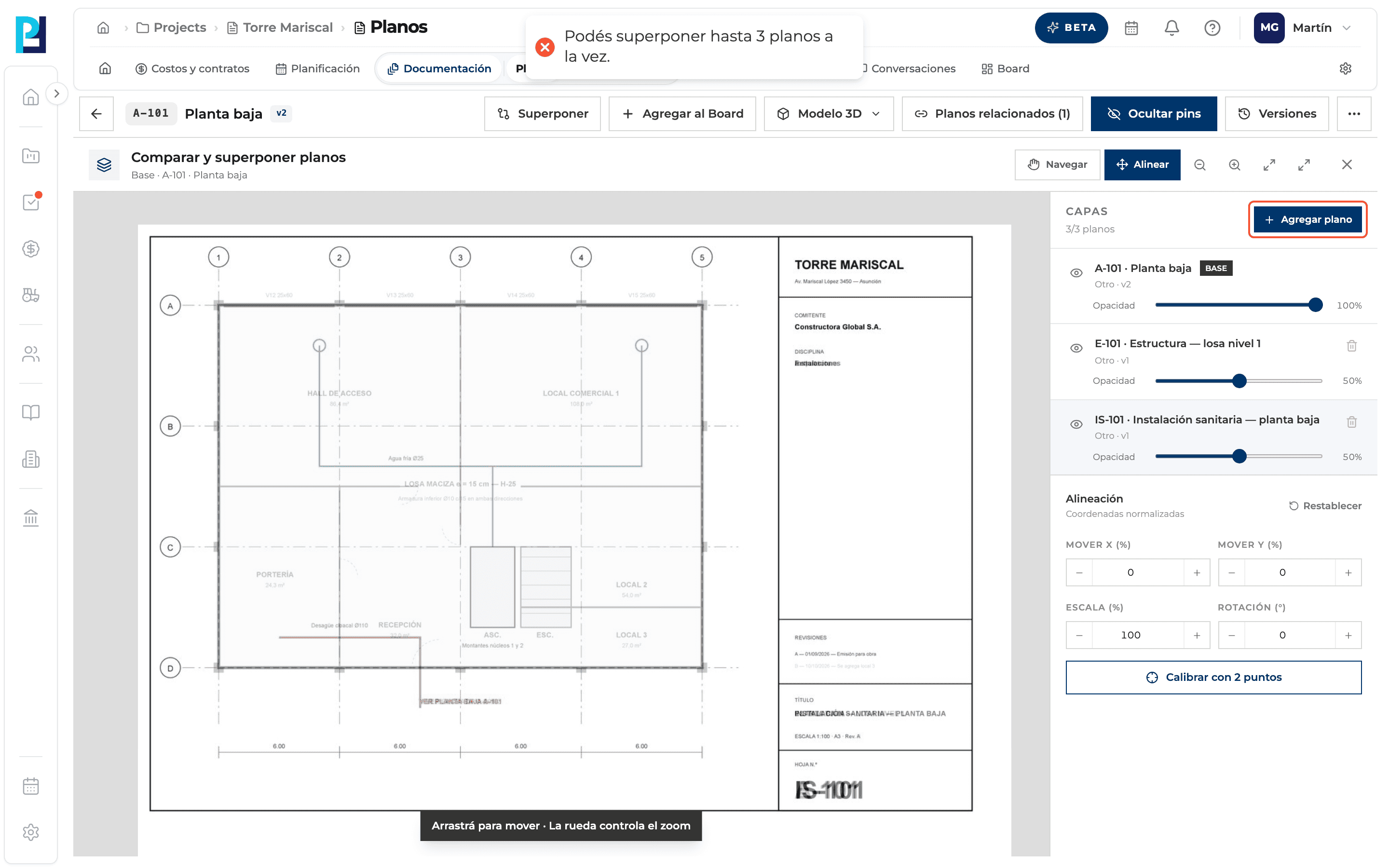
Mind the limit
With 3 layers, Add drawing tells you that you can overlay up to 3 drawings at a time.
- 06
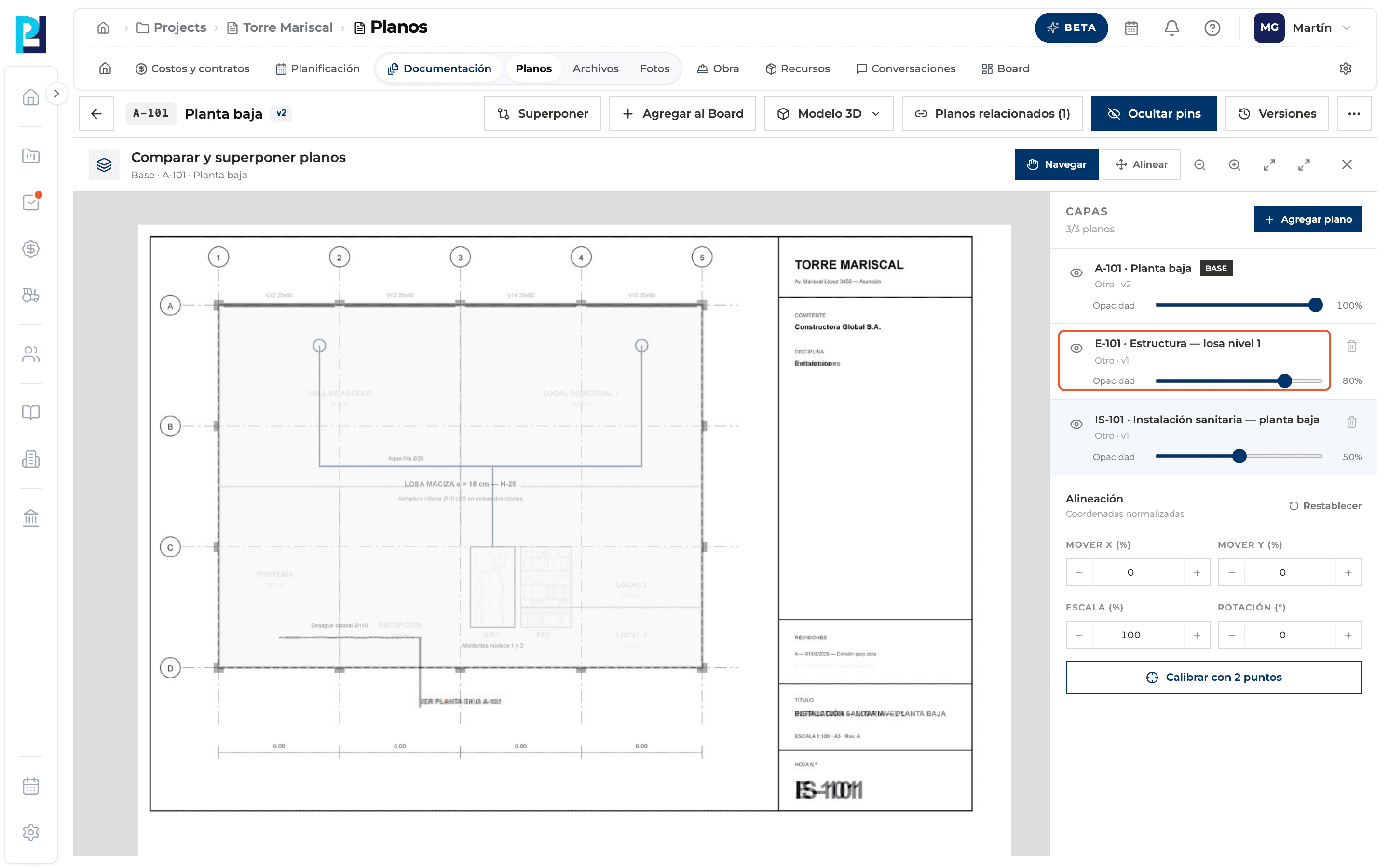
Select a layer
Click an overlay's name to select it and see its alignment block.
- 07
Control each layer
The eye shows or hides the layer and the Opacity slider goes from 0 to 100% (the base starts at 100% and overlays at 50%). The bin removes an overlay; the base can't be removed.
- 08
Navigate
With Navegar you drag the whole stack and the wheel zooms.
- 09
Close
The X or Esc. Nothing is saved: reopening starts from scratch.
What you'll learn
How the «compare and overlay drawings» panel: layers, opacity and visibility works inside Perfour.
What information you need and how it stays connected to Drawings.
How to preserve traceability and find the record later.
Frequently asked questions
Can I give each drawing a colour?+
No: they are told apart with opacity and the eye.
The Align button is greyed out.+
The base is selected: select an overlay.
I don't see pins while overlaying.+
The panel only compares drawings; markups come back when you close it.