Overlay drawings from the library: select and open
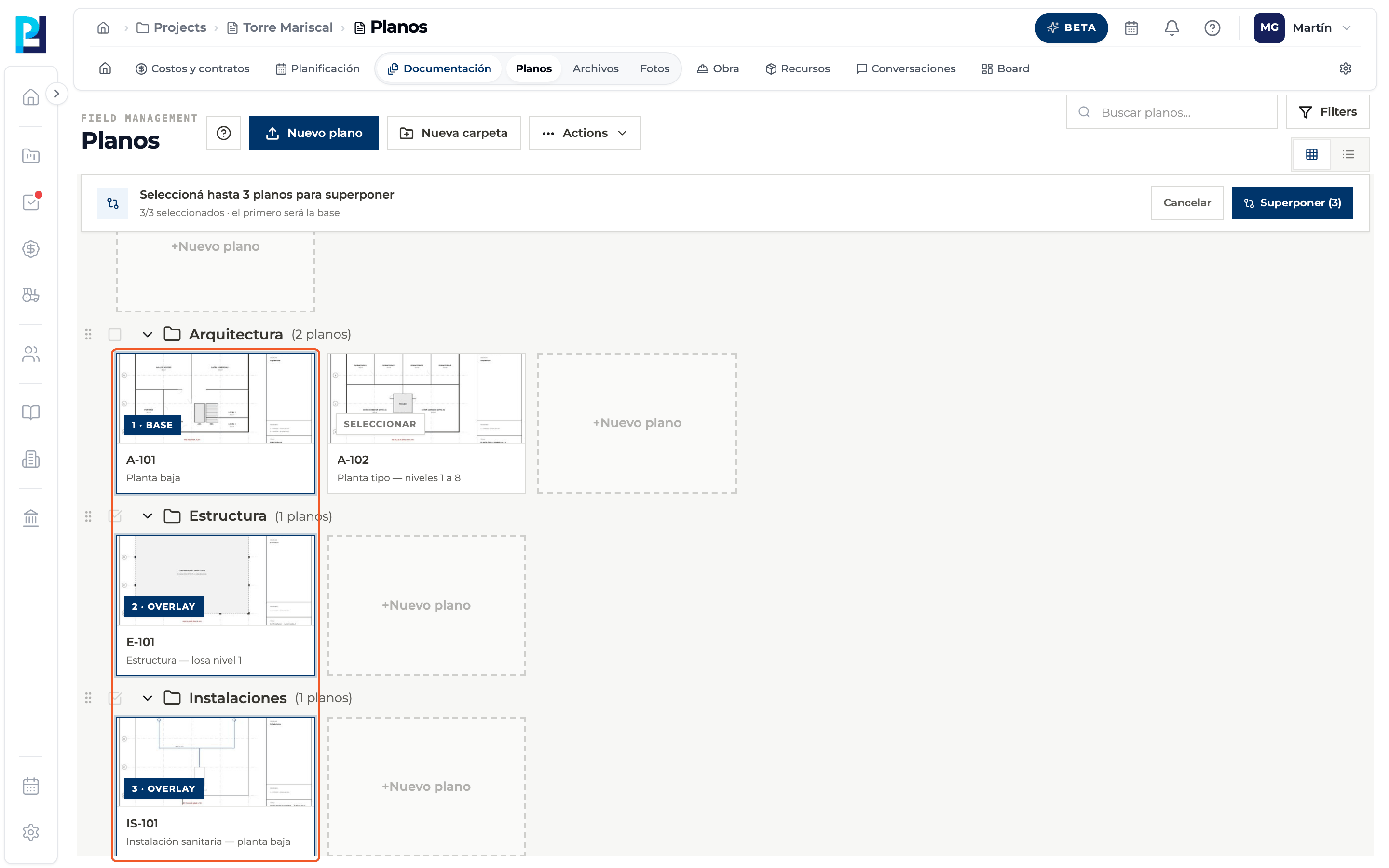
From the library you pick up to 3 drawings: the first one you tick is the base and the others are overlaid on it.
How to complete overlay drawings
- 01
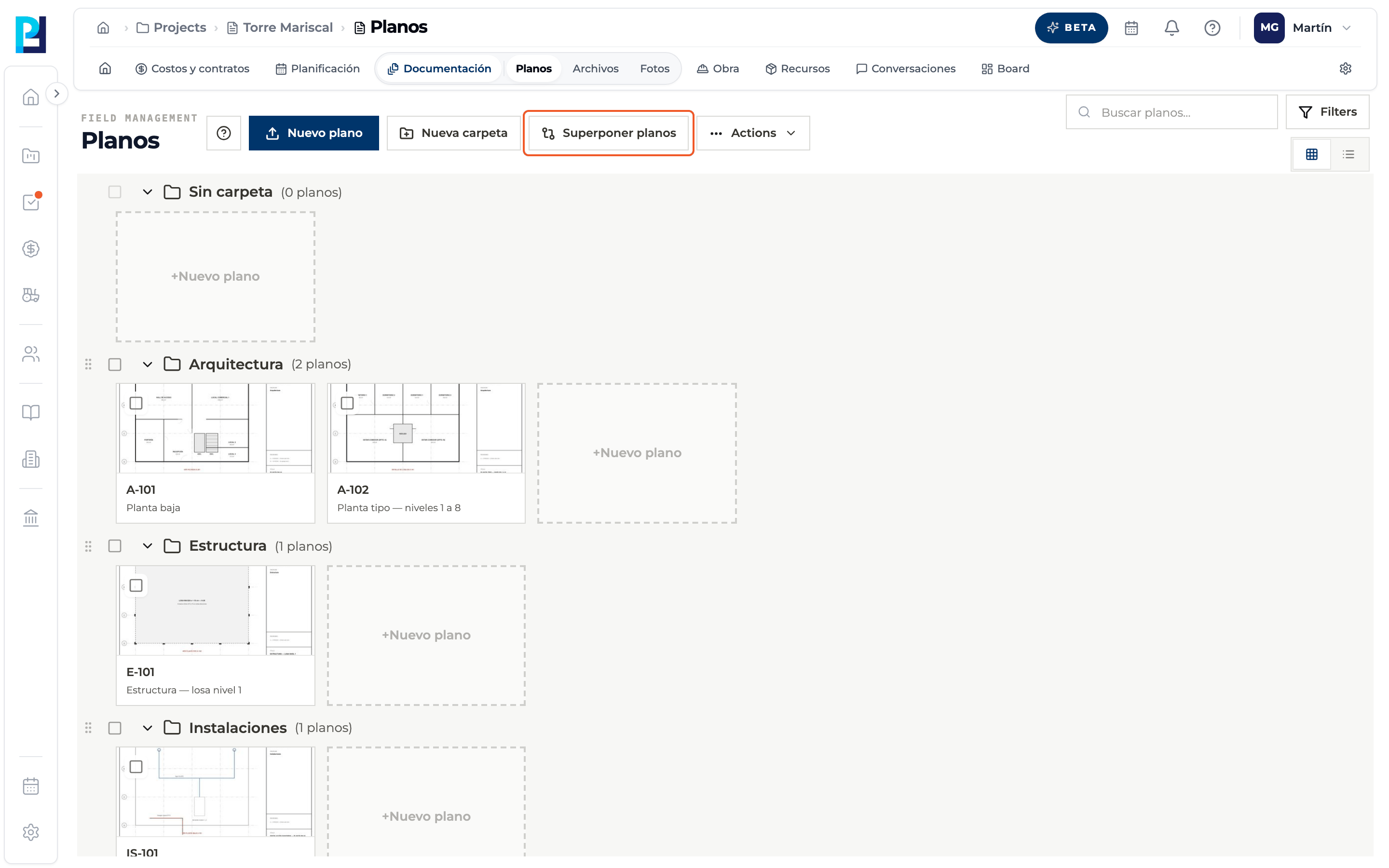
Start the mode
Click Superponer planos (Overlay drawings) in the top bar.
- 02
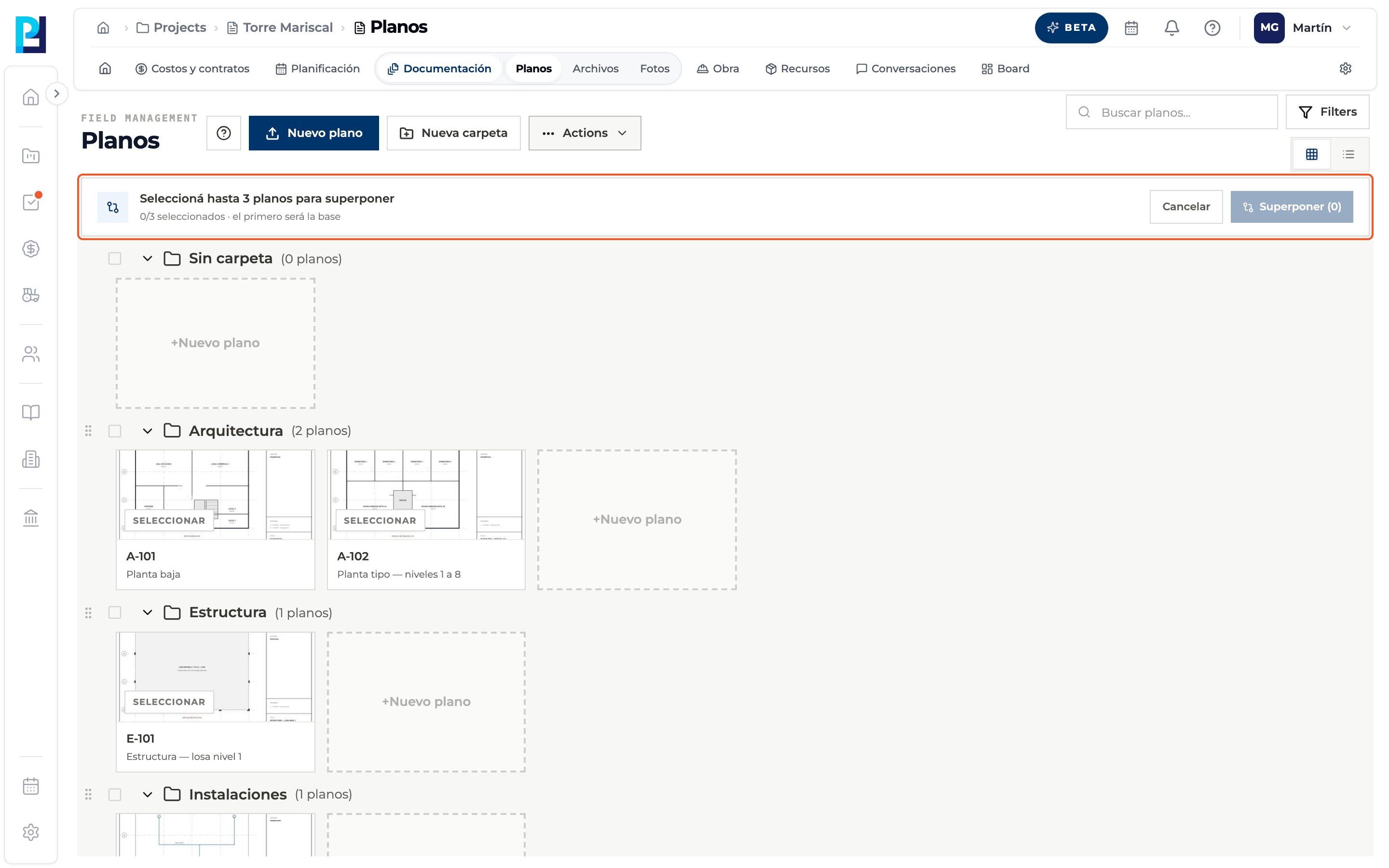
Read the bar
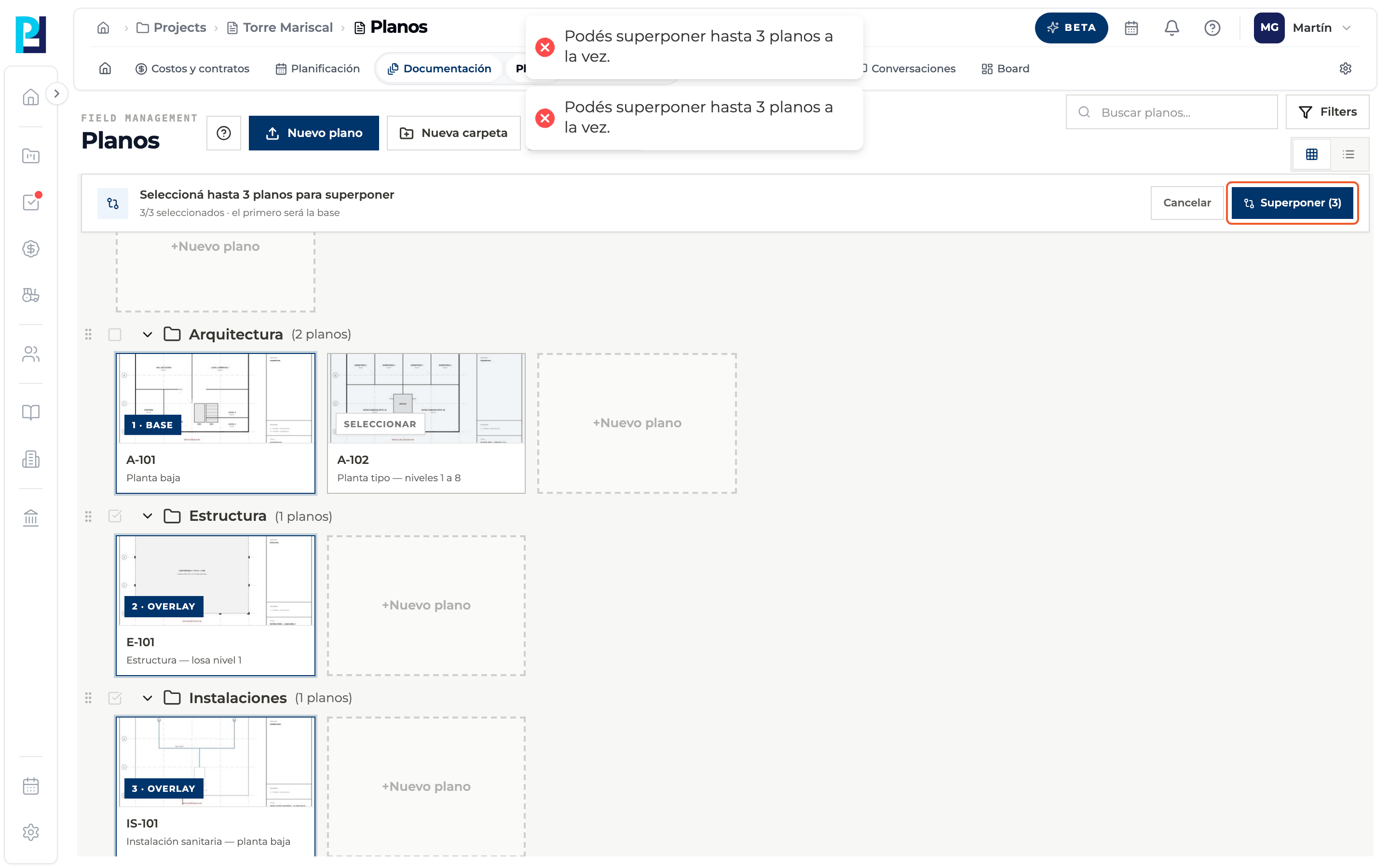
A bar asks you to select up to 3 drawings, with a counter. The first one you pick will be the base.
- 03
Select the drawings
Click the cards in order. Each one is labelled 1 · Base, 2 · Overlay and 3 · Overlay. Only Ready drawings can be picked.
- 04
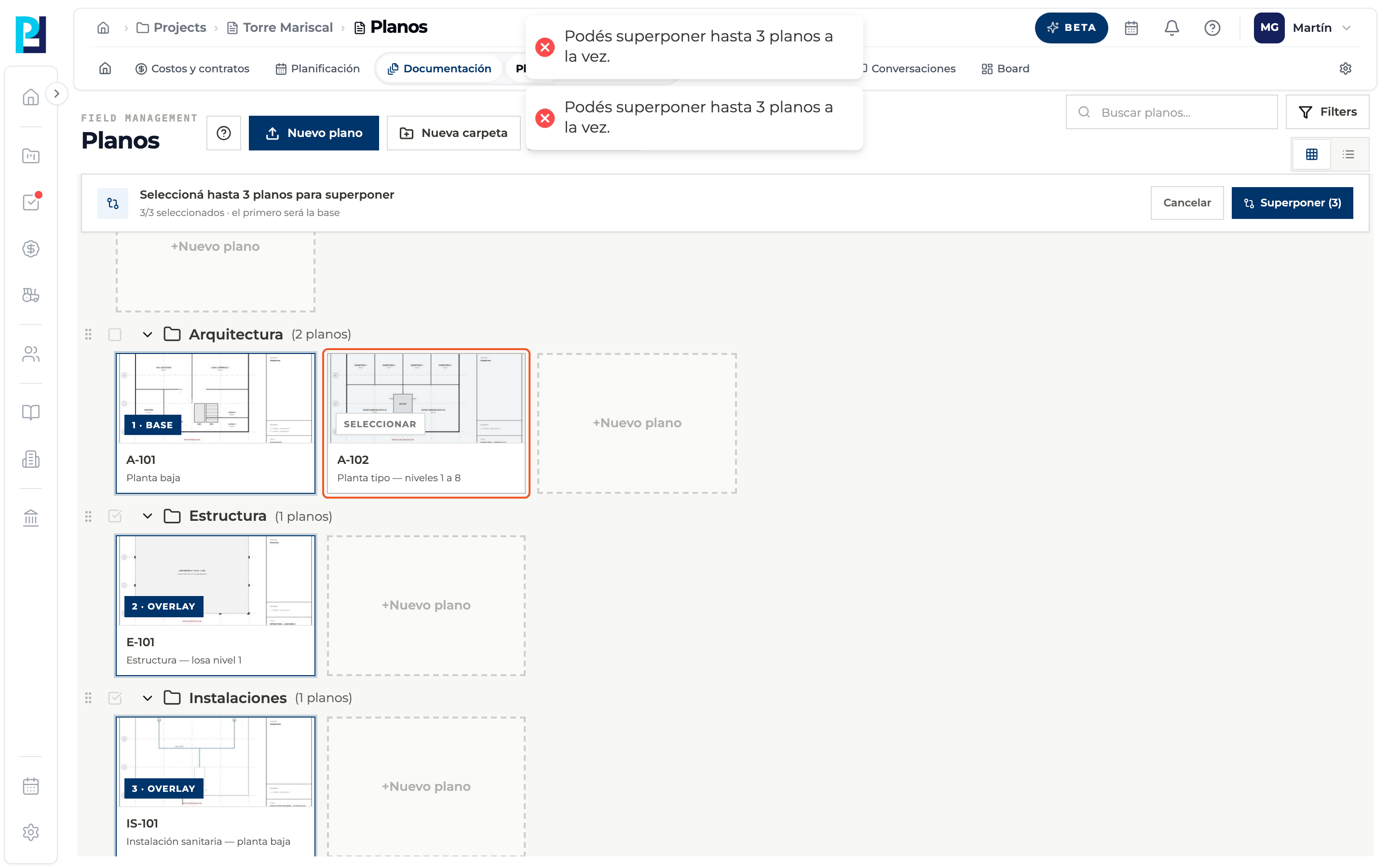
Mind the limit
If you try to add a fourth drawing you are told you can overlay up to 3 at a time.
- 05
Open the overlay
Click Superponer (N). With fewer than 2 drawings it is disabled.
- 06
Or cancel
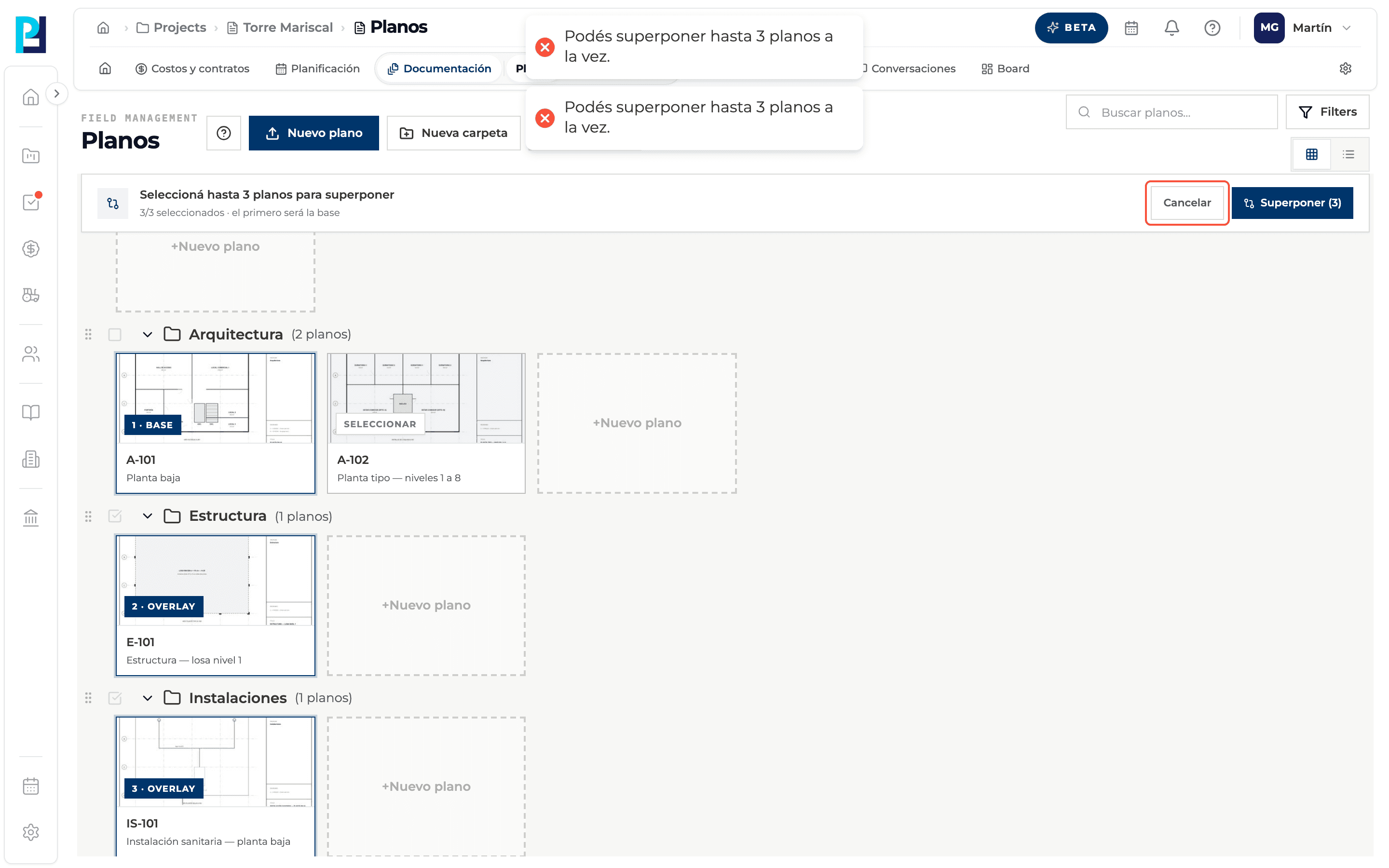
Cancelar leaves the mode and clears the selection.
- 07
Work in the panel
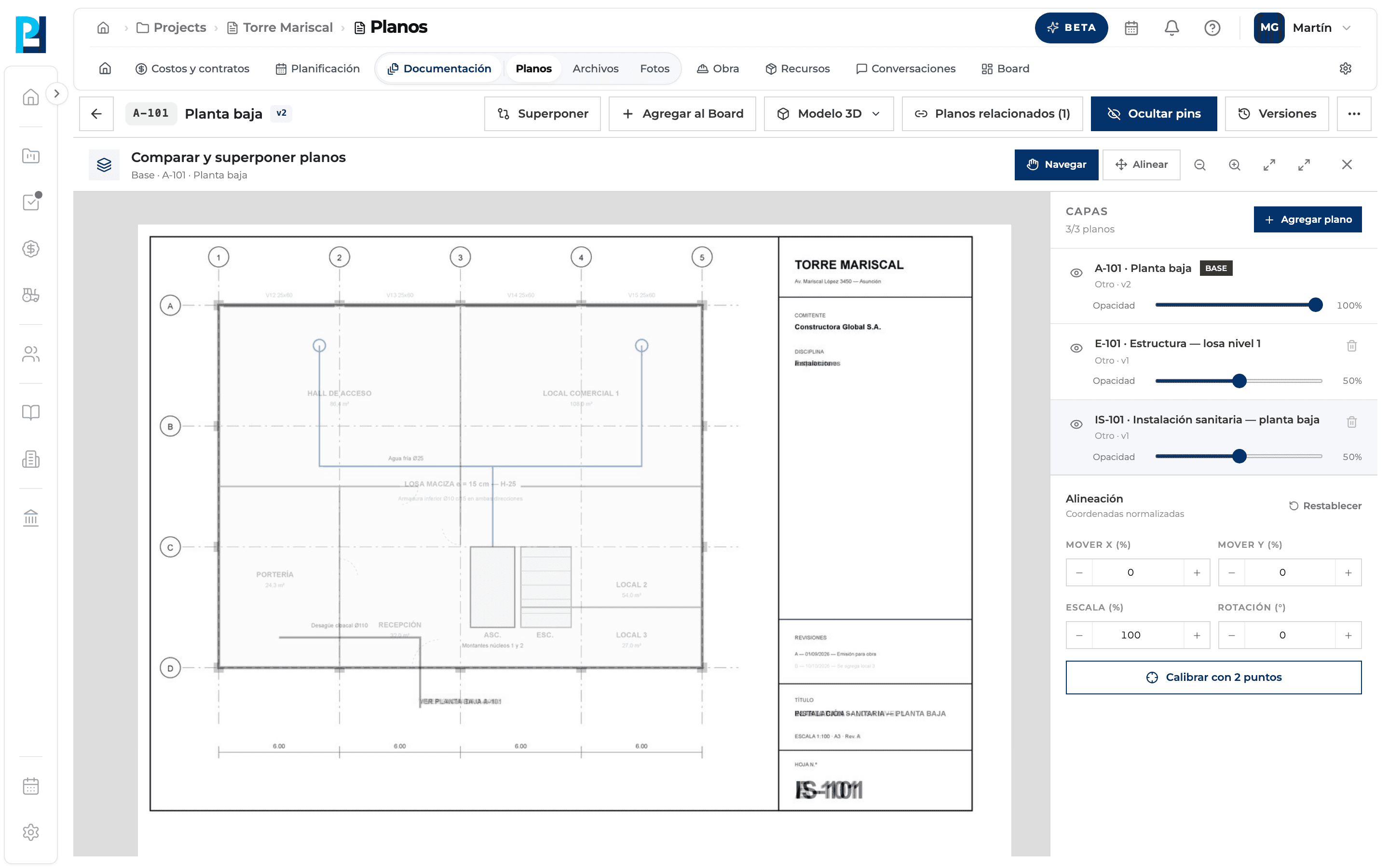
The base drawing's viewer opens with the overlay panel already loaded (see the next guide).
What you'll learn
How overlay drawings from the library: select and open works inside Perfour.
What information you need and how it stays connected to Drawings.
How to preserve traceability and find the record later.
Frequently asked questions
How do I change the base?+
Click order sets the base. Deselect and pick again in the order you want.
Can I pick drawings from another folder?+
Yes, the selection spans the whole library.