Place a pin and create or link a task, RFI, quality control, submittal or note
With Add pin you choose the type, click the drawing and create a new record (or link an existing one) already tied to the drawing.
How to complete add pin
- 01
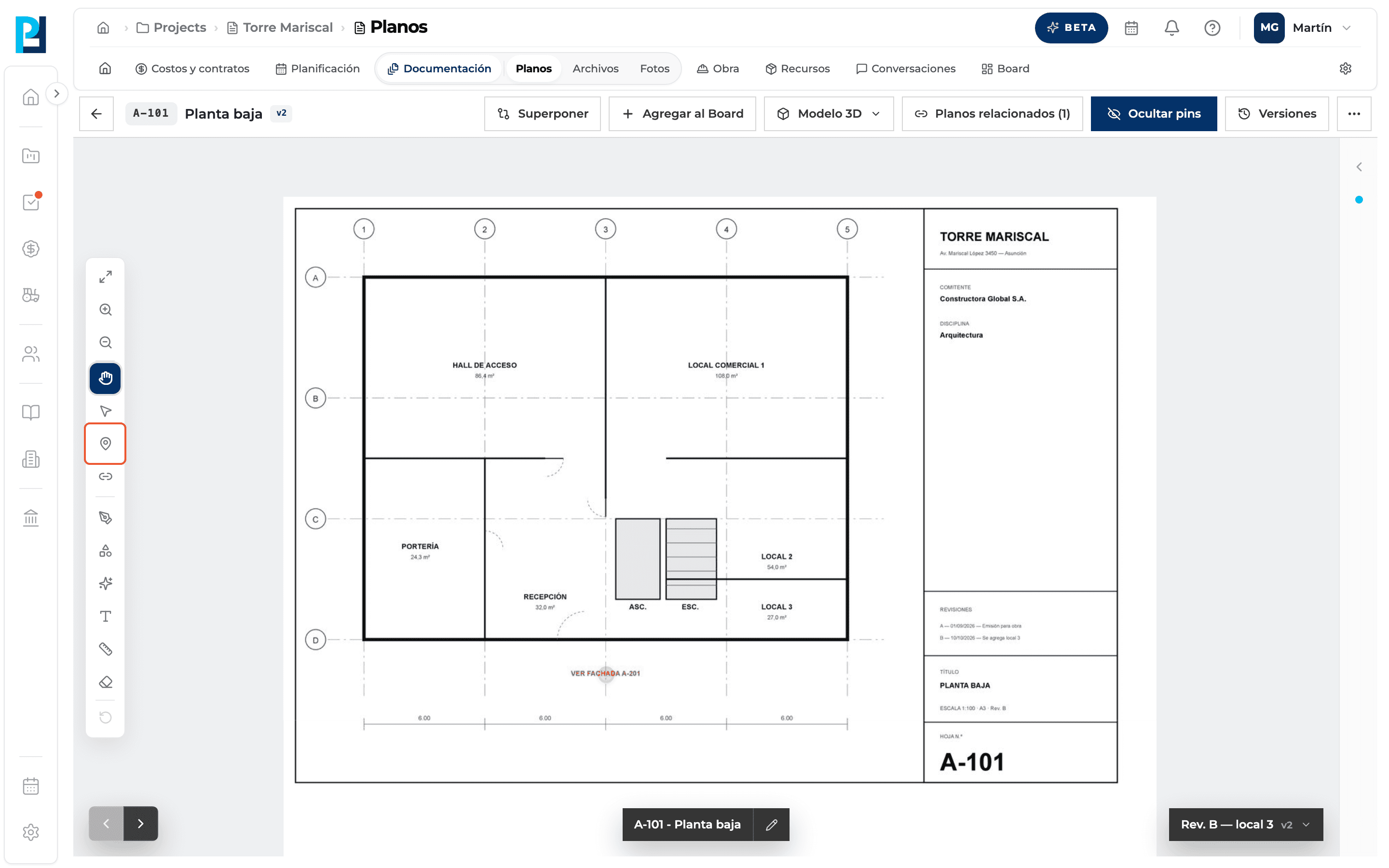
Turn on the tool
Left bar → Agregar pin (Add pin). It only works on the Current version and with upload permission.
- 02
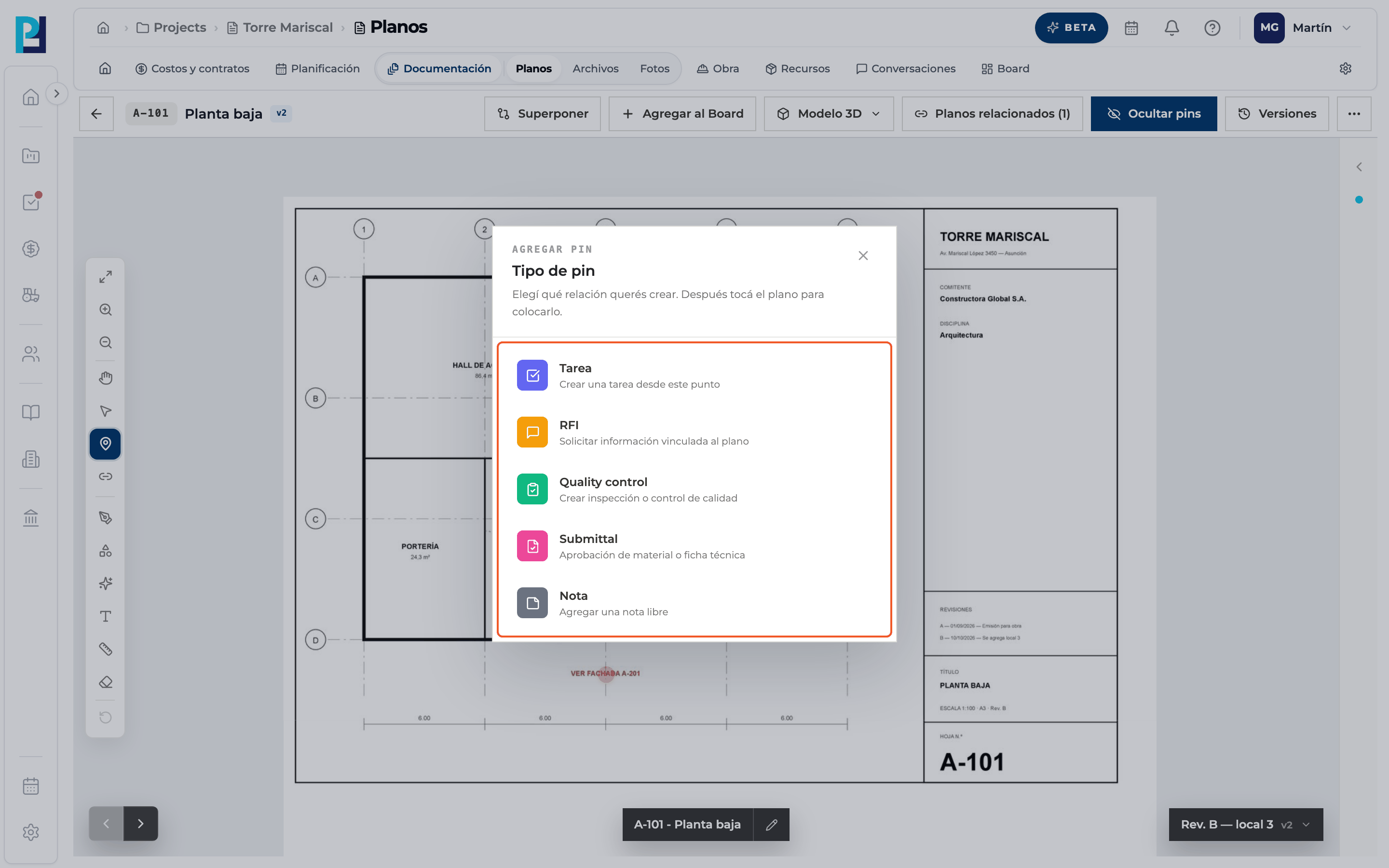
Choose the type
Task, RFI, Quality control, Submittal or Note.
- 03
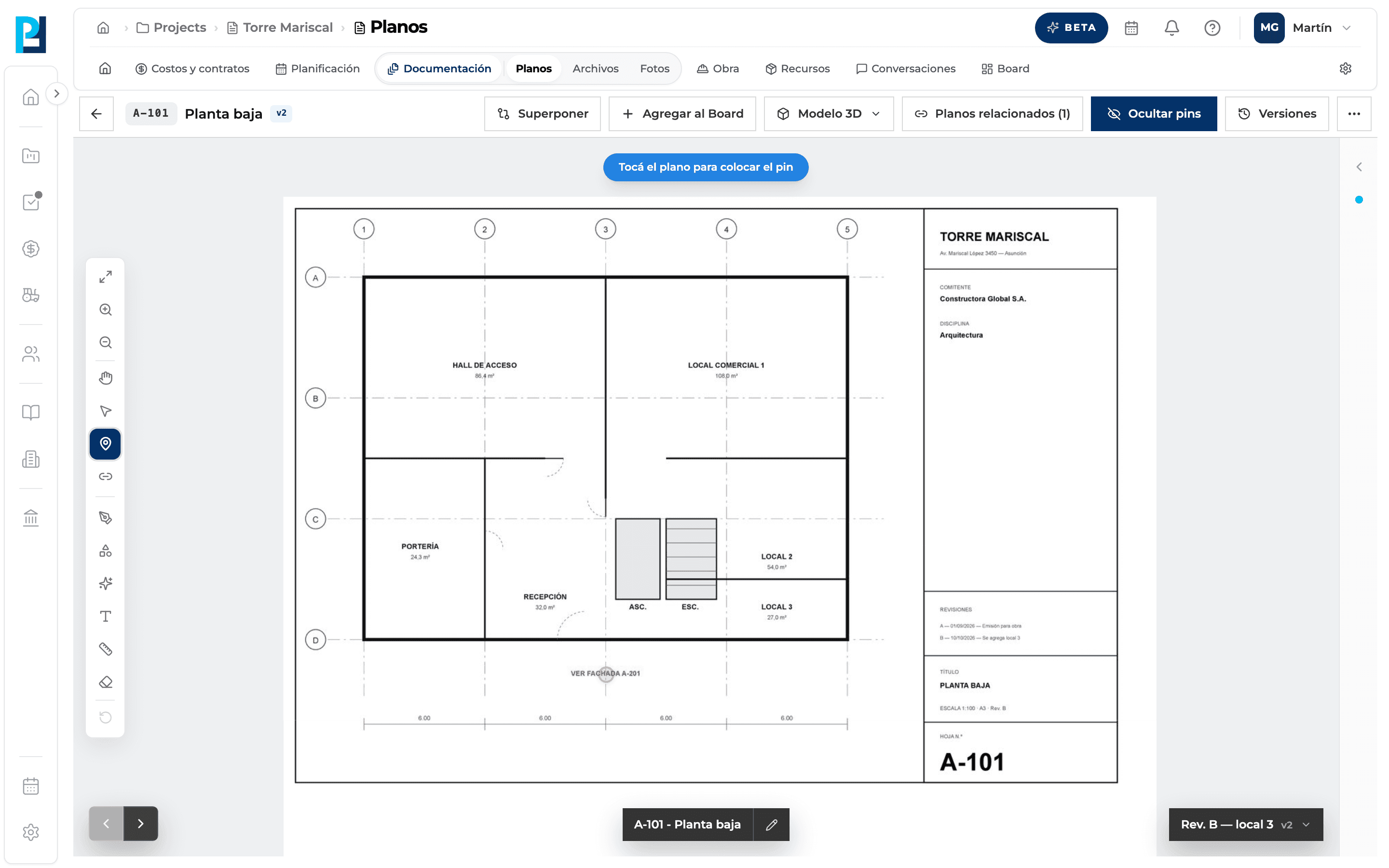
Click the drawing
A hint asks you to click the drawing. The click sets the position.
- 04
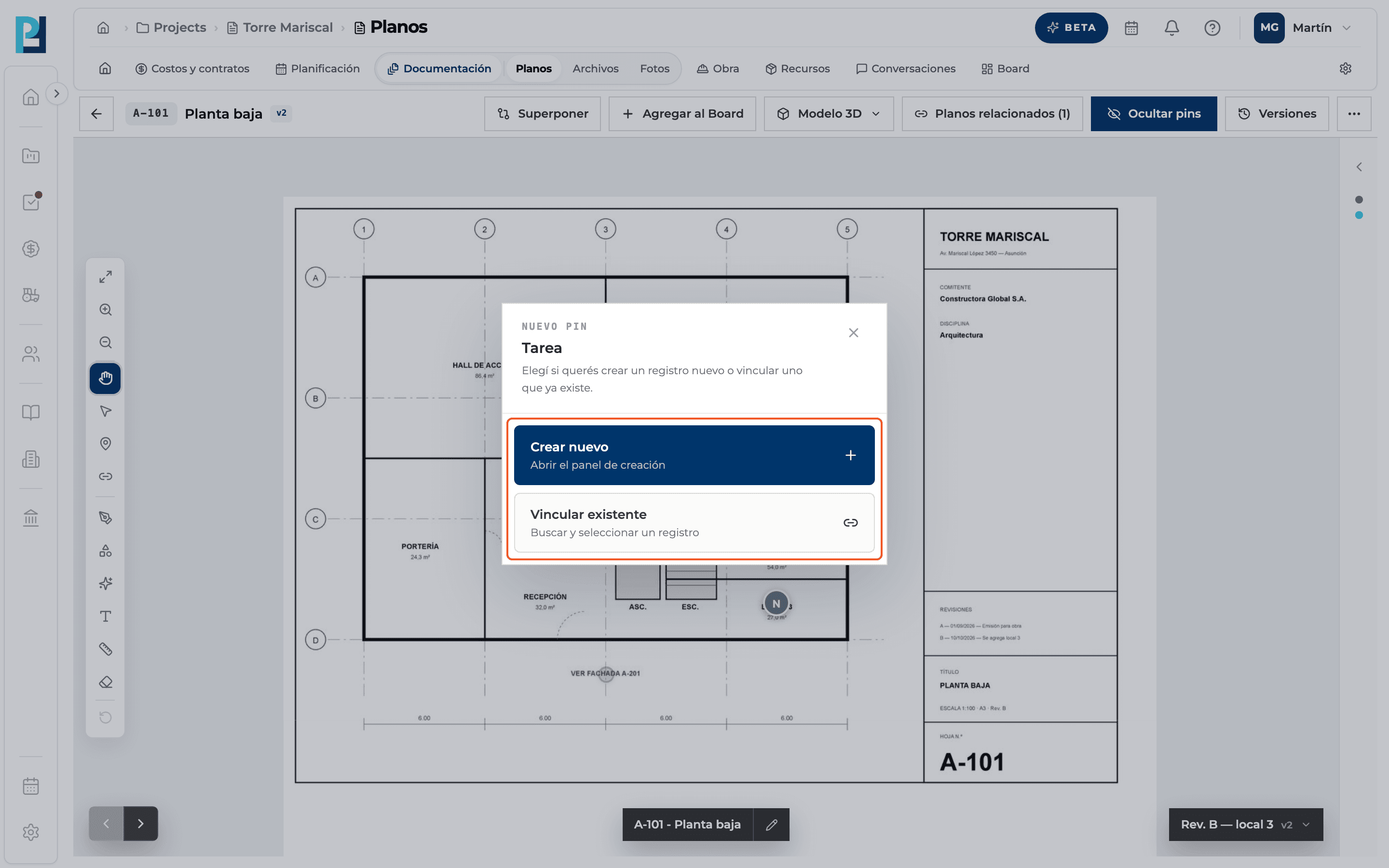
Create or link
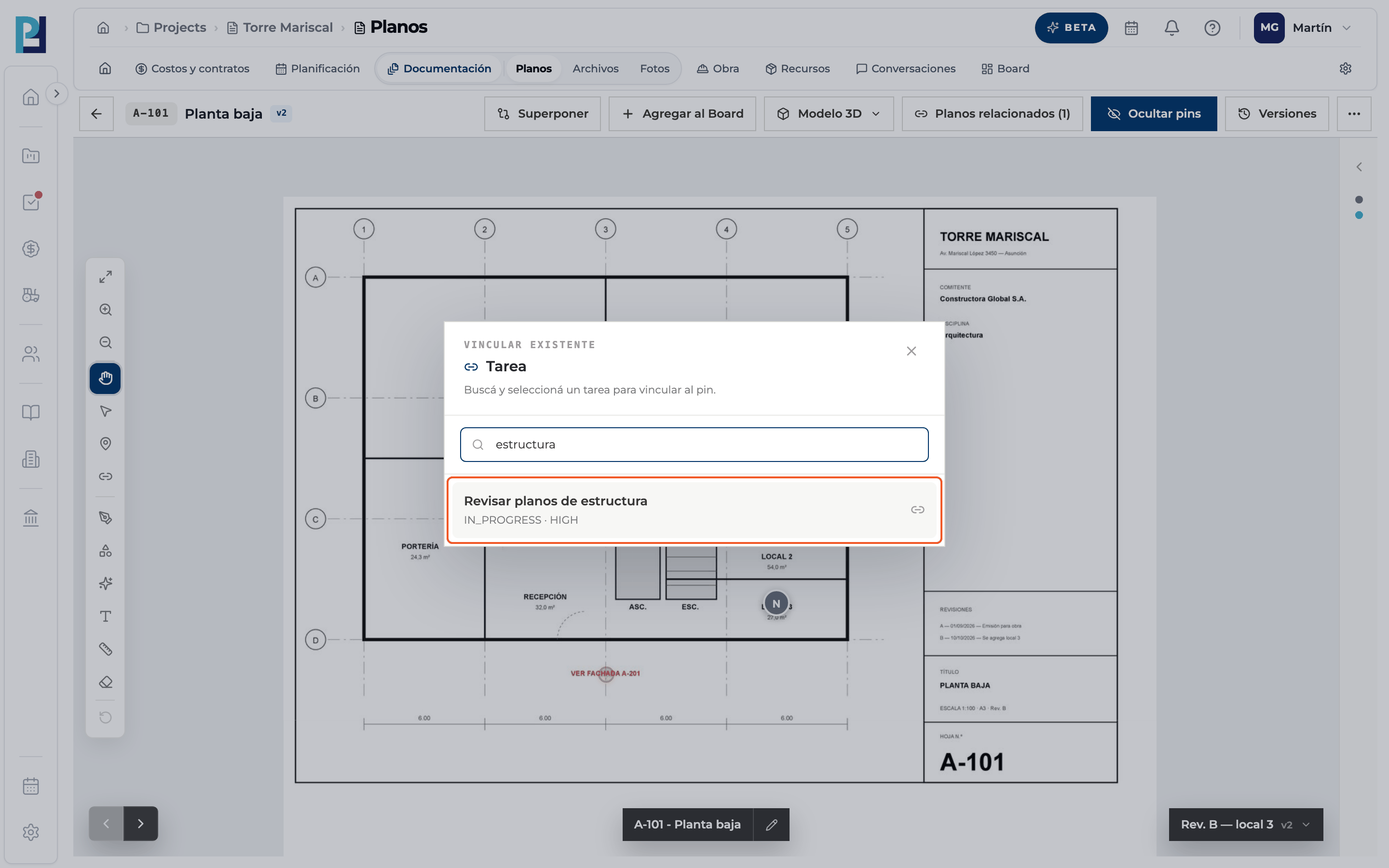
For Task, RFI, Quality control and Submittal: Crear nuevo opens the module's form with the drawing already linked; Vincular existente opens a search.
- 05
Link an existing record
Search by title and click the record. «Pin vinculado» appears.
- 06
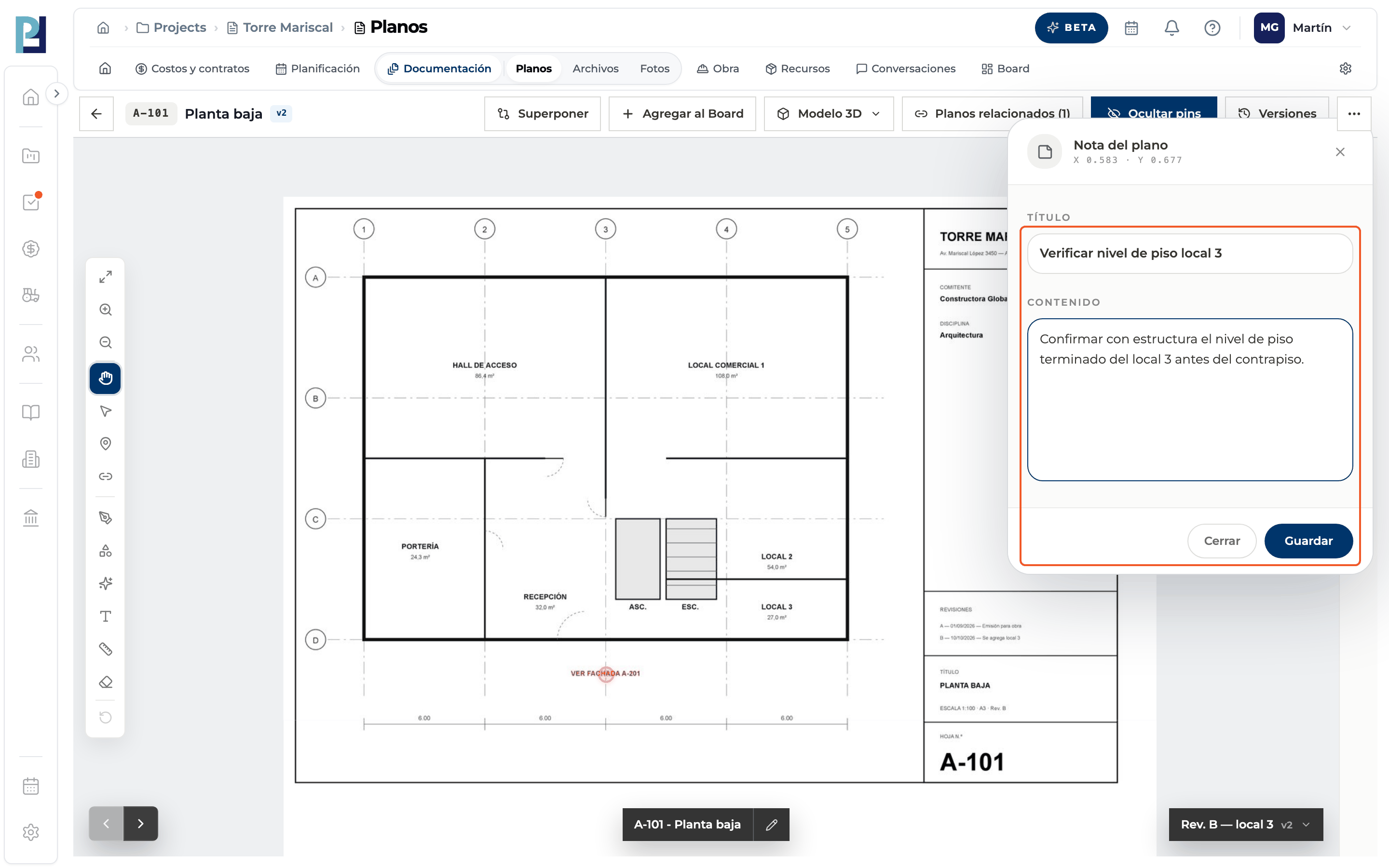
Or write a note
Note opens Nota del plano directly: fill in the title and content and click Guardar.
- 07
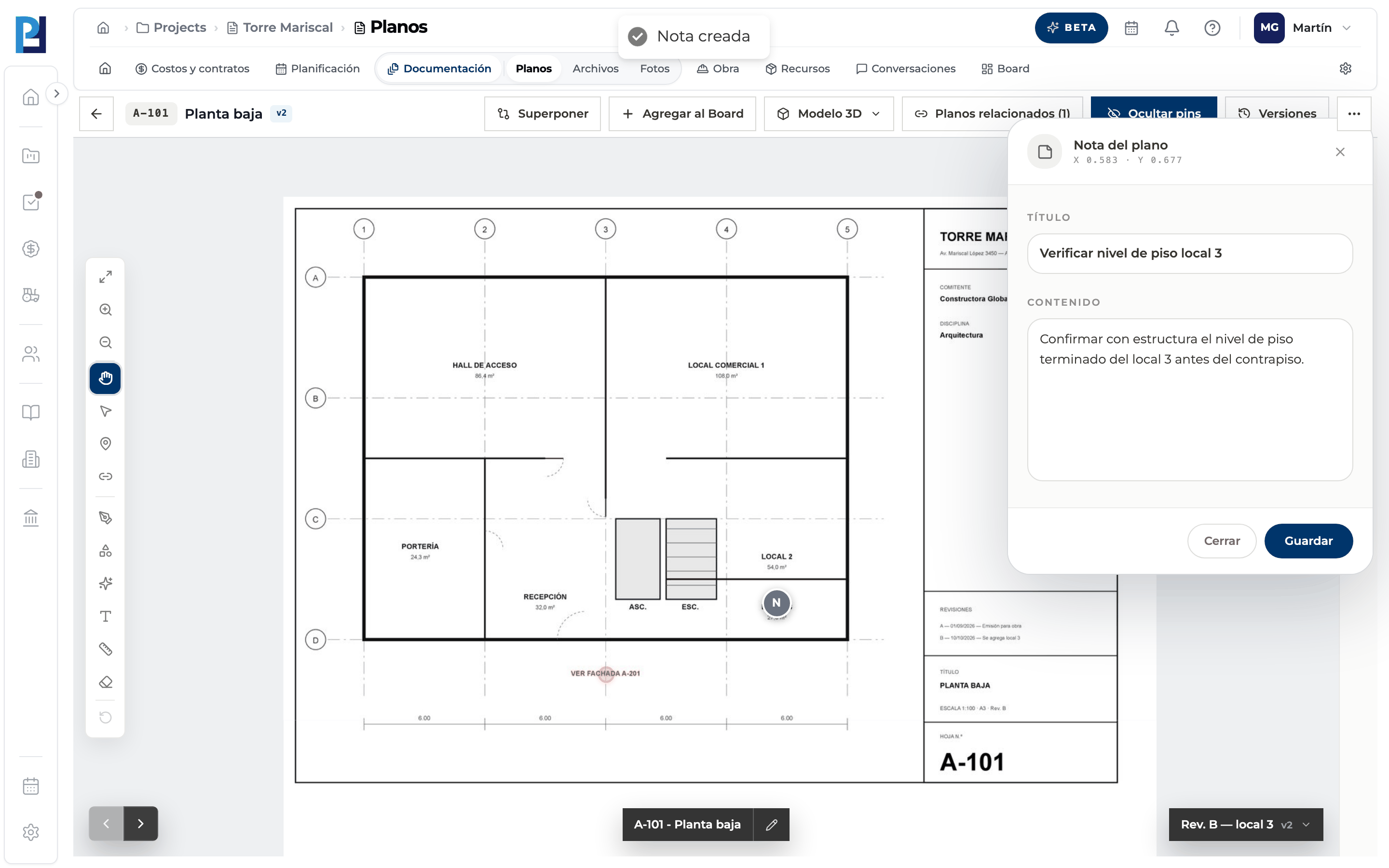
Check
A confirmation appears and the pin shows on the drawing and in the side list.
What you'll learn
How place a pin and create or link a task, rfi, quality control, submittal or note works inside Perfour.
What information you need and how it stays connected to Drawings.
How to preserve traceability and find the record later.
Frequently asked questions
I closed the form without saving, is there an empty pin?+
No: for tasks, RFIs, quality controls and submittals the pin is created only when the record is saved.
What happens in the other modules?+
The record is linked to the drawing: the task, RFI or quality control shows the drawing under Relations.
Quality control asks for an assignee.+
At least one is required.