Pins: types, side list, hiding and search
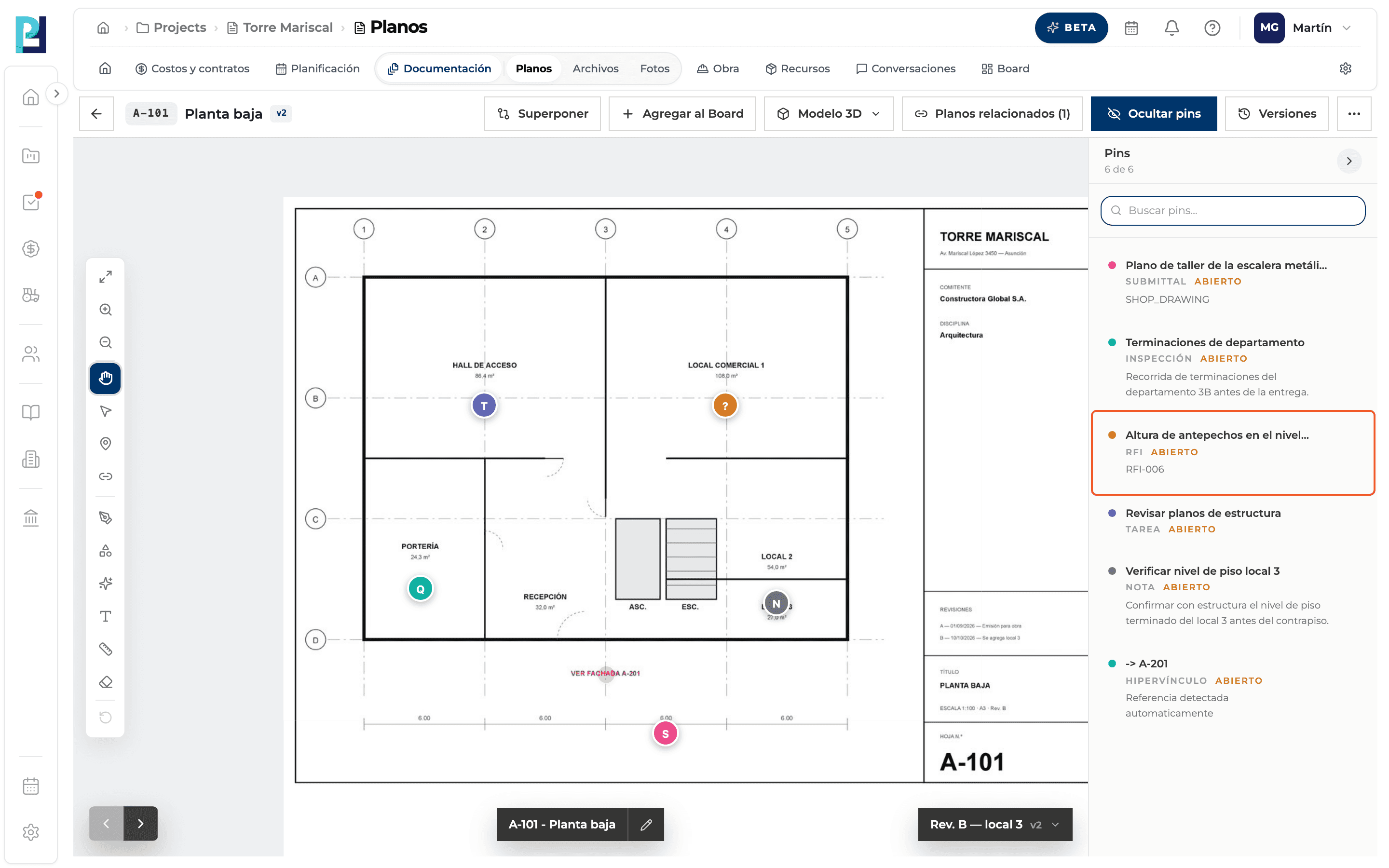
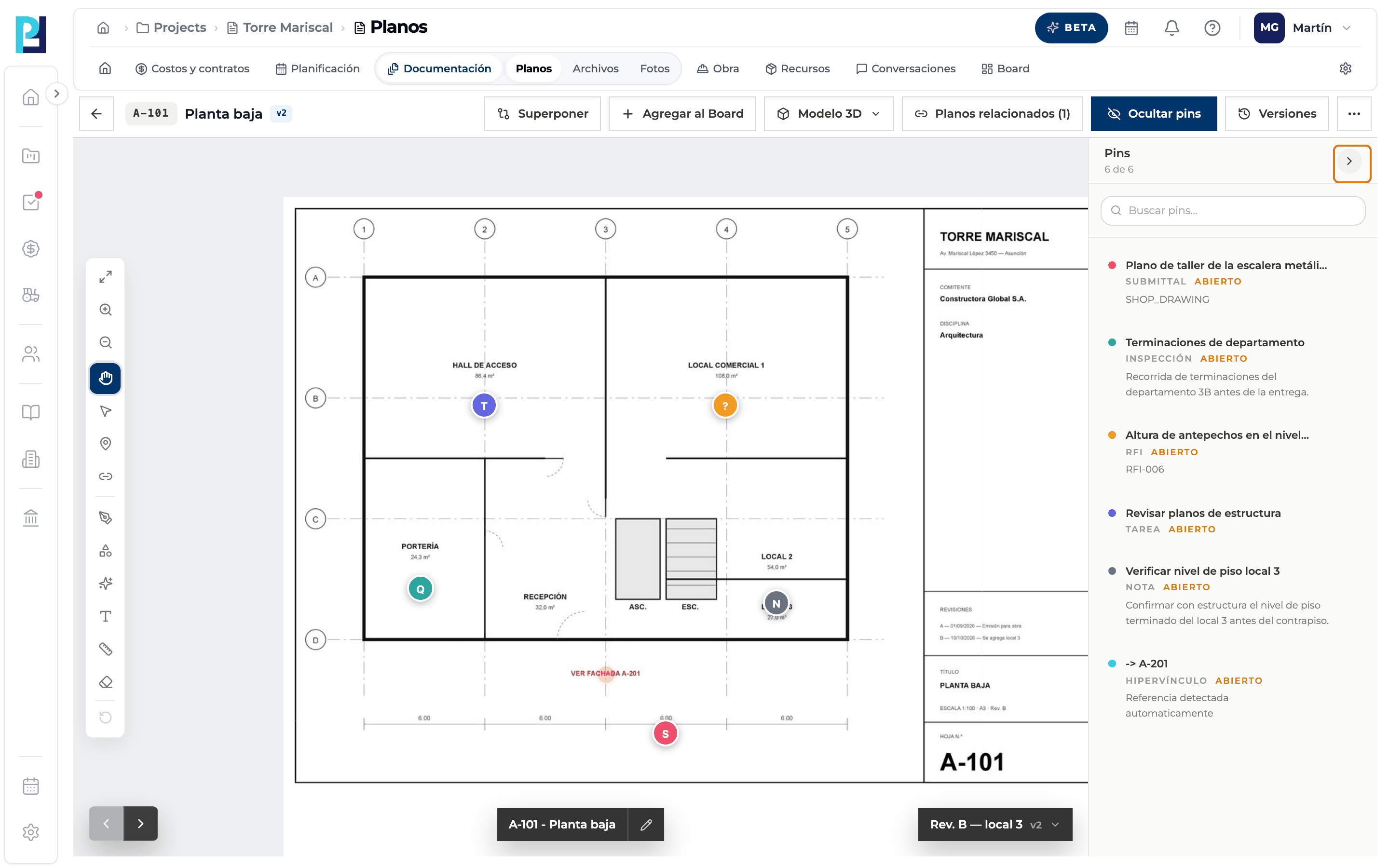
A pin marks a point on the drawing and links it to a task, RFI, quality control, submittal, note or hyperlink. They are all listed in a side panel.
How to complete pins
- 01
Recognise the pins
Each type has a colour and a letter: T Task, ? RFI, Q quality control, S Submittal, N Note and ↗ Hyperlink. Hover to see the title.
- 02
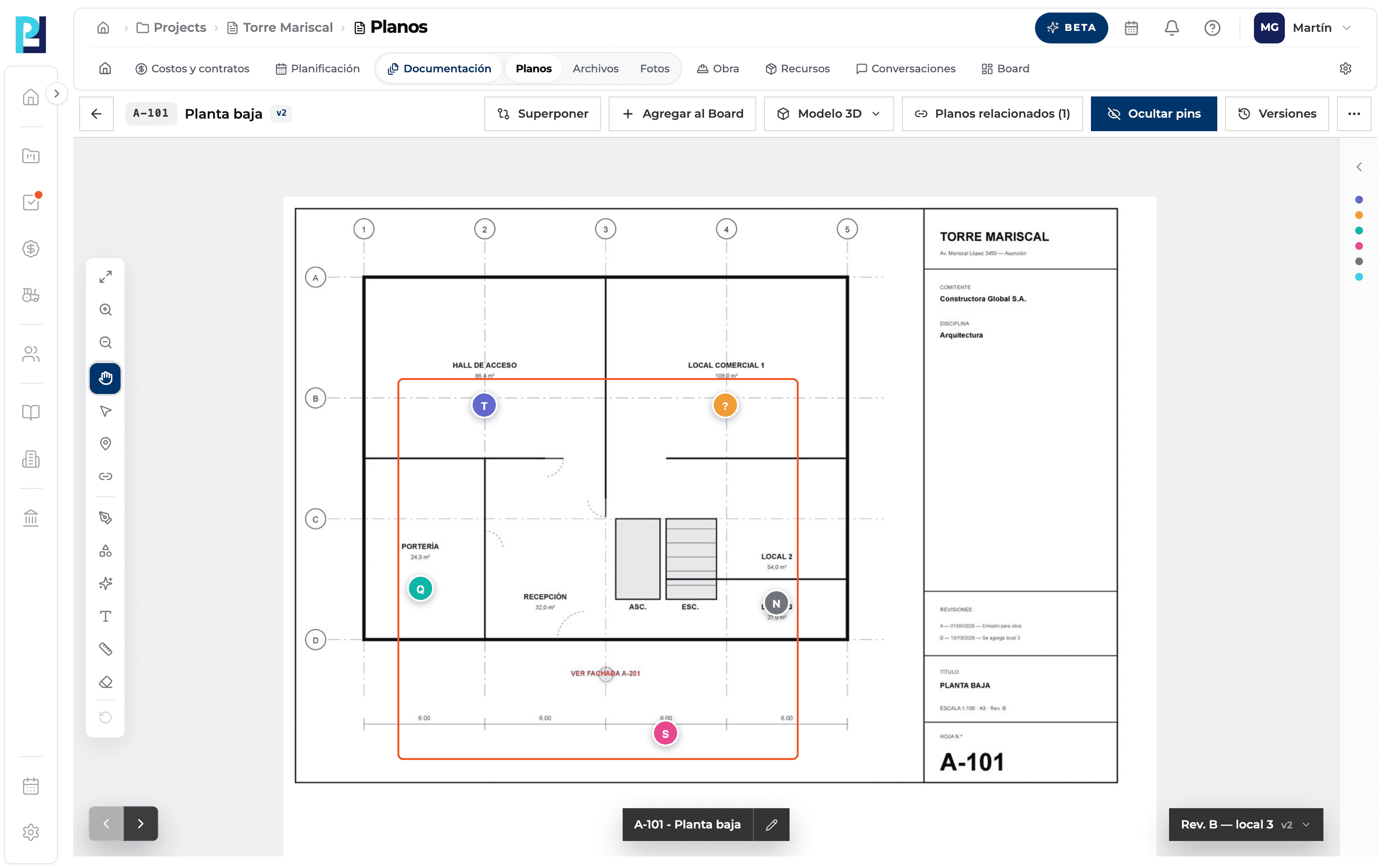
Open the list
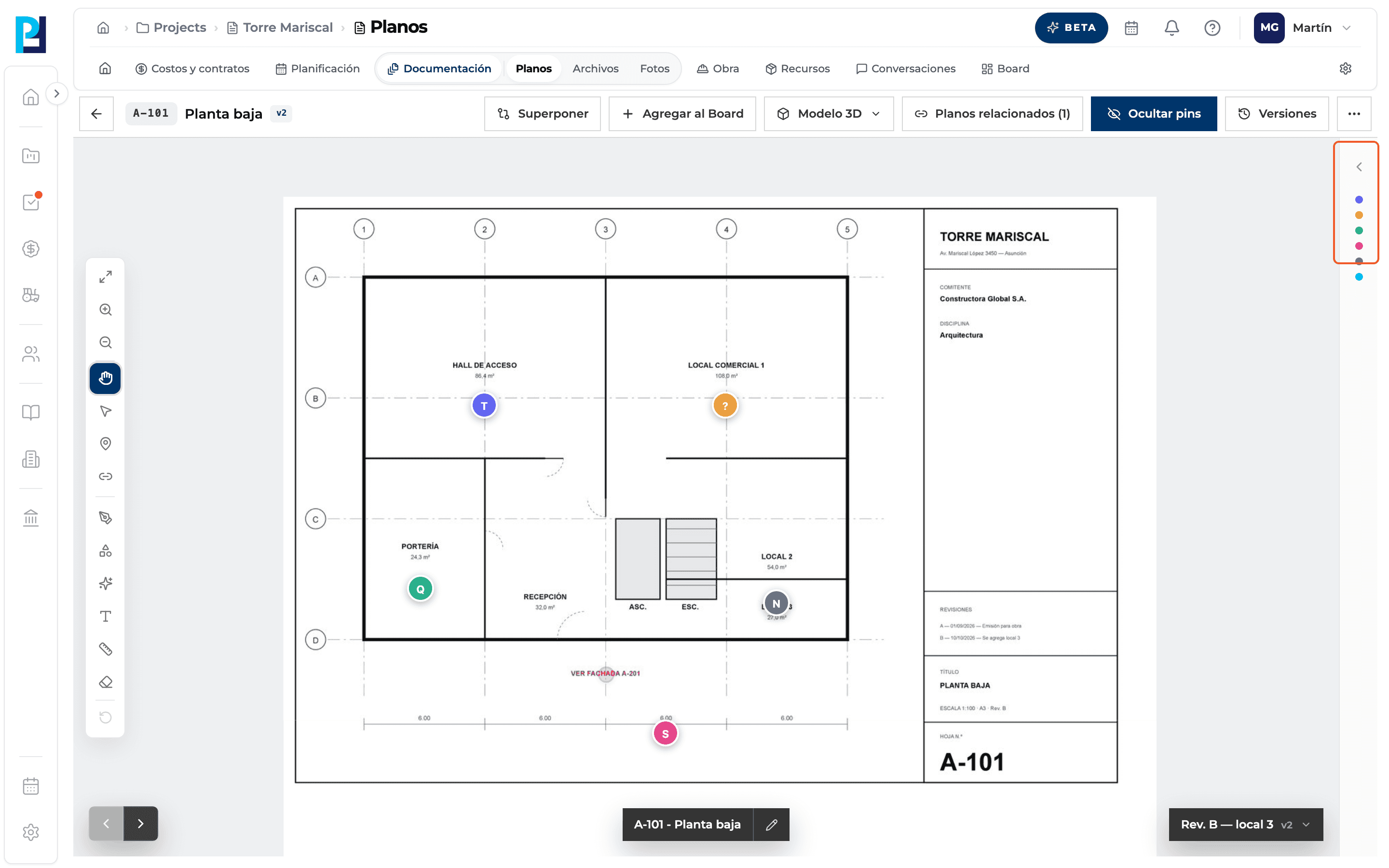
On the right of the viewer, the narrow strip with coloured dots opens the pin list.
- 03
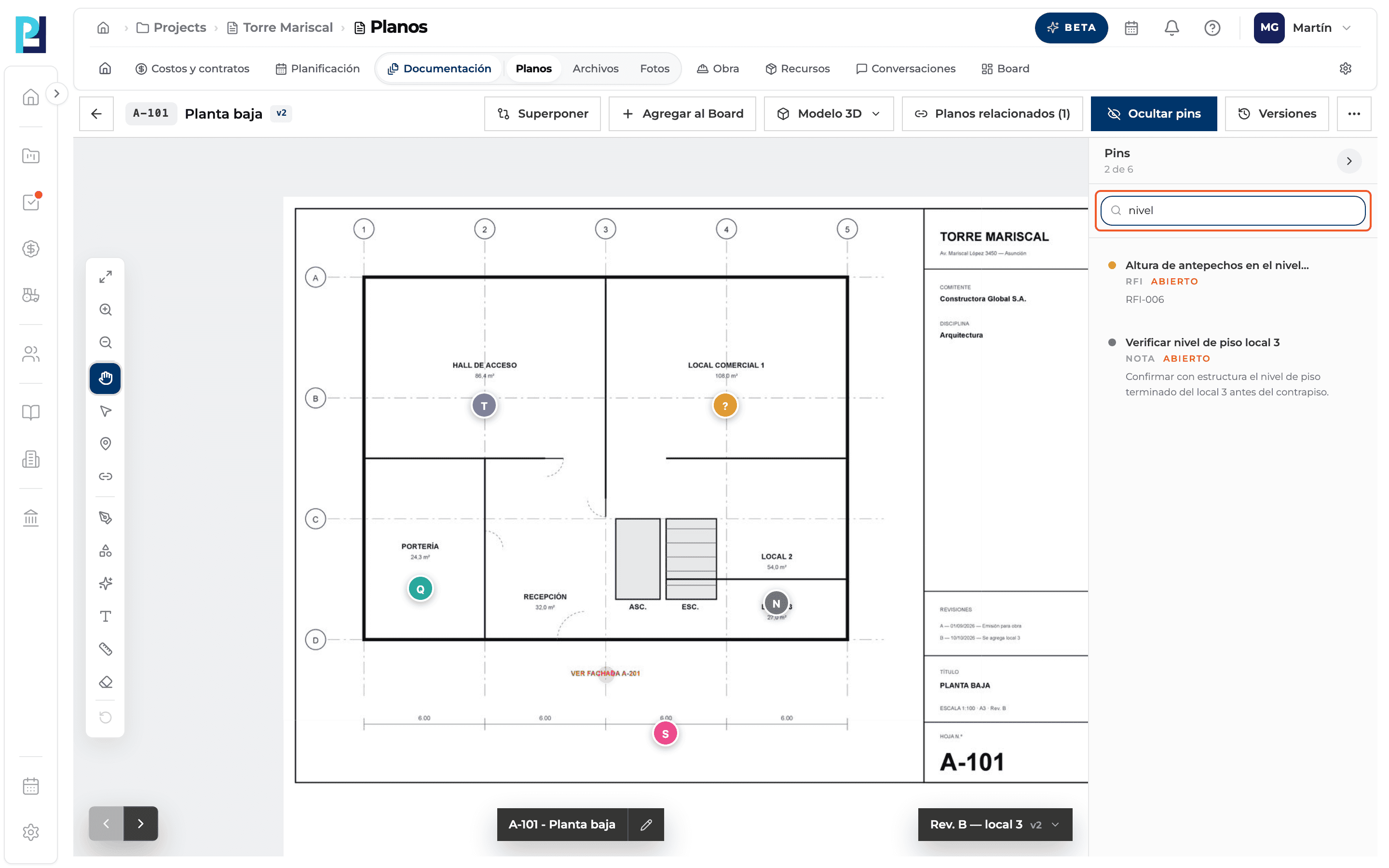
Search
The Buscar pins... box filters by title and description.
- 04
Read each pin
Title, type, status (Open, Resolved or Closed) and a summary.
- 05
Open a pin
One click in the list or on the drawing opens it according to its type (see the relations guide).
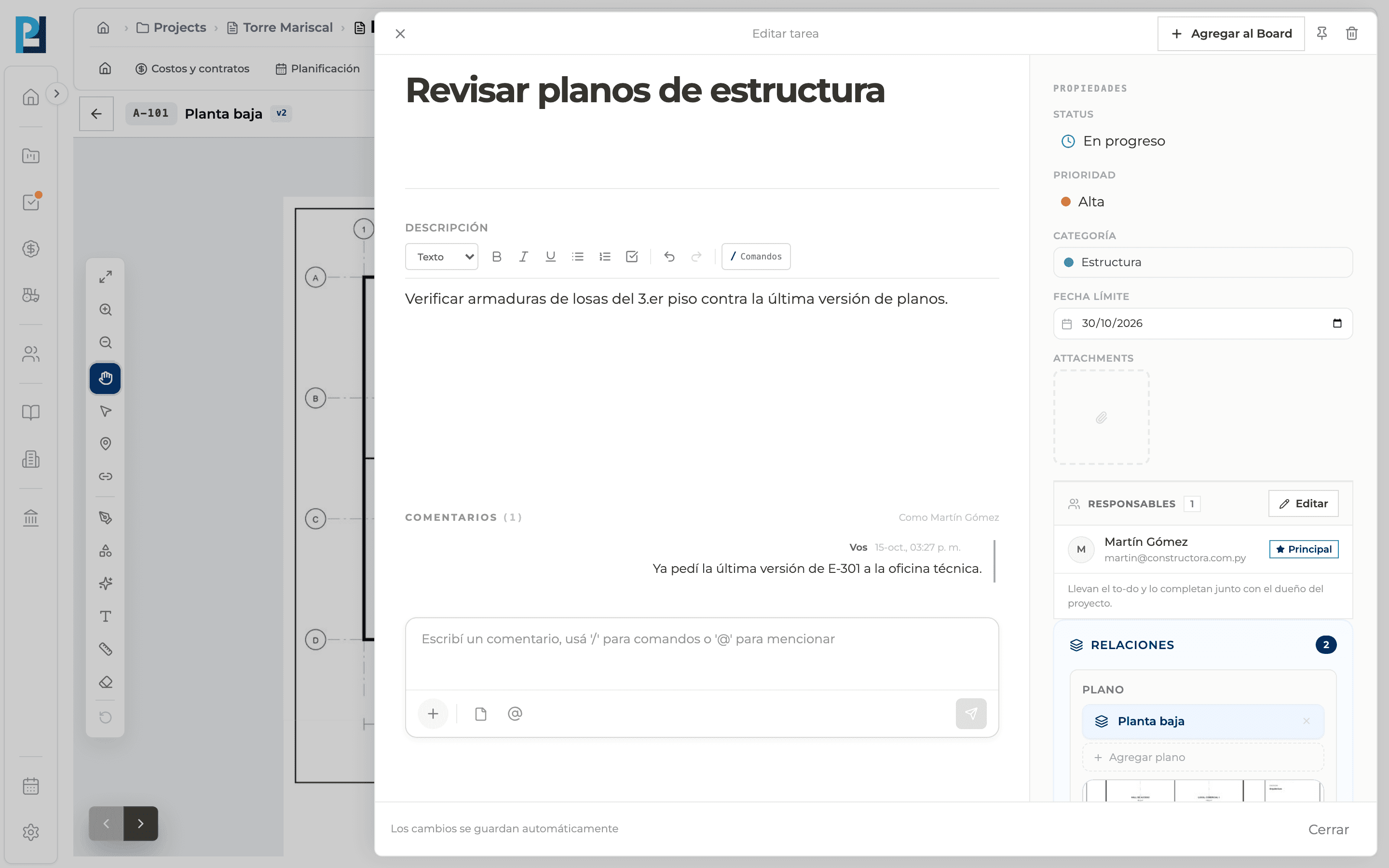
- 06
Hide the pins
Ocultar pins hides pins, hyperlinks, shapes, symbols and text. The same button turns into Ver pins.
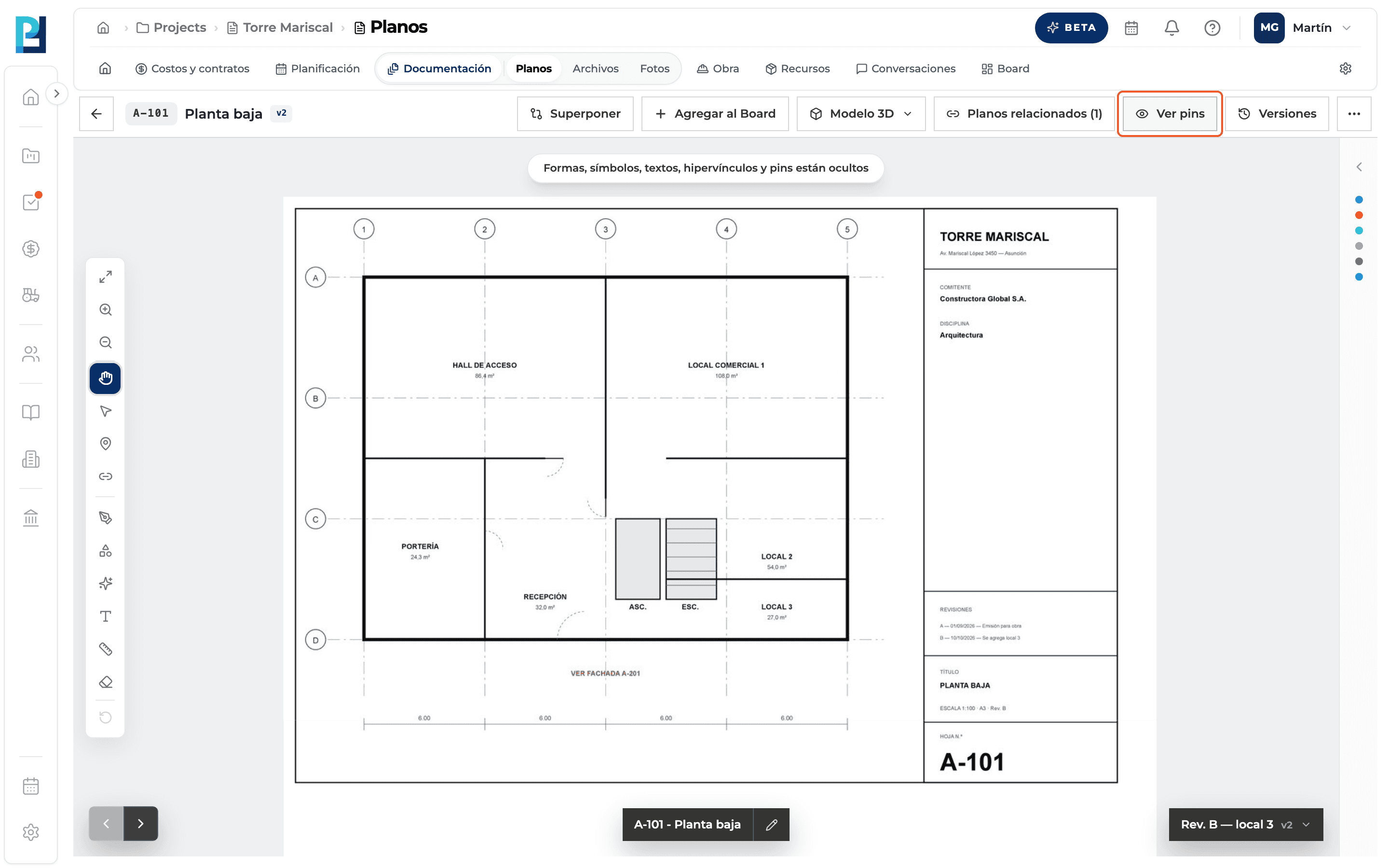
- 07
Collapse the list
The arrow at the top folds it away.
What you'll learn
How pins: types, side list, hiding and search works inside Perfour.
What information you need and how it stays connected to Drawings.
How to preserve traceability and find the record later.
Frequently asked questions
Are the pins tied to the version I'm viewing?+
Yes, each version has its own pins. On earlier versions you see them but can't create new ones.
I see pins I didn't add.+
Automatically detected hyperlinks are created by the system from the drawing's references.