Share drawings or folders with another project
Sharing lets another project in the same organisation see the drawing, always at its current version, without duplicating files or pins.
How to complete share drawings
- 01
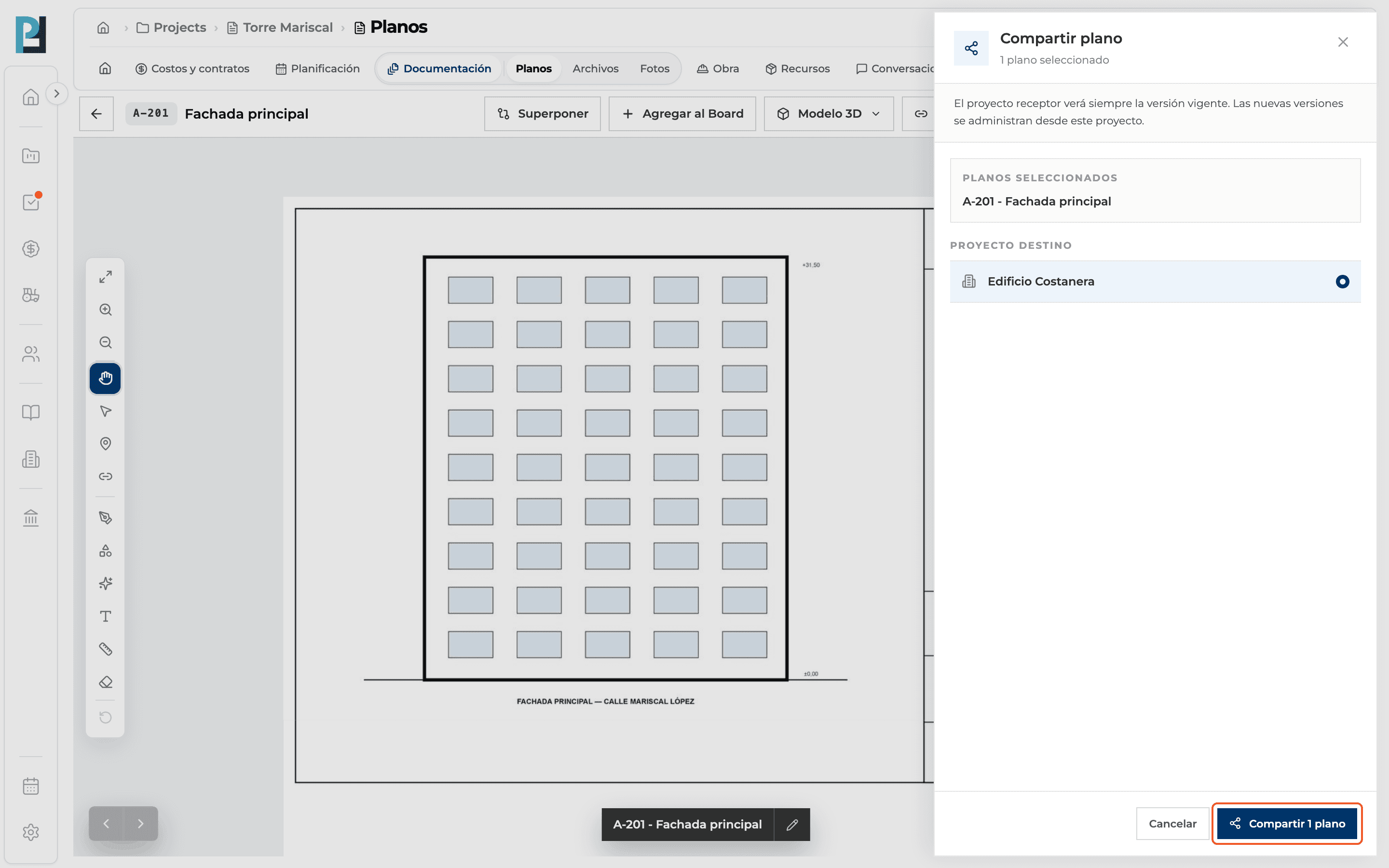
Share from the viewer
⋯ menu → Compartir (Share).
- 02
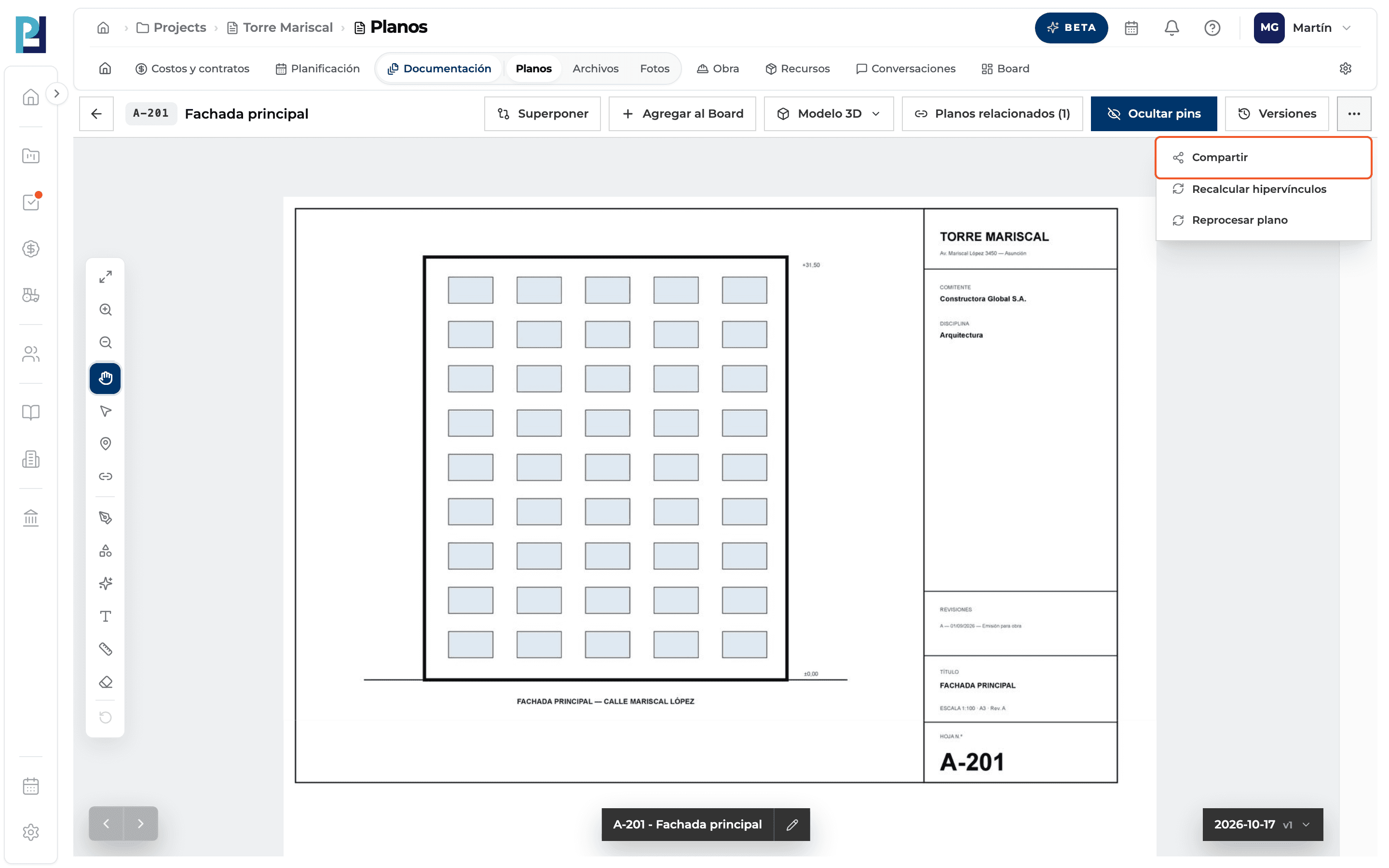
Choose the target project
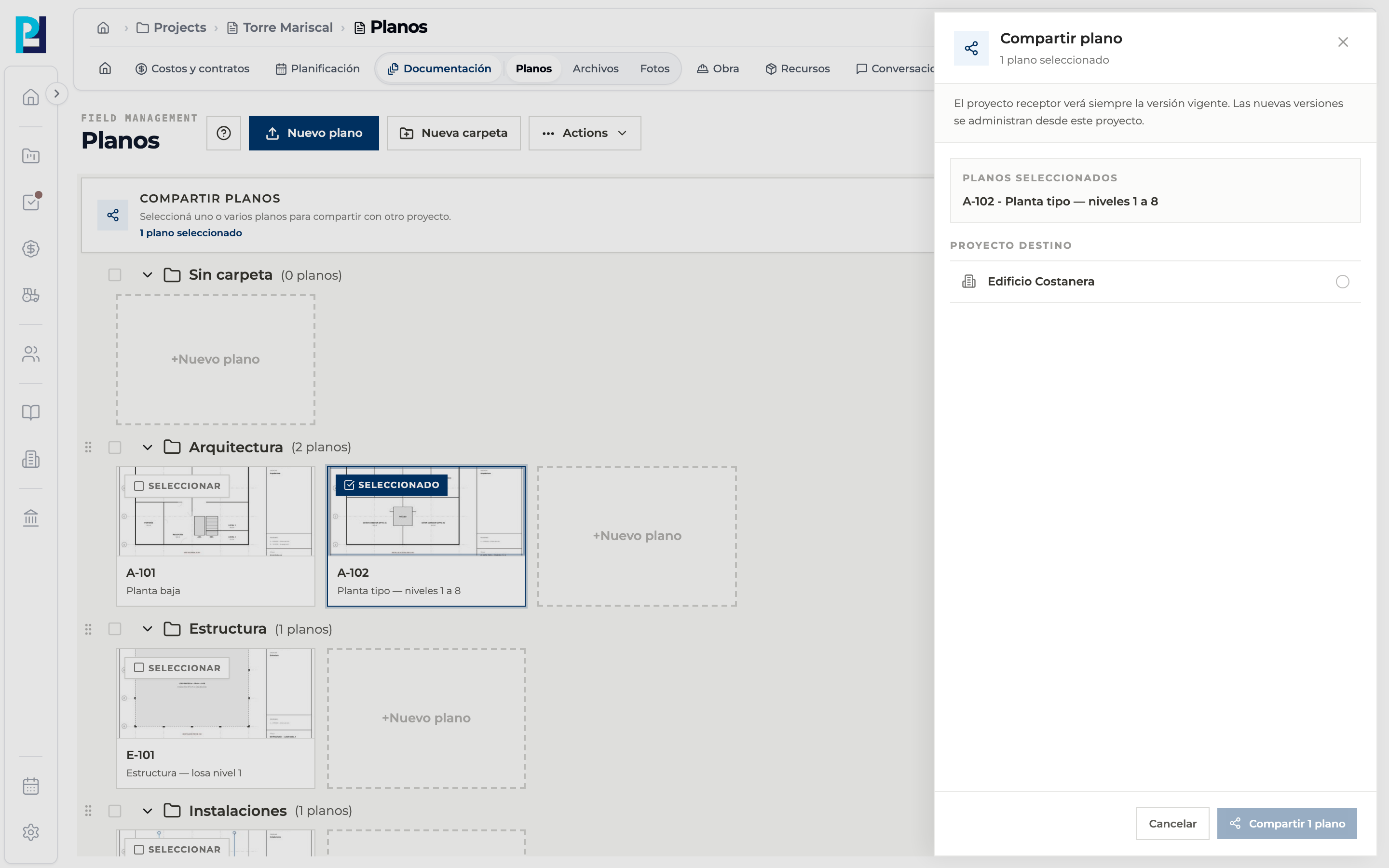
The panel notes that the receiving project always sees the current version. Proyecto destino lists the organisation's other active projects.
- 03
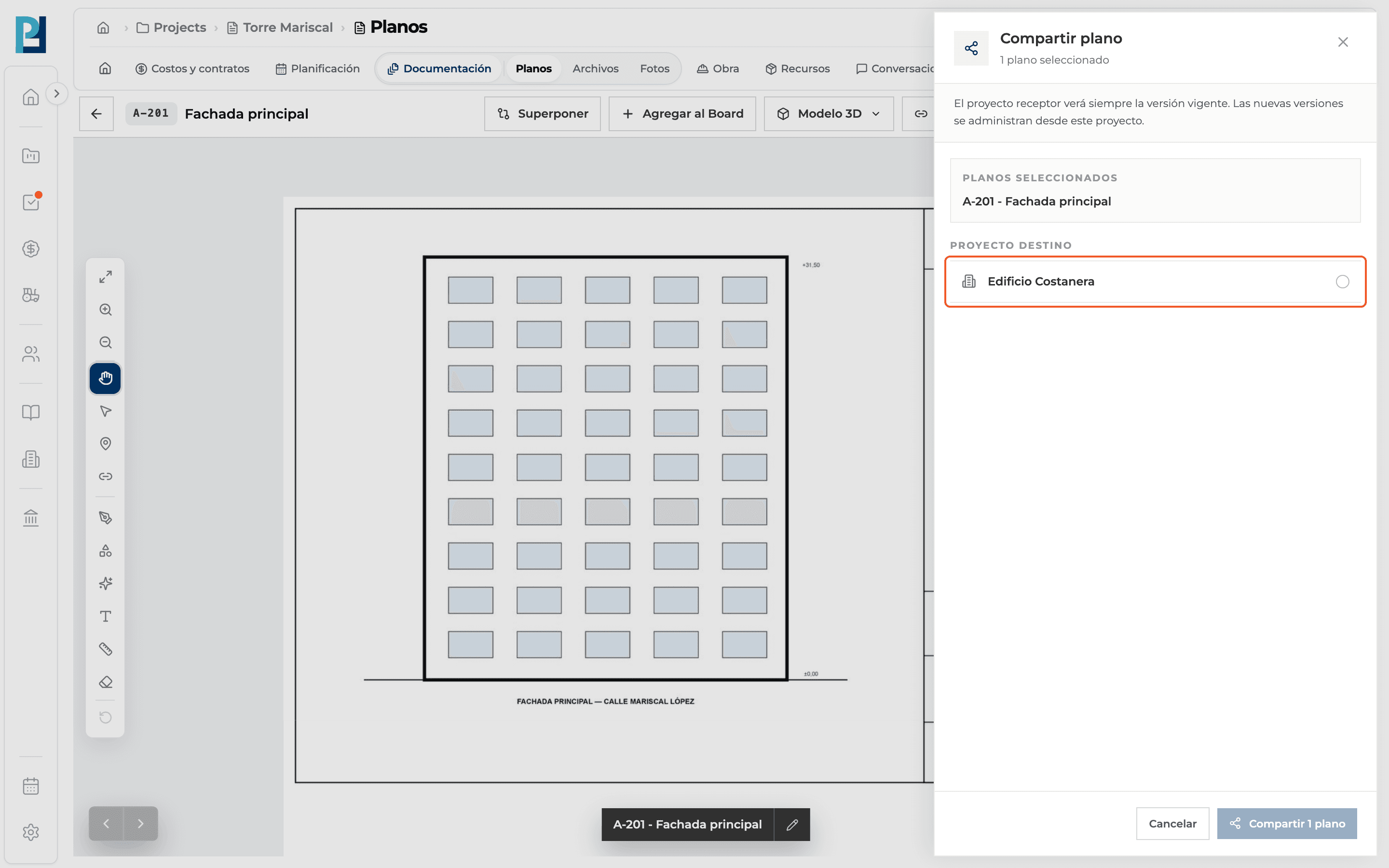
Share
Click Compartir 1 plano.
- 04
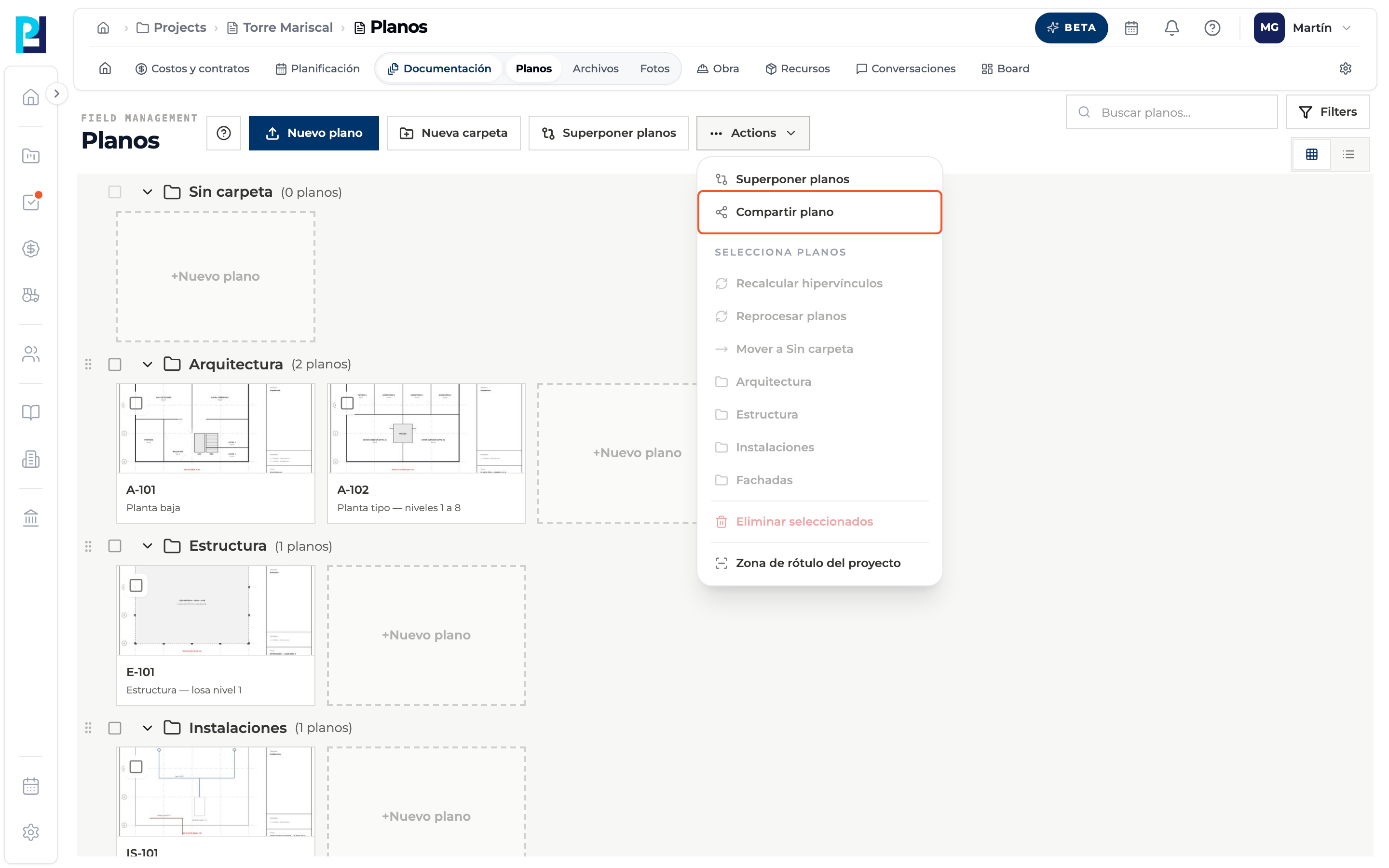
Or share several from the library
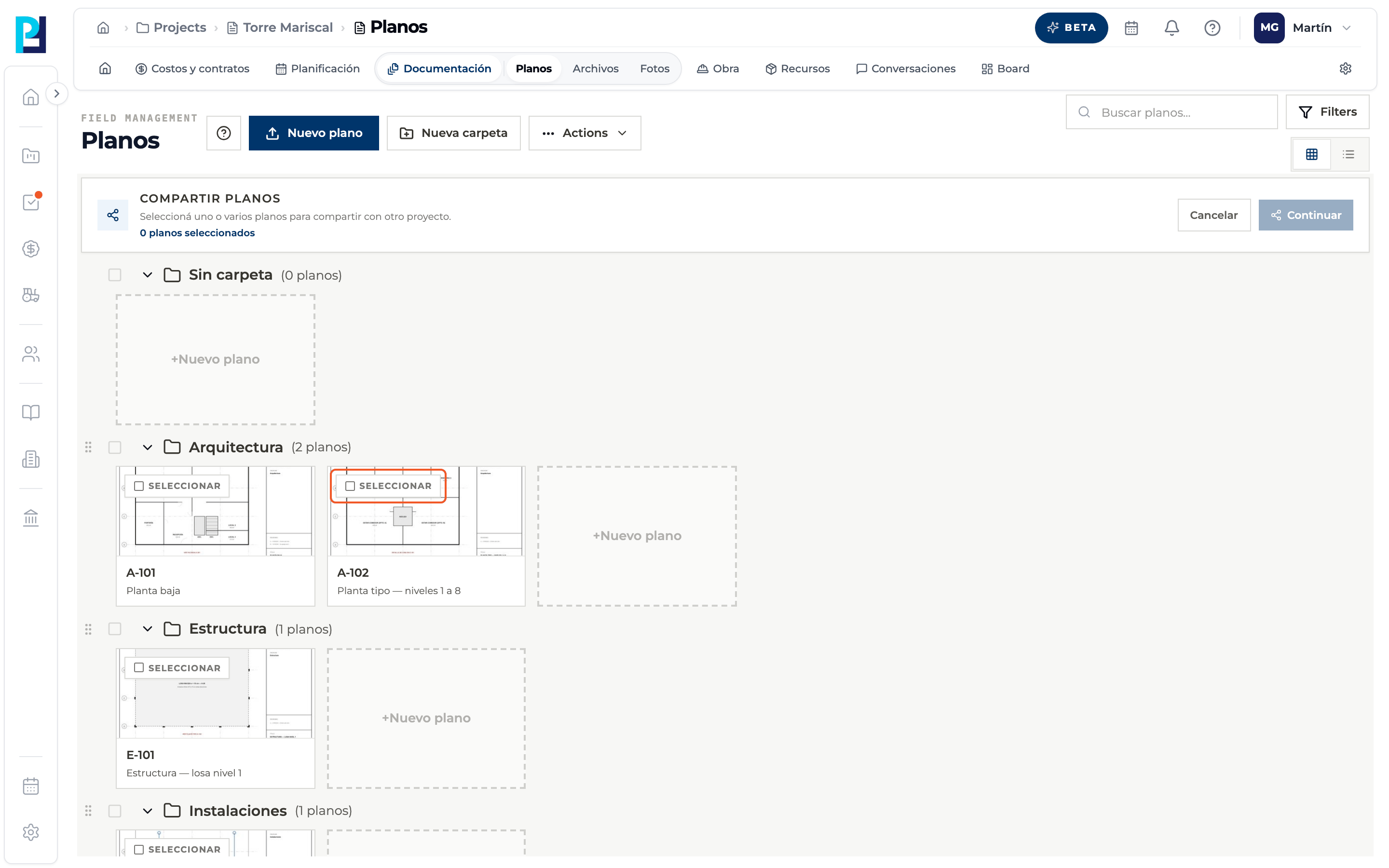
Actions → Compartir plano starts a selection mode.
- 05
Pick the drawings
Click Seleccionar on each card. They must be your own and Ready.
- 06
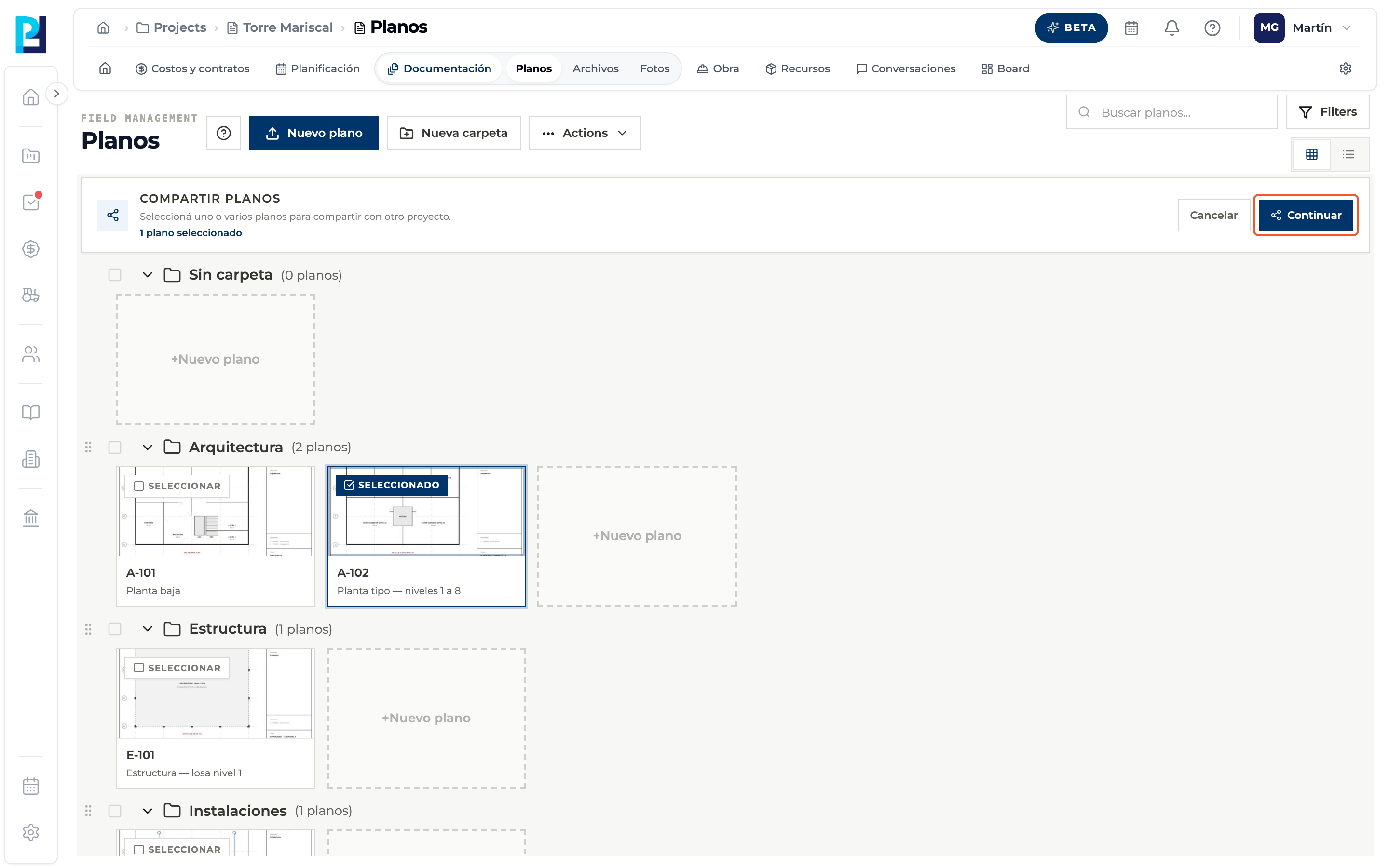
Continue
The counter shows how many you picked. Click Continuar.
- 07
Choose the target and share
The same panel opens with the selected drawings listed.
- 08
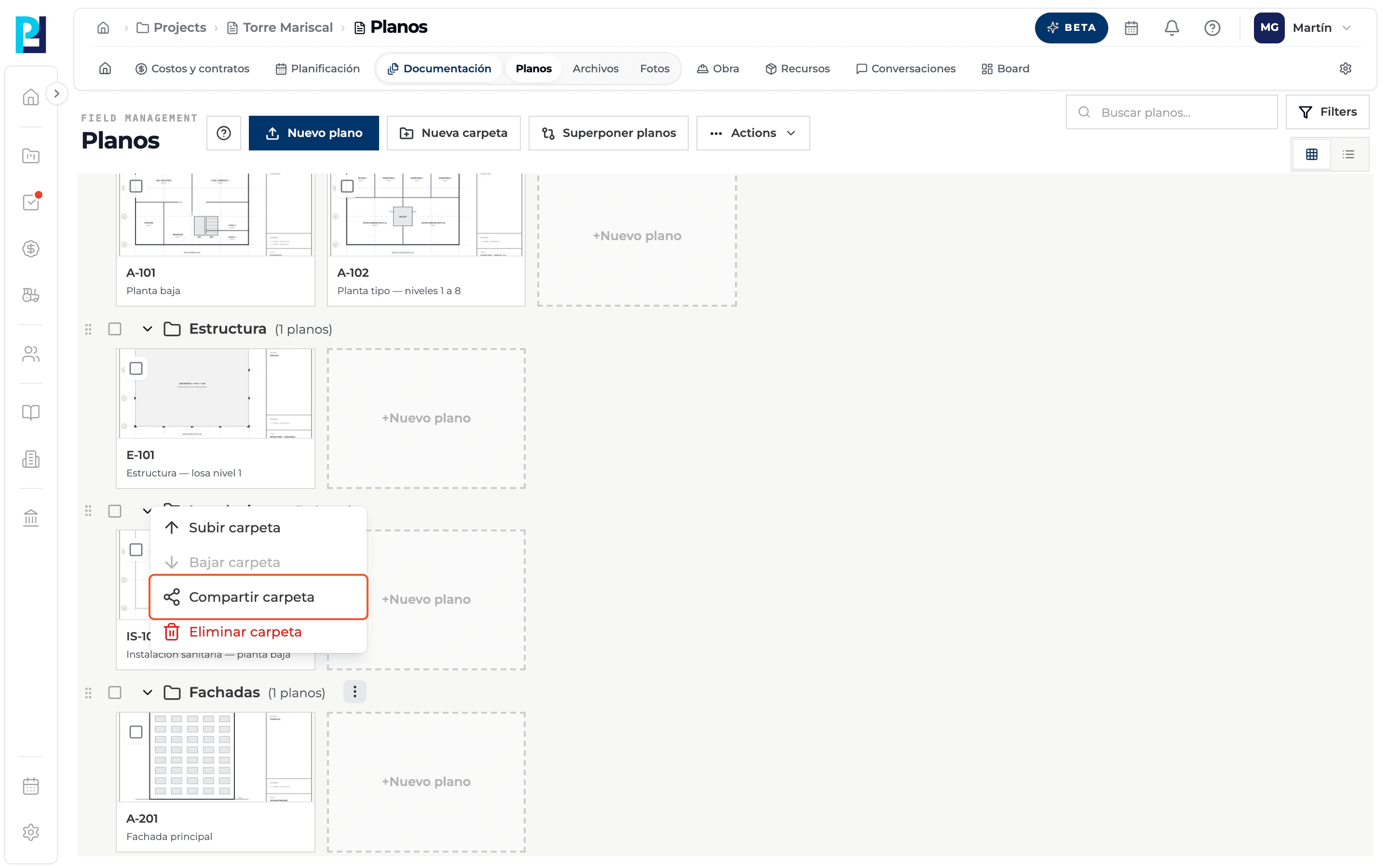
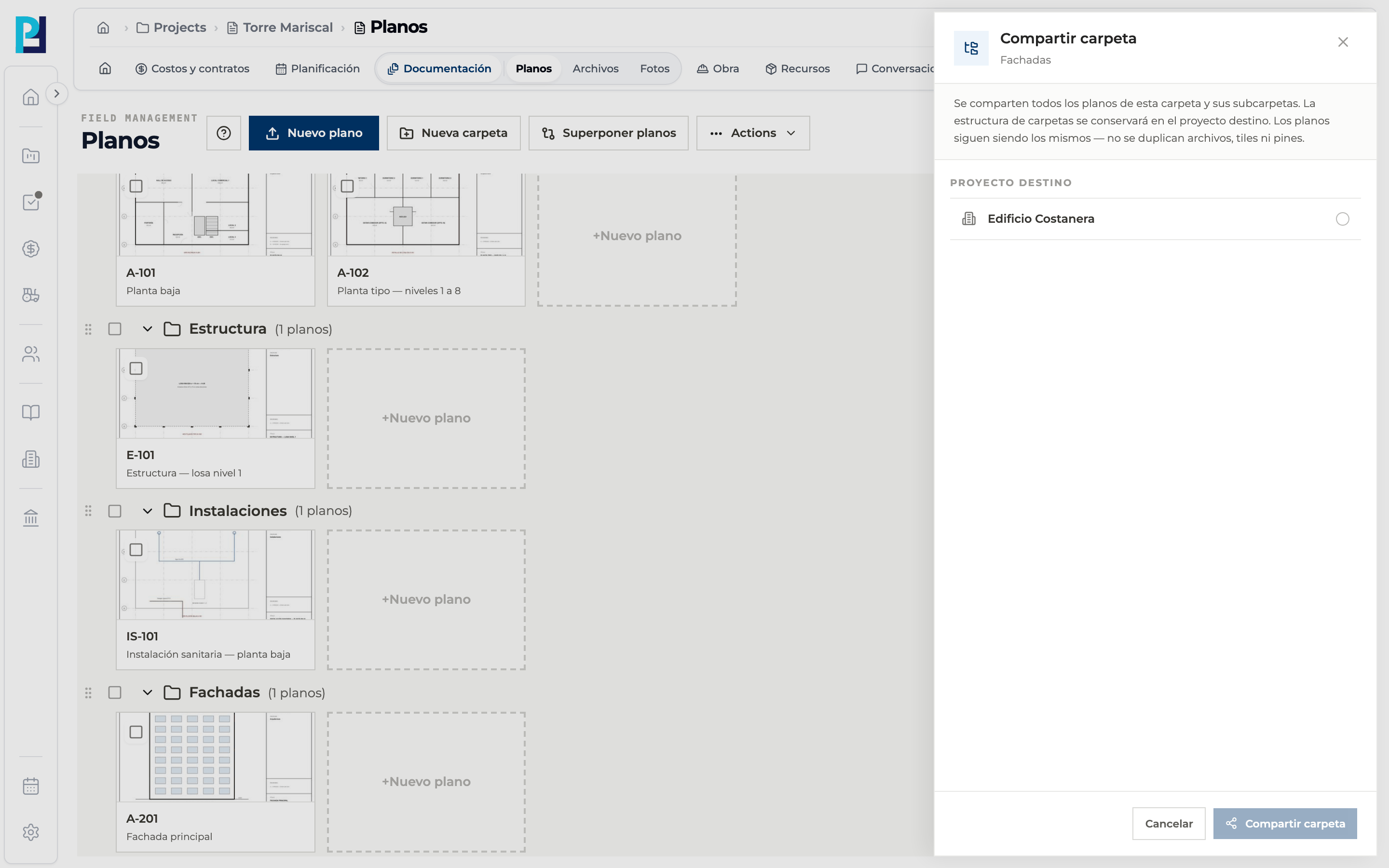
Share a whole folder
In the library, the folder's ⋯ menu → Compartir carpeta.
- 09
Choose the folder's target
All its drawings are shared and the folder structure is kept in the target project.
- 10
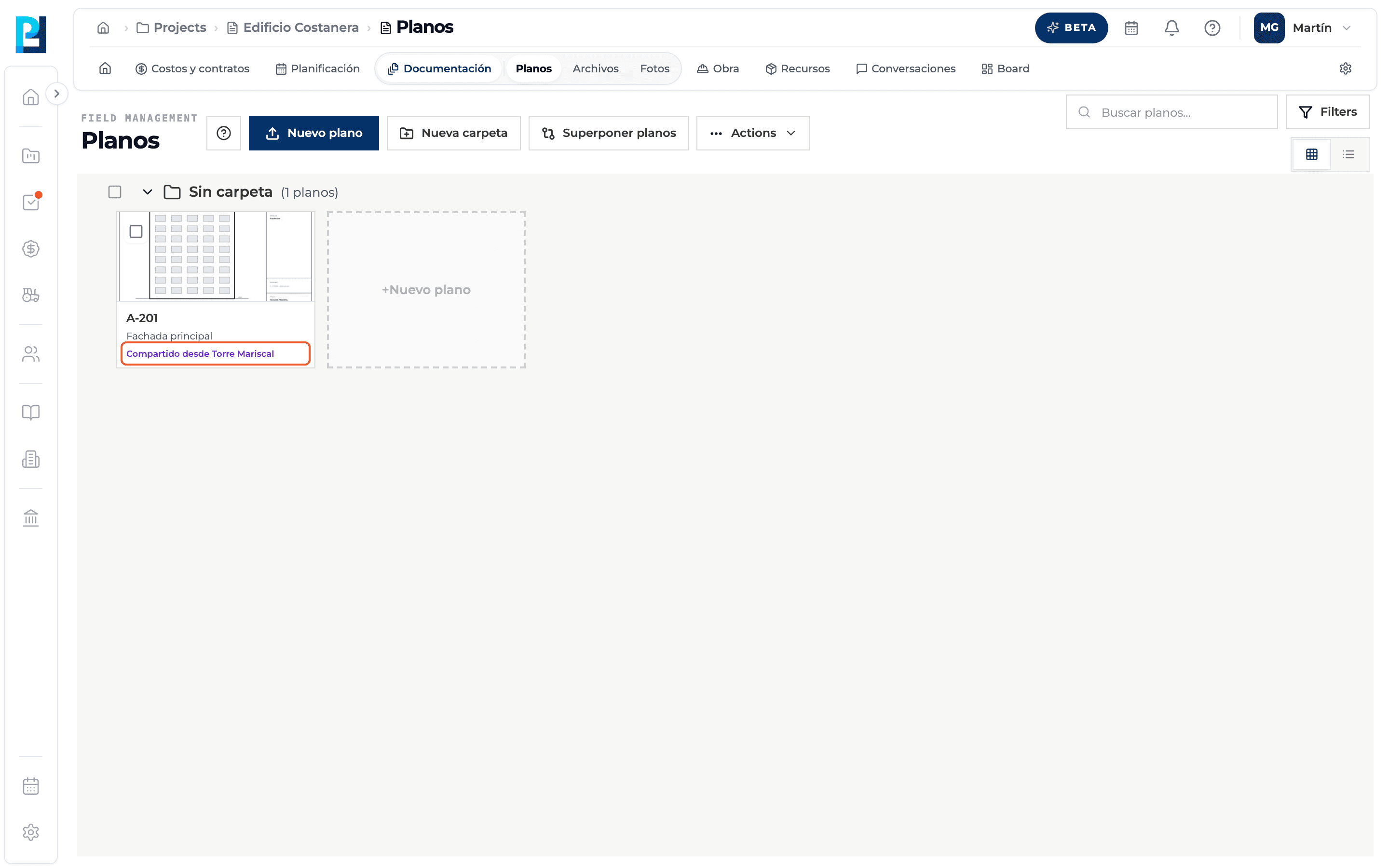
On the receiving side
In the other project the drawing shows «Compartido desde» (Shared from) and the source project's name.
What you'll learn
How share drawings or folders with another project works inside Perfour.
What information you need and how it stays connected to Drawings.
How to preserve traceability and find the record later.
Frequently asked questions
«No other project available».+
The organisation has no other active project.
Can I mark up a shared drawing?+
Yes, with upload permission; you can't upload versions or edit its history.
Can the receiving project share it again?+
No: only your own drawings can be shared.
How do I remove it from the receiving project?+
In the receiving project, card ⋯ menu → Quitar de este proyecto. The original is untouched.