Version history: view, name, mark as current and delete
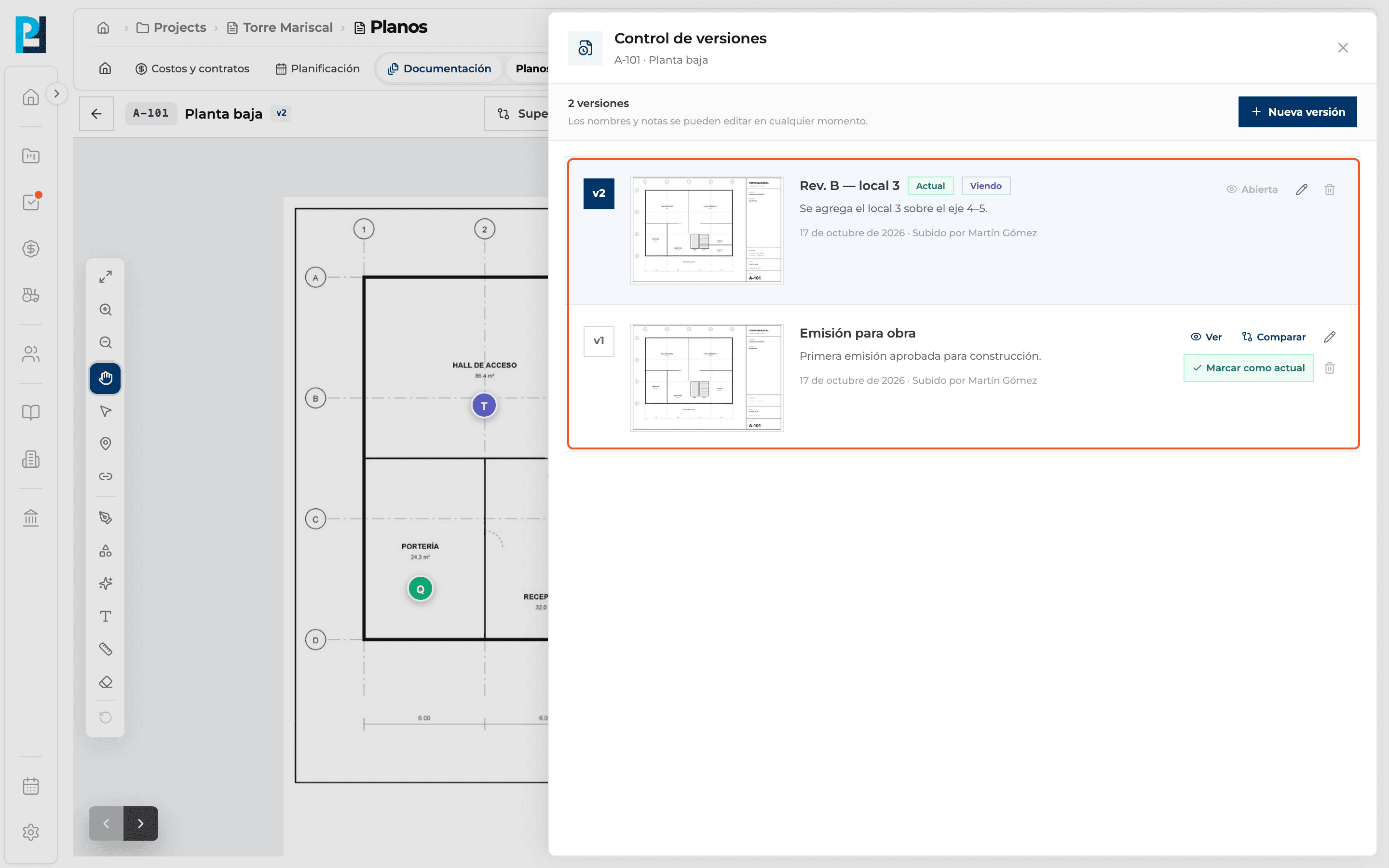
The Version control panel lists every version of a drawing and lets you open, compare, edit, mark as current or delete each one.
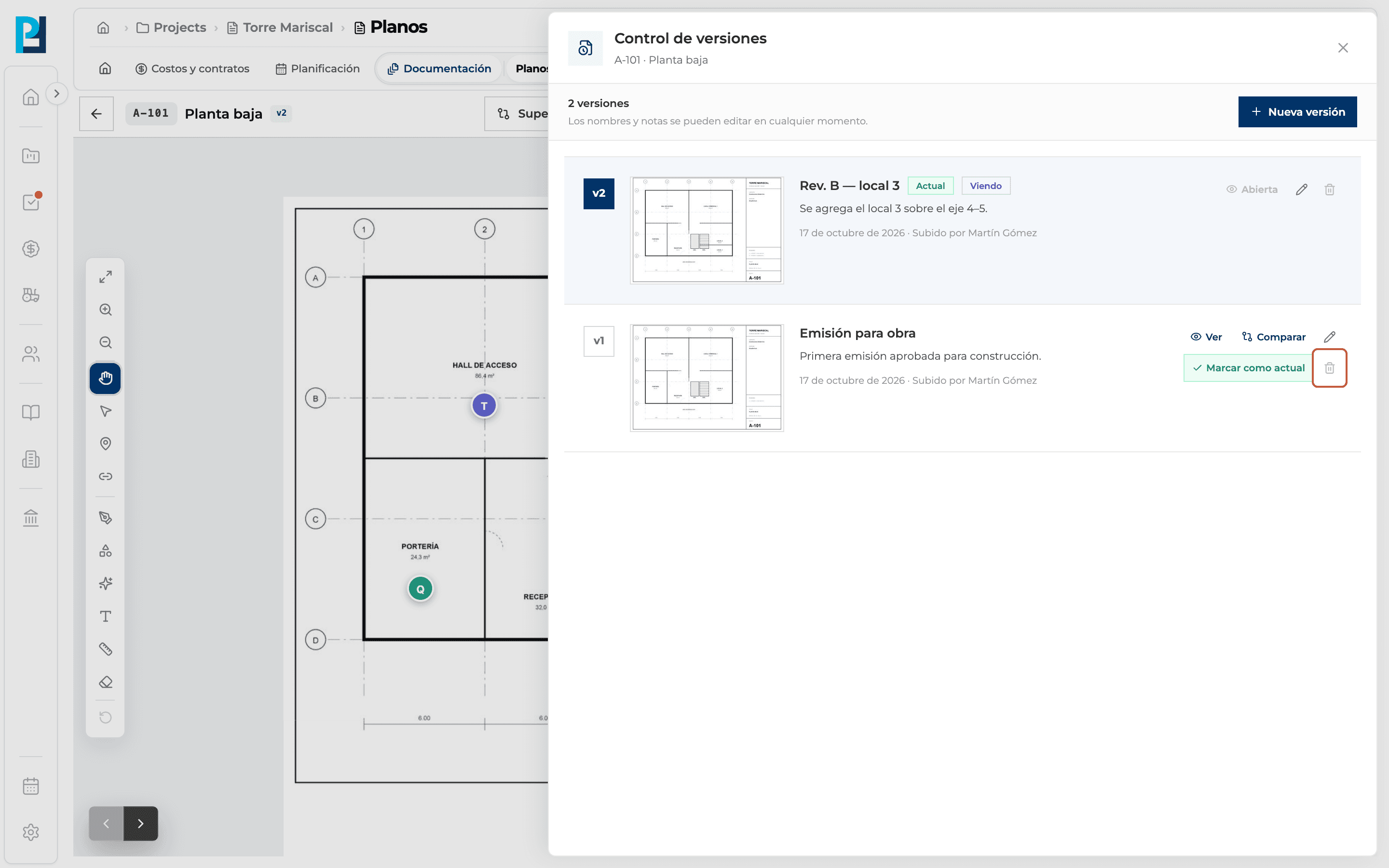
How to complete version control
- 01
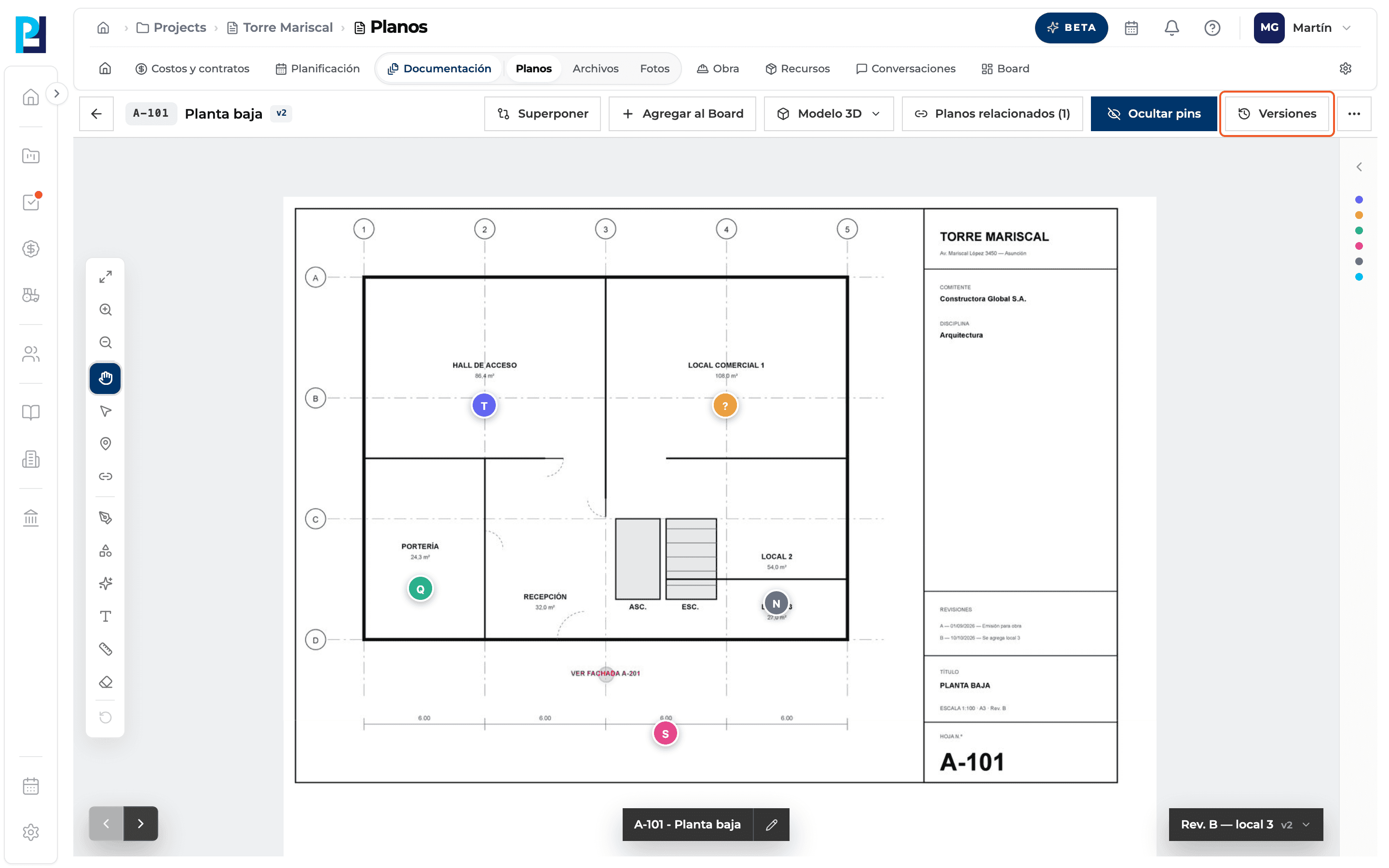
Open the panel
Click Versiones (Versions) in the viewer header.
- 02
Read each row
Version number, thumbnail, version name (the date if it has none), notes, date and who uploaded it. Tags: Actual (current) and Viendo (the one you have open).
- 03
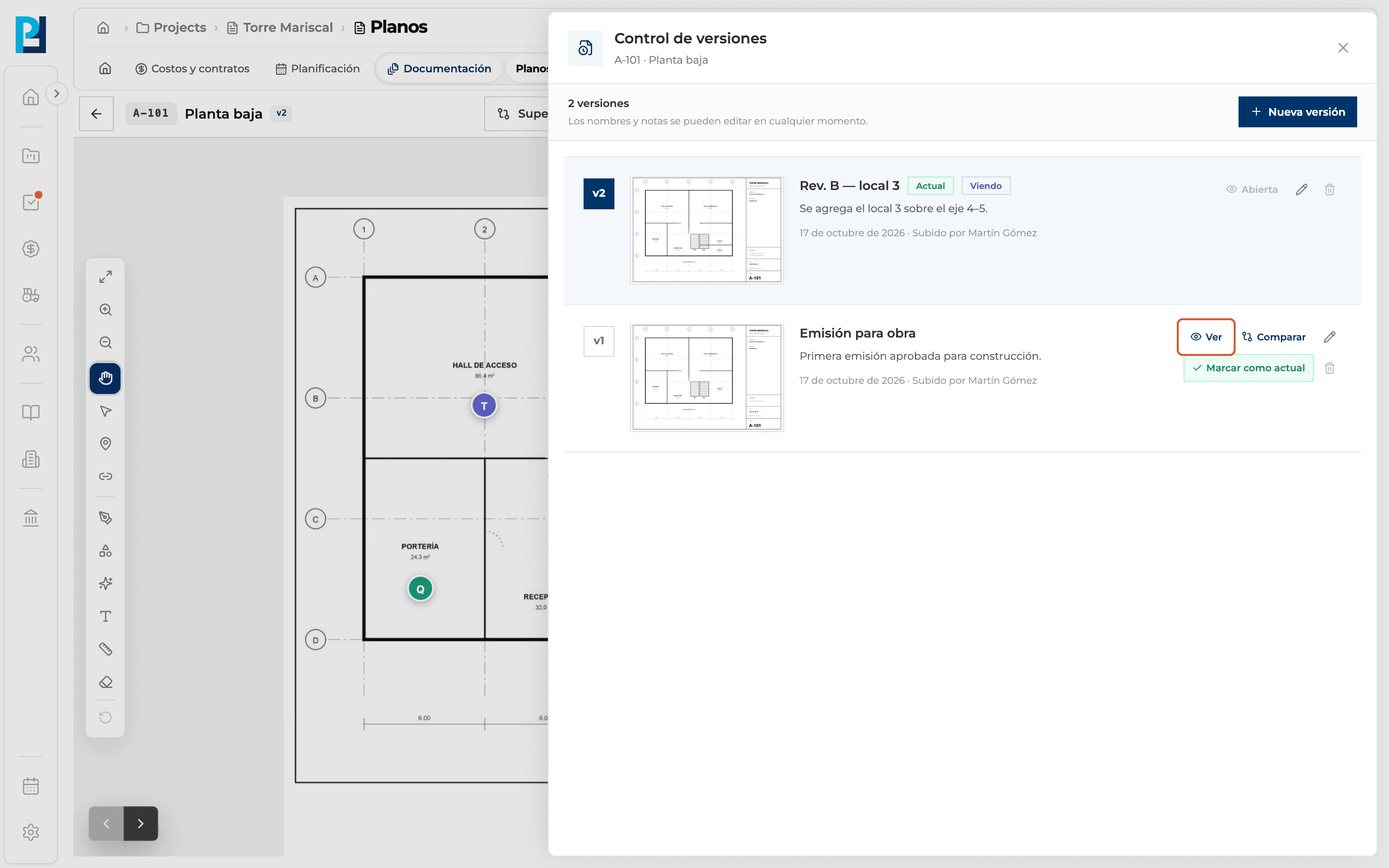
Open a version
Click Ver (View). The one you already have open says Abierta (Open).
- 04
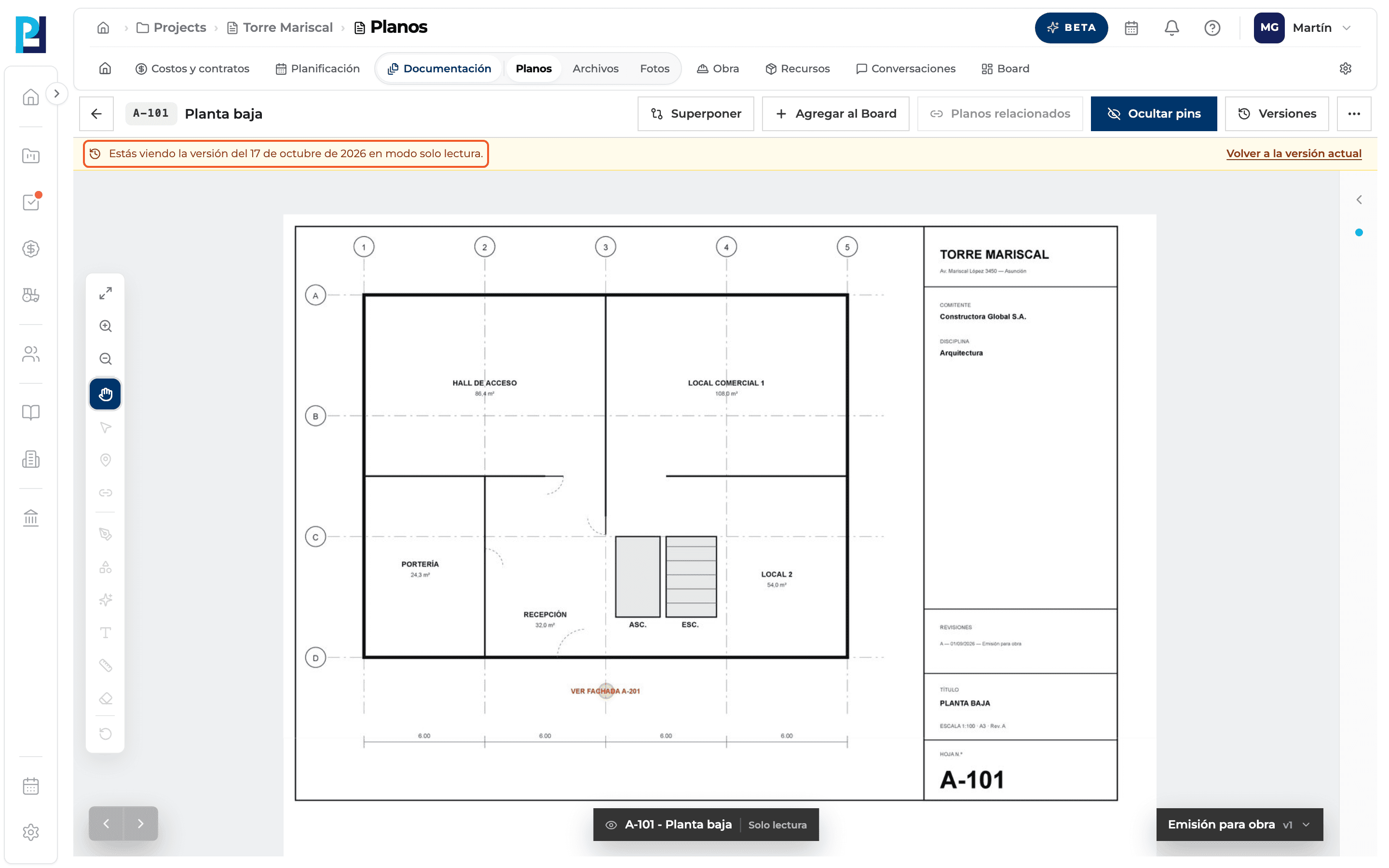
Read-only mode
On an earlier version, an amber banner says it is read-only, with the link Volver a la versión actual (Back to current version).
- 05
Switch version quickly
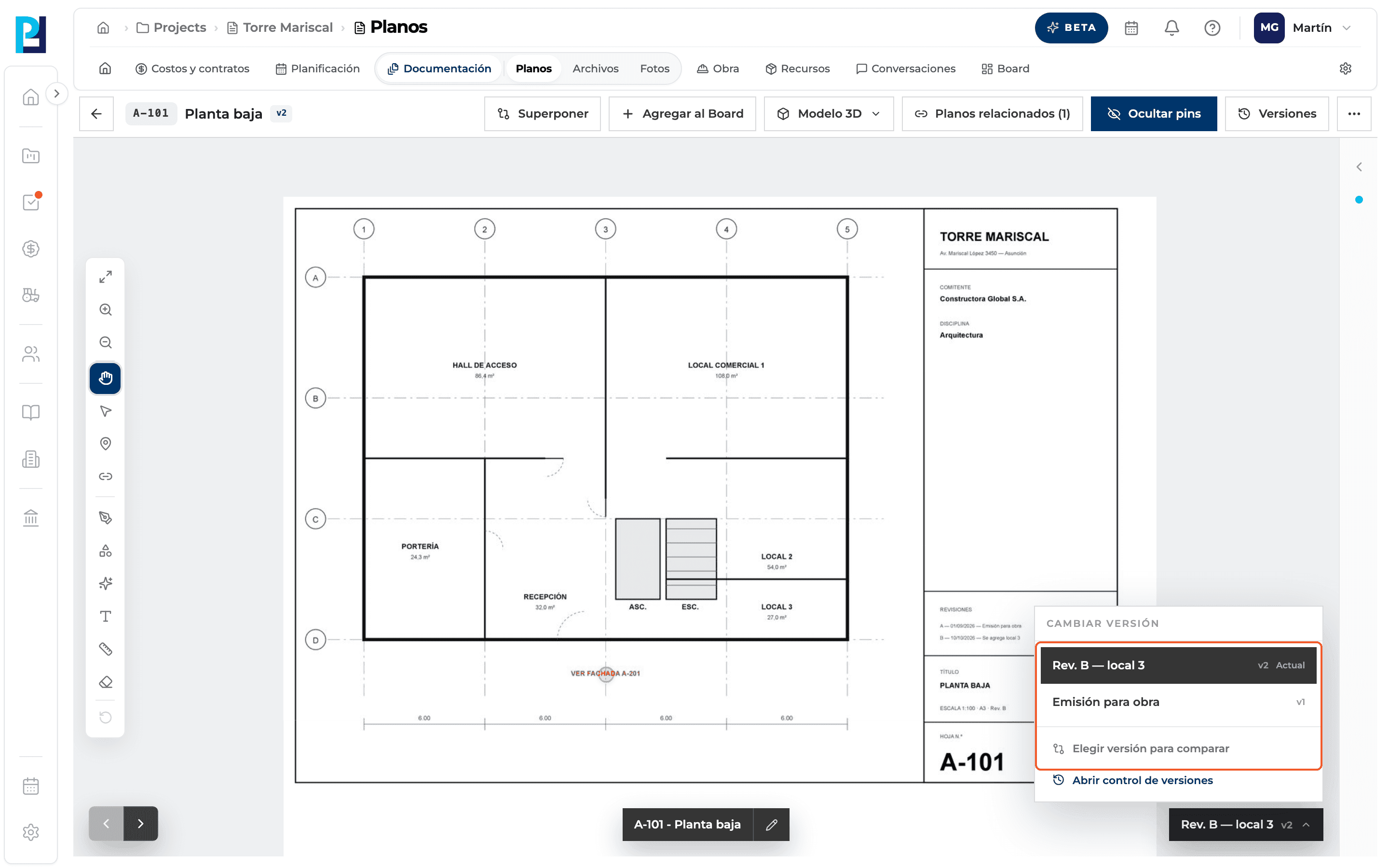
Without opening the panel: the version button at the bottom right lists the versions, plus Choose version to compare and Open version control.
- 06
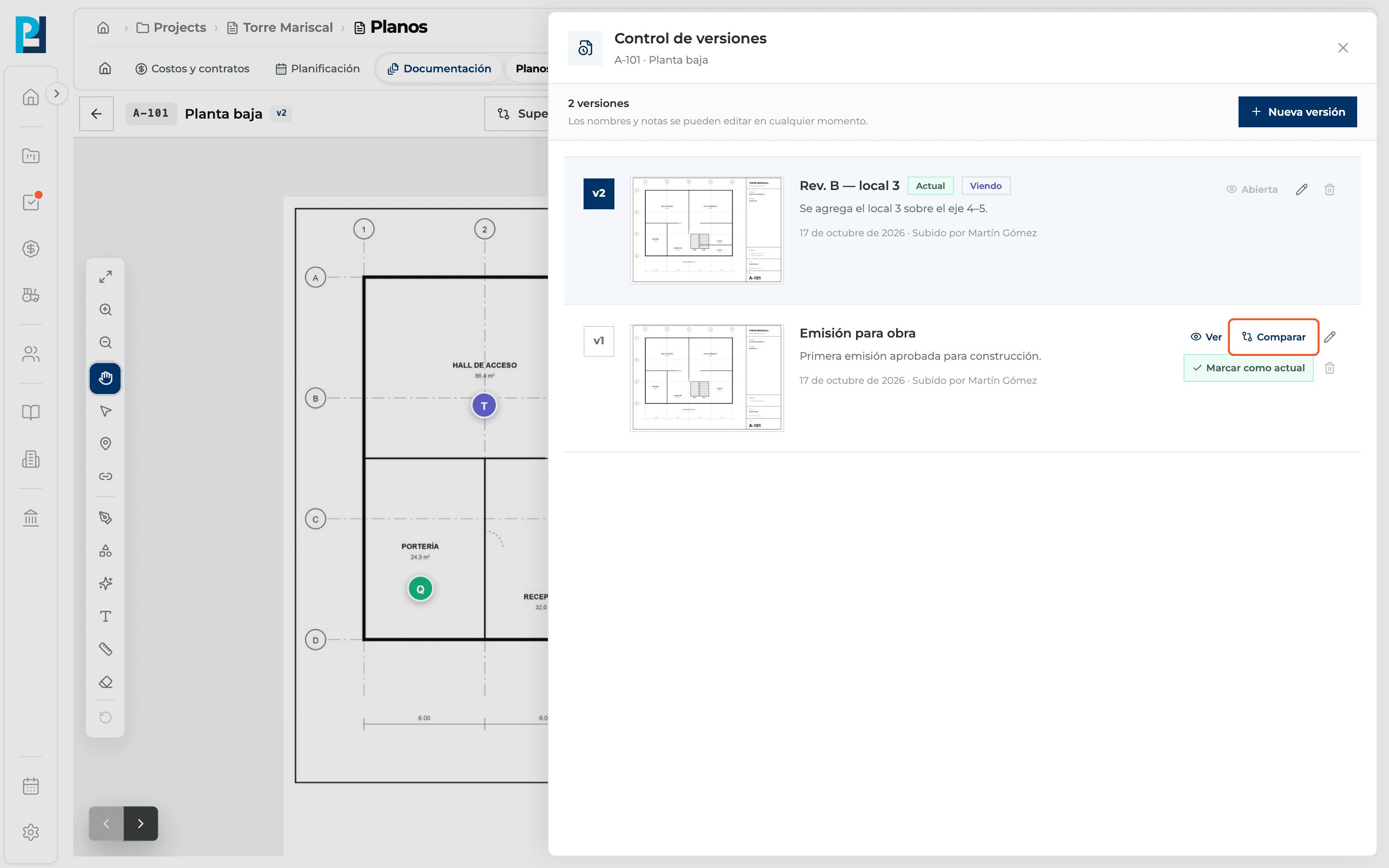
Compare
Comparar overlays that version on the one you are viewing (see the comparison guide).
- 07
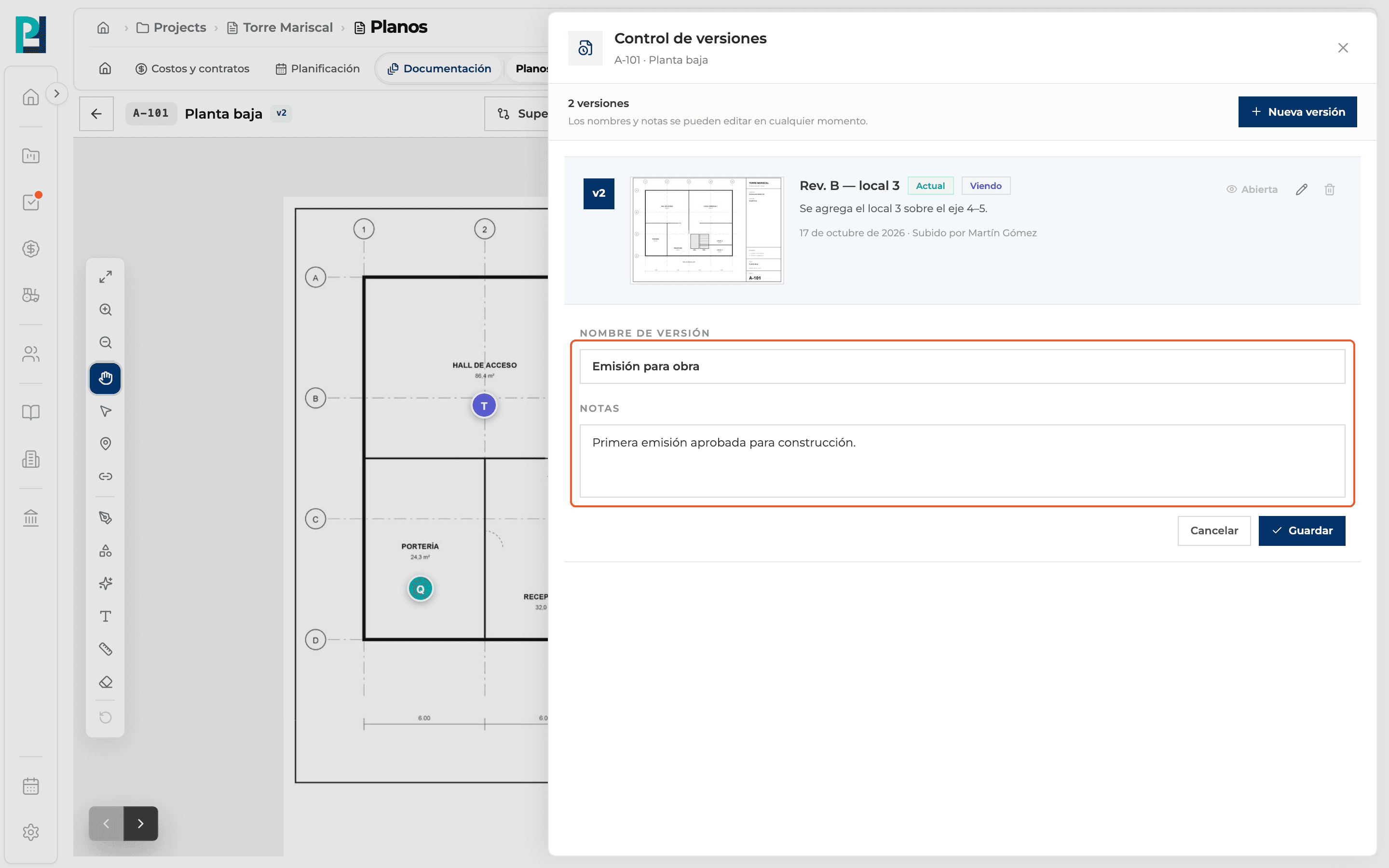
Edit name and notes
The pencil opens the version name (for example «Issued for construction») and notes on what changed. Click Guardar.
- 08
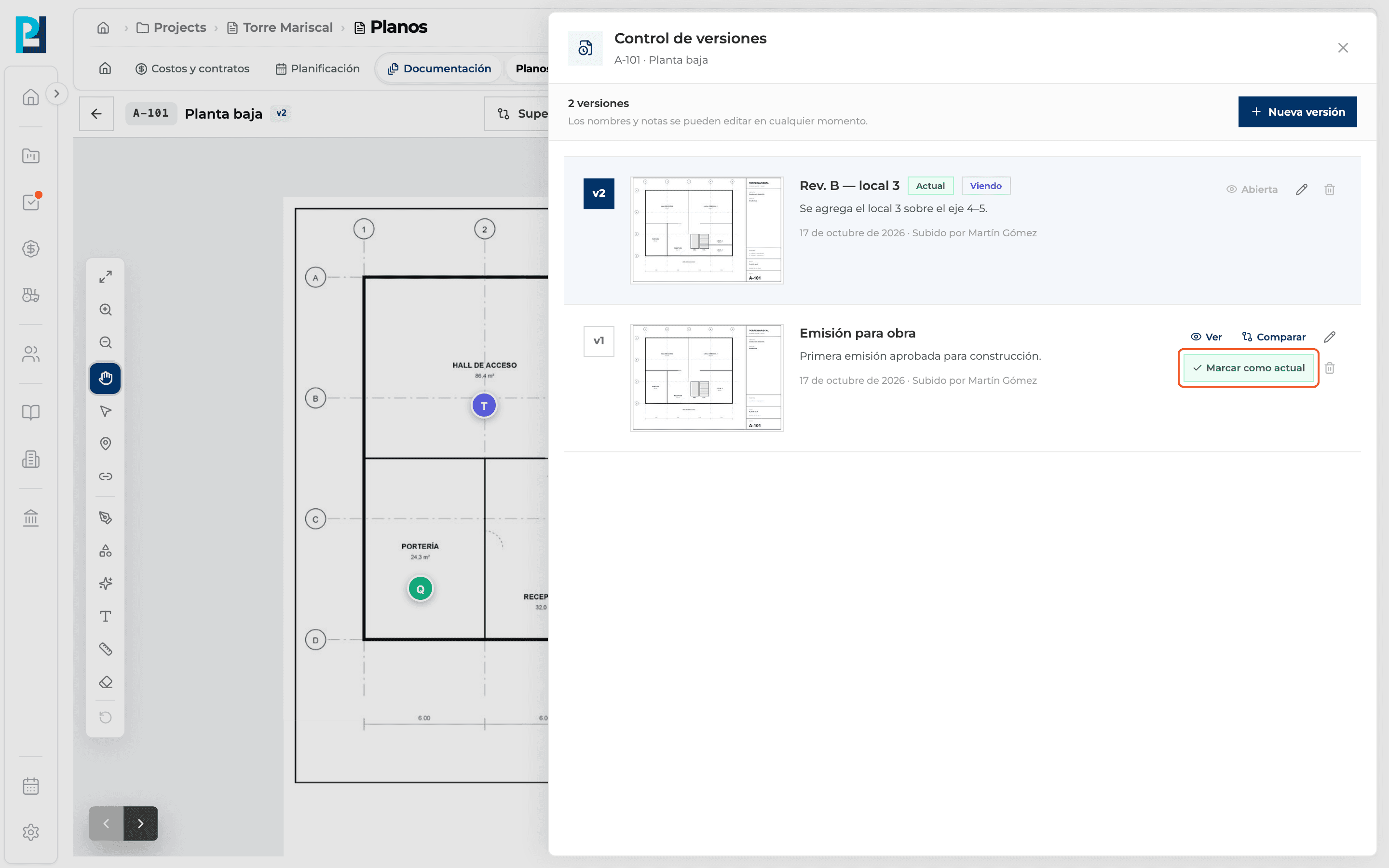
Mark as current
Marcar como actual, on a version that isn't current, asks for confirmation. The current one moves to the history.
- 09
Delete a version
The bin asks for confirmation. If you delete the one you were viewing, the viewer takes you to the current version.
What you'll learn
How version history: view, name, mark as current and delete works inside Perfour.
What information you need and how it stays connected to Drawings.
How to preserve traceability and find the record later.
Frequently asked questions
«You can't delete the drawing's only version».+
A drawing always keeps at least one version. To remove the whole drawing use Delete drawing in the library.
I don't see the edit, mark or delete buttons.+
The drawing is shared from another project: its history is read-only.
Does marking as current change what other projects see?+
Yes: projects the drawing was shared with always see the current version.