Open a drawing and get around the viewer (zoom, navigation, shortcuts)
The viewer shows the drawing as tiles so you can zoom without losing sharpness, with tools on the left and the pin list on the right.
How to complete drawing viewer
- 01
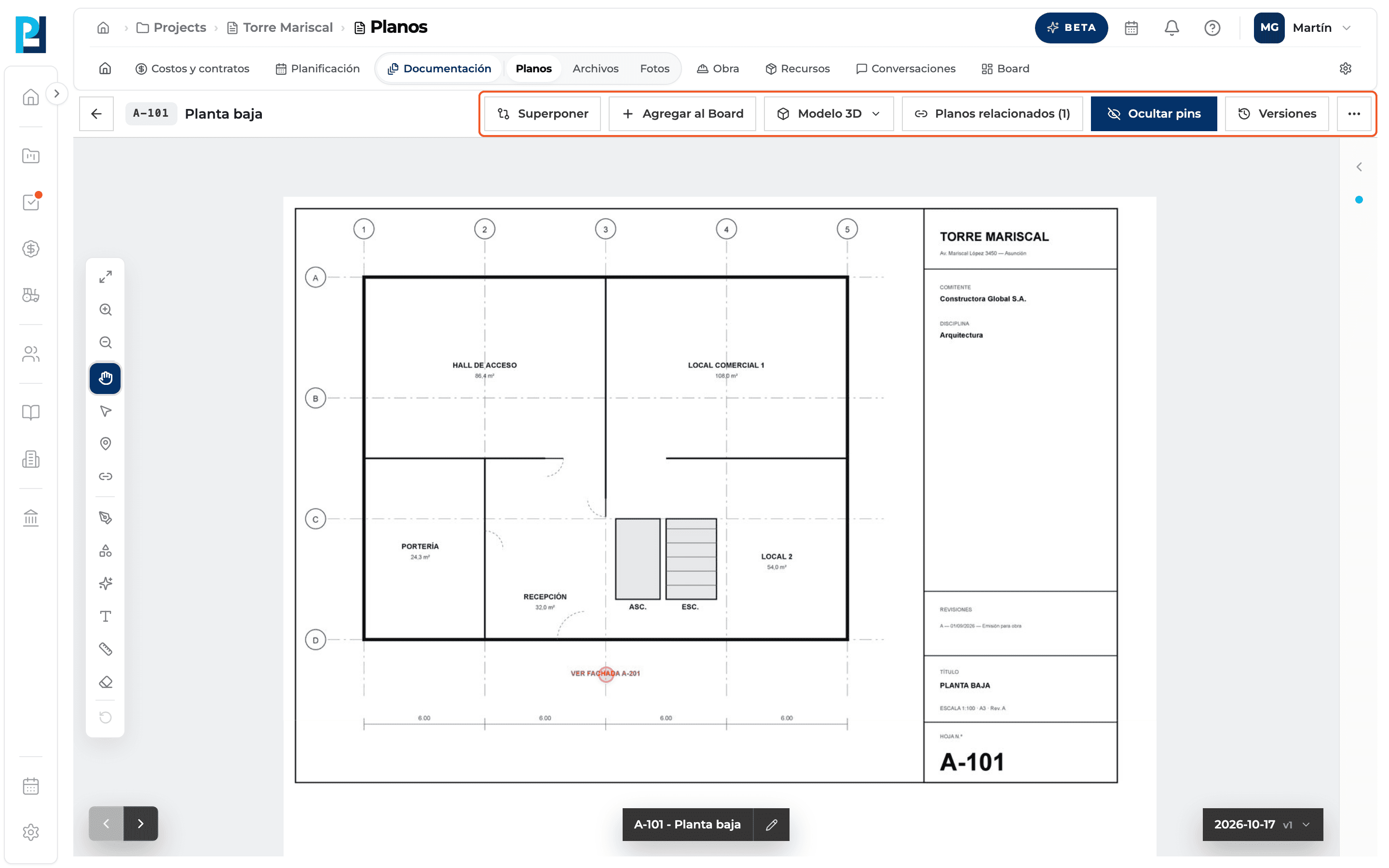
Open the drawing
Click its card in the library. The drawing has to be Ready.
- 02
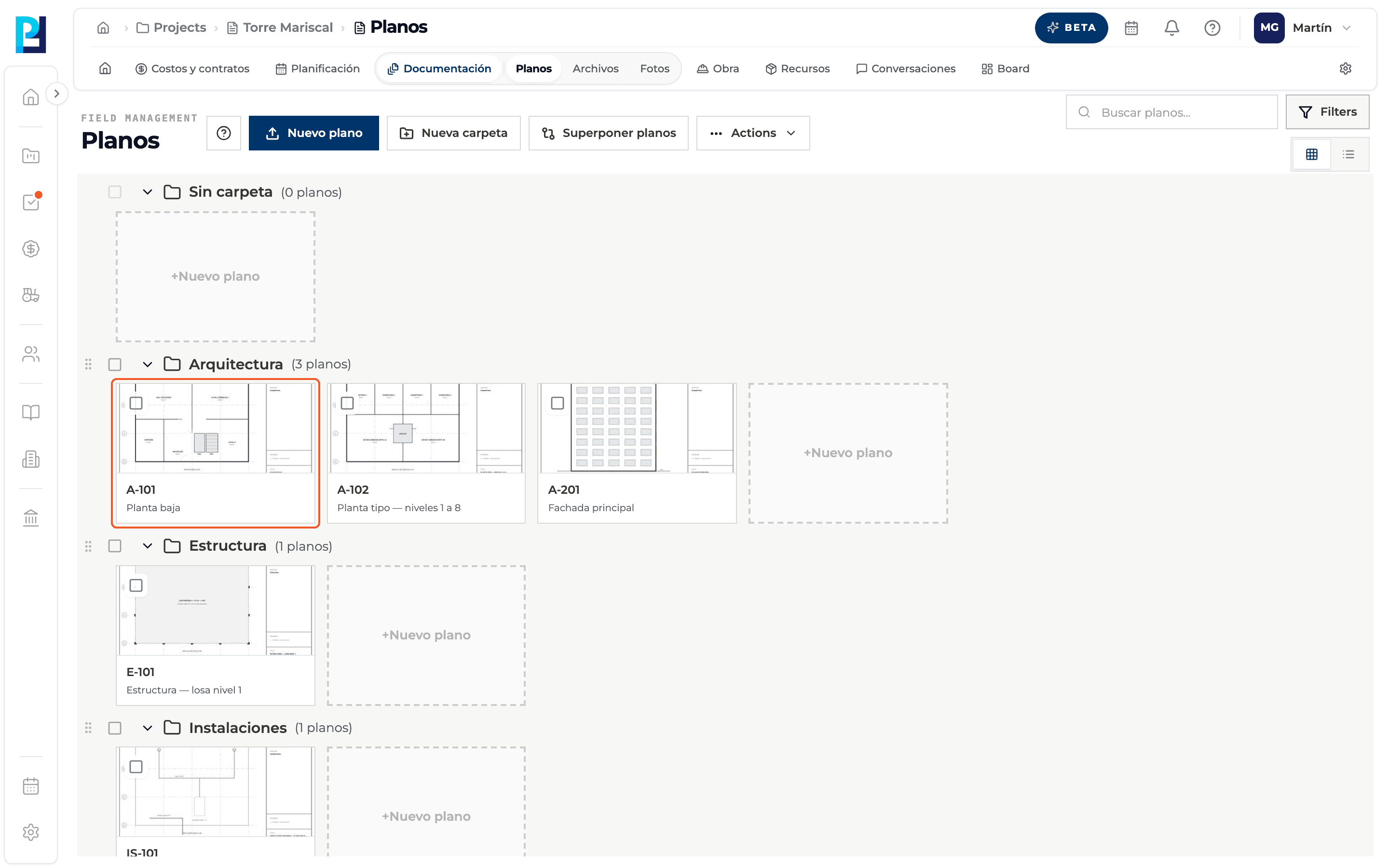
Read the header
Sheet number and name, a v2, v3… tag when there are more versions, and the Overlay, Add to Board, 3D model, Related drawings, Hide pins, Versions buttons and the ⋯ menu.
- 03
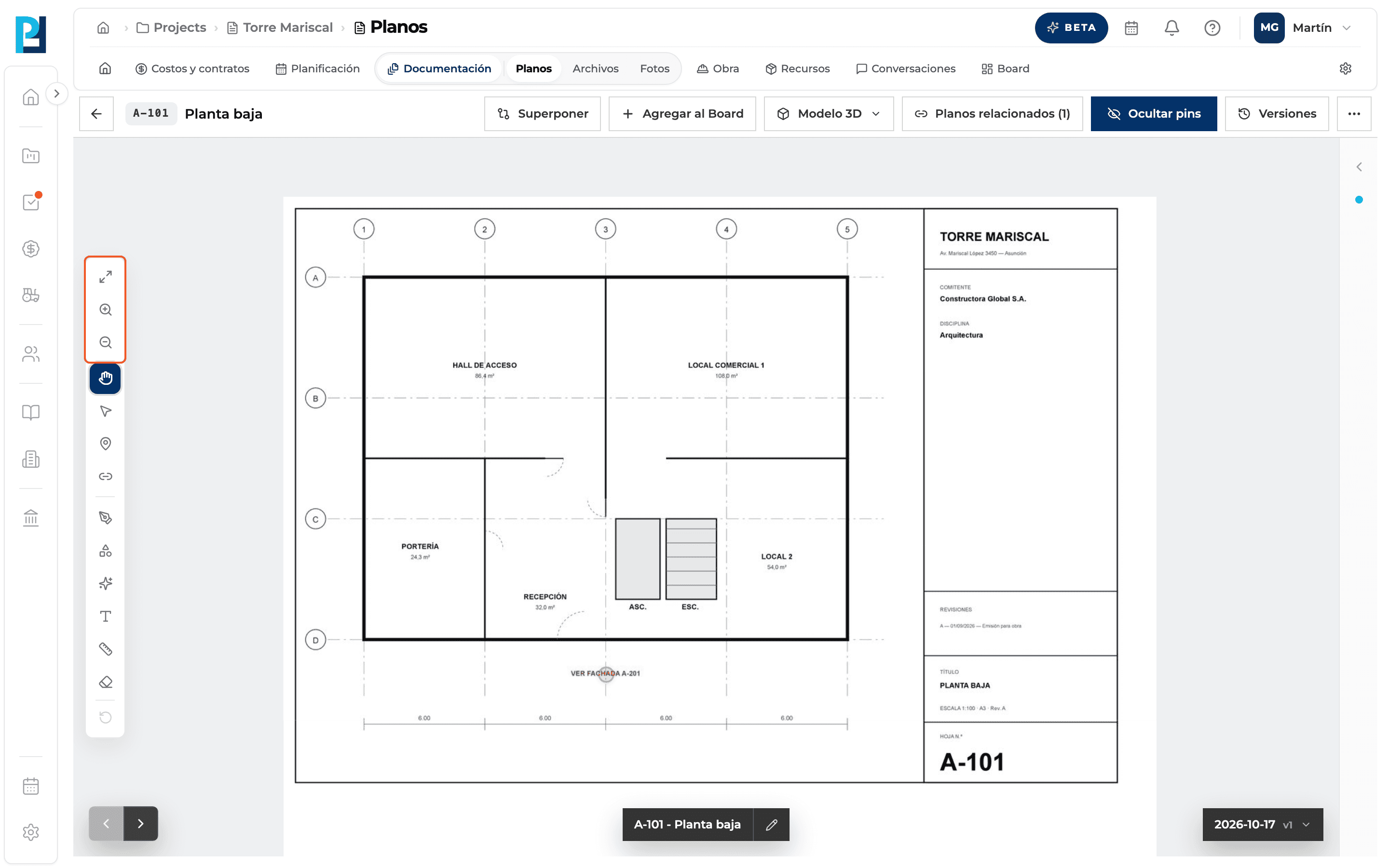
Zoom
Mouse wheel, pinch or double click, or the Fit to screen, Zoom in and Zoom out buttons on the left bar.
- 04
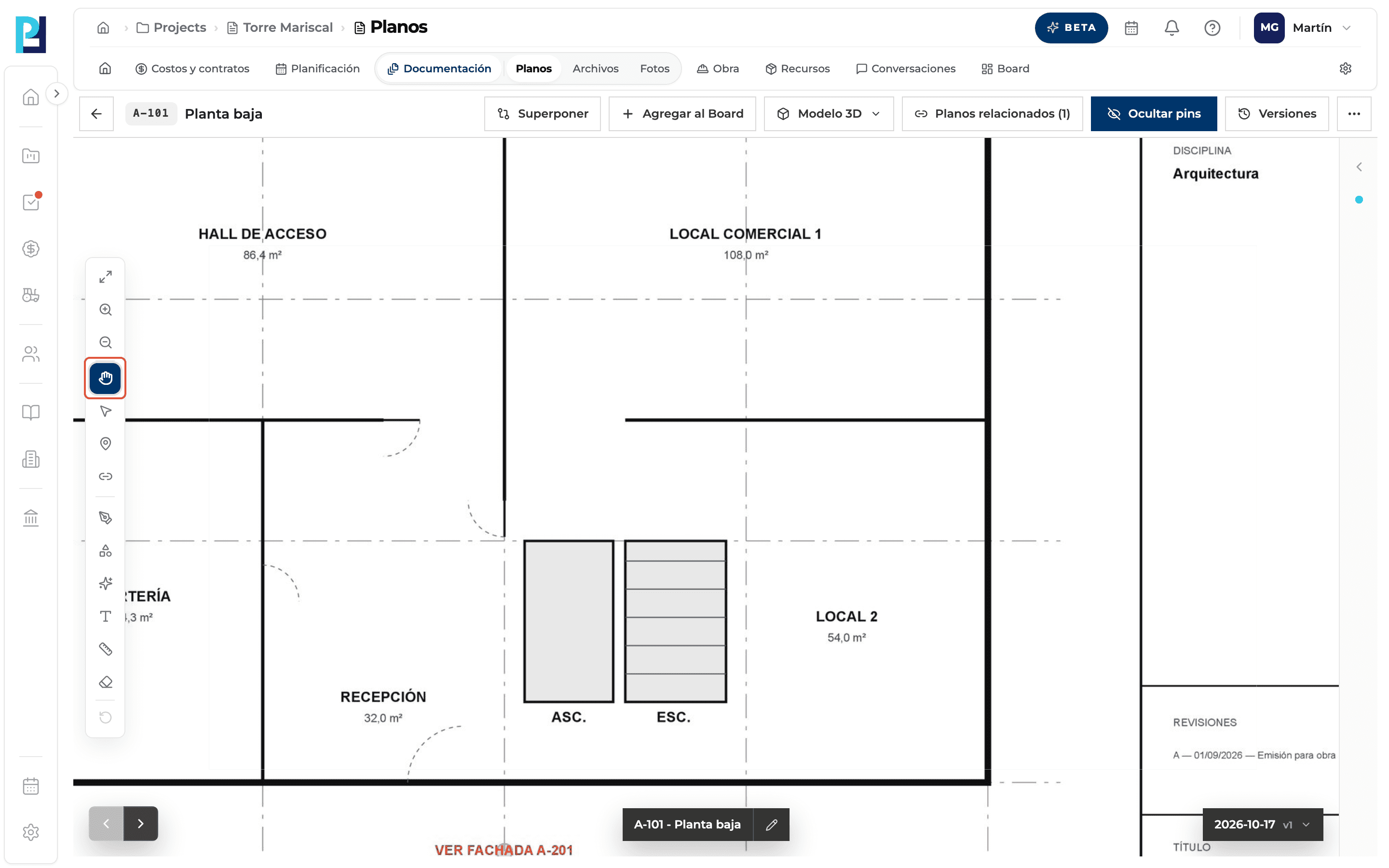
Pan the drawing
With the Mover (Pan) tool, the default, drag the drawing.
- 05
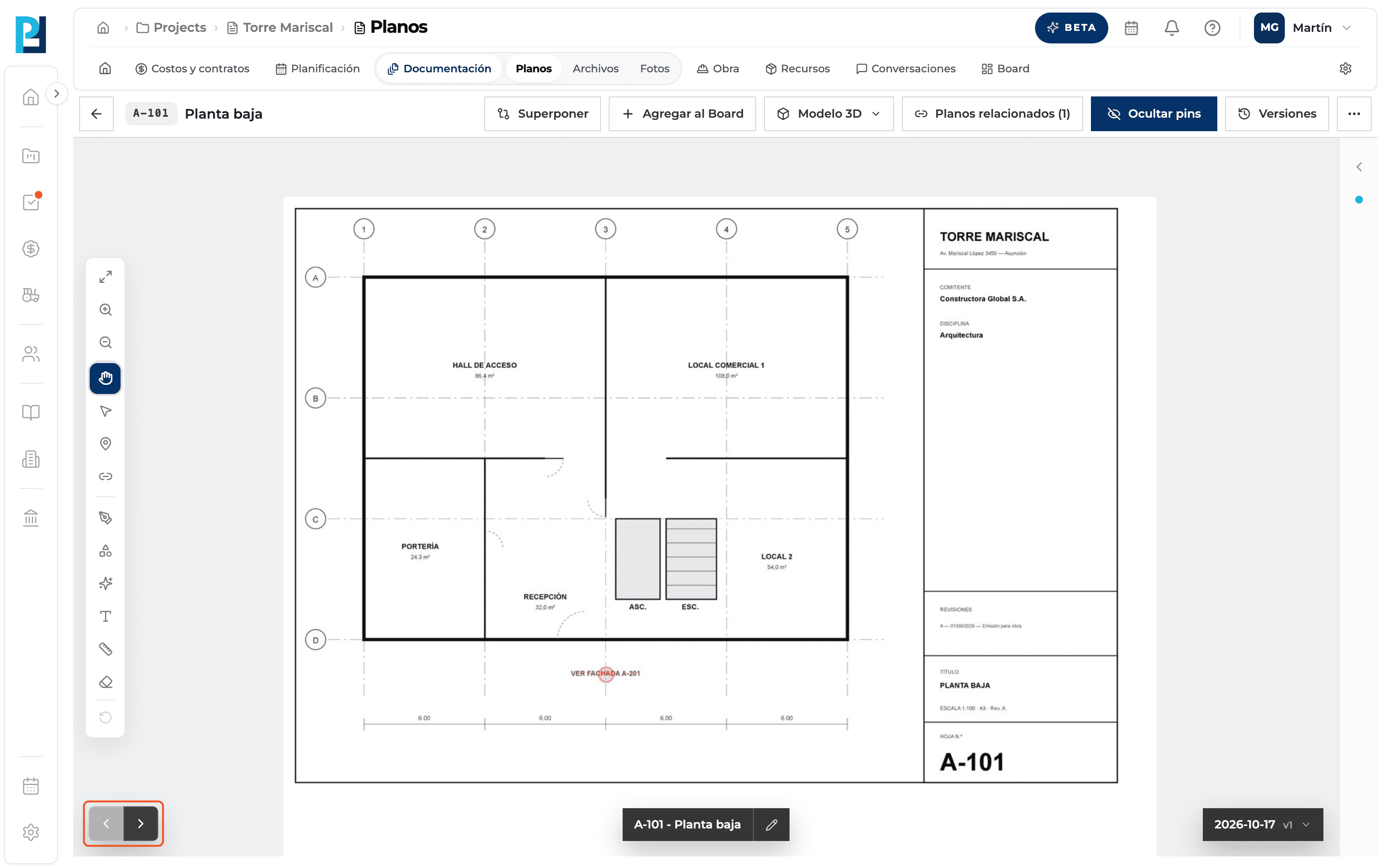
Go to the previous or next drawing
The arrows at the bottom left step through the folder's drawings by sheet number. Shortcut: Alt + ← and Alt + →.
- 06
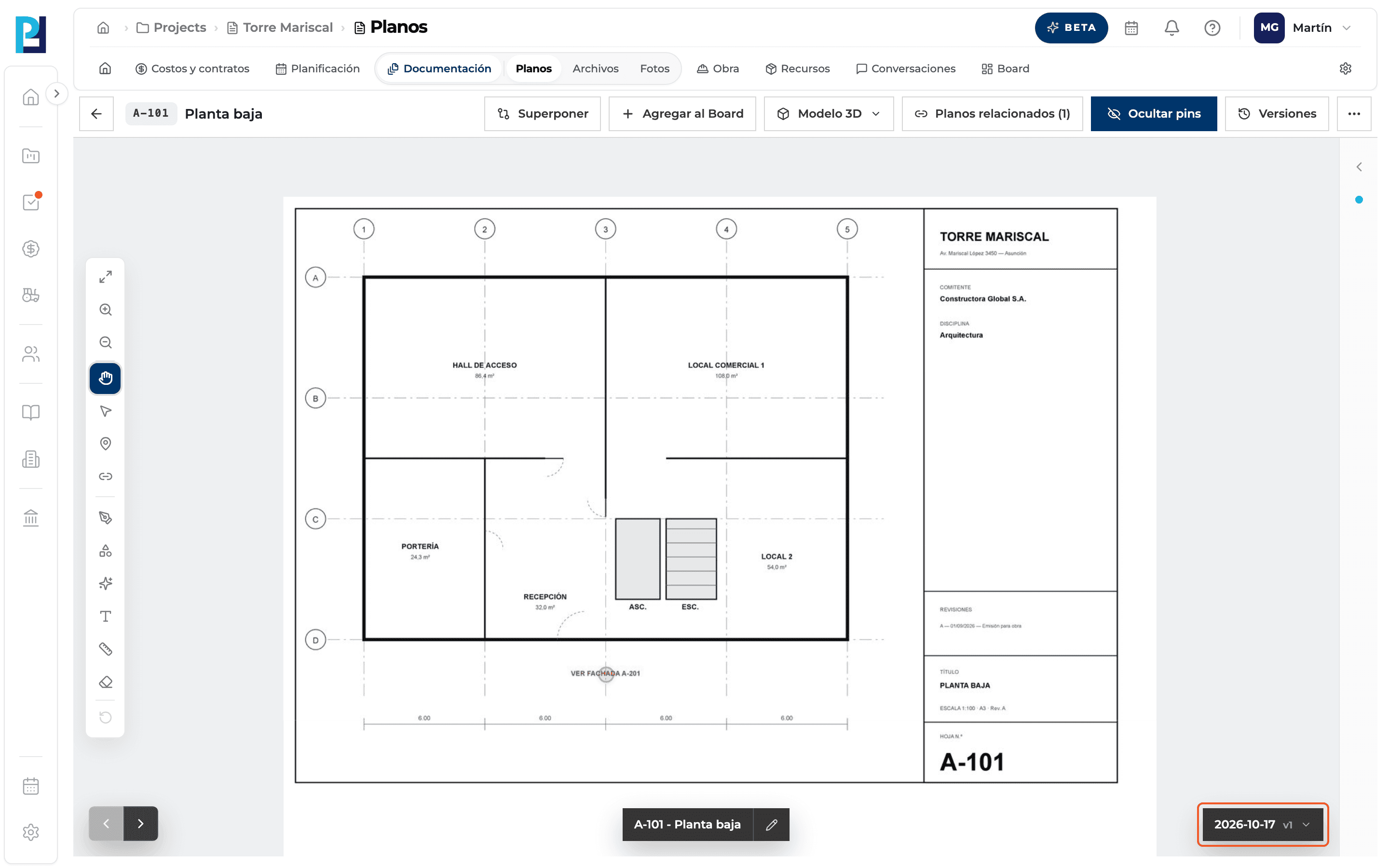
Switch version
At the bottom right, the button with the version name opens Cambiar versión (see the history guide).
- 07
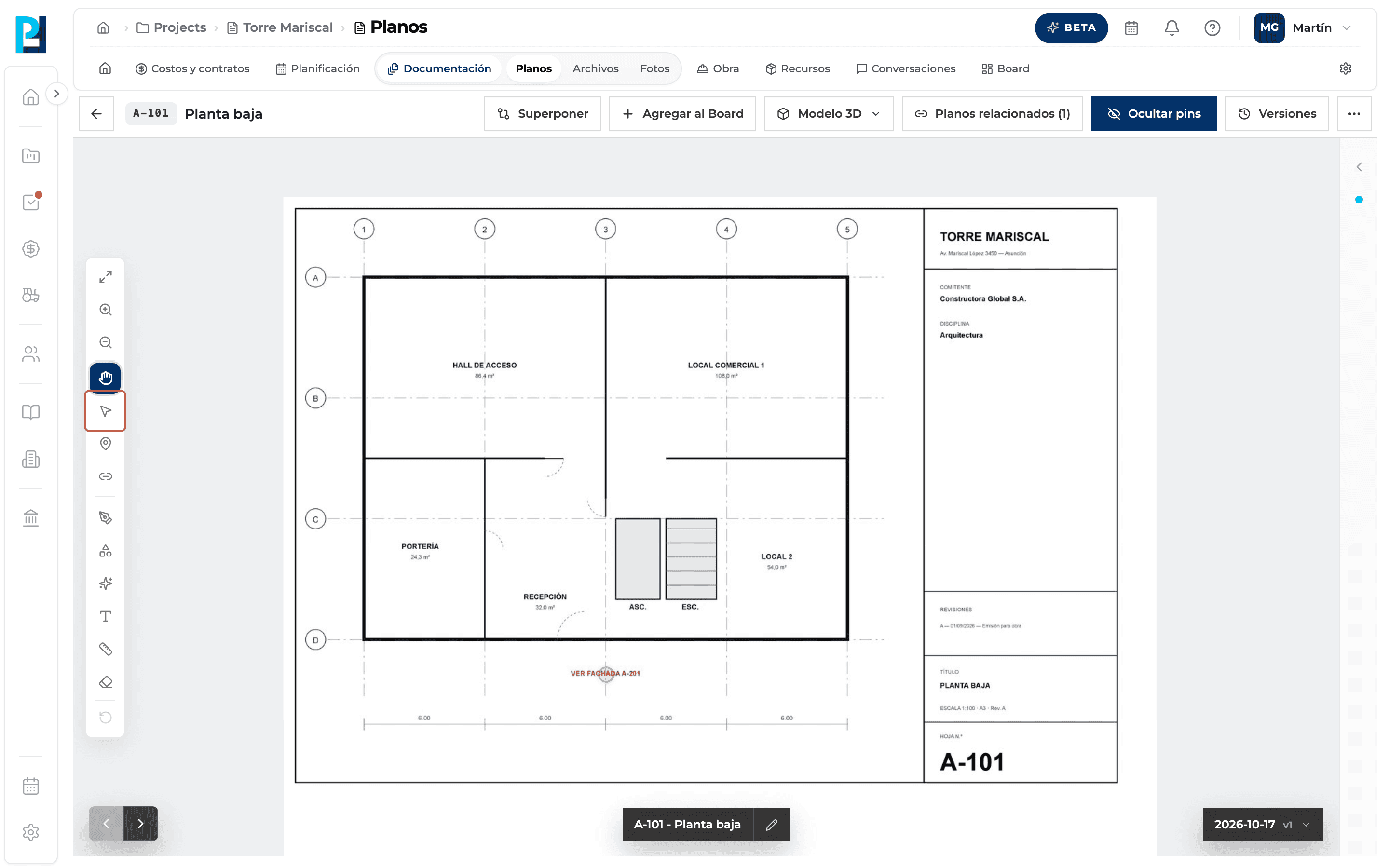
Use the shortcuts
V turns on Select and Esc goes back to Pan. They don't work while you are typing in a field.
- 08
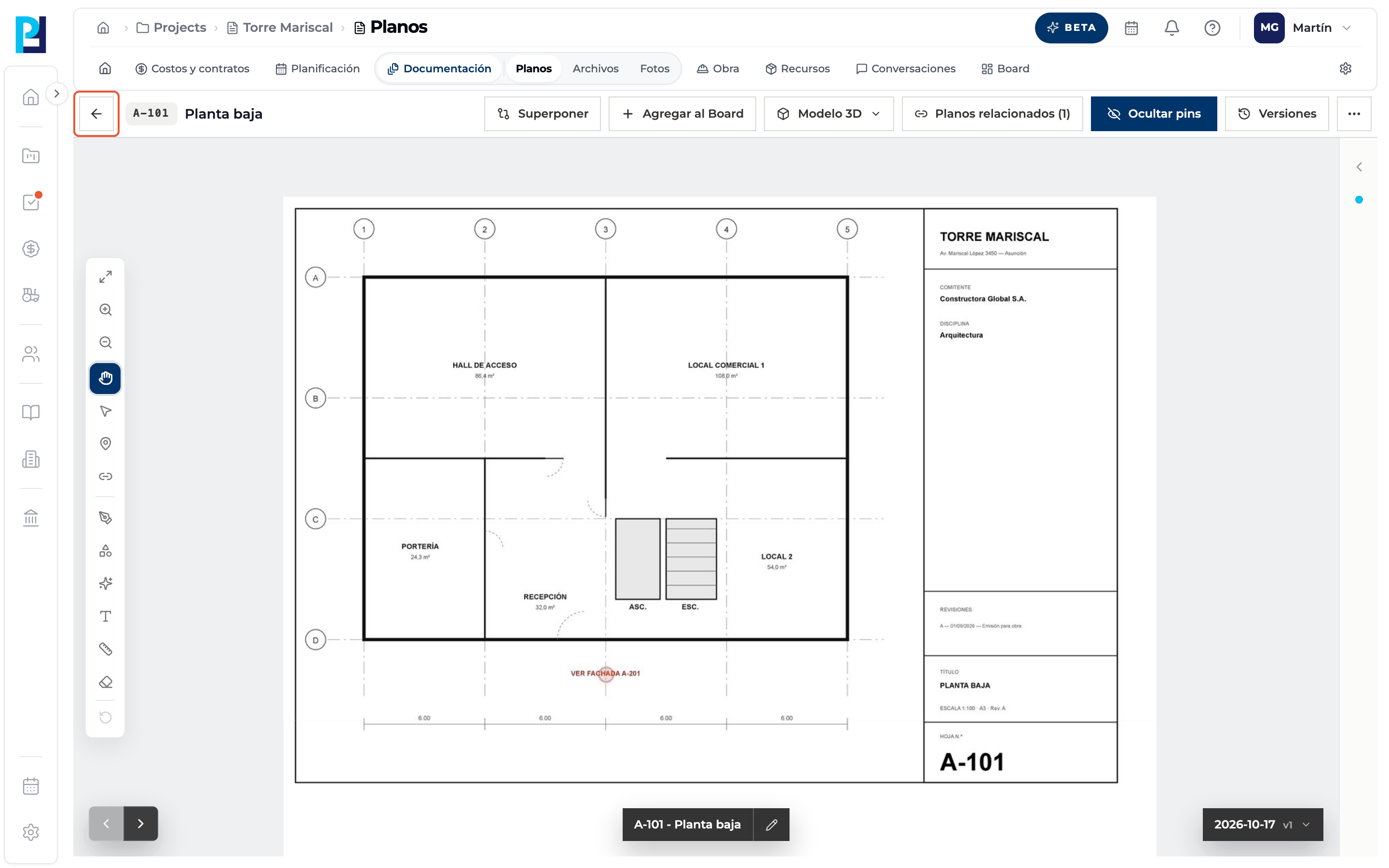
Go back
The arrow at the top left takes you back to the library, in the same folder.
What you'll learn
How open a drawing and get around the viewer (zoom, navigation, shortcuts) works inside Perfour.
What information you need and how it stays connected to Drawings.
How to preserve traceability and find the record later.
Frequently asked questions
Why can't I draw or add pins?+
You are viewing an earlier version or you don't have document upload permission: only Pan works.
Is the zoom saved?+
No: each time you open the drawing it starts fitted to the screen.